Table of Contents
This updated guide explains how to Send and Receive Email with Gmail through clear steps, practical examples, and important checks that help prevent common errors.
1. How to Send Gmail Email
Step 1:
You login to Gmail at the address you registered at Gmail. com or mail. google. com.
Step 2:
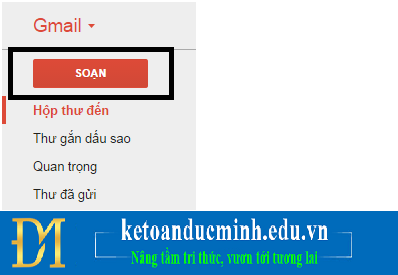
Click the Compose button in the left menu.
Step 3:
The Compose window for sending Gmail is displayed. However, this is a quick compose tool, you click the two-way arrow button as shown below to switch to a larger window, compose more comfortable messages.

Step 4:
The window for composing outgoing letters of Gmail is larger (If you may need to minimize it as in step 3, then click the two-way arrow button).
2. Instructions for Using the New Gmail Compose Frame
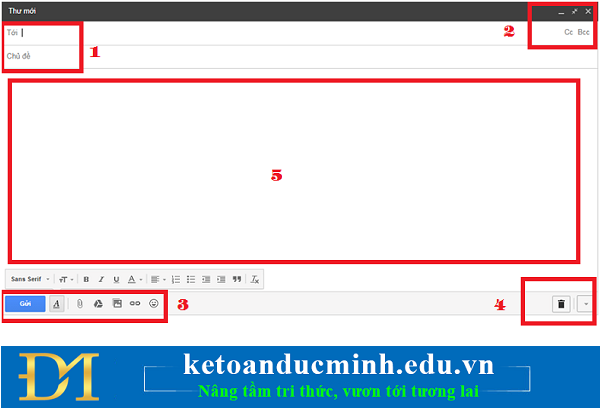
Position 1: Enter the email address of the recipient and the subject of the message.
Position 2: Zoom out (-), zoom in (↔), close (x) the compose window. Cc: Add email recipients. Bcc: Add email recipients.
Position 3: Tools for drafting. Which in turn are: Editing tools, attach files under 25MB, attach files larger than 25MB, insert pictures, insert links, insert smileys.
Position 4: Trash image: Delete the email you are composing. Figure dropdown arrow: Add advanced options such as print, spell check.
Number 5: Gmail's drafting frame.
Note: While composing a message, your message will be automatically saved in Drafts until sent.
After composing, press the Send button to send the message. Notice of successful mailingYou can review messages in the Sent section in the left menu of Gmail.

3. Instructions to Receive Email (Email) with Gmail
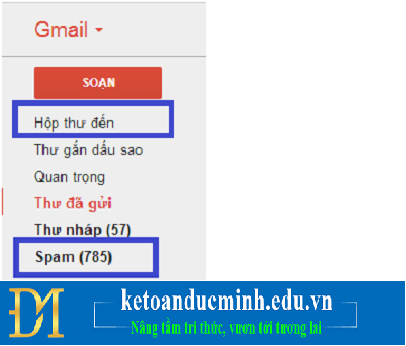
You can view messages that others have sent to you in the Inbox section, if not, you should see in the Spam section as well.
FAQ
What is the easiest way to Send and Receive Email with Gmail?
Start with the requirements in this guide, then follow each step in order. Check the result after every major change so problems are easier to identify.
Can beginners follow these instructions?
Yes. The process is organized into practical steps, and you can repeat any step before moving forward.
What should I check if the method does not work?
Confirm your software or device version, permissions, settings, file format, and internet connection when the task depends on online services.
Related Articles
 Instructions for Recovering Email Sent on Gmail iPhone / iPad6 minutes read
 How to Send Mail with Gmail: Step-by-Step Guide6 minutes read
 How to Send Email by Gmail Details for New Users4 minutes read
 How to Enable Gmail's Undo Send Feature?3 minutes read
 How to Set up SMTP Server to Send Email from Gmail Account3 minutes read
 How to Add a New Email Address to Your Gmail Contacts5 minutes read
Reader Comments 0
Sign in with email or Google to join the discussion.