Table of Contents
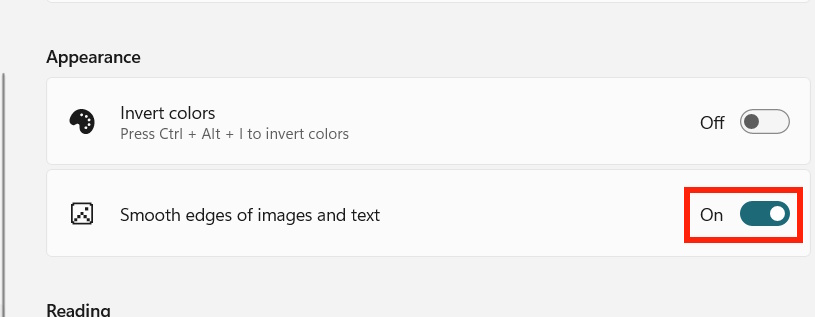
Windows 11 Magnifier can smooth the edges of enlarged text and images so diagonal lines and letter shapes look less jagged. The setting changes only how magnified content appears on screen; it does not increase the source image's resolution or modify the original file.
Turn on edge smoothing in Magnifier
- Open Settings with Windows + I, then select Accessibility.
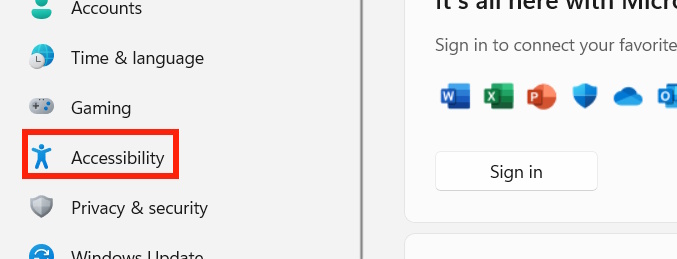
- Select Magnifier. A keyboard-only route is Windows + Ctrl + M, which opens Magnifier settings directly.
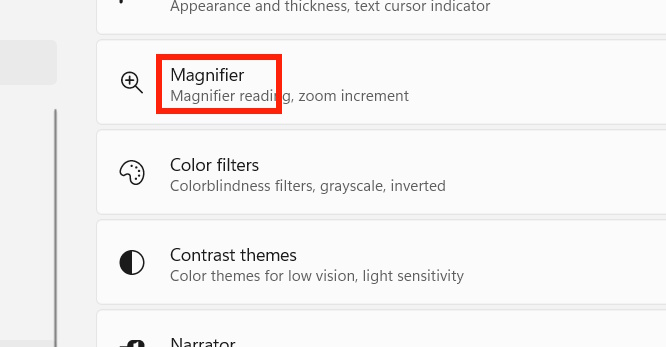
- Find Smooth edges of images and text and turn it on.
- Start Magnifier with Windows + Plus (+), enlarge the same text or image, and compare the result. Turn the setting off again if the unsmoothed view is clearer for your task.
When smoothing helps
Edge smoothing is often easier on the eyes when reading text, viewing interface controls or examining photographs at moderate zoom. It blends the hard pixel boundaries produced by enlargement.
It is a preference, not an objective quality upgrade. Pixel art, tiny icons, technical screenshots and work that requires inspecting individual pixels may look less precise with smoothing enabled. Toggle it while viewing the content you actually need to read.
Useful Magnifier shortcuts
| Action | Shortcut |
|---|---|
| Start Magnifier or zoom in | Windows + Plus (+) |
| Zoom out | Windows + Minus (-) |
| Close Magnifier | Windows + Esc |
| Open Magnifier settings | Windows + Ctrl + M |
| Cycle through Full screen, Lens and Docked views | Ctrl + Alt + M |
| Invert colors while Magnifier is active | Ctrl + Alt + I |
| Temporarily show the whole screen in Full screen view | Ctrl + Alt + Spacebar |
Full screen enlarges the entire display, Lens magnifies the area around the pointer, and Docked keeps a magnified strip in a fixed part of the screen. TipsMake's guide to zooming a computer screen with Magnifier explains these view modes in more detail.
Choose the right zoom tool
Magnifier is intended for temporary or accessibility-focused enlargement across Windows. If only one web page is too small, use the browser's page zoom. If text is consistently too small in every app, change Settings > Accessibility > Text size instead; see TipsMake's guide to changing text size in Windows 11.
If smoothing appears to make no difference, confirm that Magnifier—not an application's own zoom control—is active. Then test at a higher zoom level, where the difference is easier to see. Display scaling, ClearType, app rendering and the source image quality can also affect the result.
Related Articles
 How to Turn Off Smooth Scrolling in Google Chrome: Chrome Scroll2 minutes read
 How to Turn on and Turn Off Smooth Scrolling on Opera3 minutes read
 How to Implement Smooth Scrolling in Javascript7 minutes read
 How to Smooth Skin with Photoshop3 minutes read
 5 Customizations on Windows 10 Make the Game More 'Smooth'6 minutes read
 Instructions for Resizing Images in Windows 10 Series5 minutes read
Reader Comments 0
Sign in with email or Google to join the discussion.