Table of Contents
Windows 11 Pro is worth paying for only when you need a Pro-only capability. For most personal web, office, gaming and media use, Windows 11 Home provides the same everyday desktop experience. The strongest reasons to upgrade are centralized policy controls, Microsoft's built-in virtualization tools, and the ability to host a Remote Desktop session.
| Feature | Who benefits | Who can stay on Home |
|---|---|---|
| Local Group Policy Editor | Administrators, labs and power users managing repeatable Windows policies | Users whose settings are already available in the Settings app |
| Hyper-V and Windows Sandbox | Developers, IT learners and users who regularly need isolated test environments | People who do not run virtual machines or are satisfied with another supported hypervisor |
| Remote Desktop host | Users who need to sign in to this PC remotely through a secured network path | People who only connect from this PC to another machine, or use a trusted alternative |
TipsMake's full Windows 11 Home and Pro comparison covers additional business and security differences. Check the current Microsoft edition comparison and upgrade price in your region before buying, because packaging and licensing can change.
1. Local Group Policy Editor
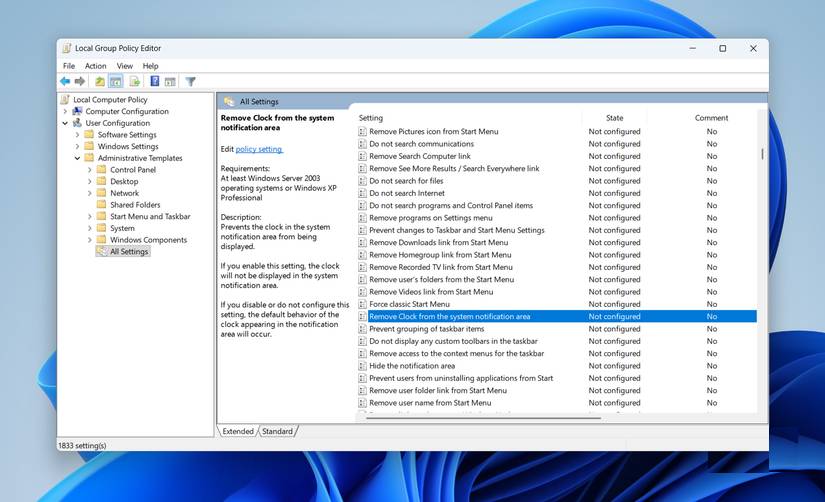
The Local Group Policy Editor (gpedit.msc) provides a structured interface for many computer and user policies. It is useful when you need to apply a setting consistently, document it and reverse it without manually editing Registry values.
Typical uses include controlling access to selected Windows features, configuring update behavior within supported limits, managing removable-storage policies and setting rules for a shared or lab PC. Pro also supports joining a traditional Active Directory domain, which matters in organizations that manage devices centrally.
Group Policy is not a universal “unlock everything” panel:
- Some policy templates apply only to Enterprise, Education or managed environments even though the editor displays them.
- A policy can conflict with mobile-device management, organization policy or a security baseline.
- It does not automatically block every third-party installer, and it should not be used to permanently avoid security updates.
- An incorrect policy can hide settings or prevent expected Windows behavior just as an incorrect Registry edit can.
Before changing a policy, record its path and original state—usually Not Configured—and confirm that the policy lists Windows 11 Pro as a supported edition. If you only need one ordinary preference, use Settings first.
2. Hyper-V and Windows Sandbox
Hyper-V for persistent virtual machines
Hyper-V can create long-lived Windows or Linux virtual machines with their own virtual disks, memory allocation, networking and checkpoints. It is valuable for software testing, server labs, development environments and learning operating-system administration.
Windows 11 Pro or another supported edition is only one requirement. The processor and firmware must support hardware virtualization and the PC needs enough memory and storage for both the host and guest. Enabling Hyper-V can also change how some third-party virtualization or emulator software operates, so check the compatibility of tools you already use.
Windows Sandbox for disposable sessions
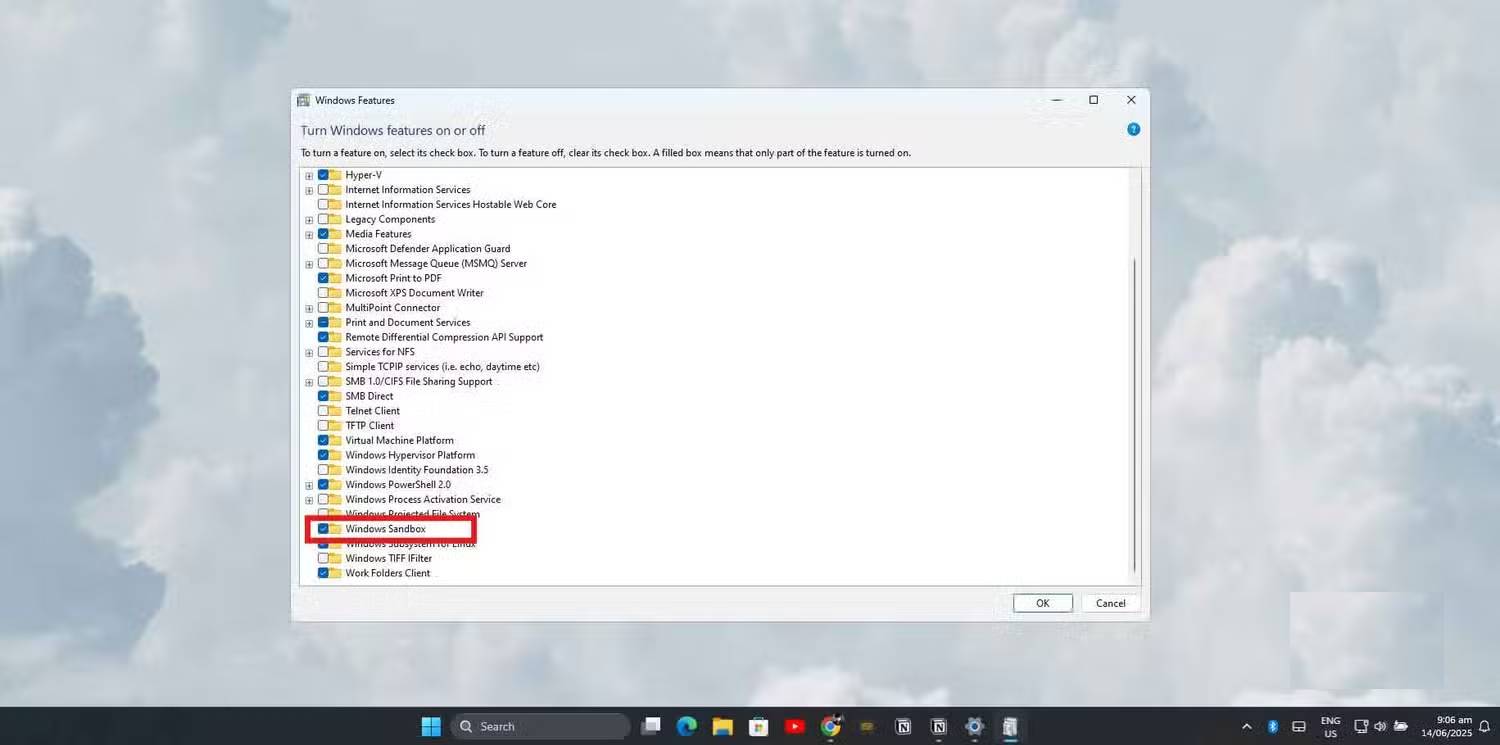
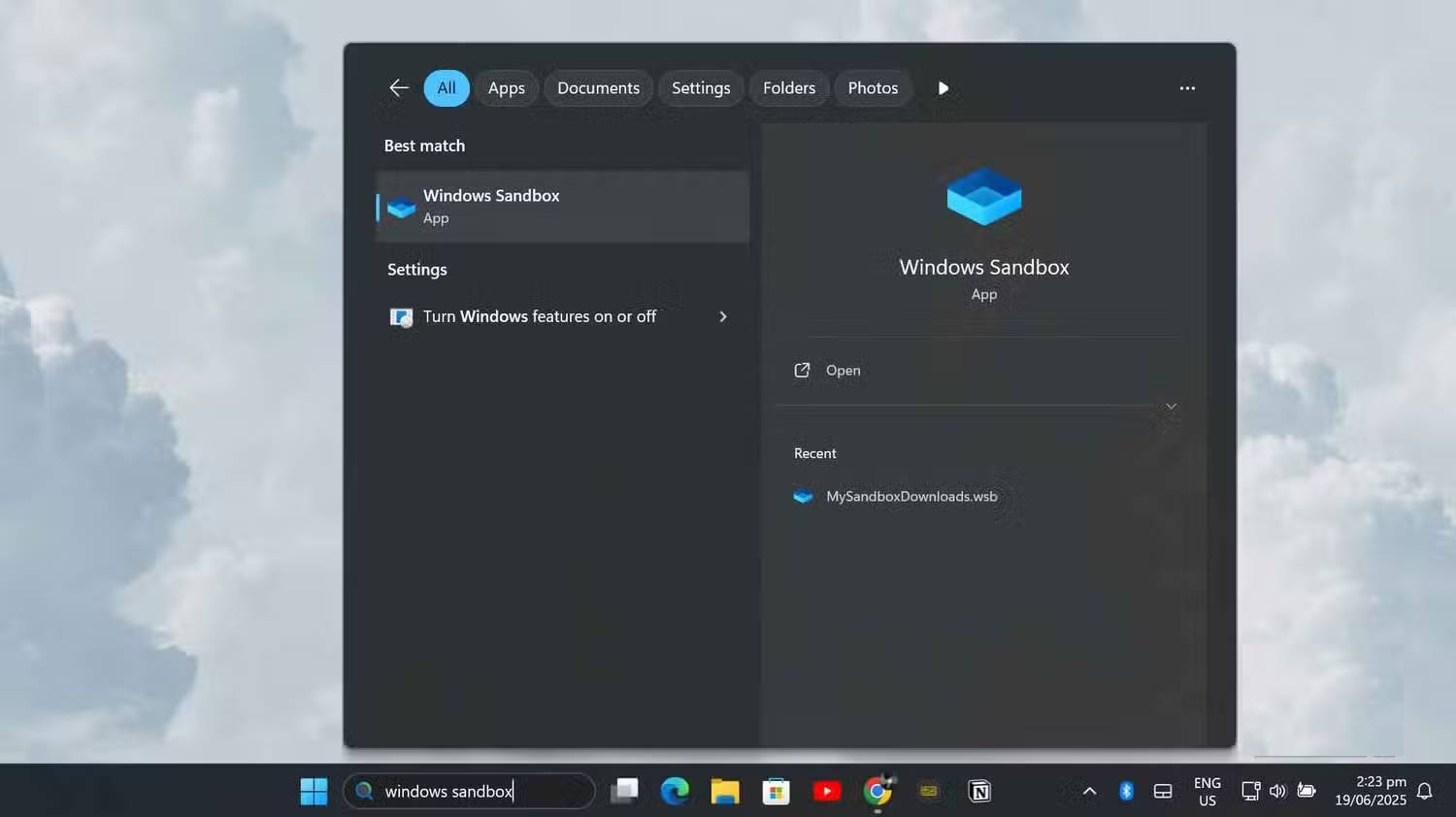
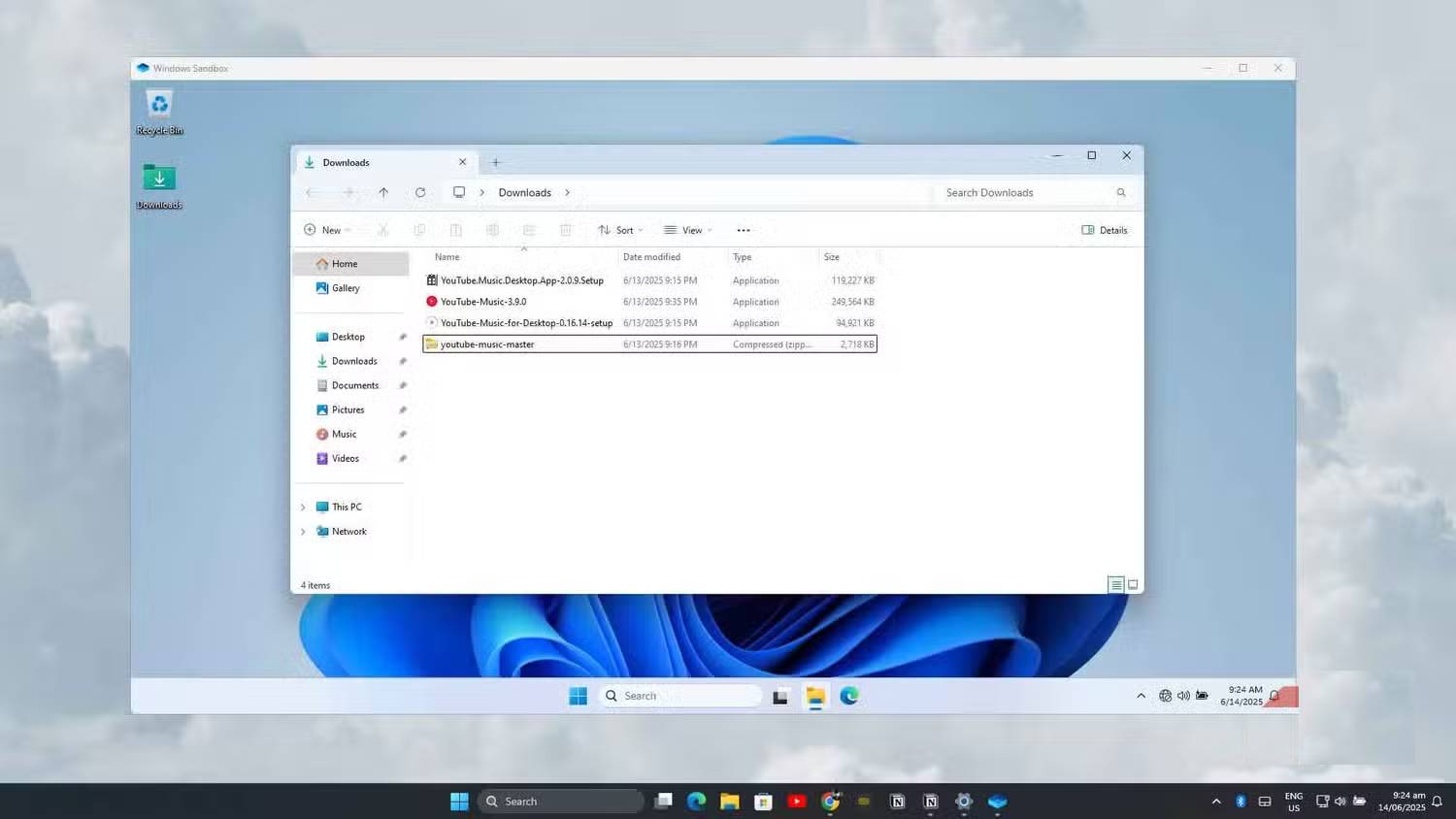
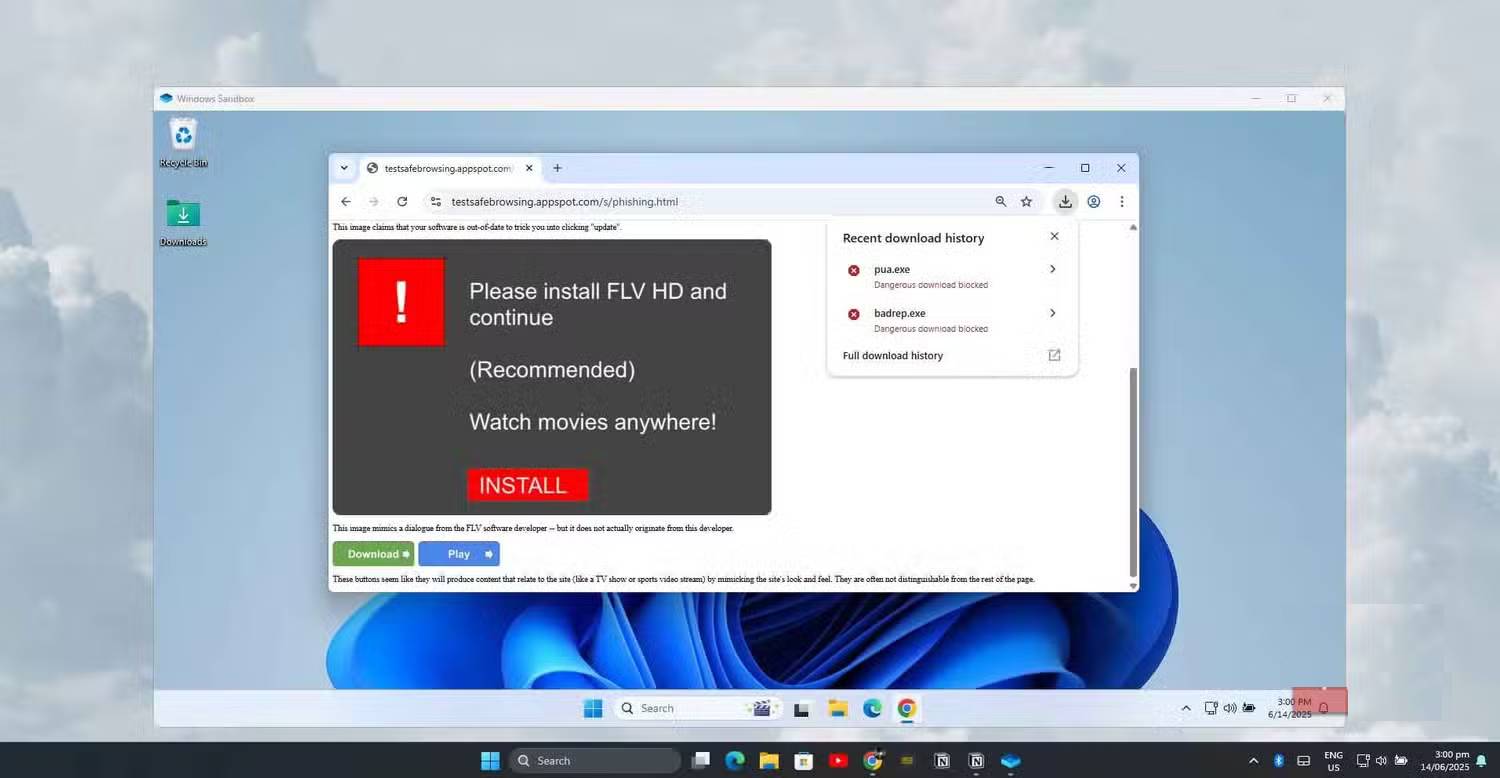
Windows Sandbox starts a clean, temporary Windows environment and discards its software, files and state when the Sandbox window closes. It is convenient for low-risk tests that do not need to persist.
Sandbox is not permission to open anything without consequences. Networking and clipboard sharing are enabled by default, and deliberately malicious software may attack network resources, credentials or unpatched isolation boundaries. Use a custom configuration to disable networking and limit host integration when isolation matters; never map a sensitive host folder as writable. TipsMake's guide to configuring Windows Sandbox explains the available controls, which also apply conceptually to current Windows Sandbox configurations.
Choose Hyper-V when the virtual machine needs saved state, custom virtual hardware or repeated use. Choose Sandbox when you need a short-lived clean session. Both consume host resources, and neither makes backups or endpoint security unnecessary.
3. Remote Desktop hosting
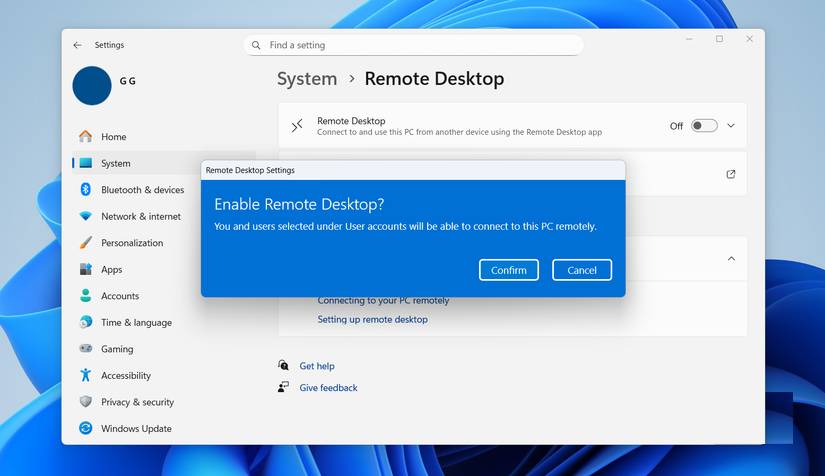
Windows 11 Home can run a Remote Desktop client and connect to another compatible computer. It cannot act as the built-in Remote Desktop host. Windows 11 Pro can accept Remote Desktop connections after you enable Settings > System > Remote Desktop and authorize specific accounts.
This is useful for reaching a home workstation from a laptop, administering a test PC or accessing a more powerful computer elsewhere. It is different from collaborative screen sharing: a normal client edition provides an interactive remote sign-in session and the person at the host PC may be locked out of the local console.
Secure the connection before enabling it
- Keep Windows patched and require Network Level Authentication.
- Use strong, unique credentials; a Windows Hello PIN alone is not a reusable network password.
- Grant access only to accounts that need it and remove stale accounts.
- Do not forward TCP port 3389 directly from a home router to the internet. Use a properly configured VPN, Remote Desktop Gateway or organization-approved secure access service.
- Turn Remote Desktop off when it is no longer needed.
For remote-access threat reduction, see TipsMake's security steps for remote access applications. Being built into Windows does not make an internet-exposed RDP service risk-free.
Other Pro features may be the real deciding factor
Some buyers upgrade for capabilities not covered by the three sections above, such as fuller BitLocker management, joining an Active Directory or Microsoft Entra environment, assigned-access and business management controls. Exact availability can depend on hardware, account type, organization licensing and Windows release.
Conversely, Windows 11 Home can still use Windows Security, device encryption on eligible hardware, third-party virtual-machine software, Quick Assist and many remote-access products. Do not upgrade merely because a Registry workaround or unsupported script claims a feature is “hidden” in Home.
Check these points before upgrading
- Open Settings > System > About and confirm the installed edition.
- Name the exact Pro-only feature you will use; avoid paying for a vague promise of better performance, because Pro does not inherently make ordinary apps or games faster.
- Confirm hardware and firmware requirements for Hyper-V or Sandbox.
- Check whether work or school will provide a managed license.
- Back up important files and save the recovery key for any encrypted device before changing editions.
- Purchase the upgrade through Microsoft or an authorized seller, then confirm activation after the edition change.
If Group Policy, Microsoft's virtualization stack or Remote Desktop hosting will be part of your regular workflow, Pro can be a practical upgrade. If none of those needs is concrete, Home is usually the better value.
Related Articles
 5 Features That Make Netflix Worth Using7 minutes read
 Is ChatGPT Plus Still Worth Using in 2026?9 minutes read
 Canva Pro Features Make Subscribing Worth It7 minutes read
 5 Small Automation Features That Make Windows 11 Run Much: Key Takeaways7 minutes read
 6 Hidden Windows 11 Photos Features Worth Using7 minutes read
 Is Windows 25 Mod Worth Using?7 minutes read
Reader Comments 0
Sign in with email or Google to join the discussion.