Table of Contents
Learn what is efficiency mode on Windows 11? how to enable efficiency mode means, how it works, and which key concepts, benefits, or limitations matter most.
What is Efficiency Mode?
Efficiency Mode is an option in Task Manager of the Windows 11 22H2 update. Once enabled, this mode works to increase performance by limiting the strain placed on the CPU by applications.
According to Microsoft's own tests, this mode can improve system responsiveness by up to 76%.
How to enable Efficiency Mode in Windows 11
Step 1
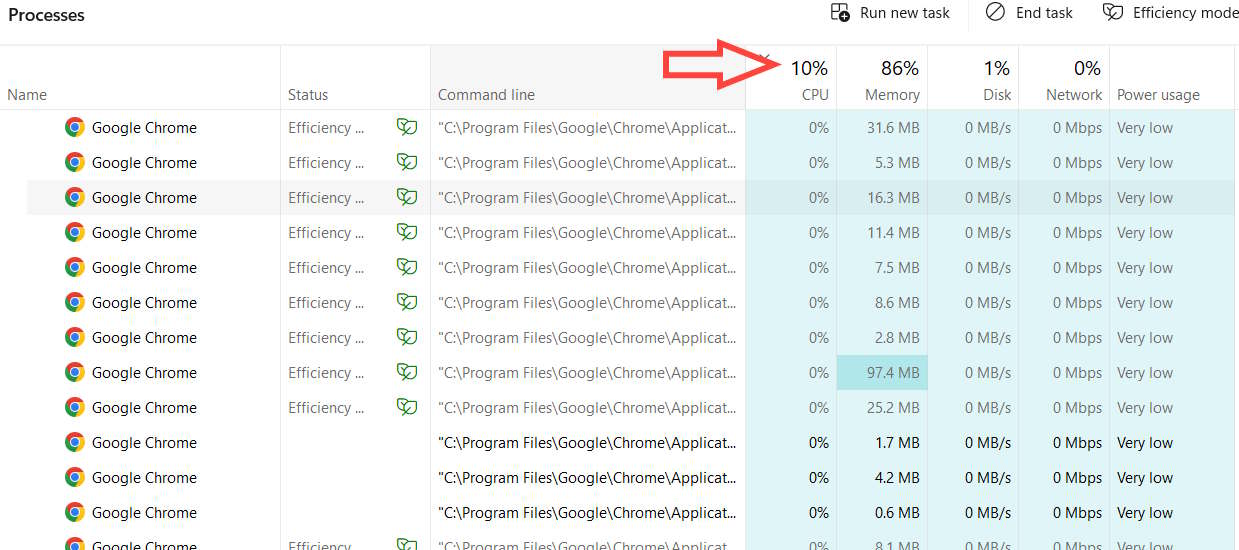
If your computer has been updated to Windows 11 22H2, you need to select the applications you want to enable Efficiency Mode for. Open Task Manager on your computer, then check which applications are consuming the most CPU resources. You can do this by clicking on the CPU option to check.
Step 2
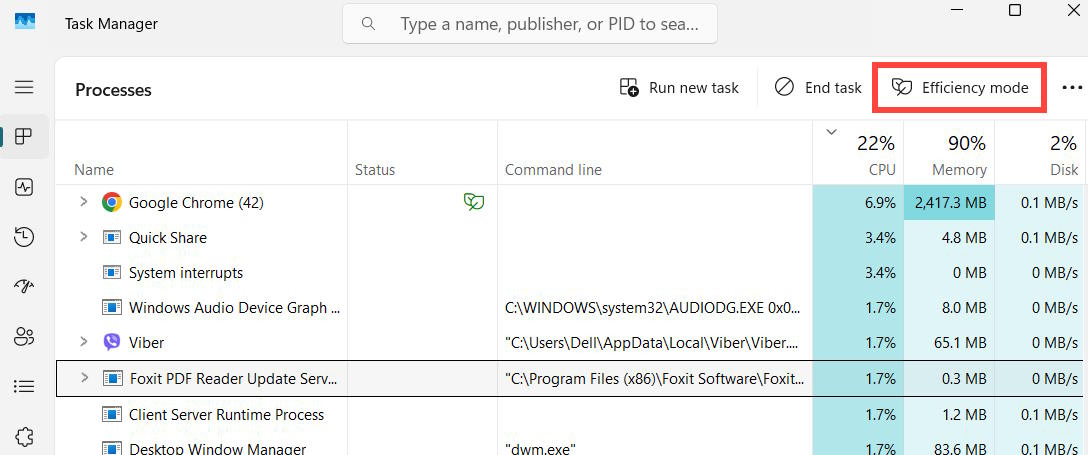
After finding the application, click on Efficiency Mode in the sidebar at the top, as shown in the image.
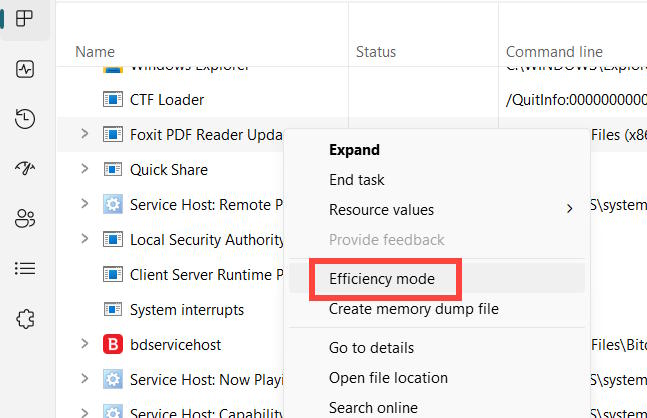
Alternatively, we can right-click on the process and select Efficiency Mode.
You can enable Windows 11 Efficiency Mode for almost any application. However, it may sometimes be grayed out.
The first reason is that you have selected a Windows application or service that does not support this option.
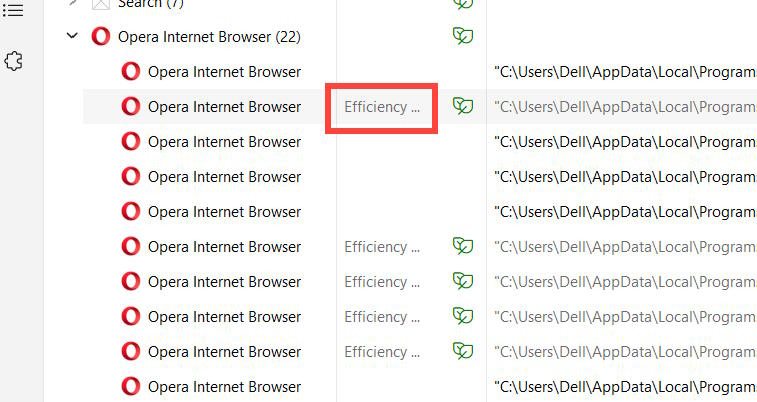
Secondly, you have selected a process group as shown below.
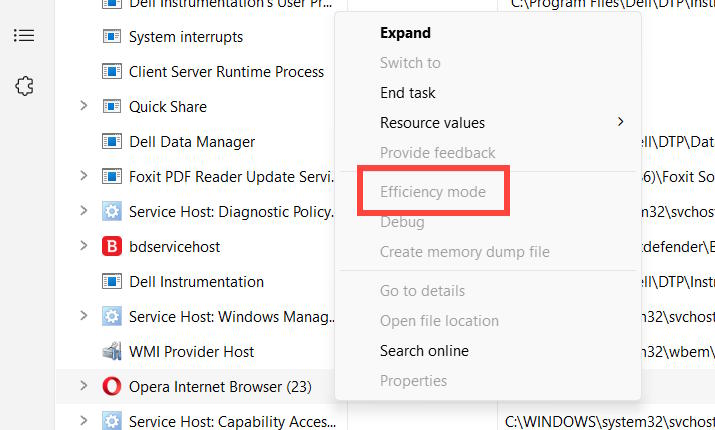
Now, clicking the arrow next to the process group will expand that group. Then, you can select each instance and enable Efficiency Mode.
Final Thoughts
Use this guide as a practical checklist for what is efficiency mode on windows 11? how to enable efficiency mode. Work through the steps in order, verify each result, and adjust the options to match your needs.
FAQ
What do you need before following this What Is Efficiency Mode on Windows 11? How to Enable Efficiency Mode guide?
Review the required tools, accounts, settings, or materials mentioned in the article. Learn what is efficiency mode on Windows 11? how to enable efficiency mode means, how it works, and which key concepts, benefits, or limitations matter most.
What are the main steps for what is efficiency mode on windows 11? how to enable efficiency mode?
Follow the sections in order, especially What is Efficiency Mode?, How to enable Efficiency Mode in Windows 11, Step 1. Complete each step before continuing and verify the result as you go.
What should you do if the process does not work as expected?
Recheck the prerequisites, update the relevant app or service, review the settings, and repeat the step that caused the issue. Use any troubleshooting notes included in the guide.
Related Articles
 How to Turn Off Efficiency Mode on Chrome: Step-by-Step Guide4 minutes read
 How to Enable Game Mode on Windows 102 minutes read
 How to Enable Experimental Windows 11 Mode on Google Chrome4 minutes read
 How to Enable Hibernate Mode on Windows 114 minutes read
 What Is Developer Mode on Windows 10? How to Activate This Mode?4 minutes read
 How to Enable Dark Mode in Notepad on Windows 10/117 minutes read
Reader Comments 0
Sign in with email or Google to join the discussion.