Table of Contents
Windows can generate an HTML report of recent Wi-Fi connections with the command netsh wlan show wlanreport. It groups events from the past three days into connection sessions, helping you match a dropout or failed connection with an error and its time. The same command works in Windows 10.
Generate and open the report
- Search Start for Command Prompt, right-click it and choose Run as administrator. Approve the Windows prompt.
- Enter the following command, then press Enter:
netsh wlan show wlanreportWait for the command to finish. It prints the location of the generated HTML file. Open that path in File Explorer or your browser. The usual location is:
C:ProgramDataMicrosoftWindowsWlanReportwlan-report-latest.html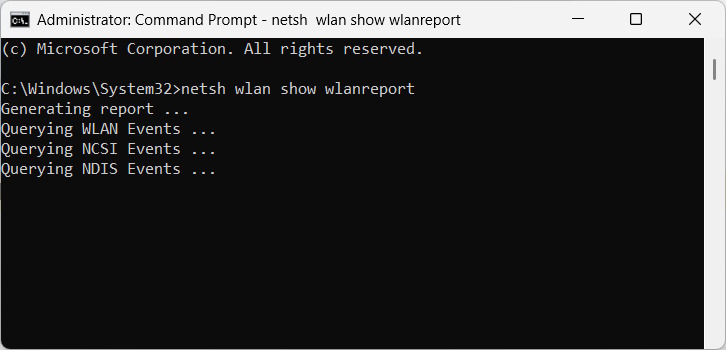
If the command fails, confirm that the window has administrator privileges and that Windows recognizes a wireless adapter. This report describes Wi-Fi activity; it is not an Ethernet connection report or an internet speed test.
Start with the failed connection session
At the top, the Wi-Fi summary chart shows the recorded sessions. Select the session near the time you noticed the problem. A red error marker links to more detail.
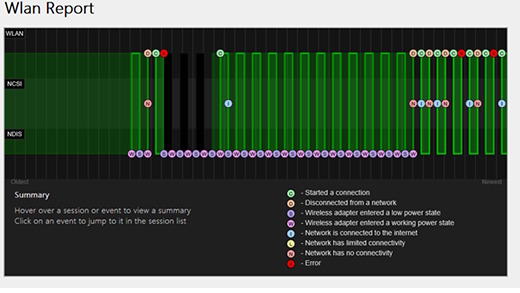
Look at the session’s start and end times, connection events and disconnect reason. Repeated errors at the same stage can help narrow the investigation, but a disconnect reason alone may not identify the root cause. For example, losing the wireless connection is different from staying connected to Wi-Fi while the router loses internet access.
What the other sections tell you
- Report information: when the report was generated and the period it covers.
- General system and user information: Windows and hardware details, computer identifiers and account or domain information.
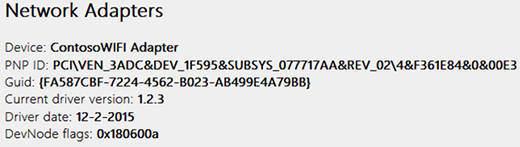
- Network adapters: the detected adapters, driver versions and reported adapter problems.
- Script output: IP configuration, Wi-Fi capabilities and saved profiles, plus certificate listings. Wi-Fi profile information does not include the saved security keys or passwords.
- Summary: session successes, failures, warnings, durations and disconnect reasons.
- Wireless sessions: the event-by-event record for each connection.
Use the evidence for the next step
Compare whether other devices disconnect at the same time. If only this PC is affected, note its adapter and driver details before following the Windows 11 Wi-Fi disconnection fixes. If the report points to the wireless service, use the WLAN AutoConfig troubleshooting guide.
Generate another report after making one change so you can compare results. Before sharing a report publicly, review it for usernames, computer names, network names, addresses and certificate details; share only the relevant, redacted information.
Related Articles
 Set up Ad Hoc Wireless Network to Play Wi-Fi Without Software12 minutes read
 How to Create a Wi-Fi or Wlan Report History in Windows 106 minutes read
 Learn About Wireless Sensor Network (WSN)3 minutes read
 How to Turn on / Off Automatically Wireless Network Connection in Windows5 minutes read
 Basic Guide: Wireless Network -- Wireless34 minutes read
 What Is SSID: Learn SSID and Wireless Network5 minutes read
Reader Comments 0
Sign in with email or Google to join the discussion.