 HOME
HOME System
 Windows 10
 Windows 11
 Fix computer error
 Ghost - Install Win
 Wifi tips
 Speed up the computer
How to Enable Control‐Alt‐Delete on Logon
Control-Alt-Delete (the secure attention sequence) has been well-known for invoking security options and Task Manager. Control-Alt-Delete also has historically been used for sign-in to prevent spoofing issues. Here is how to enable...
Table of Contents
Method 1 of 2:
Using a Special Command
-
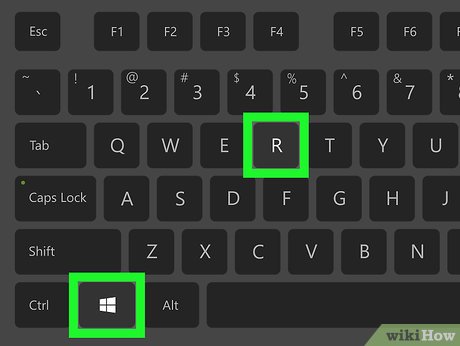 Press ⊞ Win+R. This opens the Run box.
 -
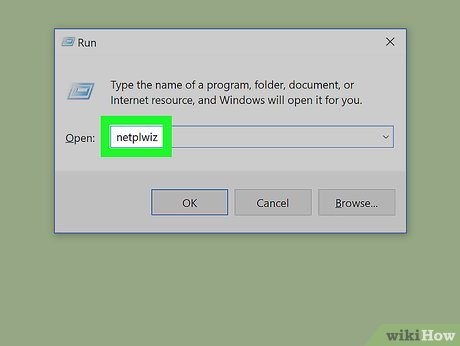 Type
Typenetplwiz. Then press ↵ Enter. This will take you to an advanced control panel that allows you to customize user account settings. -
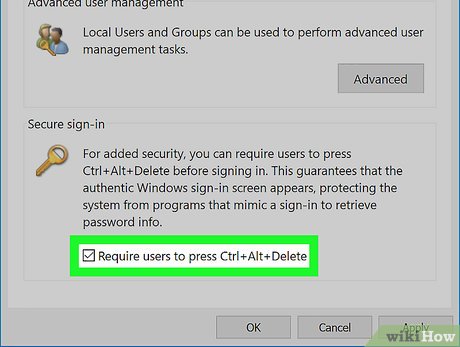 Under the Advanced tab, select the checkbox "Require users to press Control-Alt-Delete". Then click Apply or OK.
 -
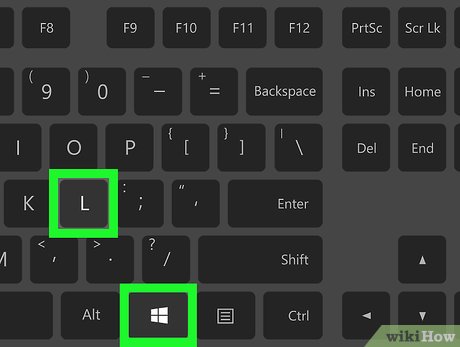 Lock your computer. Press ⊞ Win+L.
 -
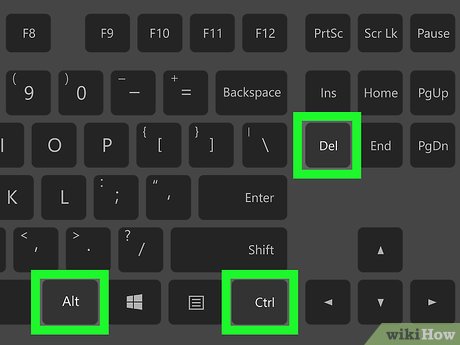 Press Control+Alt+Delete to unlock your computer. On tablets without keyboards, press either ⊞ Win+Power or Power+Volume down.
Method 2 of 2:
Using the Security Policy Editor
-
 Press ⊞ Win+R. This opens the Run box.
 -
 Type
Typesecpol.mscto open the security policy editor. Here, you will be able to manage all sorts of group policies and modify some registry keys without breaking your computer. -
 Select "Security options" under "Local policies". Then search for a policy named "Interactive logon: Do not require CTRL+ALT+DEL".
 -
 Right click on the policy, then choose Properties. You can also double click to open the properties.
 -
 Choose the "Disabled" radio box. Then click Apply or OK. Once doing that, you will not be able to use the
netplwizcommand. You will have to choose "Enabled" in these properties to disable Control-Alt-Delete. -
 Lock your computer. Press ⊞ Win+L.
 -
 Press Ctrl+Alt+Del to unlock your computer. On tablets without keyboards, press either ⊞ Win+Power or Power+Volume down.
3.9 ★ | 11 Vote
 Lesley Montoya
- How to Enable Automatic Logon in Windows XP
- Change logon command in Windows
- What is Windows Logon Application and why is it running on the system?
- Change Logon screen on Windows 7
- Change the Windows 7 and 10 Logon screen backgrounds
- How to fix the error The User Profile Service failed the logon. Không thể nạp được người dùng profile
- Fix the problem of not logging into Windows
- Steps to fix 'The User Profile Service failed the logon' error on Windows 10
- 3 software to turn USB into computer unlock tool
- How to enable SSH on Raspberry Pi
MORE LIKE THIS
- 70+ Most Useful Excel Shortcuts You Should Know
- What is Ghost Win? How does it work?
- Error cannot next when installing Windows, what should I do?
- Alt + Tab delay and 5+ quick and easy ways to fix it
- Alt Tab does not switch windows, the fix is not difficult
- How to Use Plain Text
- How to Install Windows 1.Xx
- How to Save a Screenshot
- How to Take Photos of a Computer Screen
- How to Take a Screenshot of the Entire Screen
-
 How to access BIOS on various computer models
-
How to fix There Are Currently No Power Options Available Windows error
-
What is the error Press F1 to run Setup? How to solve it?
-
How to turn off computer using keyboard on Windows, MAC in a snap
-
Instructions for fixing errors Press Ctrl + Alt + Del to restart
-
What does press any key to restart error mean? How to fix?
 How to access BIOS on various computer models
 How to fix There Are Currently No Power Options Available Windows error
 What is the error Press F1 to run Setup? How to solve it?
 How to turn off computer using keyboard on Windows, MAC in a snap
 Instructions for fixing errors Press Ctrl + Alt + Del to restart
 What does press any key to restart error mean? How to fix?
 Windows XP
 Windows Server 2012
 Windows 8
 Windows 7
 Virus Removal - Spyware
 Server
 Security solution
 Mail Server
 LAN - WAN
 Configure Router Switch
 Computer wallpaper
 Computer security
 Mac OS X
 Hardware
 Game
Game Tech info
 Technology
 Science
 Life
Life Application
 Electric
 Program
 Mobile