Table of Contents
This practical guide explains how to create a signature for pdf documents on pc with clear steps and useful context. It also covers common requirements, potential problems, and the details that can help you get better results.
Windows doesn't offer built-in PDF signing like Macs do. However, you can use Windows' built-in browser, Microsoft Edge, to sign PDF documents. There are also third-party apps that you can download that will give you similar capabilities.
In this article, first learn how to use Edge to add a signature, and then do the same using Adobe Acrobat Reader DC, which is Adobe's free PDF reader.
Use Microsoft Edge to Create a Signature
- Find your PDF file in the file manager. Right click on the file and open it with Microsoft Edge.
- The file will open in Edge's PDF reader. Click the Draw icon (with a pencil pointing down).
- If you have a touch screen, it will automatically enable the Draw with Touch option (the icon that looks like a hand)
- Use the pointer (or, if you have a touchscreen, your finger) to sign the PDF, then save the document.

While this is a nice and fast way to sign PDF documents, it means you have to go through the same process over and over again each time. It would be a lot simpler if you just put your signature on the document.
One way to do this is to write a signature, take a picture, and download it as a PDF or graphic file.
Use Adobe Acrobat Reader DC to Create Signatures
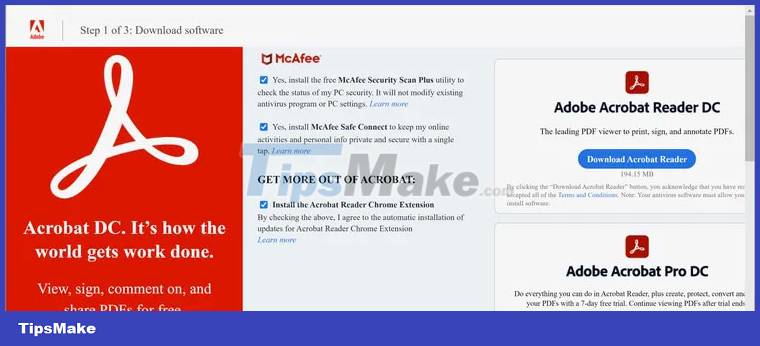
- . Unfortunately Adobe tends to encourage people to download redundant apps, so make sure you uncheck all the extra settings that appear on the page: In the example case, it's two apps. using McAfee and the Acrobat Chrome extension.
- After clicking 'Download Adobe Reader' , you can start the installation by clicking on the downloaded.EXE file.
Once installed, Acrobat Reader will open. There will be a list of any PDF files you may have opened recently. If the file you want to use is among them, highlight the file. On the right, there will now be a column with the document thumbnail, along with several functions, one of which will be Fill & Sign . Select that and your document will open in the Fill & Sign feature.
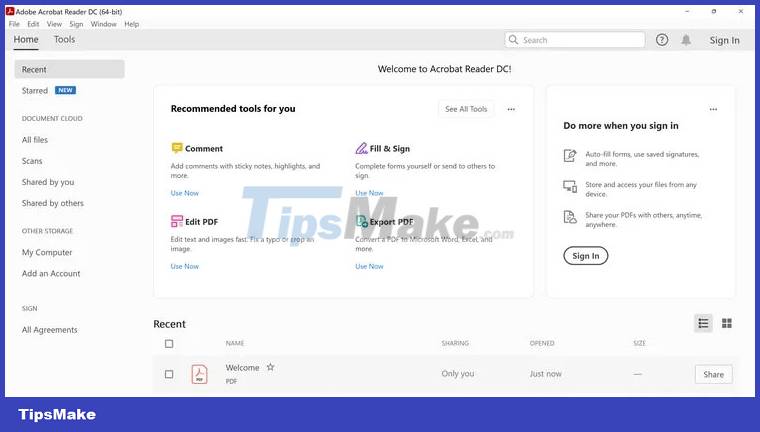
- If the file isn't there, go to the left menu and click My Computer to find the PDF you want to sign and double-click it to move it into Acrobat's editing window.
- Look to see if there's a small 'Ab' next to your cursor. If not, look for the Fill & Sign icon in the bottom right (looks like a pencil) and make sure it's highlighted.
- Once activated, click where you want the signature to appear; you will see a small box that allows you to sign by entering your name on the form. If there is a signature line anywhere in the document and you click near it, the box will align automatically.
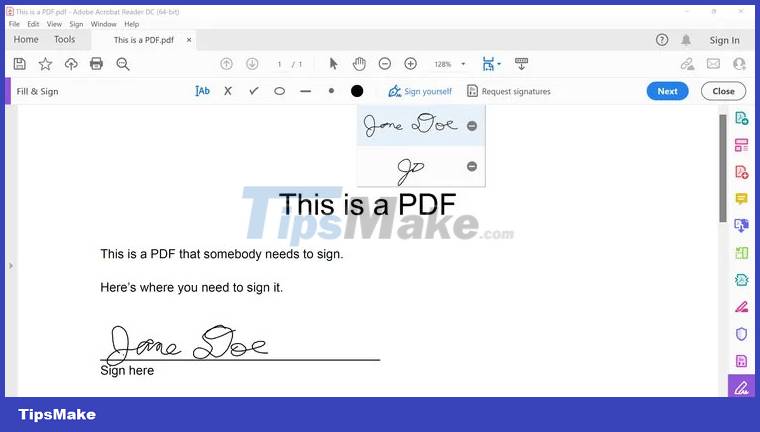
- If you want to sign by actually drawing your signature or saving the entered signature, tap Sign yourself just above the home screen.
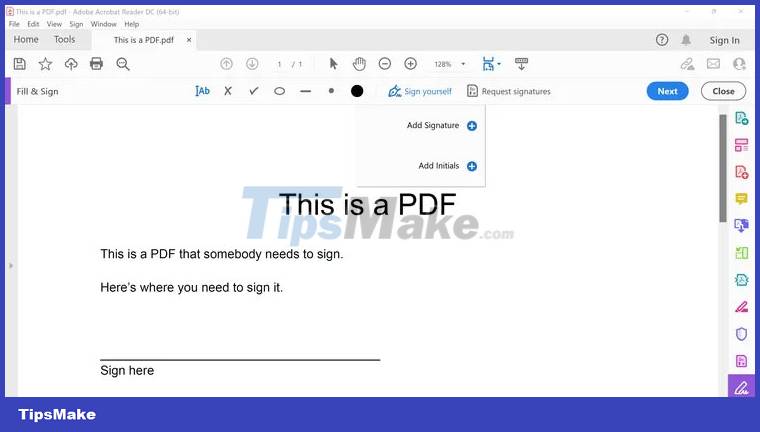
- You will have the option to Add Signature or Add Initials . For now, click Add Signature .
- A window will appear that will give you 3 ways to sign your document: Type your name (Adobe gives you some handwriting-like fonts), draw your signature (using touchpad or sign directly on the touchscreen) or upload an image of your signature. Make sure Save signature is selected if you don't want to have to rewrite it.

- After you press Apply , your PDF document will work again. Place your new signature where you want it on the document and left click. You can then change the size or position of the signature if you want.
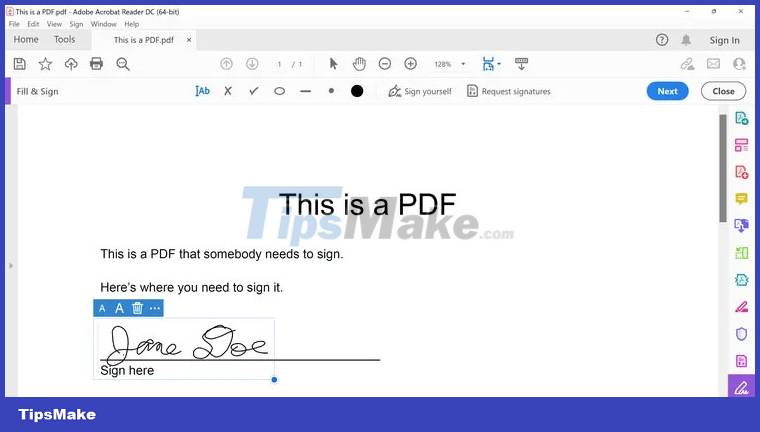
Everything is done! Now, if you want to add your signature to the PDF file, just open your document with Adobe Acrobat Reader and click the Sign yourself icon. You can then select your saved signature and place it where you need it on your PDF document. (The Add Initials option works the same but gives you less space, so you can just add initials) If you want to change your signature just click the minus sign next to the letter. Sign and try again.
Adobe has also provided an online application that allows you to fill out and sign a PDF file. Bring it to the browser, drag and drop the PDF file into the window, or click the Select a file button. At that point, you'll be asked to sign in or sign up with your Adobe, Facebook, Apple, or Google account. You can then type or sign your document the same way you would with the desktop app.

Conclusion
Understanding Create Signatures for PDF Documents makes it easier to compare options, avoid common mistakes, and apply the information in this guide more effectively. Review the relevant requirements before making changes or choosing a solution.
FAQ
How do you create a signature for pdf documents on pc?
Follow the steps in this guide in order, confirm the required settings or tools, and verify the result before making additional changes.
Is it safe to create a signature for pdf documents on pc?
It is generally safe when you follow the recommended instructions, use trusted tools, and avoid changing settings you do not understand.
What should you do if the process does not work?
Recheck the requirements, restart the device or application when appropriate, and review each step for missed settings or compatibility issues.
Related Articles
 How to Create a Signature for PDF Documents on iPhone3 minutes read
 How to Create Document Signature on iPhone3 minutes read
 How to Create an Email Signature Generator Using ChatGPT8 minutes read
 How to Create and Insert a Signature into a PDF File on a Mac8 minutes read
 How to Create a Signature for PDF Documents on Android4 minutes read
 How to Create a Beautiful Online Signature3 minutes read
Reader Comments 0
Sign in with email or Google to join the discussion.