Table of Contents
Illustrator colors vector artwork in two main ways: apply a fill and stroke to whole objects, or convert intersecting paths to a Live Paint group and color the resulting faces and edges. Use Swatches and global colors when a palette must stay consistent across many objects.
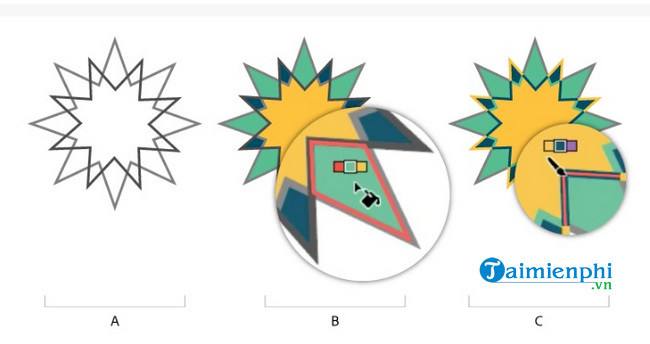
Fill, stroke and Live Paint
- Fill: the solid color, gradient or pattern inside an object.
- Stroke: the visible outline of a path, including its weight, cap, join and dash settings.
- Live Paint face: an enclosed visual region created by intersecting paths.
- Live Paint edge: a path segment between intersections that can be colored separately.
Ordinary fills and strokes follow each object’s actual path. Live Paint treats selected paths more like a coloring page, so a region can be painted even when its boundary is formed by parts of several objects.
Apply a fill to an object
- Select the object with Selection (V) or select an individual path with Direct Selection (A).
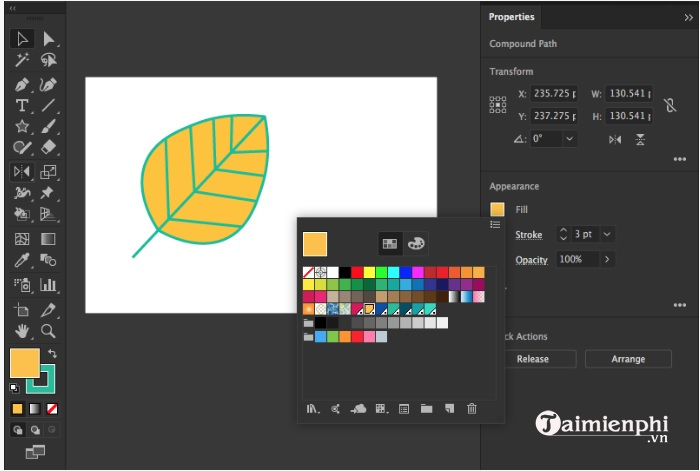
- Click the Fill box in the toolbar, Properties, Control or Color panel so it is in front of the Stroke box.
- Choose a color from Swatches or Color, apply a gradient or pattern, or double-click Fill to use the Color Picker.
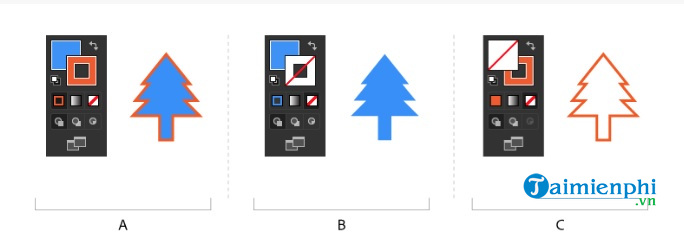
- Choose None when the object should have no fill.

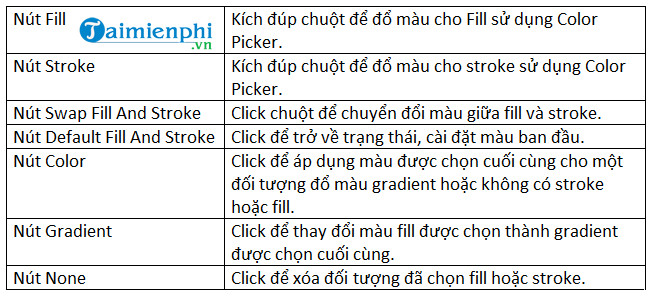
Press X to switch focus between Fill and Stroke, Shift+X to swap their current colors, and D to restore the default fill and stroke. These shortcuts do different jobs; use them deliberately.
Apply and edit a stroke color
- Select the object or, for Live Paint, select an edge with the Live Paint Selection tool.
- Bring the Stroke box to the front.
- Choose a swatch or color.
- Open the Stroke panel to set weight, alignment, caps, joins, dashes, width profile or arrowheads.
Stroke color and stroke geometry are separate. Changing the color does not alter the path or weight.
Use Swatches for a controlled palette
Swatches store named colors, gradients and patterns. A global color can update every linked object when the swatch is edited, which is safer than manually searching a long document for an old brand value.
- Name swatches by role, such as “Brand primary,” instead of by visual guess.
- Confirm the document color mode before entering RGB, CMYK or spot-color values.
- Use tints of a global swatch for coordinated lighter variations.
- Check the printer’s requirements before creating or converting spot colors.
Color intersecting regions with Live Paint
- Select the paths or compound paths that form the drawing.
- Choose Object > Live Paint > Make.
- Activate the Live Paint Bucket (K).
- Choose a swatch, move over a face and confirm the highlight, then click to paint it.
- Configure the tool to paint fills, strokes or both as required.
If paint leaks through a small opening, inspect the source paths or use the Live Paint gap controls. When paths move, the group’s faces and edges update around the new intersections.
Convert a stroke to editable outline geometry
Choose Object > Path > Outline Stroke when a stroked line must become a filled vector shape for point-level editing or a production workflow that cannot preserve live strokes.
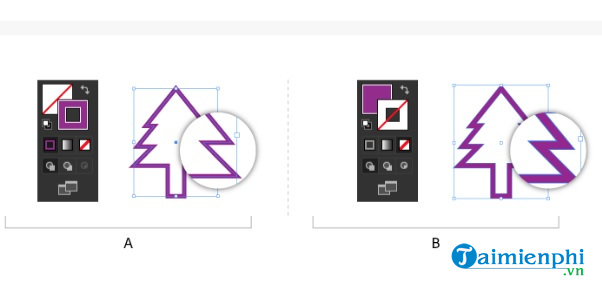
This operation changes the editing model and can create compound paths or grouped results. Keep a copy of the live stroke before outlining so the weight, dash and width profile remain easy to revise.
Paint filled shapes with the Blob Brush
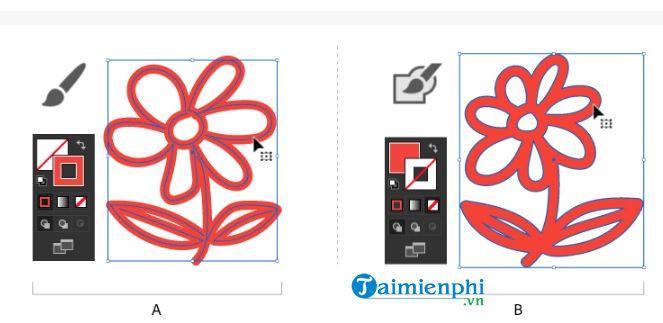
The Blob Brush creates filled closed paths rather than centerline strokes. Its new marks can merge with adjacent artwork when the fill, appearance, stacking and selection conditions match.
Useful Blob Brush controls
- Keep Selected: leaves the merged path selected while you continue drawing.
- Merge Only with Selection: prevents a new mark from joining matching unselected artwork.
- Fidelity: balances pointer accuracy against path simplicity.
- Size, angle and roundness: define the brush footprint.
To merge with existing artwork, the shapes generally need the same fill, no stroke and compatible appearance, and they must be adjacent in stacking order. If a merge fails, compare those attributes before adding more paths.
Select artwork that shares a color or stroke
Select one reference object, then choose Select > Same and an attribute such as Fill Color, Stroke Color, Fill & Stroke or Stroke Weight.
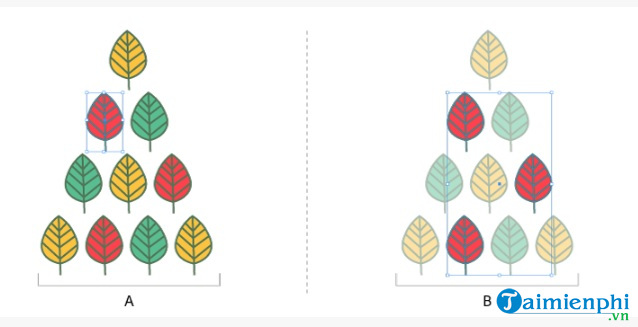
Live Paint faces and edges have selection constraints: use the Live Paint Selection tool inside the group. Ordinary objects outside the group are not always part of the same selection operation.
Add multiple fills and strokes with Appearance
- Select an object, group or layer.
- Open Window > Appearance.
- Choose Add New Fill or Add New Stroke.
- Set each item’s color and effects, and drag the items to change their stacking order.
Multiple appearances can create borders, shadows, highlights and neon effects without duplicating the base path. Save a reusable result as a Graphic Style when appropriate.
Remove a fill or stroke
Select the object, target Fill or Stroke, then click None in the toolbar, Swatches or the relevant Properties menu.
Choose the right coloring method
| Goal | Method |
|---|---|
| Color one closed object | Fill |
| Color a path outline | Stroke |
| Color faces formed by intersecting paths | Live Paint |
| Paint and merge filled vector marks | Blob Brush |
| Add several fills or strokes to one object | Appearance panel |
| Update a repeated document color | Global swatch |
| Change an entire selected palette | Recolor Artwork |
Color checks before export
- Use the correct document color mode and output profile.
- Verify that “None,” white and 0% opacity are not being confused.
- Check spot colors, overprints and rich black with the printer.
- Test icon and text contrast at the final size.
- Keep the AI master editable before outlining strokes or expanding appearances.
Adobe’s Fill and Stroke overview, Live Paint guide and Blob Brush guide cover the current workflows. On TipsMake, continue with Illustrator gradients, advanced stroke controls, or Recolor Artwork for vector icons.
Related Articles
 How to Paint and Change Colors in Adobe Illustrator4 minutes read
 How to Change the Default Background Color in Illustrator4 minutes read
 Adobe Illustrator: Complete Guide: Download Adobe Illustrator 2021.26.04 minutes read
 How to Warp, Bend Text in Adobe Illustrator6 minutes read
 How to Color Vector Icons in Adobe Illustrator4 minutes read
 What Is Adobe Illustrator? Learn Adobe Illustrator for What5 minutes read
Reader Comments 0
Sign in with email or Google to join the discussion.