Table of Contents
Illustrator gradients blend two or more colors across a fill or stroke. Use the Gradient panel to set the type, stops, midpoints, angle and opacity, and use the Gradient tool (G) to position the blend directly on the artwork. Current desktop Illustrator supports linear, radial and freeform gradients.
Create a basic linear gradient
- Draw or select an object.
- Bring the Fill box to the front if the gradient should fill the object.
- Open Window > Gradient.
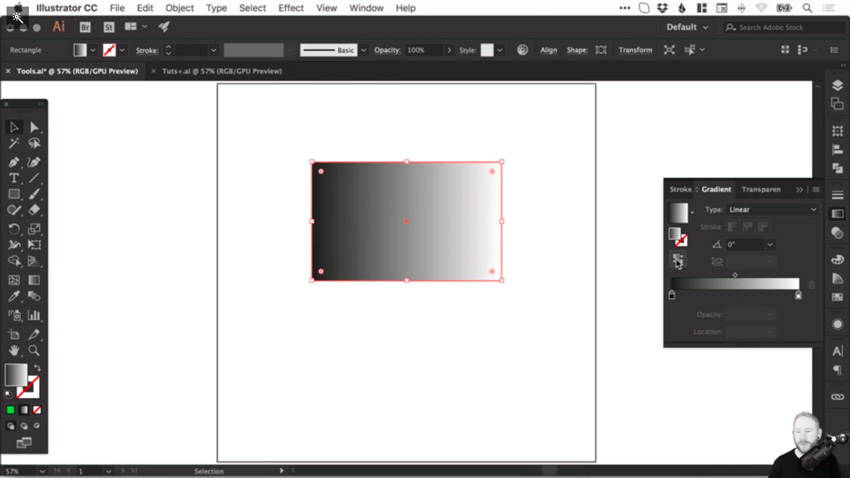
- Apply the default gradient, then choose Linear.
- Activate the Gradient tool (G) and drag across the object to set direction and length.
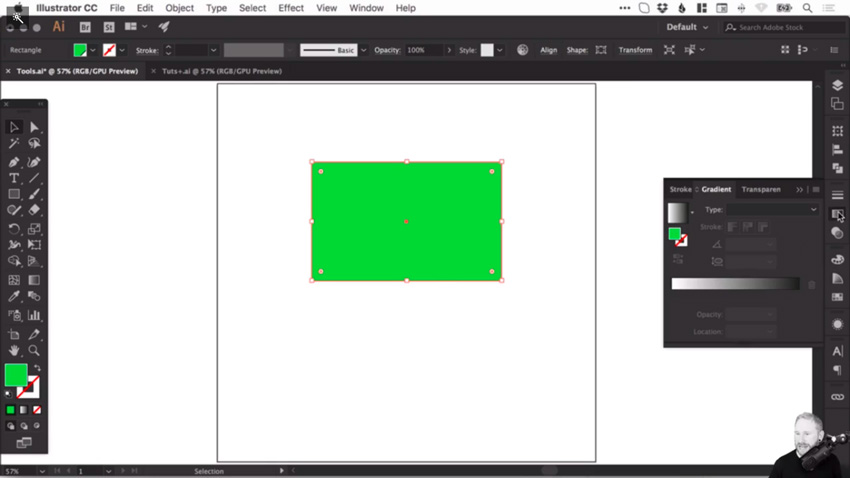
Use Reverse Gradient to swap the two ends, or enter an exact angle. The on-object Gradient Annotator provides the same visual controls for direction and spread.
Choose the right gradient type
| Type | Best for | Main controls |
|---|---|---|
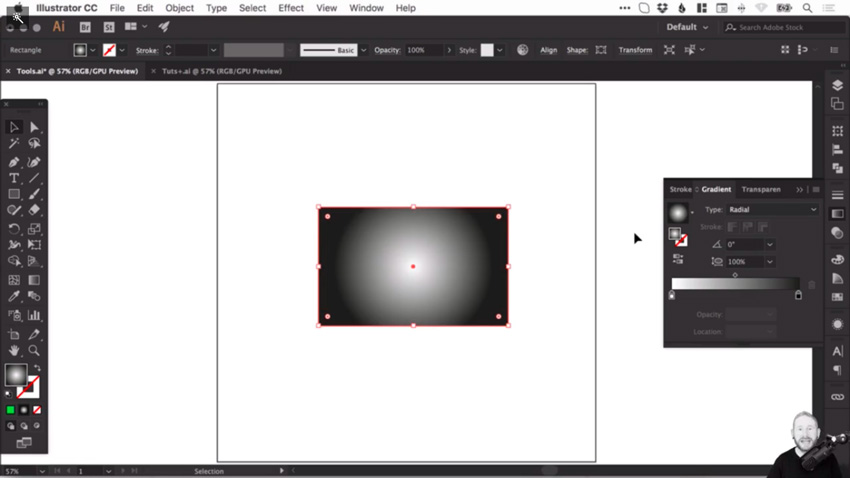
| Linear | Directional lighting, fades and bands | Angle, start, end, spread and stops |
| Radial | Glows, spheres and centered highlights | Origin, focal point, radius, aspect ratio and stops |
| Freeform | Several local color areas within one object | Color points or lines and their spread |
A radial gradient can be off-center and elliptical; it does not need to remain a perfect circular glow. Use a gradient mesh only when the color flow must follow more complex surface contours.
Edit color stops and midpoints
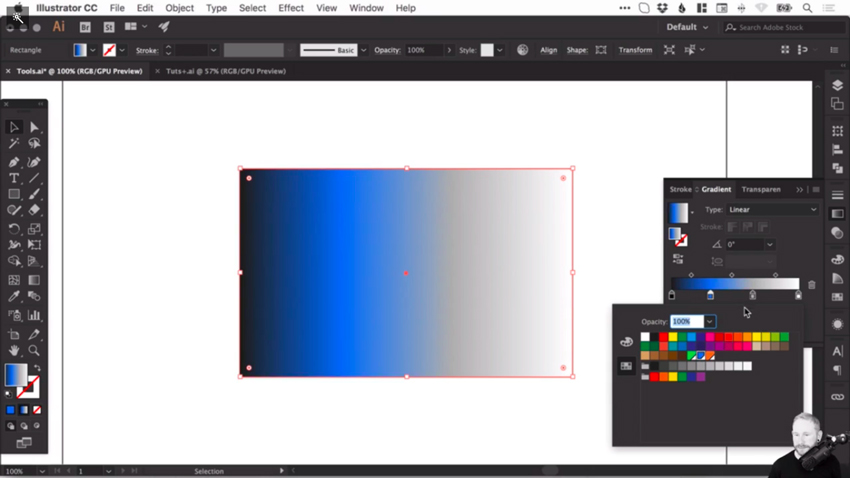
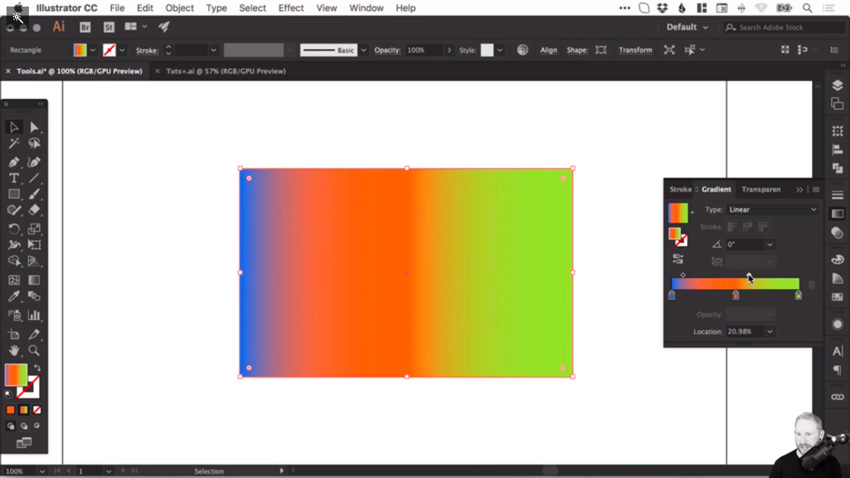
Stops appear below the gradient slider. Select a stop to change its color, location or opacity. Drag it along the slider to reposition the color transition.
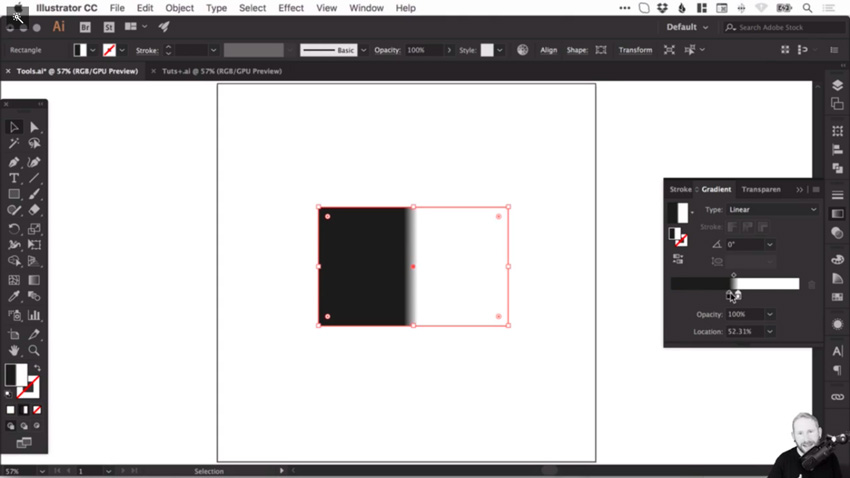
Hover below the slider and click when the plus cursor appears to add another stop. Double-click a stop to choose a color from Swatches or Color.
Use global swatches for managed colors
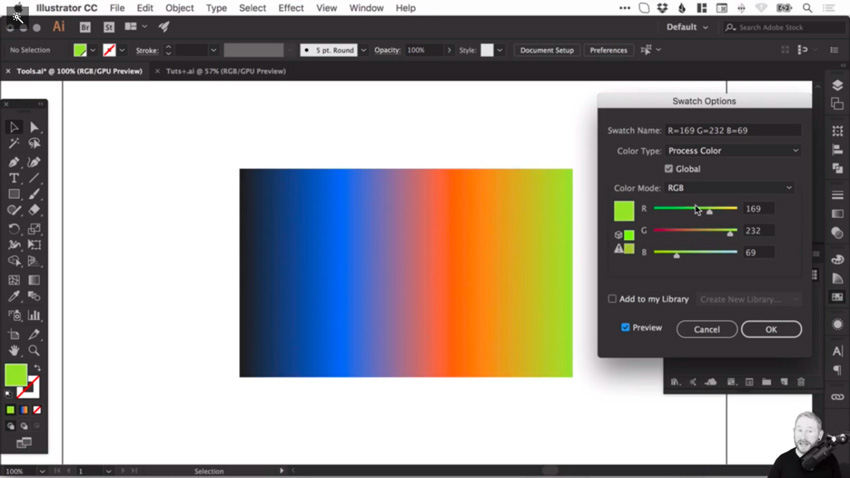
If gradient stops use global swatches, editing a global swatch can update every linked use throughout the document. This is valuable for brand palettes and documents with repeated gradients.
Remove a stop
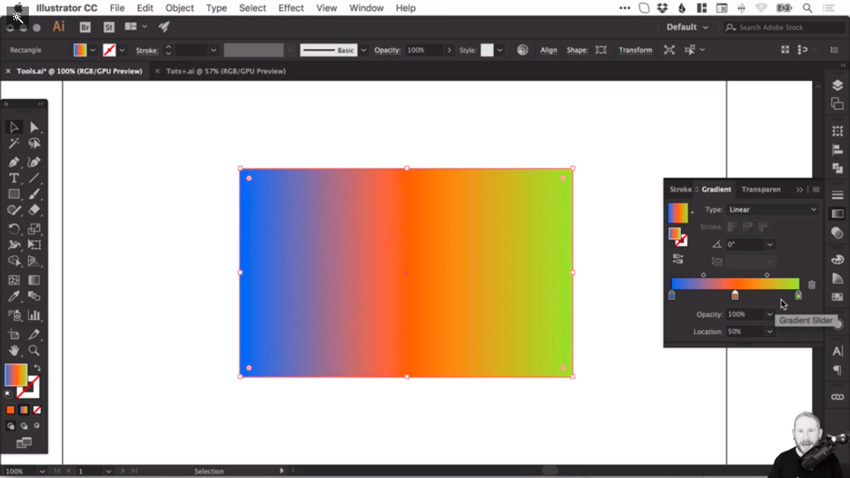
Select a stop and use the delete control, or drag the stop away from the slider when the interface supports it. A standard gradient needs at least two color stops.
Control opacity and transition balance
Select a color stop and lower its opacity to create a fade to transparency. Transparent stops reveal the artwork behind the object, so inspect the result on the actual background.
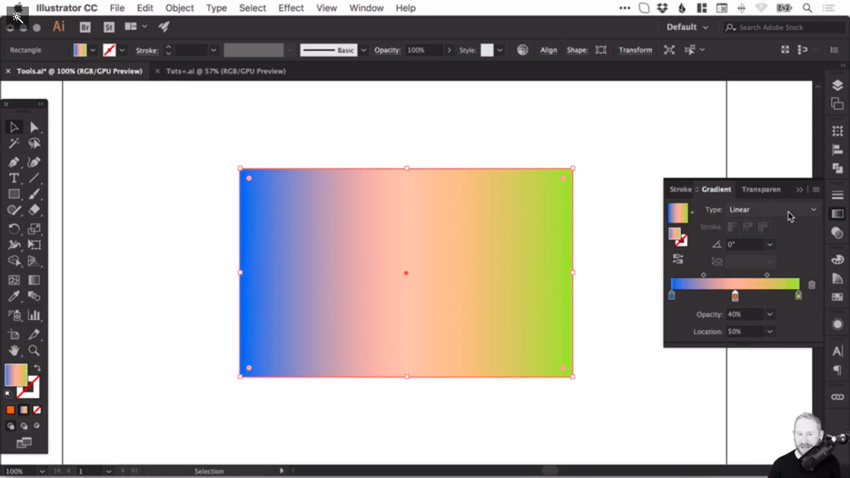
The diamond between two stops is the midpoint. Moving it changes where the blend reaches an equal mix of the neighboring colors without moving the stops themselves. Use the Location field for an exact percentage.
Apply a gradient to a stroke
- Select the stroked path.
- Activate the Stroke box rather than Fill.
- Apply a gradient in the Gradient panel.
- Choose whether the gradient runs within the stroke, along the stroke or across the stroke, where the available style controls apply.
- Check the result at corners, caps and variable-width sections.
Save a reusable gradient
When the gradient is finished, create a new swatch in the Swatches panel. Name it by purpose rather than appearance alone—for example, “Primary button highlight”—and keep its component colors linked to global swatches when coordinated updates are required.
Improve gradient quality
- Use fewer stops until the transition actually needs more.
- Check the document color mode and final output profile before choosing colors.
- Avoid extreme contrast across a very short distance unless a hard edge is intentional.
- Inspect for visible banding on the target screen or export format.
- Test transparent gradients against every background color they will encounter.
- Keep an editable source before expanding or flattening transparency for production.
Troubleshooting
| Problem | Fix |
|---|---|
| The object stays a solid color | Confirm that Fill or Stroke is targeted and the selected object supports that appearance |
| The gradient runs the wrong way | Reverse it or drag a new annotator direction with G |
| A transparent edge looks gray | Inspect the stop color and opacity on the actual background |
| One brand color will not update | Replace the stop with the intended global swatch |
| The blend looks muddy | Reduce unnecessary stops and adjust midpoint placement |
Adobe’s gradient overview and gradient swatch guide document the current controls. On TipsMake, compare the Mesh tool, review vector recoloring, or learn how gradients interact with Illustrator strokes.
Related Articles
 Adobe Illustrator: Complete Guide: Download Adobe Illustrator 2021.26.04 minutes read
 What Is Adobe Illustrator? Learn Adobe Illustrator for What5 minutes read
 How to Cropping and Deleting Shapes in Adobe Illustrator4 minutes read
 What Is Adobe Illustrator?6 minutes read
 Tutorial Drawing. 'Unicorn' in Adobe Illustrator11 minutes read
 AI Software Shortcuts: Common Adobe Illustrator Shortcuts9 minutes read
Reader Comments 0
Sign in with email or Google to join the discussion.