Table of Contents
Learn how to change the Default Background Color in Illustrator with clear steps, practical tips, and troubleshooting guidance for common issues.
Step-by-Step Instructions
How to change the default background color in Illustrator
Step 1: Open the Adobe Illustrator file. First, double-click to open the Illustrator application, then click File in the upper corner of the menu bar, select Open. . Choose the file you want to change the background color of, then click Open .
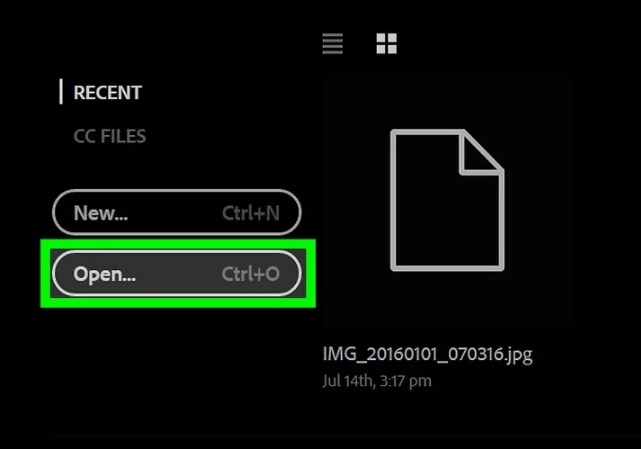
Step 2: click File in the menu bar.
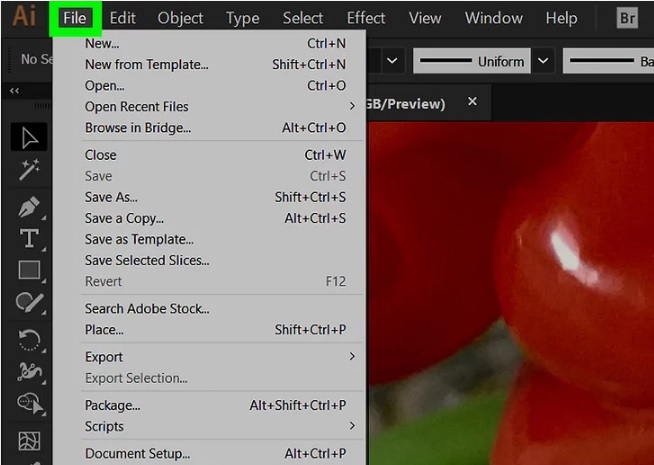
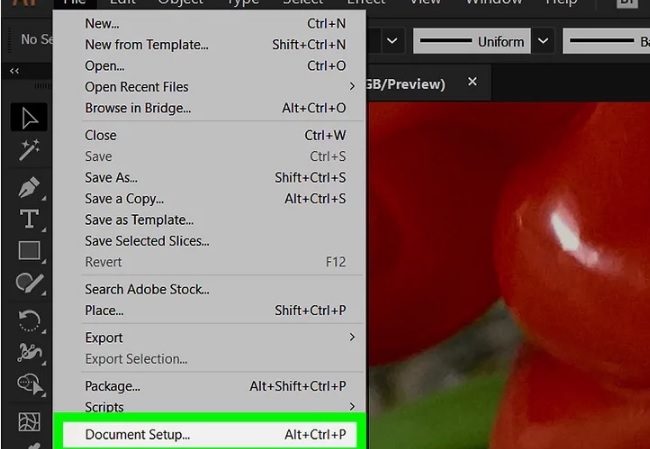
Step 3: click Document Setup. This option is located near the bottom corner of the menu, as shown below.
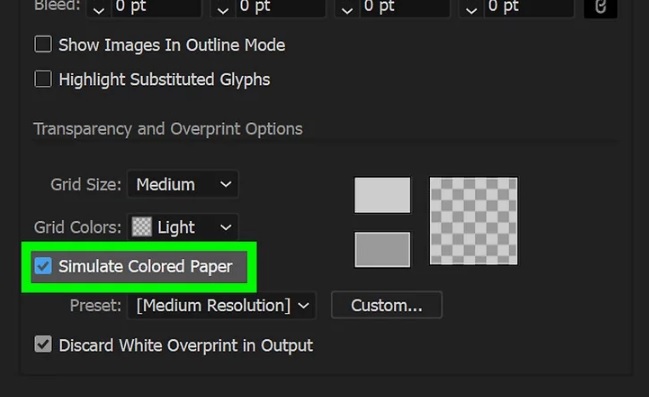
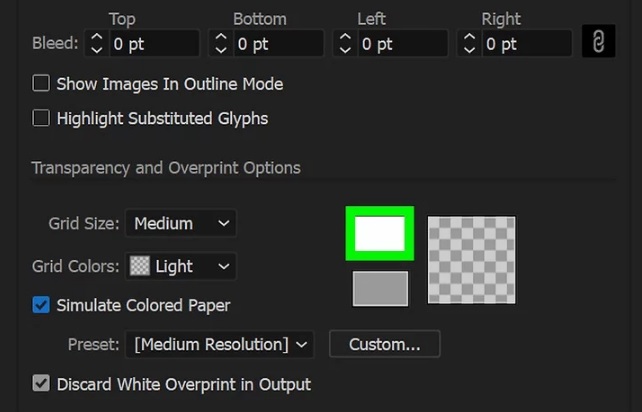
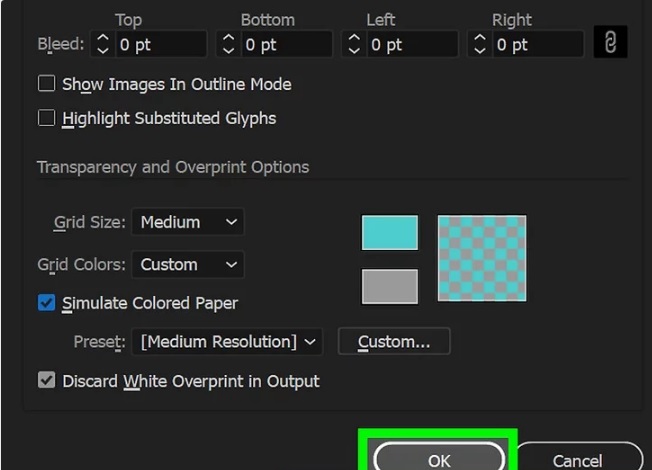
Step 4: In the Transparency section, find and check the box for Simulate Colored Paper.
Step 5: click the color collection icon, located on the right side in the Transparency section, as shown below.
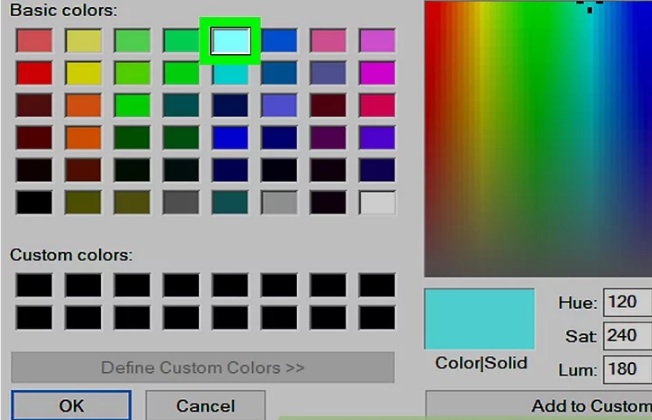
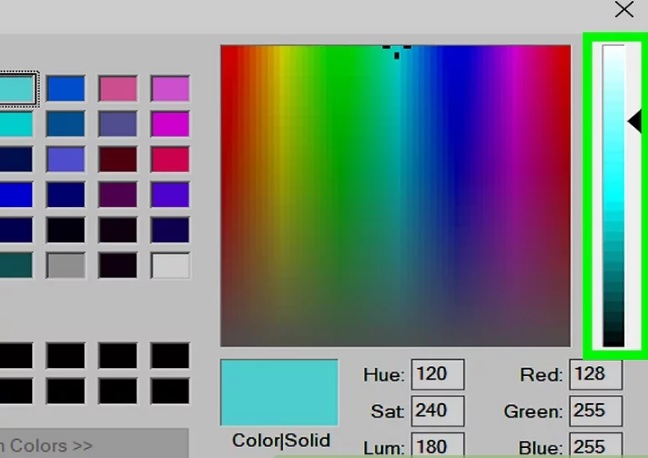
Step 6: Choose a color you want as the background color by clicking the color icon, then adjust the brightness using the slider.
Once complete, the new color will appear in the bottom corner of the color palette in the bottom left corner of the dialog box.
Step 7: click the color swatch and drag it into the empty square on the right.
Step 8: Close the dialog box by clicking thered X icon.
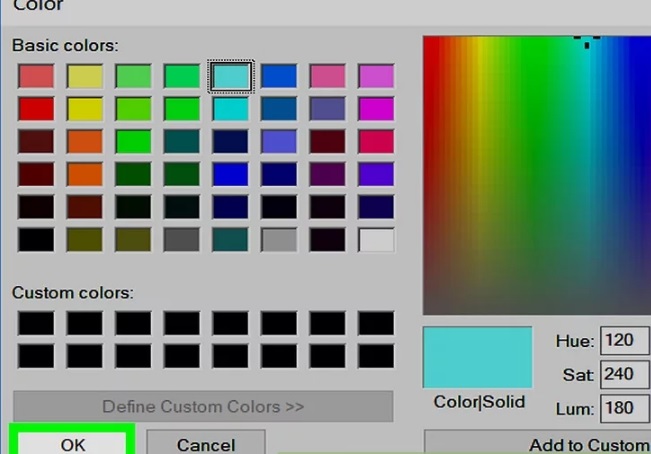
Step 9: Click to select the color swatch below, to the right of the Transparency section, as shown in the image below.
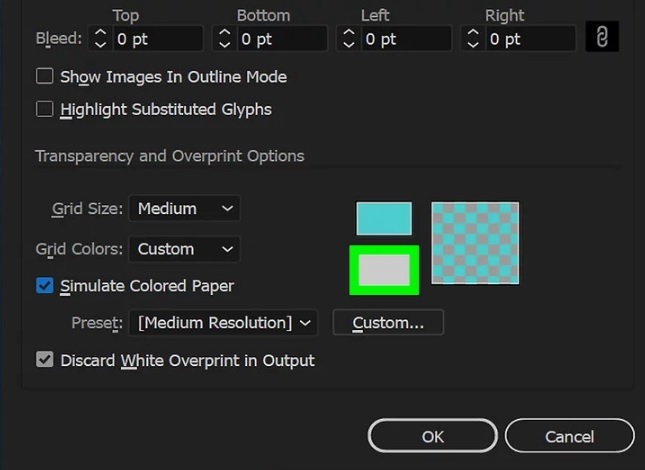
Step 10: Click to select the color swatch you just saved. This color swatch is located in the small square at the bottom right corner of the dialog box where you dragged the color.
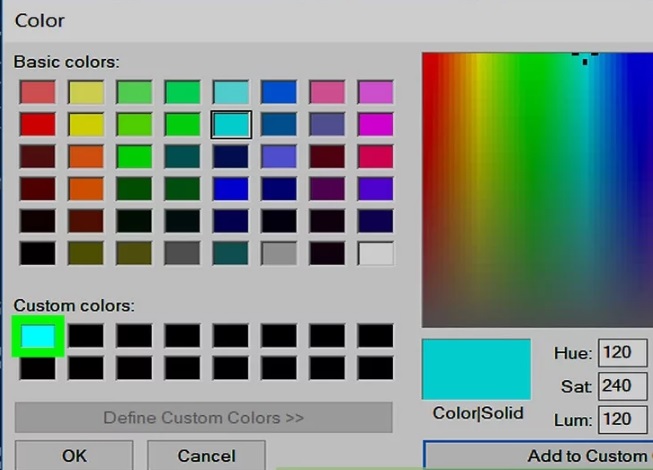
Step 11: Close the dialog box by clicking the red X icon. All color schemes and grid layouts should be the colors you set.
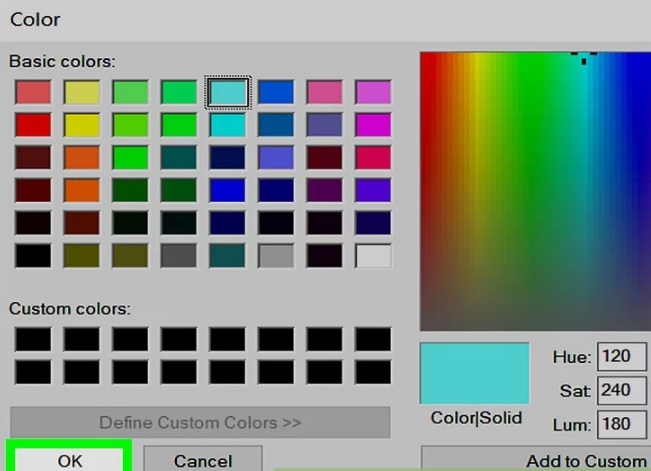
Step 12: Click OK to close the Document Setup dialog box.
Step 13: click View in the menu bar.
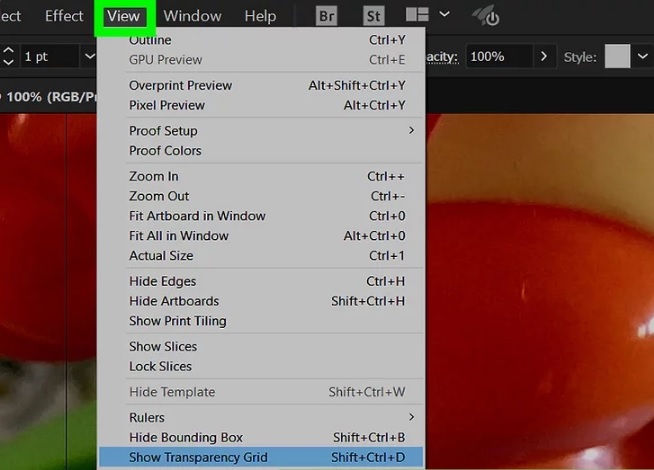
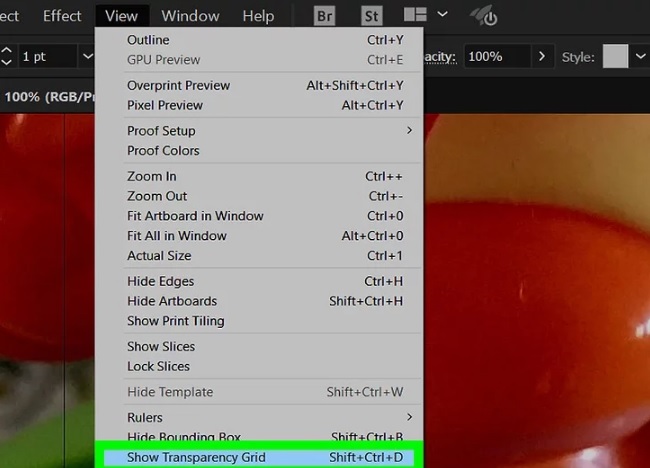
Step 14: click Show Transparency Grid located at the bottom of the menu. The default background color in Illustrator will now change to the color you specified.
In summary, the article above from TipsMake. vn has guided you on how to change the default background color in Illustrator. Additionally, if you have any questions or need clarification, such as how to color vector icons in Illustrator , please leave your comments in the comment section below the article.
Alternatively, you can also refer to how to change the color of different objects in Photoshop; this is one of hundreds of features of this popular graphic design software. See specific instructions on how to change colors in Photoshop in TipsMake's articles.
FAQ
How can you change the Default Background Color in Illustrator?
Learn how to change the Default Background Color in Illustrator with clear steps, practical tips, and troubleshooting guidance for common issues.
Do the steps or features vary by device or software version?
They can. Menu names, available settings, and compatibility may differ by device, region, account type, or software version, so check the options shown on your own screen.
What should you do if the recommended method does not work?
Repeat the steps in order, confirm that the requirements are met, and restart the relevant app or device when appropriate. Also check for updates and review any error message before trying again.
Related Articles
 How to Change the Background in Illustrator4 minutes read
 How to Change the Background Color in Google Docs4 minutes read
 How to Warp, Bend Text in Adobe Illustrator6 minutes read
 How to Color and Change Colors in Adobe Illustrator15 minutes read
 How to Change the Background Color in Photoshop6 minutes read
 How to Change the Background Color of an Image in Paint on Windows 114 minutes read
Reader Comments 0
Sign in with email or Google to join the discussion.