Table of Contents
Cursor is an AI code editor and coding agent that can work with project files. It combines completion suggestions, chat, and editing workflows so you can ask about code and review proposed changes in the same application. Project access improves the available context, but it does not guarantee that the model has found every relevant file or produced a correct fix.
This guide walks through installation and ten practical editor tasks. The screenshots show an earlier interface: model names, buttons, settings locations, and shortcuts can change. Use your installed version's command palette and keyboard-shortcut settings when a pictured control differs.
Install Cursor and prepare a project
Get the appropriate build from the official Cursor download page. Match both your operating system and processor architecture. A Linux package is not a macOS installer.

On Windows or macOS, follow the downloaded installer's instructions. On Linux, follow the instructions for the package you actually downloaded. If it is an AppImage, the following example makes that file executable and launches it; replace the placeholder filename with the real filename first.
chmod u+x ./your-cursor-file.AppImage
./your-cursor-file.AppImage
Do not copy an old version number from a screenshot. If the package fails to start, check its compatibility and error message before trying unrelated system changes.
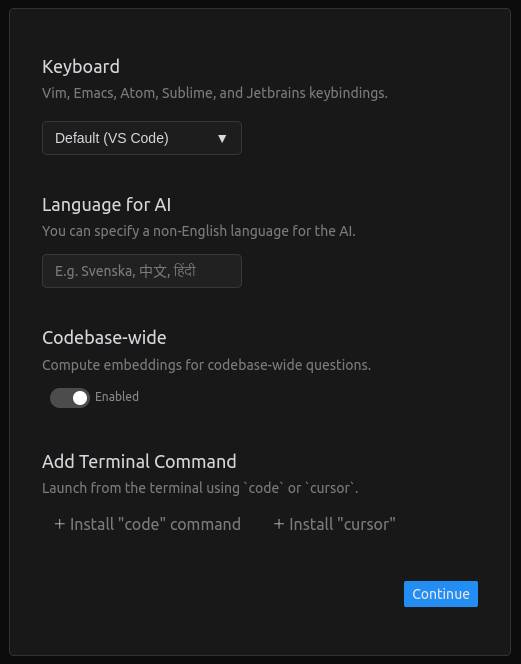
Review available imports for settings, extensions, and keybindings. Open a small project and confirm it builds or runs before asking for changes. Keep a version-control checkpoint so you can compare or undo edits.
Cursor is a separate application based on VS Code, so test important extensions and settings after importing them. The Cursor and GitHub Copilot comparison explains the different editor workflows.
Ten practical ways to use Cursor
1. Generate a small piece of code inline
Place the caret where the new code belongs and open Inline Edit. The source workflow uses Cmd+K on macOS and Ctrl+K on Windows/Linux; verify your binding if it differs.

State the language, expected input, output, and edge cases. For example: “Write a function that returns the largest number in a non-empty array. Reject an empty array explicitly and do not mutate the input.”

Read the proposed implementation before accepting it. Test a normal input, a single value, negative values, and the specified empty-input behavior.
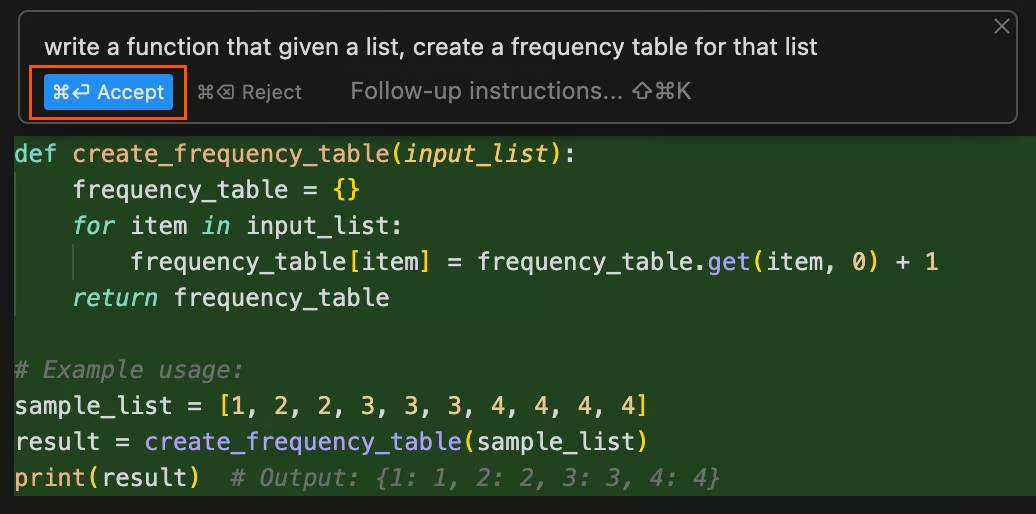
The model selector may offer several models. Choose from what your account actually provides; the older model shown here is an example, not a requirement.

2. Refactor selected code
Select the relevant block and request one focused change. State which behavior must remain the same, such as input validation, return type, or error handling.
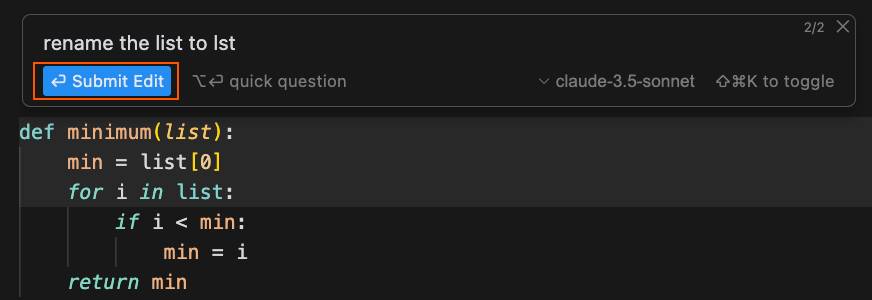
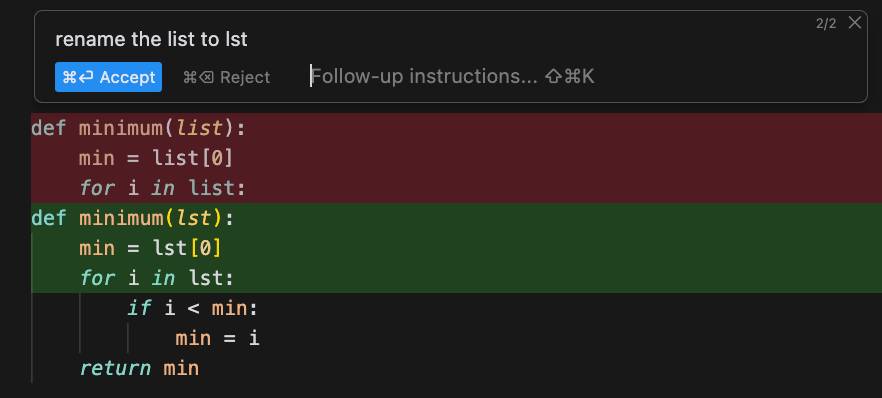
Review the diff. Removed and added lines are commonly highlighted in red and green, but themes can change those colors. Check surrounding callers as well as the selected function.
3. Ask for an explanation without editing
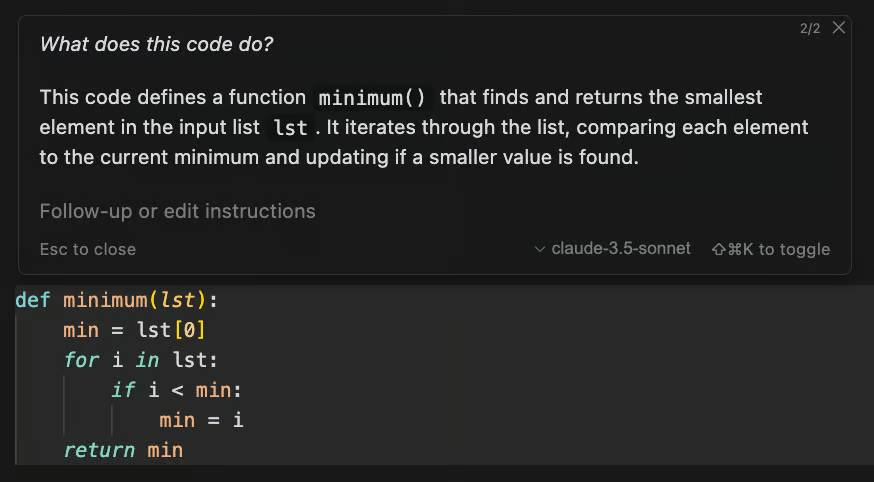
Attach or select the code and ask a specific question: “Explain why this branch runs when the input is empty. Cite the condition and do not modify files.” Use a question/chat mode available in your version.
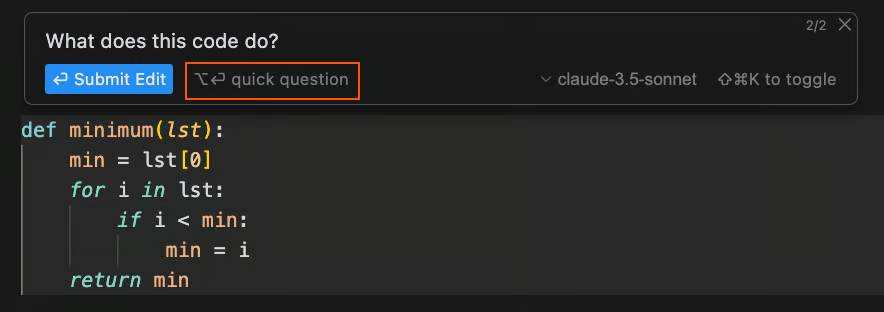
Follow the cited code and verify that the explanation matches the actual execution path. If a dependency is missing, supply it rather than accepting a guess.
4. Use Tab completion selectively
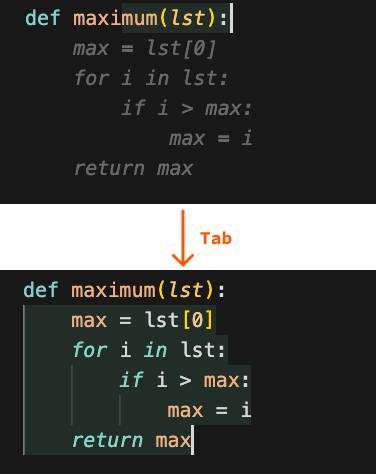
As you type, Cursor can propose code completions. Accept a useful suggestion with the configured completion key, typically Tab, or continue typing if it is wrong.
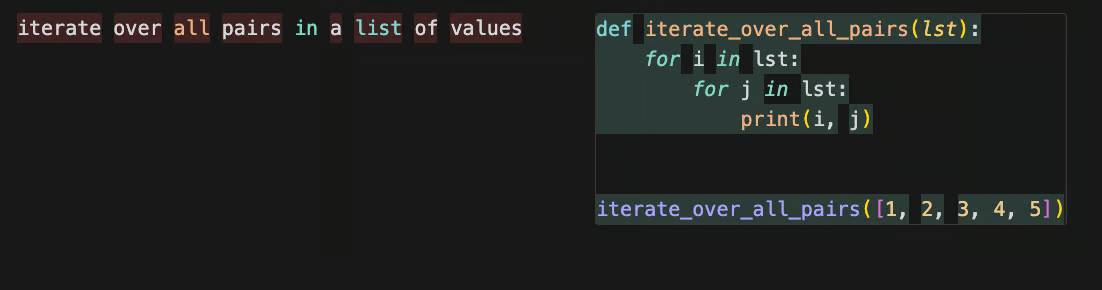
A descriptive comment can communicate intent, such as iterating through pairs in a list. Check whether the generated loop includes self-pairs, duplicate pairs, or all ordered pairs: those are different tasks.
5. Use chat to plan a change
Open the chat panel; the source interface uses Cmd+L or Ctrl+L. Ask for a plan before a broad edit: which files need to change, which behavior is affected, and what checks will establish success.
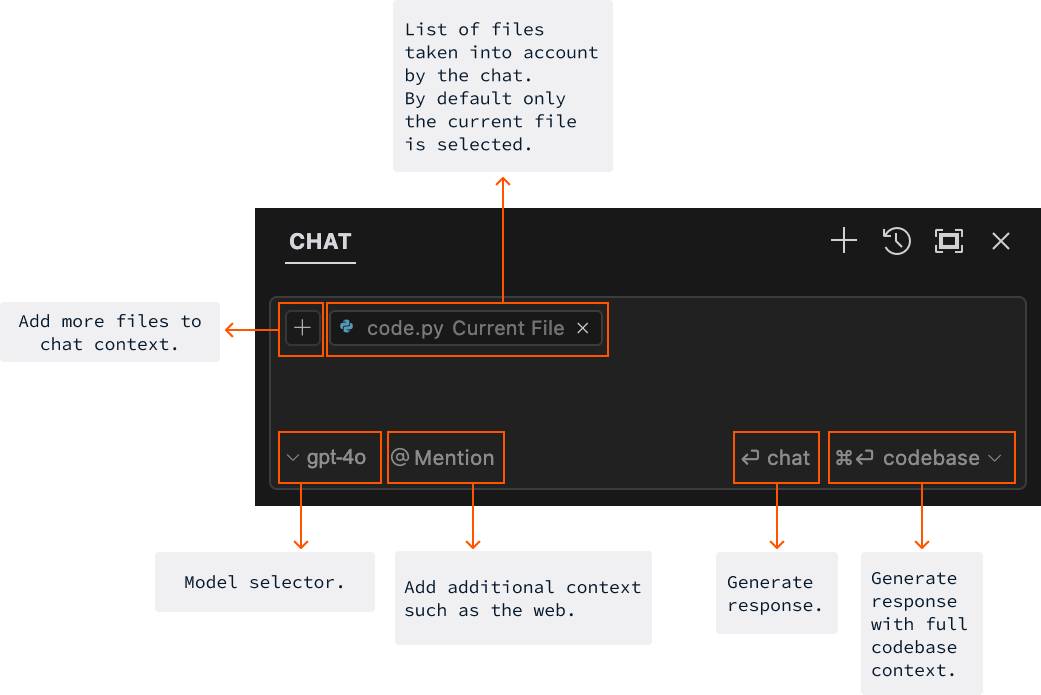
Keep the request bounded. “Add validation to this form using the existing validation library” gives more useful direction than “Improve the application.”
6. Apply a chat-generated change
The pictured interface offers an Apply control on code blocks. Other modes may propose changes directly. Inspect the resulting diff and reject changes unrelated to the task.
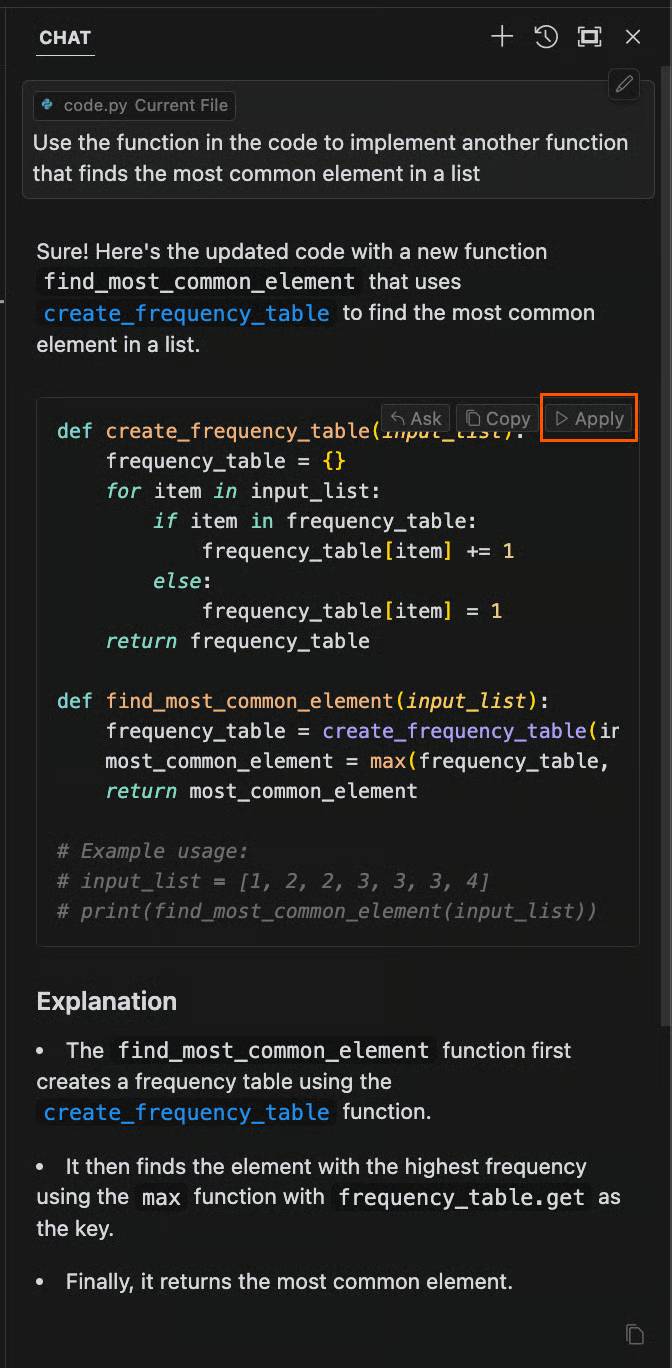
Run the project's relevant checks after applying the change. A successful code insertion is not evidence that the feature works.
7. Supply relevant context
Use the available attachment or mention controls to include files, folders, and documentation. Earlier versions expose these through @ mentions, including a web-search option.
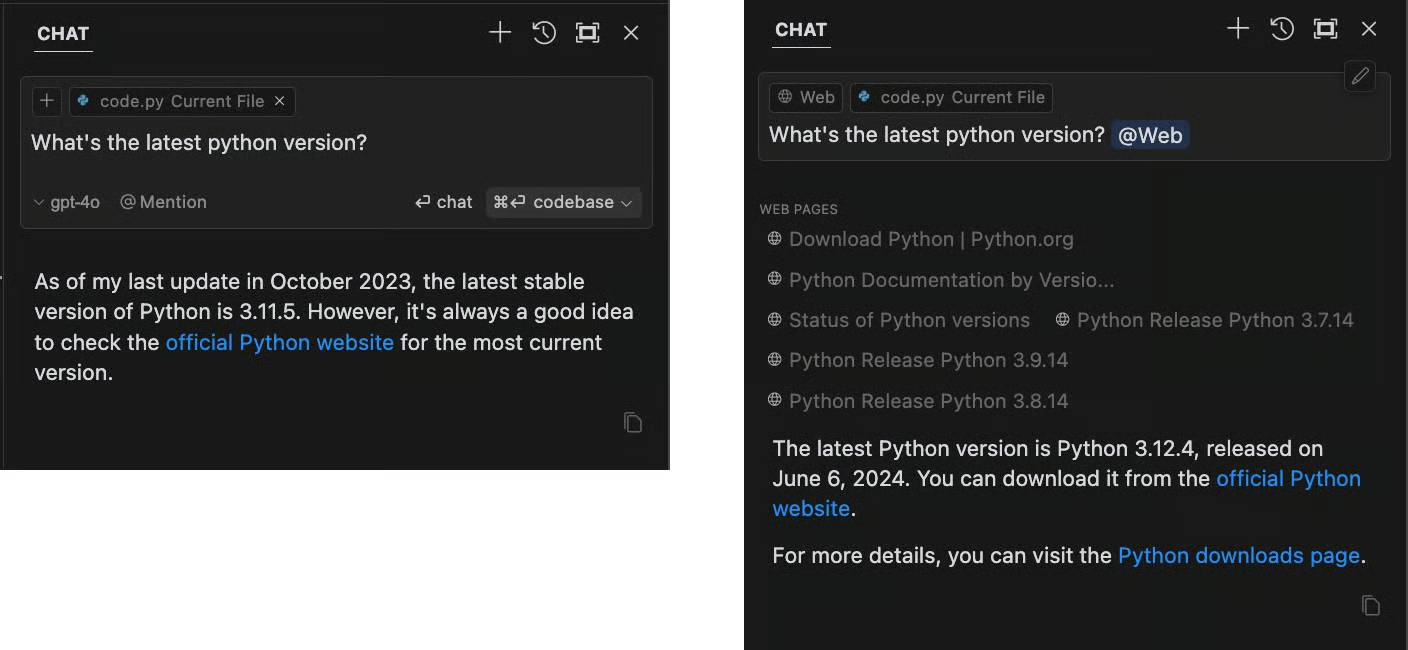
Attach the smallest complete context: the function, its caller, and the failing test may be enough. Use current official library documentation when an answer depends on an API version. Review your organization's rules before sending private code or documents to an AI service.
8. Find functionality across a codebase
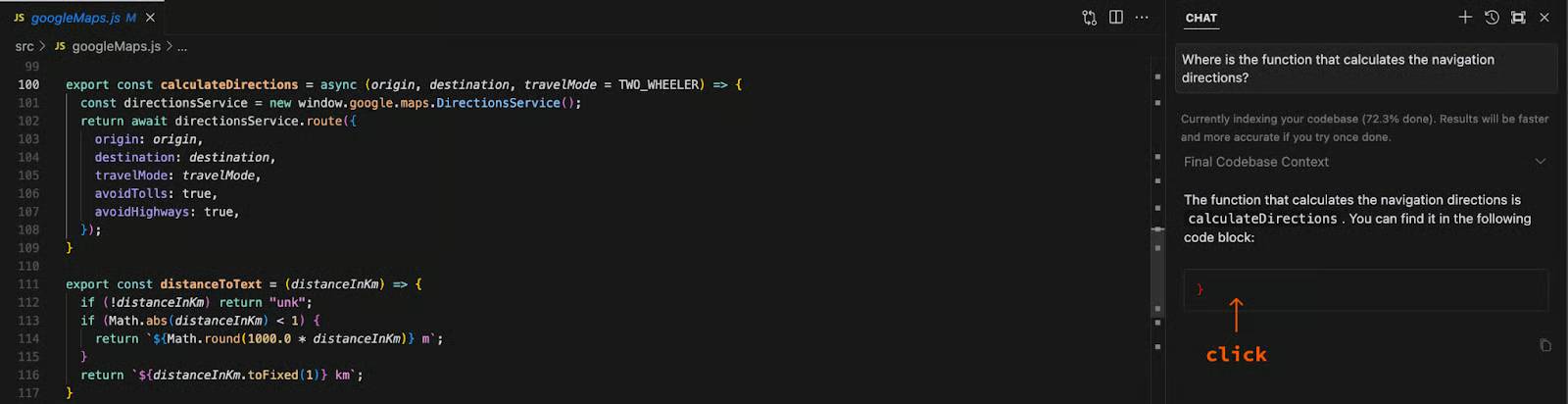
Ask a behavior-based question, such as “Where are navigation directions calculated, and which code calls that function?” Request file paths and relevant symbols.
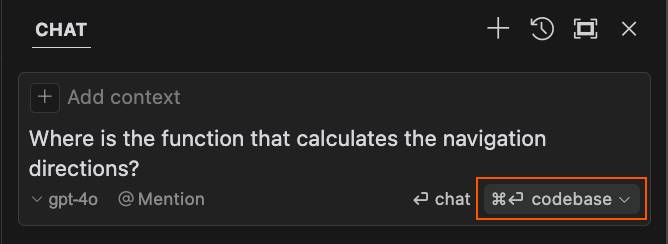
Open each returned reference and check the surrounding code. Indexing and search can miss files, so follow the call path before assuming a result is complete.
9. Use an image as UI context
If the selected model and interface support images, attach a sketch or screenshot and describe the component you want. Specify the existing framework, reusable components, and responsive behavior.
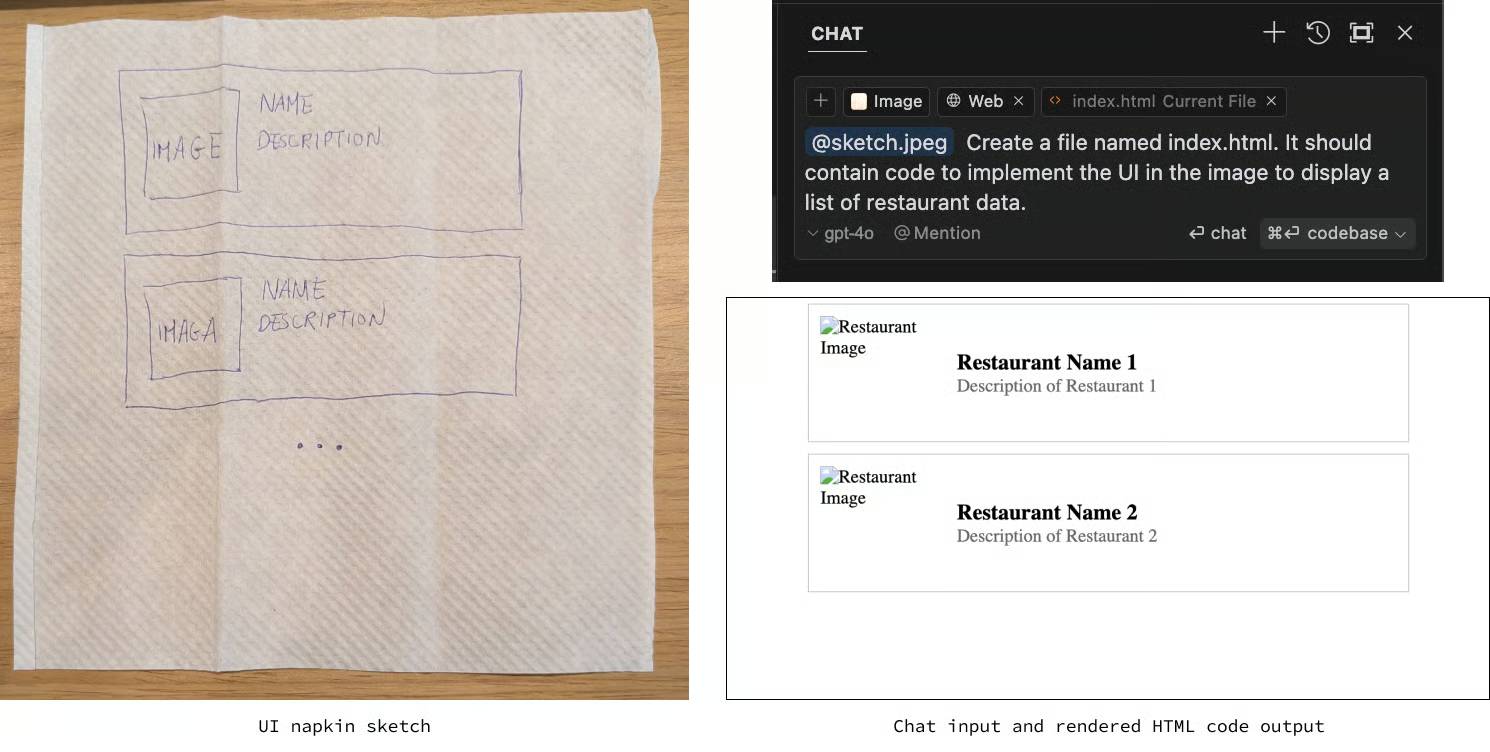
For example: “Build this form with our existing components. Preserve keyboard access, labels, and error messages, and stack the fields on narrow screens.” Compare the rendered result with the reference; an image alone does not specify interaction behavior.
10. Reference library documentation
The source workflow adds documentation through @ → Docs. Use the equivalent documentation/context option available in your installed version.
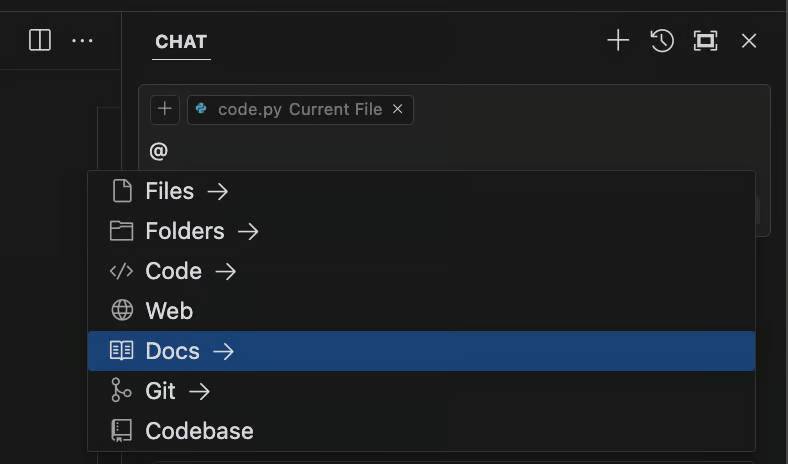
Add the official documentation for the library version used by the project, not an unrelated tutorial.

Name the reference clearly and include it in the request when needed. Ask the model to identify the relevant API and explain how it applies to your code.
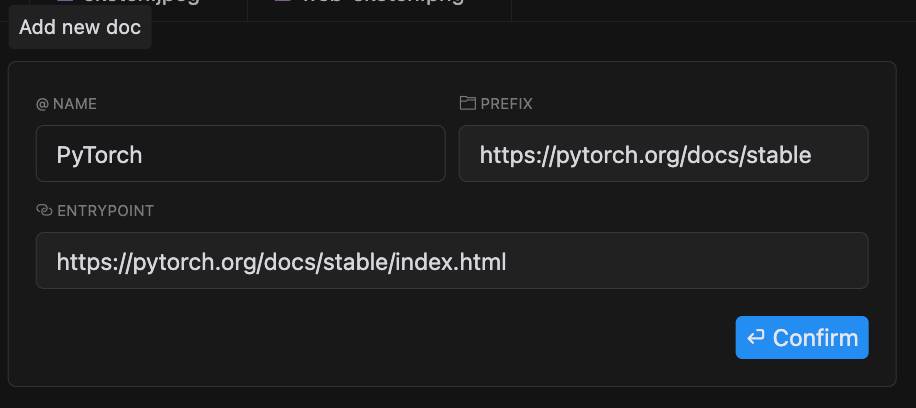
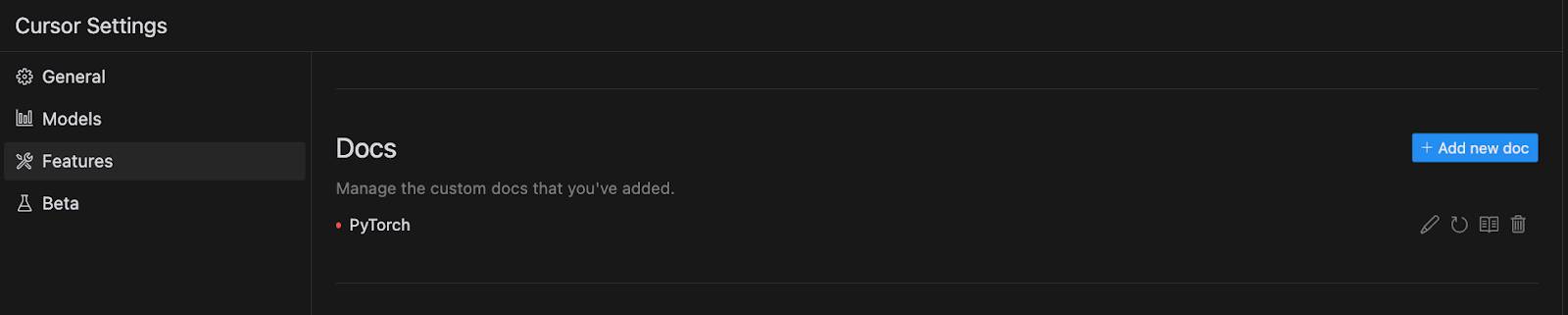
Review or update saved documentation references in the available settings. The pictured settings location may differ from current releases.
Check the result before keeping it
Inspect the complete diff, run relevant tests or a reproducible manual check, and confirm that the original problem is resolved. Keep credentials out of prompts and review commands before running them. Consult Cursor's documentation for current controls, permissions, and model availability.
If you are deciding between workflows, compare Cursor and Claude Code using the same small coding task and judge the verified result and review effort.
Related Articles
 How to Write General Rules in Cursor - Creating General Rules in Cursor3 minutes read
 NotebookLM: User Guide with Practical Examples16 minutes read
 Cursor Composer User Guide: What You Need to Know8 minutes read
 Tips for Effectively Importing Context into Cursor7 minutes read
 How to Use Cursor Rules File (. Mdc)11 minutes read
 What Is Plan Mode in Cursor?8 minutes read
Reader Comments 0
Sign in with email or Google to join the discussion.