Table of Contents
Cursor's Plan Mode lets the coding agent study a project and produce a reviewable implementation plan before it changes any files. It is most useful for multi-file features, refactors, migrations, and bugs whose cause is not yet clear. A plan is still a proposal: check its assumptions, scope, and test strategy before asking Cursor to build it.
What Plan Mode does
In Plan Mode, Cursor researches the relevant parts of your codebase, asks clarifying questions when requirements are ambiguous, and creates an editable plan. Unlike a normal Agent request, this gives you a checkpoint between investigation and implementation. You can correct the approach before the agent edits code or runs commands.
According to the official Plan Mode documentation, you can press Shift+Tab in the chat input to rotate to Plan Mode. The interface may also suggest the mode for a complex task.
How to create and review a plan
1. Open the project and switch to Plan Mode
Open the repository in Cursor, then open Agent from the side panel. Cursor documents Cmd+I on macOS or Ctrl+I on Windows and Linux as the Agent shortcut. Switch the chat input to Plan Mode with Shift+Tab.
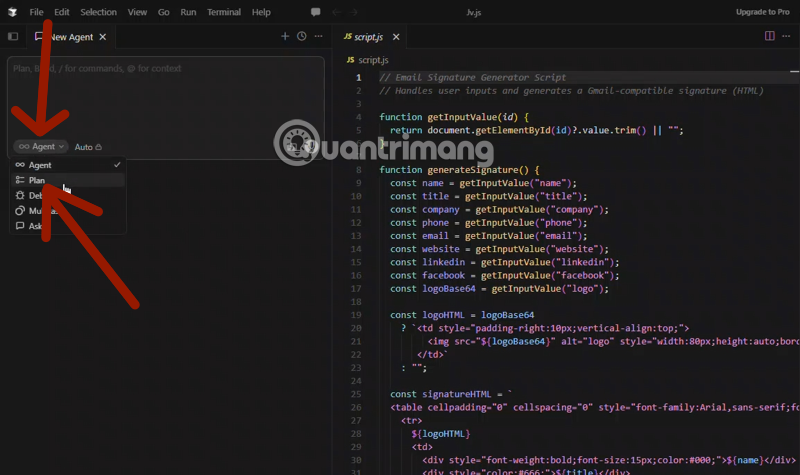
2. Describe the outcome and constraints
Give the agent a concrete goal rather than a broad instruction. Include the expected behavior, relevant files or components, compatibility requirements, commands used for tests, and anything it must not change.
Plan a change that adds password-reset rate limiting.
Keep the existing API response format, do not change the database schema,
and include unit tests for the limit and cooldown behavior.
Attach specifications, error logs, or important files when they are not easy to infer from the repository.
3. Let Cursor research the codebase
Plan Mode searches the project and traces the code related to the request. Answer any clarifying questions before accepting the plan. If a question exposes an unresolved product decision, settle that decision instead of allowing the model to guess.
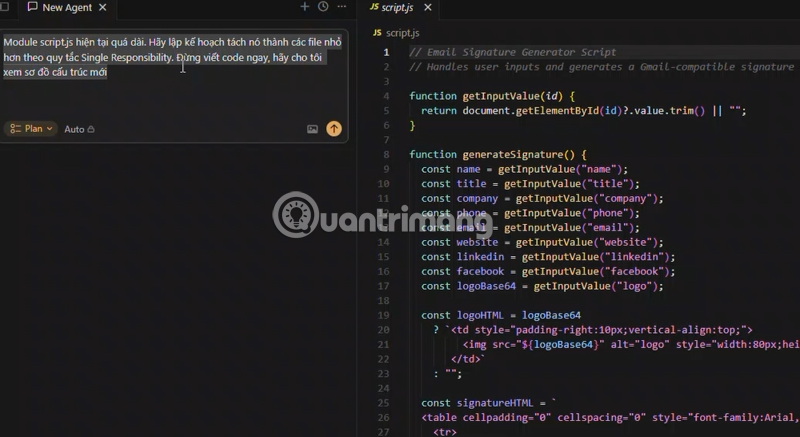
4. Inspect and edit the proposed plan
Check that the plan identifies the correct files, preserves public interfaces, accounts for error handling, and includes appropriate tests. For migrations or security-sensitive changes, also look for validation, rollback, and data-handling steps. Remove unnecessary work and add any missing acceptance criteria.
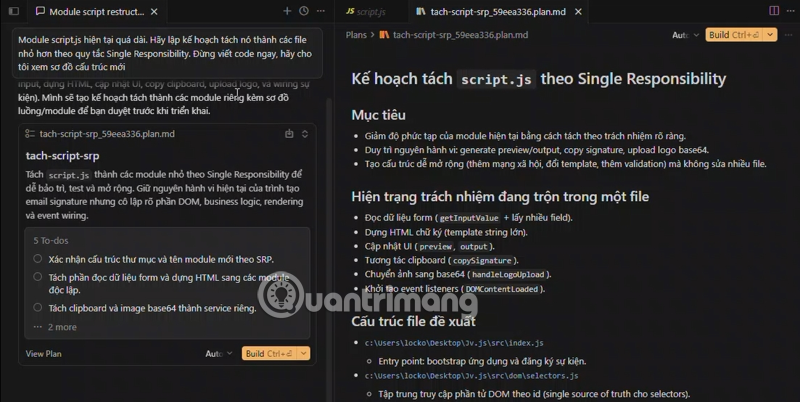
5. Build the approved plan
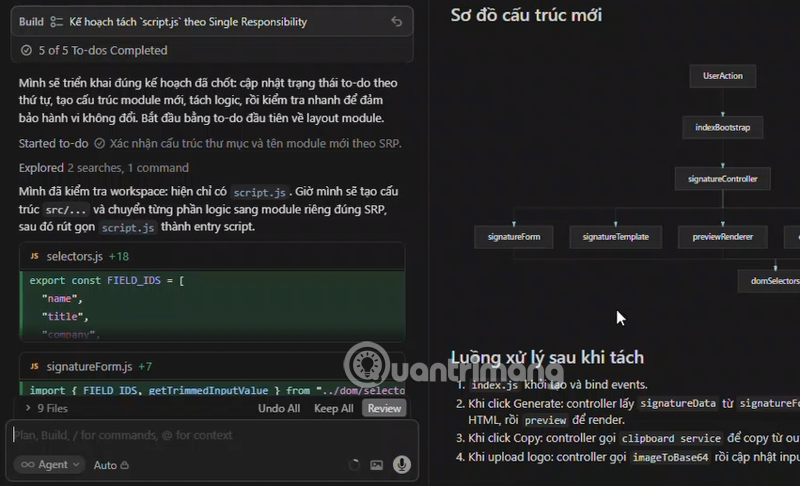
Use the build or implementation action shown in the plan interface. Cursor can execute the plan in the foreground or, where available, hand the work to another agent. Keep the task bounded and watch for requests to run destructive commands or modify files outside the agreed scope.
Review the implementation, not only the plan
After Cursor finishes, inspect the diff, run the project's tests and linters, and exercise the changed behavior. A well-written plan reduces ambiguity but does not guarantee correct code. If the change is large, review it in small groups of files; our guide to using Cursor for code review explains a practical review workflow.
When Plan Mode is worth using
- Good candidates: cross-cutting features, architectural changes, unfamiliar codebases, dependency upgrades, and bugs that require investigation.
- Usually unnecessary: a one-line copy change, a known typo, or a small edit whose file and solution are already clear.
For early exploration where you do not want any file changes, use Ask mode instead. For direct implementation of a small, well-defined task, Agent mode may be faster. If you are still deciding whether the editor fits your workflow, see our Cursor review.
Plan Mode tips
- State measurable acceptance criteria so the plan has a clear finish line.
- Mention files, APIs, and conventions that must remain unchanged.
- Ask Cursor to identify assumptions and risks when the repository is unfamiliar.
- Do not approve a plan that names the wrong components or omits testing.
- Commit or create a recoverable checkpoint before a broad automated edit.
Cursor also supports Plan Mode in its CLI through /plan or a plan-mode startup flag, as described in the Cursor CLI guide. The same rule applies in either interface: treat the generated plan as a draft that a developer must review.
Related Articles
 What Is YOLO Mode in Cursor?7 minutes read
 How to Change the Theme in Cursor12 minutes read
 Cursor Composer User Guide: What You Need to Know8 minutes read
 A Brand New AI Cursor Is Coming to Windows 11: Key Facts3 minutes read
 Codex Plan Mode: Benefits, Workflow, and Best Uses8 minutes read
 Cursor AI: User Guide with 10 Practical Examples13 minutes read
Reader Comments 0
Sign in with email or Google to join the discussion.