Table of Contents
Cursor can accelerate a code review by tracing a diff, locating related code, and proposing specific tests or fixes. It should be treated as an additional reviewer: every finding still needs evidence, and every patch needs human inspection and verification.
Choose the review scope first
A useful review has a defined baseline and risk model. Decide whether you are reviewing uncommitted changes, a branch against the main branch, a pull request, one file, or a selected function. Then state the behavior and invariants that must not change.
Use Cursor Agent Review for local changes
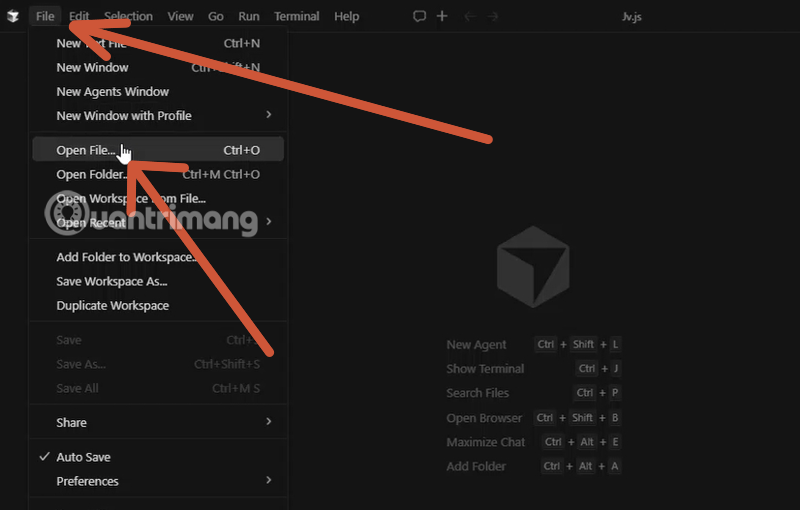
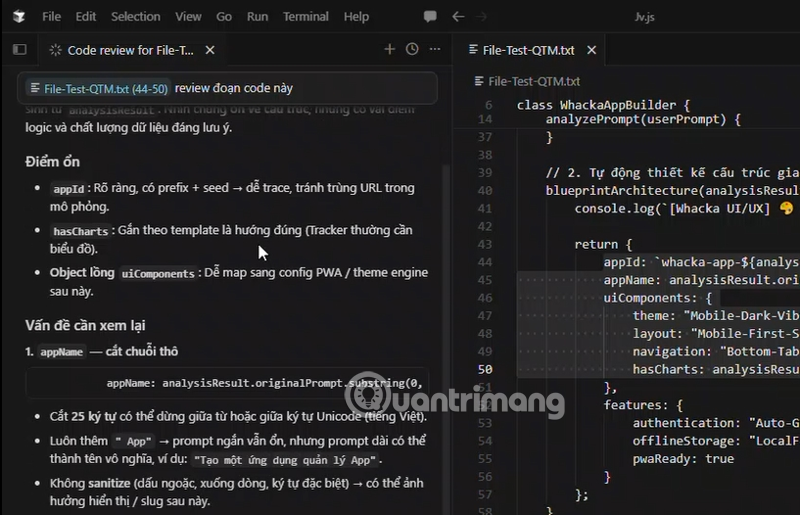
Cursor's current Agent Review can review local changes from the editor. Depending on the version and settings, you can start it automatically after a commit, run /agent-review in the Agent window, or launch it from Source Control to compare local changes with the main branch.
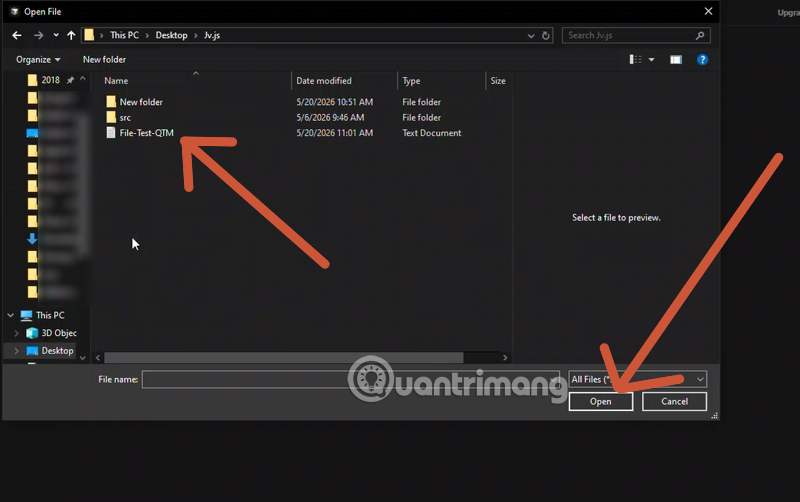
- Open the project and confirm the correct repository and branch.
- Inspect the diff yourself so you know the intended change.
- Run Agent Review at a depth appropriate to the size and risk of the change.
- Read each finding and open the referenced code; do not accept the summary alone.
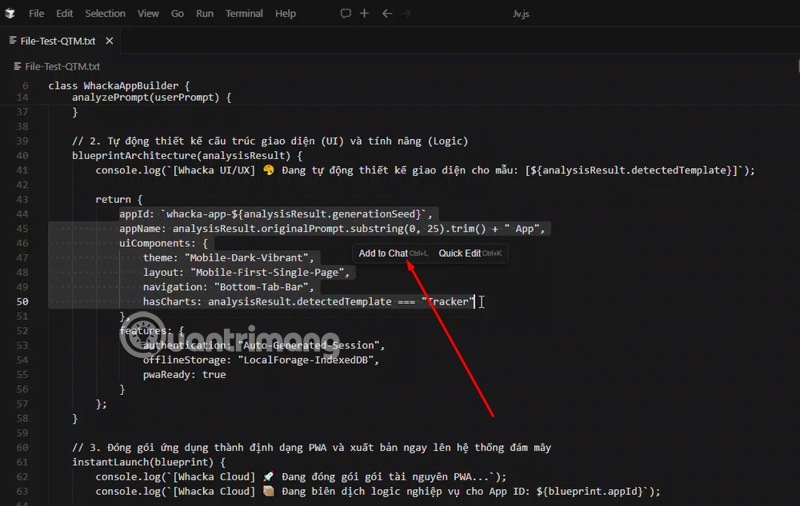
Repository review rules can be recorded in supported rule files such as BUGBOT.md. Keep rules concrete—for example, authentication boundaries, required tests, forbidden dependencies, or error-handling conventions.
Run a focused review in the Agent panel
For a selected file or subsystem, give Cursor the expected behavior and ask for evidence:
Review the current diff against main. Focus on authentication bypasses, missing authorization checks, race conditions, error handling, and backward compatibility. For each finding, cite the file and relevant code path, explain a reproducible failure scenario, and propose the smallest test that would confirm it. Do not edit files.
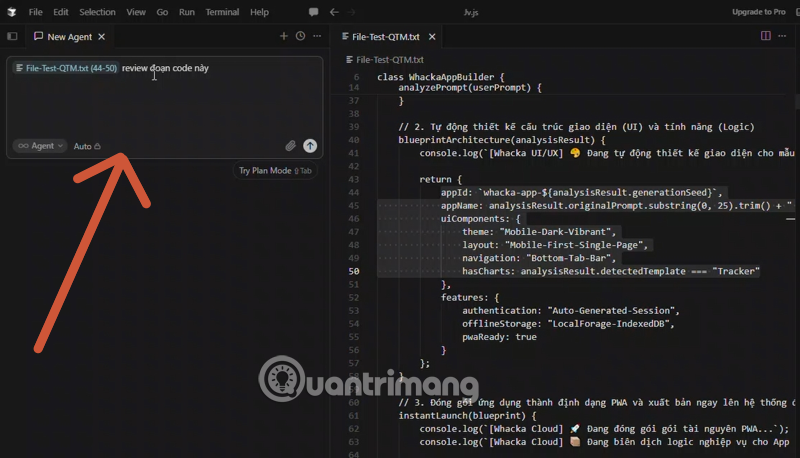
A prompt that says only “review this code” tends to produce generic style advice. Naming risk categories and requiring a failure scenario makes the output easier to validate.
Verify every finding
- Trace the path: confirm the input, call sites, state changes, and output that the finding depends on.
- Check assumptions: inspect types, framework behavior, configuration, feature flags, and existing guards.
- Reproduce it: add or run the smallest relevant test.
- Estimate impact: distinguish a real user-facing defect from style, speculation, or an unreachable edge case.
- Check the fix: ensure the proposed patch does not widen scope or remove required behavior.
Apply fixes in small diffs
Ask Cursor for one narrowly scoped change at a time, review the diff, and run the relevant formatter, linter, type checker, unit tests, and integration tests. Do not combine unrelated refactoring with a bug fix merely because the agent suggested it.
What Cursor is good at finding
- missing branches, unchecked null values, and incomplete error handling;
- inconsistent call sites after a signature change;
- duplicated logic and confusing control flow;
- tests that do not cover a changed condition;
- obvious injection, authorization, secret-handling, or unsafe-deserialization patterns.
What still requires expert review
Business invariants, payment behavior, authorization models, cryptography, concurrency, migrations, privacy requirements, and production operations often depend on context that is not present in the repository. AI review can miss defects and can also invent convincing but invalid findings.
Keep normal review controls: human approval, protected branches, reproducible tests, static analysis, dependency scanning, and specialist security review where risk warrants it. See the Cursor Agent Review documentation for current triggers and settings.
Related Articles
 Anthropic AI Coding Assistant5 minutes read
 More Professional, Easier Programming with Grok's Files Feature6 minutes read
 Microsoft Uses Internal AI Copilot for Code Review, Impacts 600,0003 minutes read
 Why Have People Stopped Using Cursors to Write Code?7 minutes read
 What Is Review: What Is a Review? Job Experience Test for People4 minutes read
 Cursors and Arrays in C ++: Cursor and Array in C ++1 minutes read
Reader Comments 0
Sign in with email or Google to join the discussion.