Table of Contents
Mouse speed, also known as DPI, significantly impacts user productivity. Therefore, adjusting mouse and cursor speed to suit user preferences is crucial.

Software for Adjusting Mouse and Cursor Speed: Overview
Tool to change and adjust mouse speed for Windows 11, 10, 8, and 7
1. Mouse and Keyboard Center
Mouse and Keyboard Center is a free utility for customizing Microsoft computer mouse behavior. The utility's options allow users to assign specific functions to each mouse button, and it even allows assigning specific mouse buttons to individual applications.
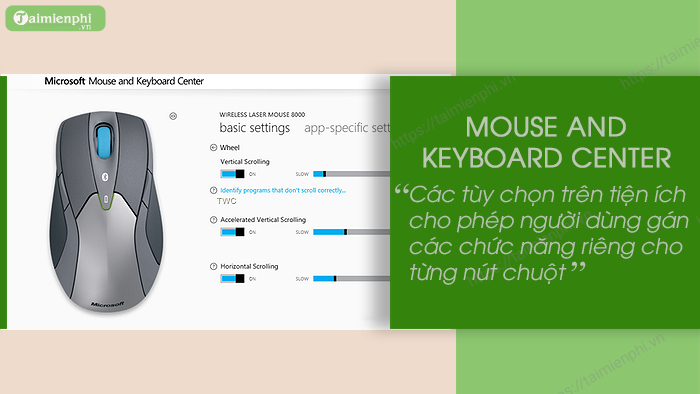
With Mouse and Keyboard Center, you can easily assign the right mouse button to actions in File Explorer,..
To download and install Mouse and Keyboard Center, click here.
=> Link to download Microsoft Mouse and Keyboard Center
2. WizMouse
The next software for adjusting mouse and cursor speed is called WizMouse. Key features include: enabling the mouse scroll wheel in applications that don't support it, and reversing the scroll direction. Additionally, you can enable or disable the software directly from the system tray.
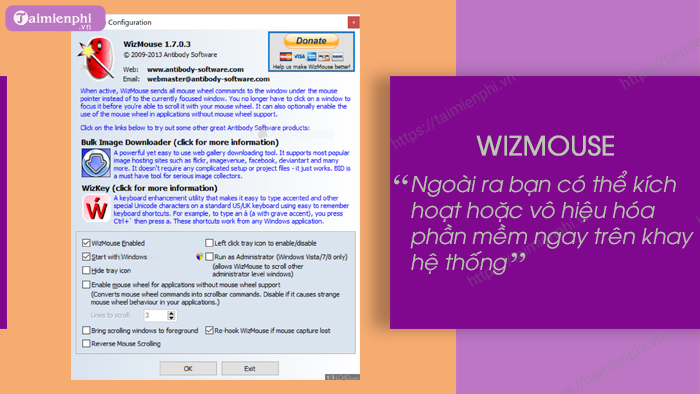
Download and install WizMouse here.
=> Download link for WizMouse
3. Ghost Mouse
Ghost Mouse is designed to record macros, and this process is recorded or played back instantly. During macro recording, it can capture mouse movements, clicks, latency, and keyboard input.
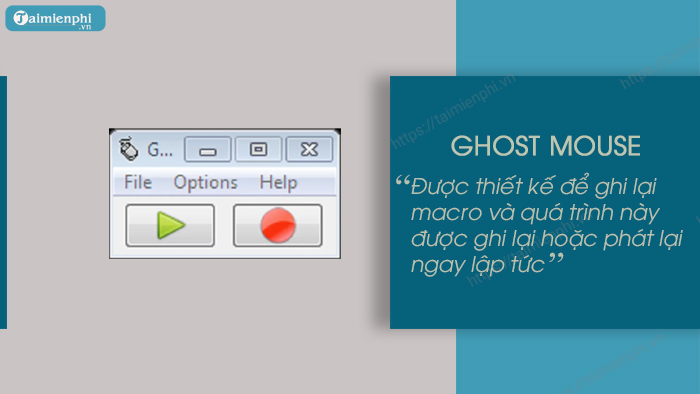
To download and install Ghost Mouse, click here.
=> Download link for Ghost Mouse
4. Mouse Manager
Mouse Manager is a free software for adjusting mouse speed and cursor, allowing users to set any key or key combination as the 4th and 5th mouse buttons, in addition to the left, right, and scroll wheel buttons. The software's advantage lies in its simple and user-friendly interface.
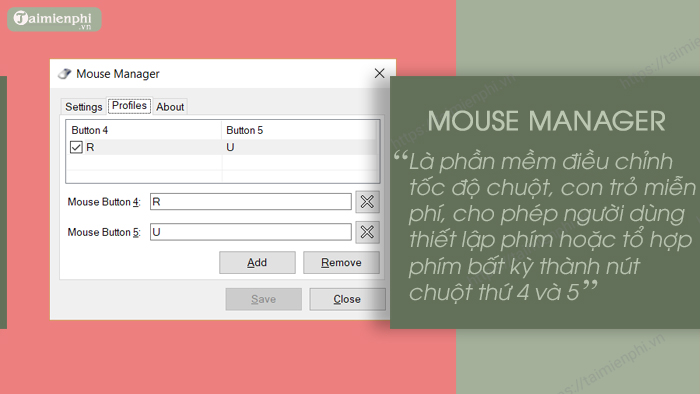
To add a new shortcut, in the application window, find and click " Add to create " and enter the keys. The application supports shortcuts such as Ctrl + V.
Download and install Mouse Manager from here.
=> Download link for Mouse Manager
5. X-Mouse Button Control
X-Mouse Button Control is known as a free mouse button customization tool, including a mobile app version. Users can add specific applications as well as processes and edit windows within the application.
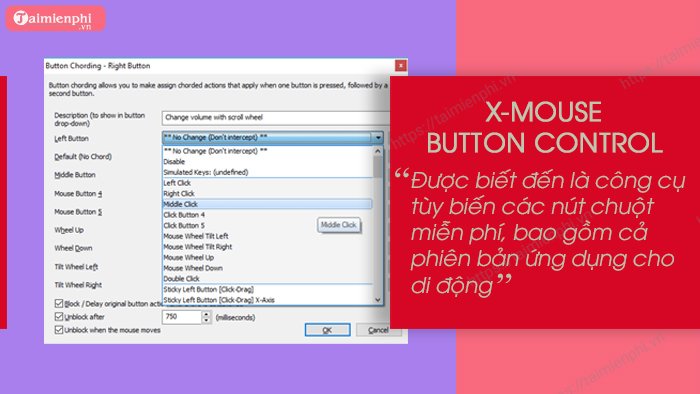
In addition to the three main mouse buttons, the application also supports a fourth and fifth mouse button, a mouse scroll wheel, and approximately 100 different actions for each button, including: swapping or disabling mouse button actions, keyboard shortcuts, window operations, Explorer commands, etc.
However, the biggest drawback of X-Mouse Button Control is that it is difficult to use and unsuitable for novice users.
Download and install X-Mouse Button Control here.
=> Link to download X Mouse Button Control
The article above, by TipsMake, has introduced you to some effective software for adjusting mouse and cursor speed. Additionally, if you have any further questions or need clarification, please leave your comments in the section below the article.
Windows 10 is the latest operating system currently available. If you want to change the mouse speed on your device but don't know how, please refer to the article on TipsMake.
FAQ
What should you know about software for adjusting mouse and cursor speed?
Mouse speed, also known as DPI, significantly impacts user productivity. Therefore, adjusting mouse and cursor speed to suit user preferences is crucial.
What should you know about tool to change and adjust mouse speed for Windows 11, 10, 8, and 7?
1. Mouse and Keyboard Center Mouse and Keyboard Center is a free utility for customizing Microsoft computer mouse behavior.
Do the steps or features vary by device or software version?
They can. Menu names, available settings, and compatibility may differ by device, region, account type, or software version, so check the options shown on your own screen.
Related Articles
 Instructions to Change the Interface of the Mouse Cursor on4 minutes read
 How to Adjust Mouse Speed on Windows 10, 8, and 7 Computers4 minutes read
 Steps to Adjust Mouse Speed on Windows 115 minutes read
 The Basic Steps of Fixing Cursor Cursors Flutter in Windows8 minutes read
 How to Change Mouse Settings in Windows9 minutes read
 How to Adjust the Fan Speed on a Windows Computer4 minutes read
Reader Comments 0
Sign in with email or Google to join the discussion.