Table of Contents
To make a change across several files in Cursor, open the project, start an Agent task, describe the required behavior and review the resulting edits and tests. Older tutorials call this workflow Composer. Cursor also uses Composer as a model name, so the editing interface and the model selected inside it are separate choices.
For example, Composer 2.5 is a Cursor model. Choosing it does not remove the need to supply context, control tool access or inspect the generated code.
1. Open the right project and preserve existing work
Open Cursor and select the project folder you intend to change. Use the official Cursor documentation for installation and interface details if your version differs from the screenshots.
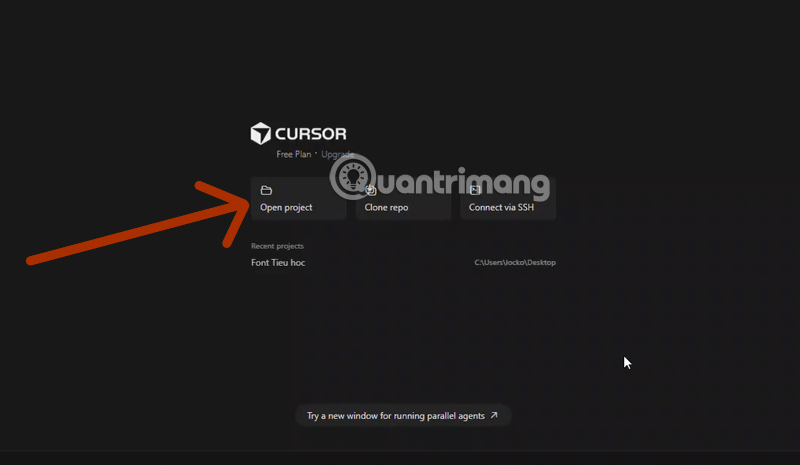

Before a substantial edit, inspect the current Git status and preserve work you want to keep. A separate branch or another suitable checkpoint makes review and rollback easier. Do not include credentials or unrelated private files merely to give the assistant more context.
Opening a folder is not proof that every file has been indexed or read. Indexing depends on configuration and exclusions; the model still needs the relevant files for the task at hand.
2. Start an Agent task and select a model
Open the Agent panel or start a new Agent conversation using the control available in your version. Older interfaces may use Ctrl+I or Cmd+I; check your keyboard bindings if the shortcut does something different.
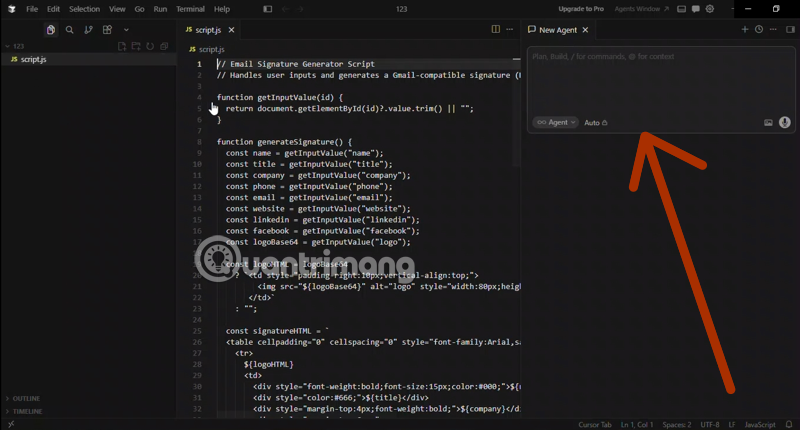
Select an available model whose cost and capabilities fit the task. If you choose Auto, do not assume it uses a particular Composer or Claude model. Review the account's usage information before a long task.
For the distinction between editor workflows, see Cursor versus GitHub Copilot.
3. Describe the behavior and boundaries
A useful request identifies the current behavior, desired change, relevant files, constraints and how success will be checked. Reference files with the available context controls rather than expecting the agent to infer the entire application.
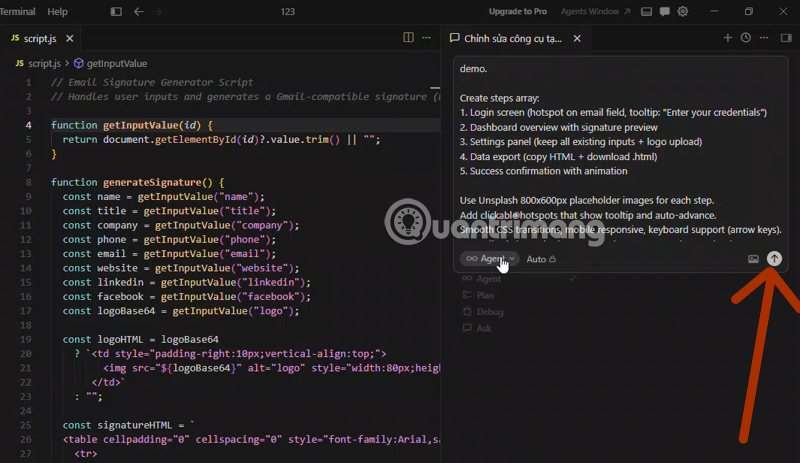
Add an empty-state message to the existing search results page. Inspect the search component, its data hook and nearby tests first. Reuse the current design system. Preserve loading and error behavior. Propose the affected files and test cases before editing, and do not add dependencies.
This example is small enough to review but still involves related behavior across files. For authentication, payments or a large refactor, agree on a more detailed design and test plan before implementation.
Cursor's Plan Mode supports reviewing an implementation plan before building. Clarify unsupported assumptions while the change is still a proposal.
4. Review the diff as the agent works
The agent can create files, edit existing files and use tools according to the environment's permissions. Do not assume every operation remains an unapplied suggestion until you click “Accept All.” Inspect the actual working tree and the activity shown by Cursor.
- Check every affected file, including configuration and lockfiles.
- Look for unrelated refactoring or behavior changes.
- Verify imports, error paths and compatibility with the installed framework version.
- Review commands before they access external systems or change shared state.
- Keep only changes you understand and can maintain.
The Agent overview describes checkpoints for significant changes. Use them where appropriate, but retain normal version-control practices; an editor checkpoint is not a substitute for a reviewed commit or a backup.
5. Validate the result
Run the relevant tests and any type, lint or build checks required by the project. Ask for the exact commands and outcomes, and distinguish completed checks from suggested checks.
For the search example, test no results, populated results, loading and failure states. Open the application and inspect the visible result where applicable. A successful build does not establish that the feature behaves correctly.
If a test fails, inspect the failure before asking for another broad rewrite. Keep the repair focused so you can tell which change solved the problem.
Make repeated work more consistent
Store recurring project guidance in current Cursor Rules, such as the supported runtime, test command and canonical component patterns. Avoid telling the model to use an arbitrary newer framework version when the repository uses a different one.
Split large requests into reviewable stages and refresh context when requirements change. No model can promise error-free imports, perfect adherence to rules or a fixed productivity multiplier. If the workflow does not suit your project, compare Claude Code and Cursor on the same bounded task and include review time in the comparison.
Related Articles
 What is Cursor's Composer model?8 minutes read
 How to Enable and Use the GPT-5.5 Codex in Cursor (Detailed Instructions)7 minutes read
 Cursor AI: User Guide with 10 Practical Examples13 minutes read
 How to Write General Rules in Cursor - Creating General Rules in Cursor3 minutes read
 Tips for Effectively Importing Context into Cursor7 minutes read
 How to Use Cursor Rules File (. Mdc)11 minutes read
Reader Comments 0
Sign in with email or Google to join the discussion.