Table of Contents
Gemini provides an import workflow for supported chat exports and a separate option for bringing over a summary of preferences or memory. Exporting conversations from ChatGPT or Claude is only the first step: you then upload the supported file through Gemini's import controls and check what was imported.
Use this workflow only if the option is available to your account. Eligibility, file requirements, and regional access can change. Check Google's import guidance and the instructions displayed in Gemini before preparing an archive.
Decide what you want to transfer
- Chat history: an exported archive of conversations, imported through the supported file-upload workflow.
- Memory or preferences: a text summary describing useful context, such as your preferred response style or ongoing projects.
These are different forms of data. A memory summary is not a complete archive, and importing an archive does not guarantee that every attachment, setting, or feature transfers. Review the information you are about to send to another provider.
Export conversations from ChatGPT
Open the account menu and go to Settings. The source screenshots show the menu at the lower left; placement may differ.
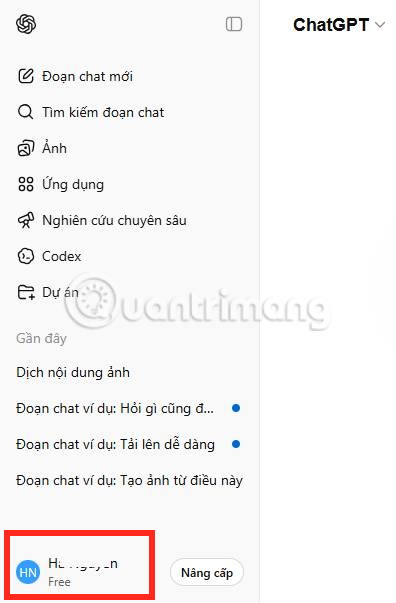
Open Data controls and find the export option.
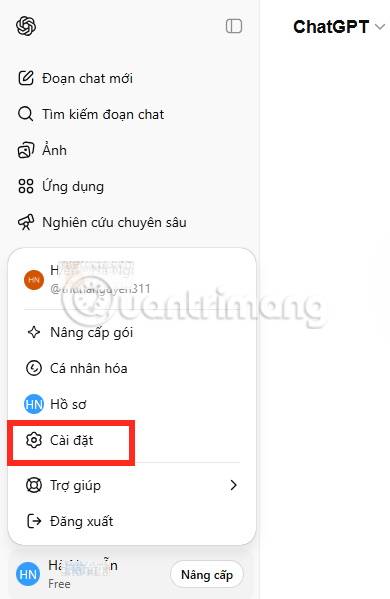
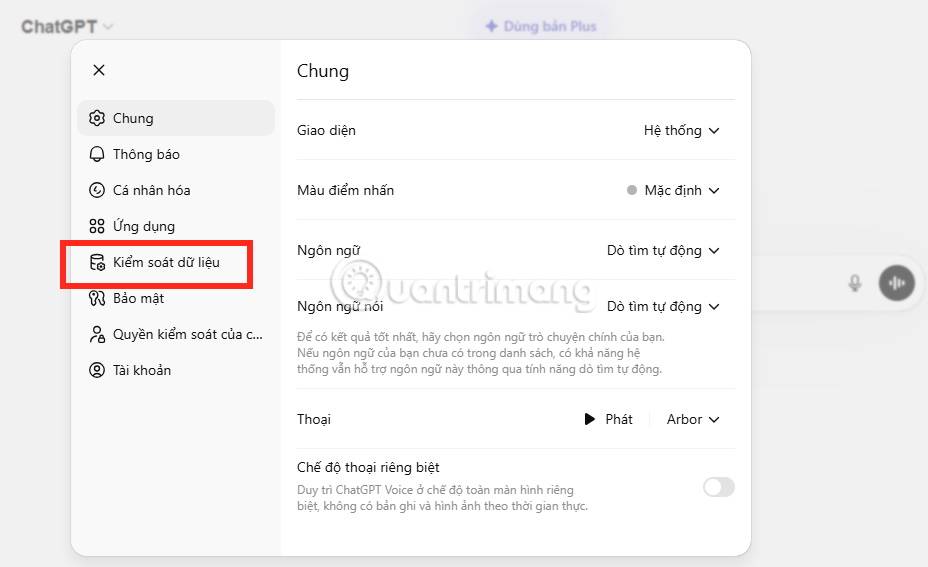
Choose Export data and confirm the export request. Follow the account's delivery instructions to obtain the archive.
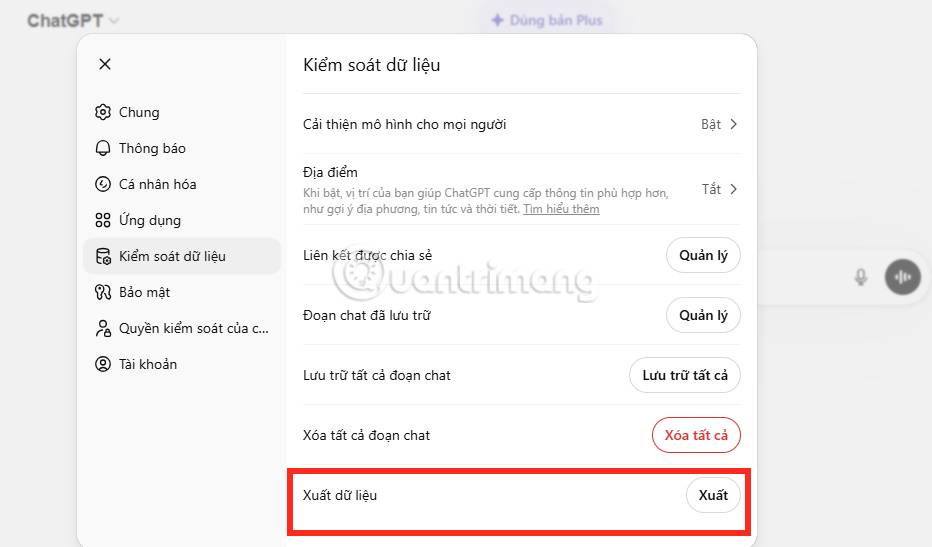
Keep the downloaded archive in a private location. Do not assume it contains only the one conversation you last opened.
Export conversations from Claude
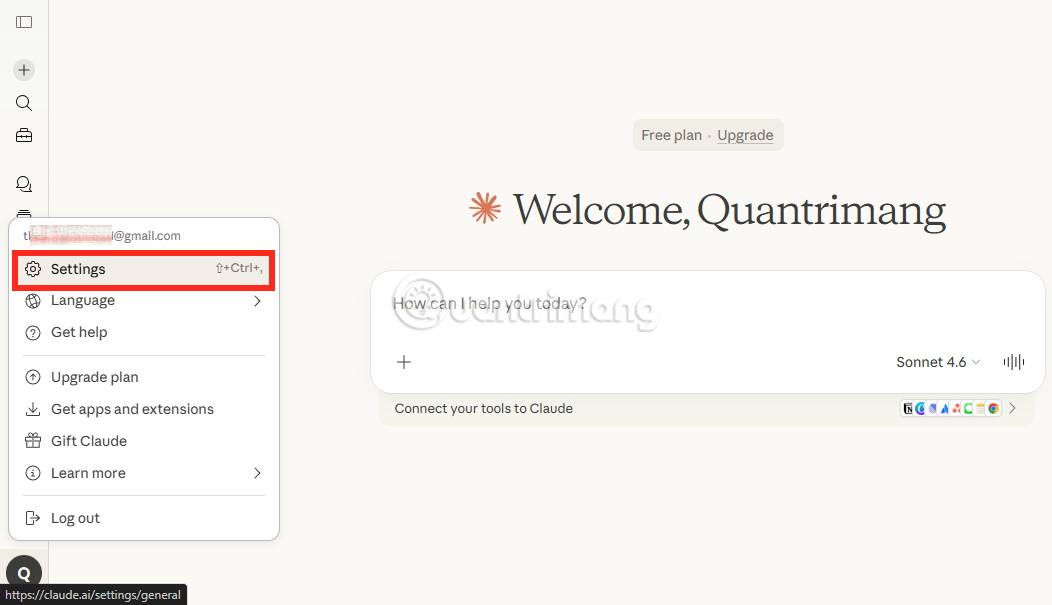
Open the account menu, then Settings.
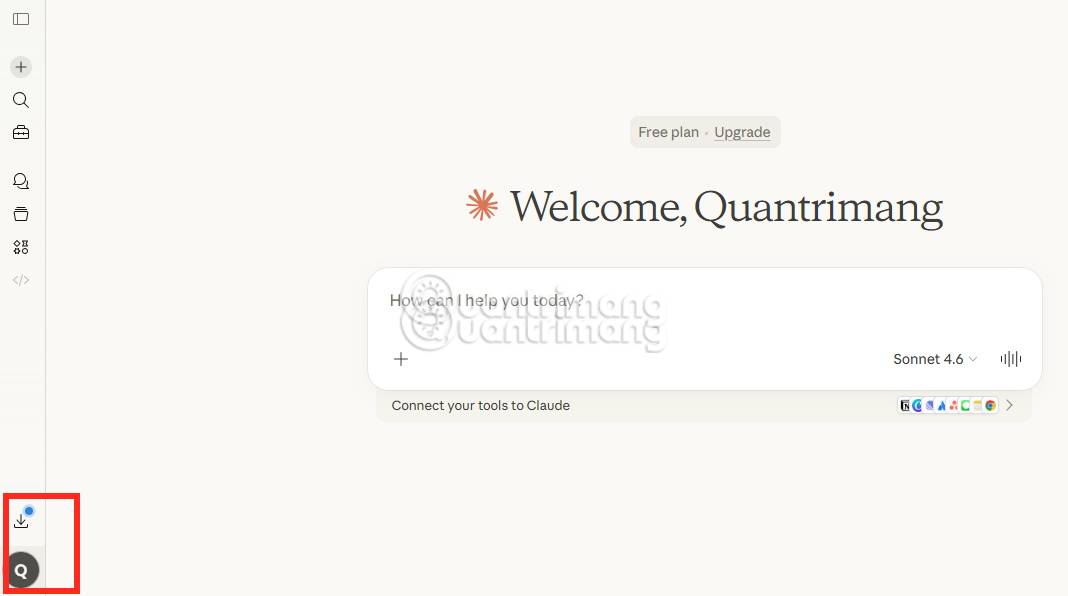
Go to Privacy and select Export data.
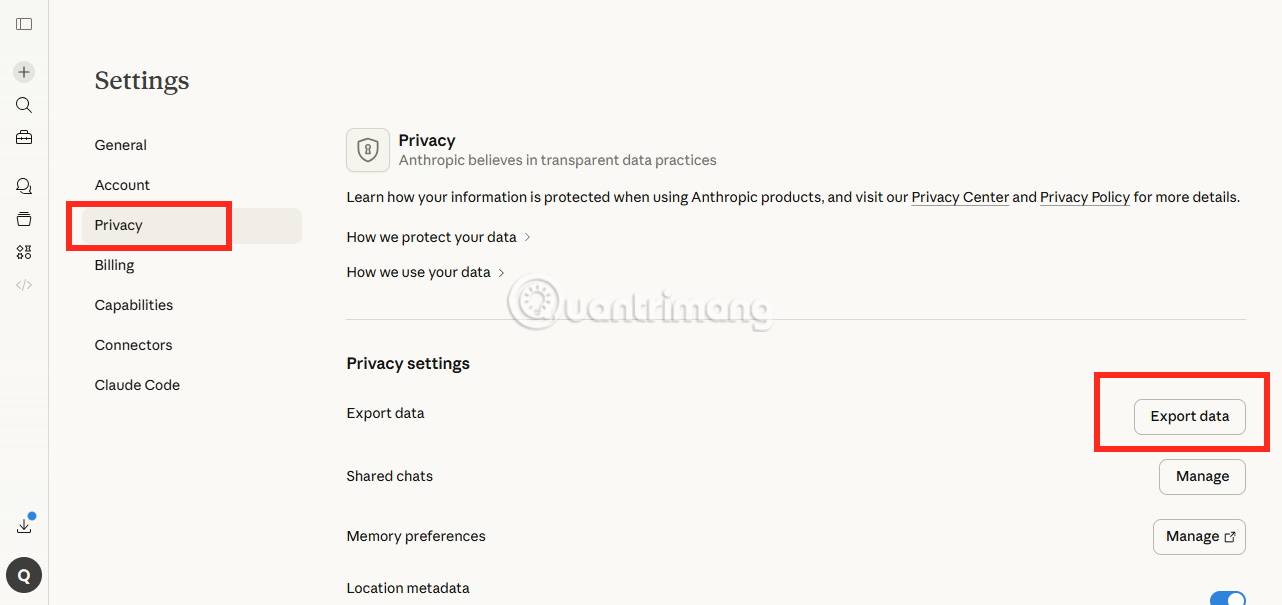
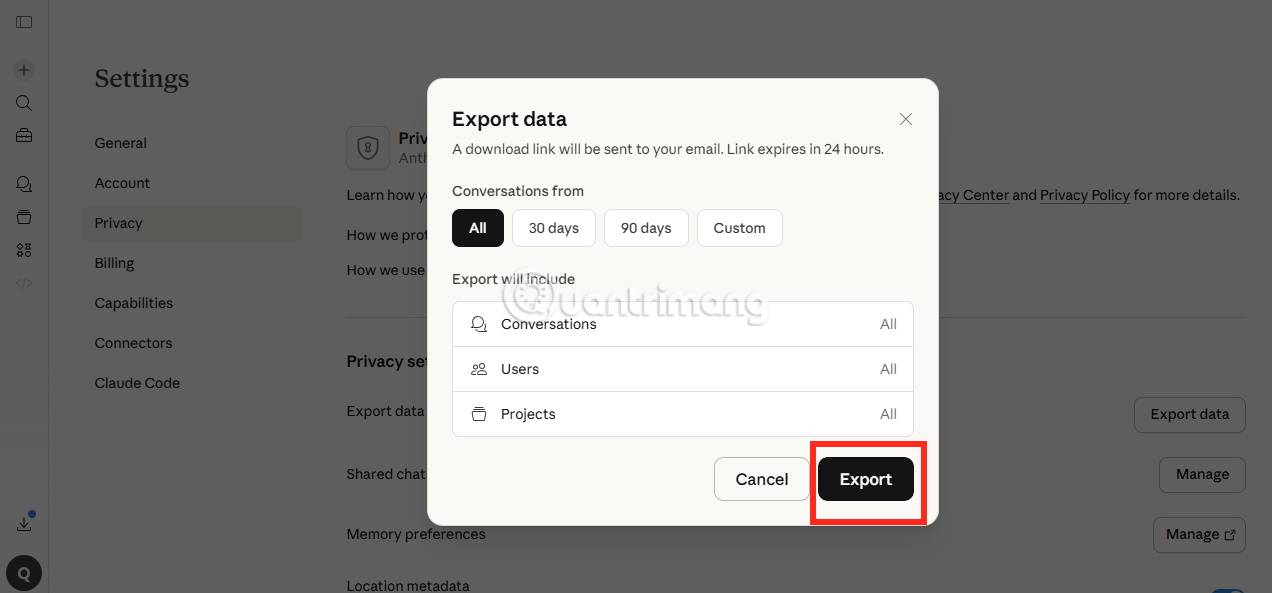
If the interface offers a data range, choose the range you need and confirm. The export process sends a download link to the account's email address; follow its sign-in and expiry requirements.
See Claude's export instructions if the controls or download behavior differ. Organization-managed data can have separate export rules.
Import the archive into Gemini
Open Gemini on the web and look under Settings and help → Import memory to Gemini. In the Import chats section, select Add and follow the file-upload instructions.
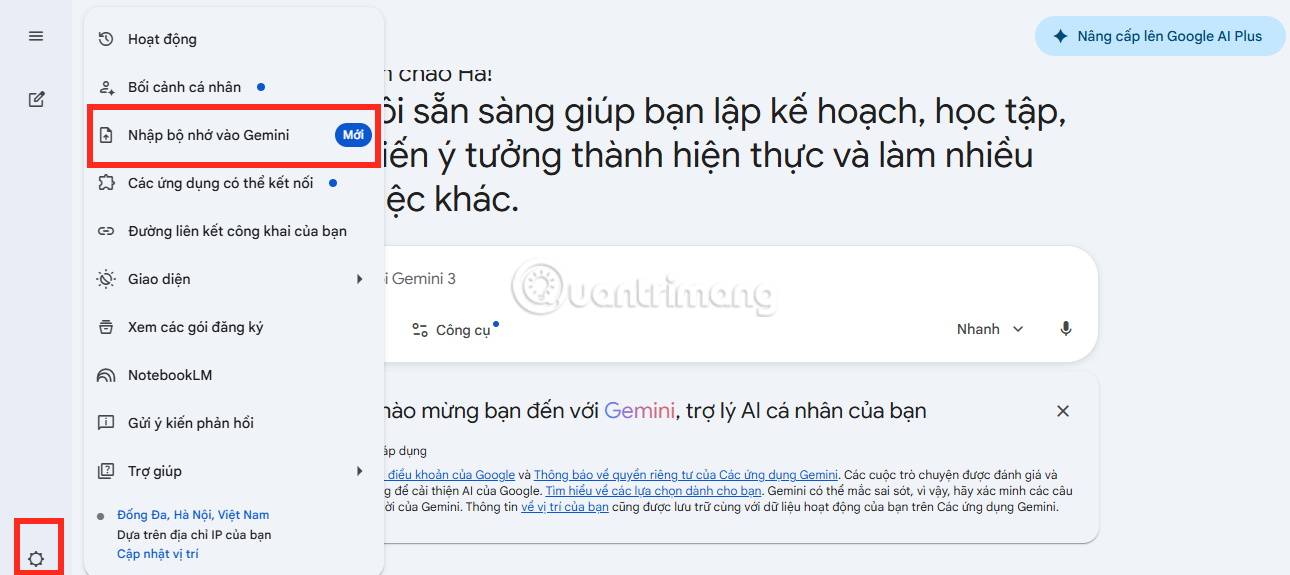
Use the file format and size allowed by the current import screen. If an archive is rejected, read the error before renaming, extracting, or modifying it; those changes can make a supported export harder to recognize.
After import, open representative conversations and check their content. Verify important context and any required attachments separately before relying on the new conversation for ongoing work. Importing is not a reason to delete the original archive immediately.
Bring over a reviewed memory summary
The memory workflow provides a prompt you can copy into the other AI service. Copy the resulting summary, inspect it, and paste only the context you want Gemini to use into the designated import field.
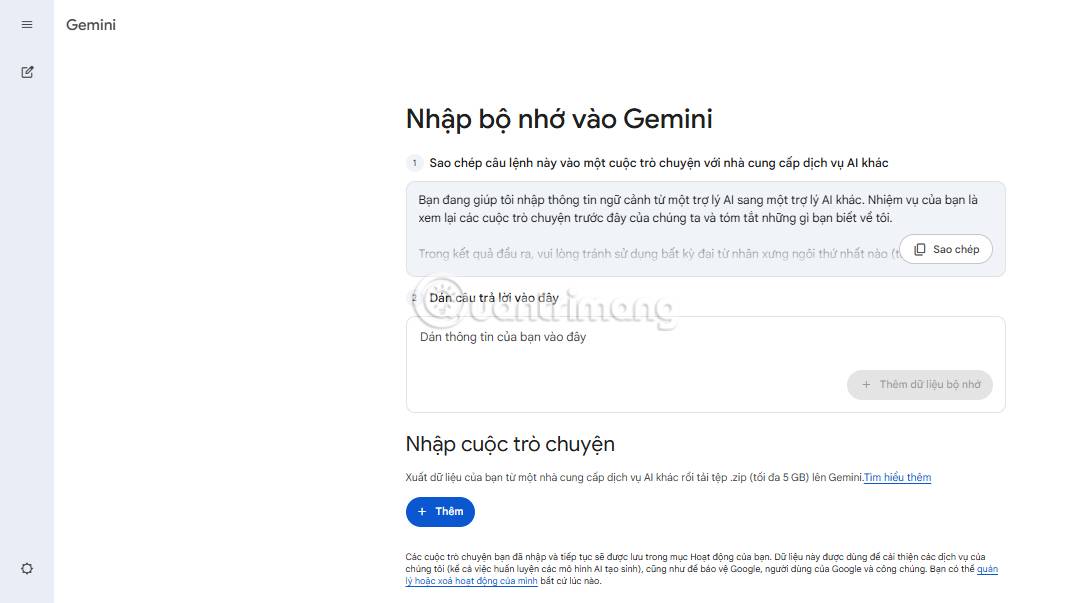
Remove outdated preferences, incorrect assumptions, credentials, and unnecessary personal details before selecting Add. Ask the source assistant to distinguish facts you provided from its own inferences. A generated summary may omit details or include mistakes.
If you only need to continue one project, a short handoff may be more useful than a full archive: state the goal, decisions already made, current files, constraints, and next step. Check the handoff yourself before using it in the new service.
If the import option is missing
Check the account type, current availability, and Google's help instructions. Do not assume that a missing button can be fixed by changing the archive. You can still retain your export and transfer a carefully reviewed summary manually when appropriate.
Keep the move focused on the work you need to continue. Choosing a new assistant and transferring data are separate decisions; neither guarantees identical responses, tools, or memory behavior.
Related Articles
 Why Is Claude Superior to Gemini and ChatGPT?7 minutes read
 ChatGPT vs Claude vs Gemini: Which AI Should You Use?12 minutes read
 minutes read
 Which is better: Claude, ChatGPT, or Gemini for building an11 minutes read
 Which Is Better for Building Simulation Software: Claude, ChatGPT, or Gemini?10 minutes read
 How to Move Chat History and Saved Info to Gemini9 minutes read
Reader Comments 0
Sign in with email or Google to join the discussion.