Table of Contents
“YOLO mode” is the informal name many Cursor users gave to running an agent without approval prompts. In the current desktop interface, the equivalent run mode is Run Everything. It automatically executes every tool call and provides no shell sandbox or review classifier.
Cursor's own documentation recommends Auto-review as the safest useful choice for most people. Run Everything is appropriate only when you deliberately accept the risk and have isolated the project from valuable files, credentials, services, and production systems.
What Cursor's run modes control
| Mode | What runs automatically | Safety layer | Good fit |
|---|---|---|---|
| Auto-review | Allowlisted calls, sandbox-compatible shell commands, and other calls accepted by a classifier | Shell sandbox where possible plus a best-effort classifier | Most interactive development |
| Allowlist | Only actions that match rules you explicitly trust; supported shell commands may also be sandboxed | Deterministic allow/deny rules; optional shell sandbox | Teams that want predictable automation |
| Run Everything | All terminal, MCP, and fetch tool calls | No sandbox and no classifier | Disposable or strongly isolated environments where zero prompts are required |
Auto-review is not a hard security boundary: its classifier can make mistakes. Run Everything removes even that review step, so a misunderstood prompt, software bug, compromised dependency, or prompt injection can immediately cause an unwanted action.
How to select Run Everything in Cursor
Before changing the setting, commit or stash the current work and disconnect any production credentials or databases.
- Open Cursor Settings.
- Go to Agents → Approvals & Execution.
- Review the three run modes and select Run Everything.
- Read the warning and confirm only if the workspace is intentionally isolated.
- After the automated task, restore Auto-review or Allowlist before opening another repository.
Older Cursor builds and tutorials may place these controls under Agents → Auto-Run or call the setting YOLO mode. The screenshots below show that earlier naming; use the current labels in your installed version.
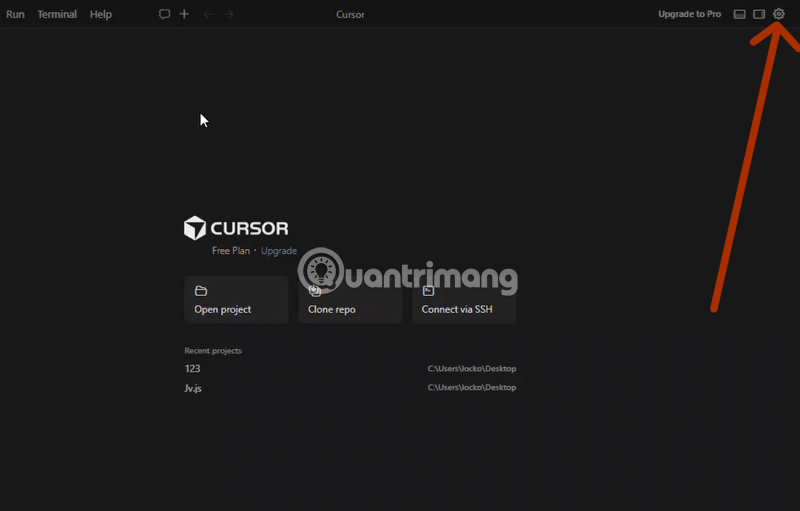
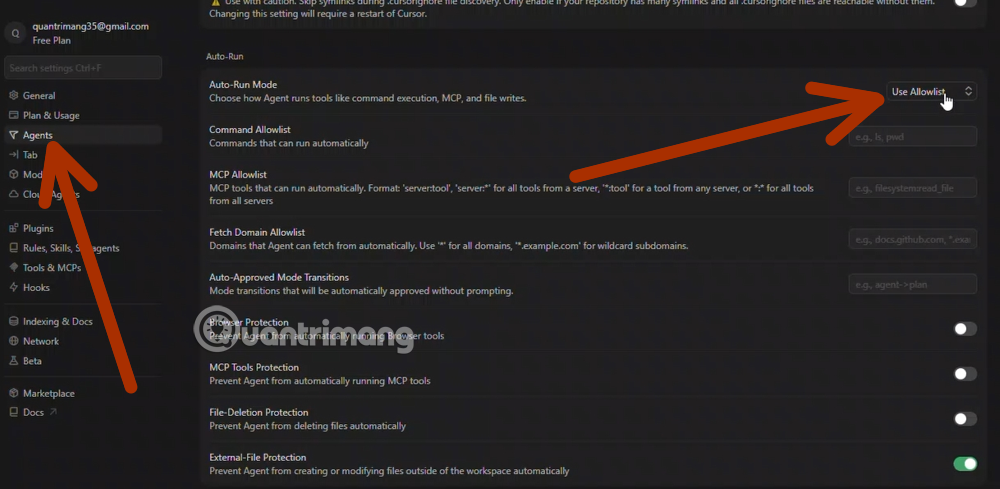
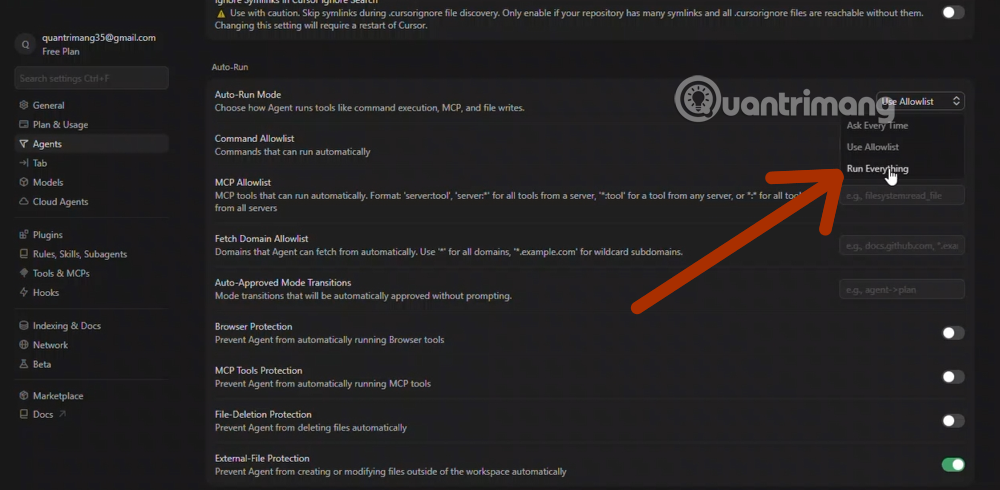
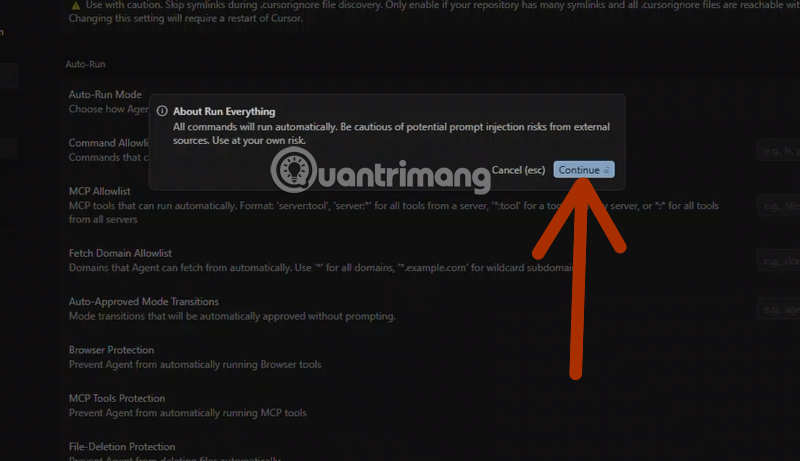
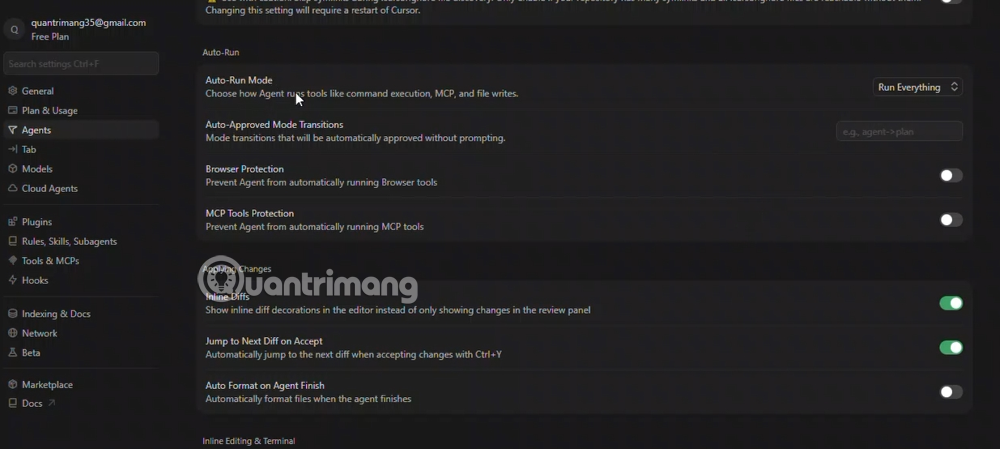
The exact menu can change between releases. The official Cursor run-mode documentation is the best source for the current path and behavior.
Why Run Everything is risky
An agent in this mode can perform the same kinds of actions that you could perform from the terminal or an enabled MCP integration. Depending on the workspace and credentials, that may include:
- editing or deleting files;
- installing packages and running package scripts;
- changing Git branches, committing, pushing, or opening pull requests;
- reading environment files and configuration that contain secrets;
- sending network requests or uploading data;
- running database migrations or destructive SQL;
- calling write-capable GitHub, cloud, ticketing, or deployment tools; and
- submitting forms or executing scripts through browser automation.
The risk is not limited to an agent “making a bad coding choice.” A malicious instruction embedded in a repository file, issue, dependency documentation, or webpage can attempt to redirect the agent. Cursor explicitly warns against auto-run with untrusted code or unfamiliar websites.
A safer setup before enabling it
- Use a disposable branch and clean working tree. Make sure you can inspect and reverse every file change.
- Run in a container, virtual machine, or throwaway development environment. Do not mount a home directory, SSH folder, password store, or unrelated repositories.
- Remove production access. Use a test database, test cloud account, and scoped test tokens. Do not rely on a prompt that says “never touch production.”
- Limit network access. Permit only the package registries and services required by the task.
- Disable unnecessary MCP tools. Search-only access is safer than broad write access. Review the server publisher, tool arguments, and network behavior.
- Protect secrets. Keep
.env, private keys, cloud credentials, and customer data outside the agent's readable paths. - Define acceptance tests. Tell the agent exactly which files it may change, which commands it may run, and what tests must pass.
- Review afterward. Inspect
git diff, dependency changes, generated files, migrations, logs, and outbound actions before merging or deploying.
Prefer an allowlist for repeatable tasks
If the goal is fewer prompts rather than unlimited control, Allowlist or Auto-review is usually a better match. Cursor supports permission rules for shell commands, file reads and writes, web fetches, and MCP tools. Deny rules take precedence over allow rules.
{
  "permissions": {
    "allow": [
      "Shell(npm:test)",
      "Shell(git:diff*)",
      "Read(src/**)",
      "Read(test/**)",
      "Write(src/**)",
      "Write(test/**)",
      "WebFetch(docs.example.com)"
    ],
    "deny": [
      "Shell(rm)",
      "Read(.env*)",
      "Read(**/*.key)",
      "Write(.env*)",
      "Write(**/*.key)",
      "Mcp(*:*)"
    ]
  }
}
This is an illustrative starting point, not a universal policy. Verify the exact permission syntax for your Cursor version, and add only the commands and paths your workflow genuinely requires. Broad rules such as WebFetch(*), Shell(*), or Mcp(*:*) defeat the purpose of an allowlist.
The Cursor permissions reference documents project and global configuration locations.
YOLO mode in Cursor CLI
The Cursor CLI still accepts --force and the alias --yolo with headless print mode to permit file modifications. Without --force, a headless request can propose changes without applying them. Do not place --force in a shared automation script until its permissions, repository scope, environment, and rollback behavior are tested.
# Proposes an analysis without applying edits
agent -p "Review src/auth and list the changes needed"

# Applies edits; use only in a restricted test environment
agent -p --force "Update src/auth and its tests; do not change other paths"
A narrow prompt is not an access control. Enforce the boundary with the environment and permission configuration.
GitHub, Supabase, and other MCP connections
Connecting Cursor to GitHub or Supabase through MCP does not make generated code accurate or actions reversible. A write-capable GitHub tool may push changes, and a database tool may update or delete records. Keep approval enabled for consequential tools, use repository-scoped tokens, and connect only to development projects.
Do not let an unrestricted agent query a production database and push code in the same unattended run. Separate read-only analysis, code generation, testing, and deployment into reviewable stages.
When Run Everything can make sense
- regenerating fixtures in a throwaway repository;
- applying a mechanical refactor inside a disposable container;
- running a benchmark in a temporary environment with no secrets;
- reproducing a bug in a minimal project that can be deleted afterward; or
- operating a controlled CI job with narrow permissions and a reviewed patch output.
It is a poor choice for an unfamiliar repository, a machine that holds unrelated personal files, a production checkout, or any workspace with broad cloud and database credentials.
Recommended default
Use Auto-review for everyday Cursor work, tighten sensitive actions with explicit permission rules, and use Plan or Ask mode when inspecting an unfamiliar codebase. Move to Run Everything only for a bounded task in an environment whose loss would be acceptable.
For a broader tool comparison, read TipsMake's Cursor vs GitHub Copilot guide and its roundup of AI tools for programming. Autonomy is valuable when the rollback path and permission boundary are designed before the run starts.
Related Articles
 What Is Plan Mode in Cursor?8 minutes read
 Is Cursor Worth It? AI Coding Editor Review for 202614 minutes read
 How to Change the Theme in Cursor12 minutes read
 How to Activate Supabase in Cursor8 minutes read
 How to Use Claude in Cursor: What You Need to Know7 minutes read
 Tips for Effectively Importing Context into Cursor7 minutes read
Reader Comments 0
Sign in with email or Google to join the discussion.