Table of Contents
VideoProc Converter AI combines media conversion with AI tools for video, images, and audio. You can use it to test upscaling, frame interpolation, stabilization, image restoration, and audio cleanup in one application. The right settings depend on the source: enhancement can introduce artifacts, and a larger output is not proof of recovered detail.
What the tools do
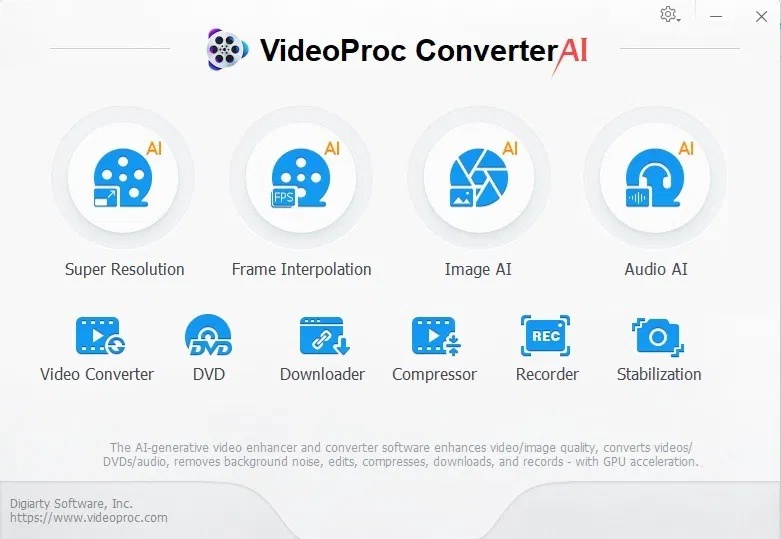
- Super Resolution: enlarges or enhances video using an AI model.
- Frame Interpolation: creates intermediate frames for smoother playback or slow motion.
- Image AI: provides image enhancement, face-restoration, and colorization workflows where supported.
- Audio AI: offers tasks such as vocal separation or noise reduction.
- Stabilization: reduces visible camera movement, potentially changing the crop.
- Conversion and compression: changes media formats or reduces file size using selected encoding settings.
- Other utilities: includes recording, DVD, and download workflows; check platform and source support for the task you need.
Compression and re-encoding can reduce quality. Keep the original file and export to a new filename. Only process or download material you are permitted to use.
Check compatibility before installing
Requirements differ between basic conversion and individual AI models. Check the official technical specifications for your operating system, GPU, driver, and chosen feature. An old general minimum does not establish that every AI tool will work on that computer.
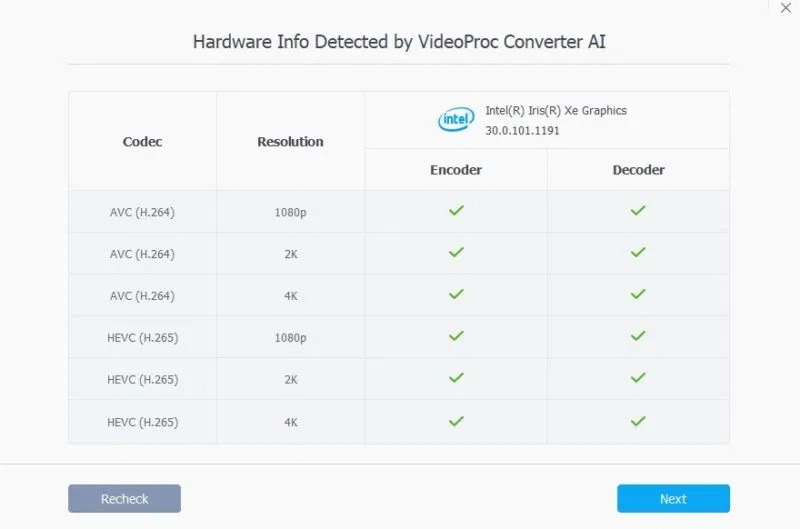
After installation, run the available hardware check and test a short sample. Leave room for downloaded models, temporary files, and the output. Compare the trial's actual restrictions and export options before paying for a license.
Enhance video with Super Resolution
Add the video and choose a model suitable for its content. The source workflow includes Gen Detail, Real Smooth, Anime, and Zyxt. Names and versions can change, so read the descriptions in your installed release.
- Try a detail-focused model when you want clearer textures.
- Try a smoothing model for noisy or heavily compressed material.
- Use an animation-oriented model for line art or cartoons when available.
- Compare alternative compatible models when the first creates unnatural edges or textures.
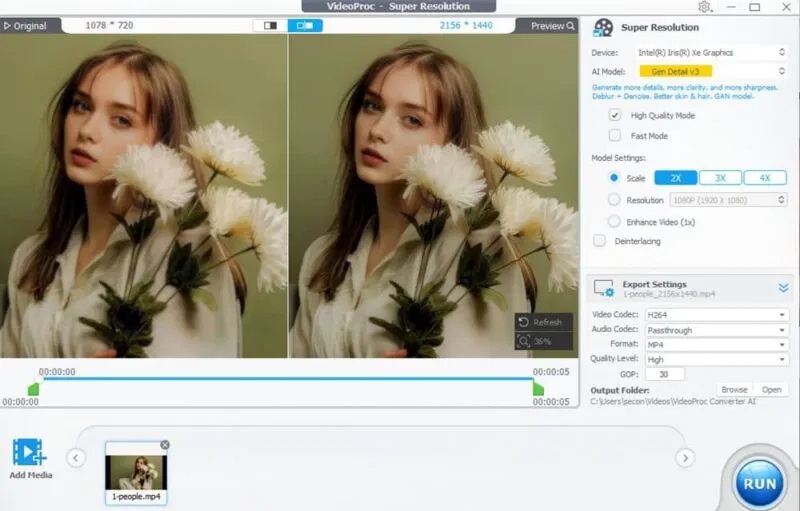
Choose a modest output size first and preview a representative section containing faces, text, fine detail, and motion. Look for halos, plastic-looking skin, unstable textures, or invented details. Compare the output with the original at the same display size.
AI upscaling can estimate plausible detail, but it cannot prove what an unreadable sign or blurred face originally looked like. Avoid treating enhanced pixels as factual evidence.
Use frame interpolation for a specific purpose
Decide whether you want smoother playback at the original duration or a slow-motion result. These are different outputs. Choose a supported target frame rate and preview before processing the entire clip.
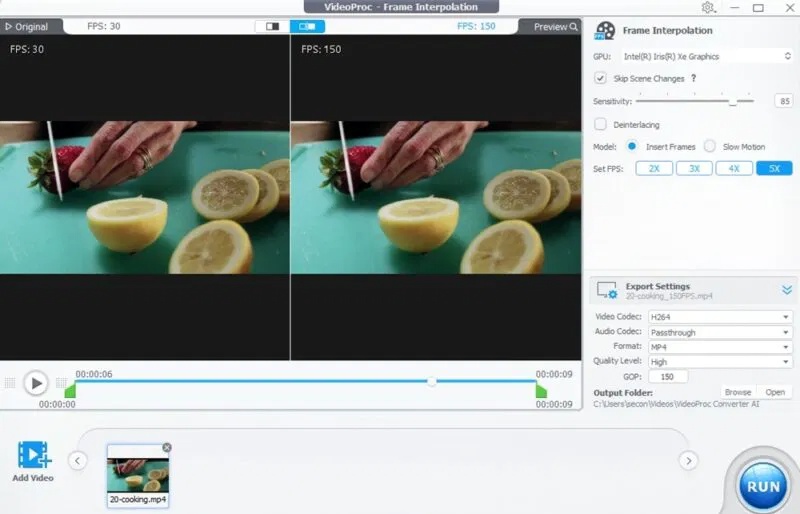
Check fast movement, scene cuts, overlapping objects, and thin edges for warping or duplicate outlines. More frames do not improve every video, and they can increase export time and file size. Interpolation changes a recording; it does not increase the frame rate at which a game originally ran.
Enhance or colorize still images
Open the image tool and test the appropriate enhancement or restoration model. Inspect faces, fur, hair, and small text at full size rather than judging only the reduced preview.
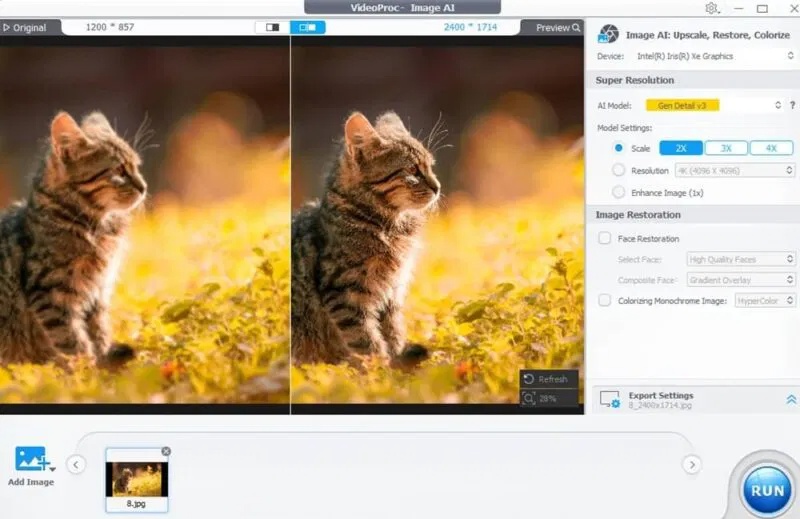
For black-and-white photos, colorization produces estimated colors. Keep the monochrome original, especially for family archives or historical material, and label the edited copy when the distinction matters.
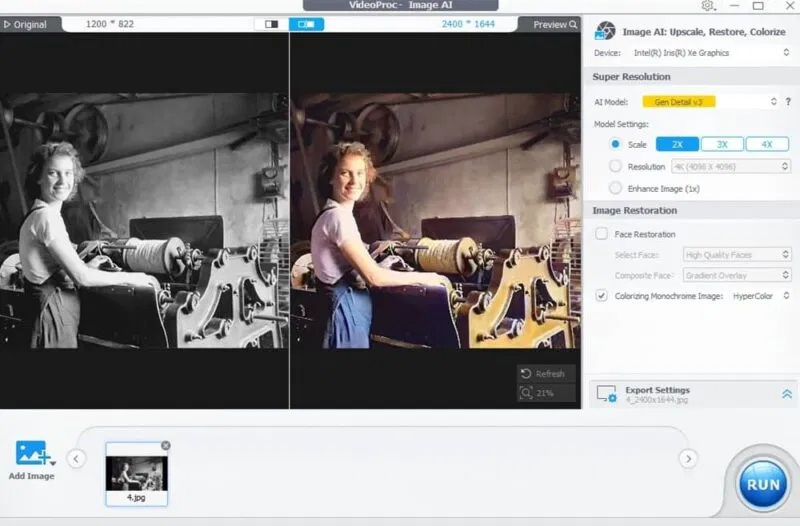
If restoration changes a person's features, reduce the effect or reject that result. A sharper-looking image is not always a more faithful one.
Clean up audio and check what was removed
Choose a noise-reduction or vocal-separation task that matches your aim. Start with a short section containing both wanted and unwanted sound, then listen with headphones before exporting the whole file.
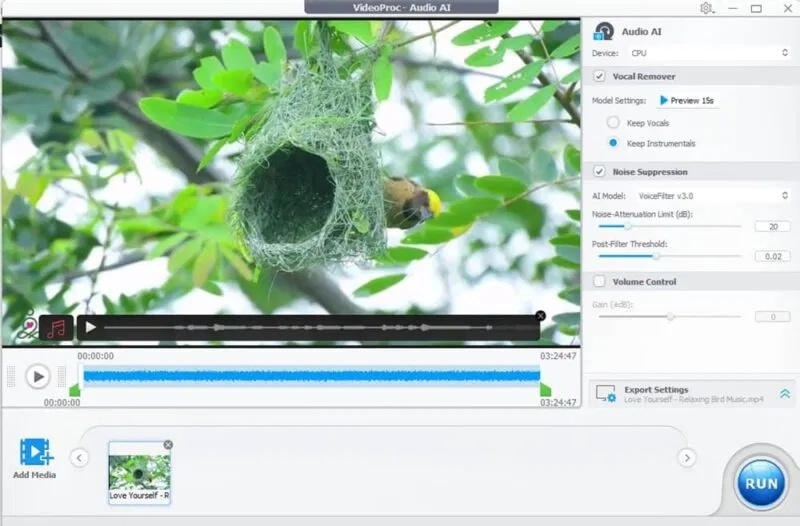
Separation may leave residual speech or remove parts of music, ambience, or birdsong. Listen for metallic sound, pumping, clipped words, and loss of detail. Preserve an unprocessed copy so you can compare or undo the edit.
If file size is the main problem, consider audio compression options instead of applying enhancement that does not address that goal.
Decide whether the result is worth keeping
The convenience is having several media tasks in one interface. The trade-offs are processing time, hardware compatibility, possible artifacts, and the need to inspect outputs. The screenshots illustrate workflows; they do not establish a repeatable performance benchmark.
Before a long export, test a representative sample using your intended codec, resolution, frame rate, and audio settings. Confirm playback and synchronization in the destination player. If the file is for YouTube, check the HD upload workflow and inspect the processed version after upload.
Related Articles
 Offers, Videoproc - Professional Video Processing Software for $4 minutes read
 4K Videoproc Video Editing Tool: A Practical Guide12 minutes read
 5 Free PDF Converter Apps for Smartphones and Tablets7 minutes read
 Winx HD Video Converter Deluxe - Professional Video Converter5 minutes read
 Review: Process, Convert and Edit 4K Videos Fast with VideoProc8 minutes read
 11 Best Digital Dac Converters for Hi-res Audio9 minutes read
Reader Comments 0
Sign in with email or Google to join the discussion.