Table of Contents
Cursor works best when it can see the code, constraints, and evidence needed for a task. More context is not automatically better: attach the smallest useful set of files, describe the desired behavior and tests, and let Agent search the codebase when you do not yet know which files matter.
Interface note: Some screenshots below show an earlier Cursor layout. Current labels and shortcuts may differ, but the workflow remains the same.
Open the project root
Use File > Open Folder and select the repository root rather than a single source file. This gives Cursor the directory structure, project rules, and codebase index it needs for project-wide search.
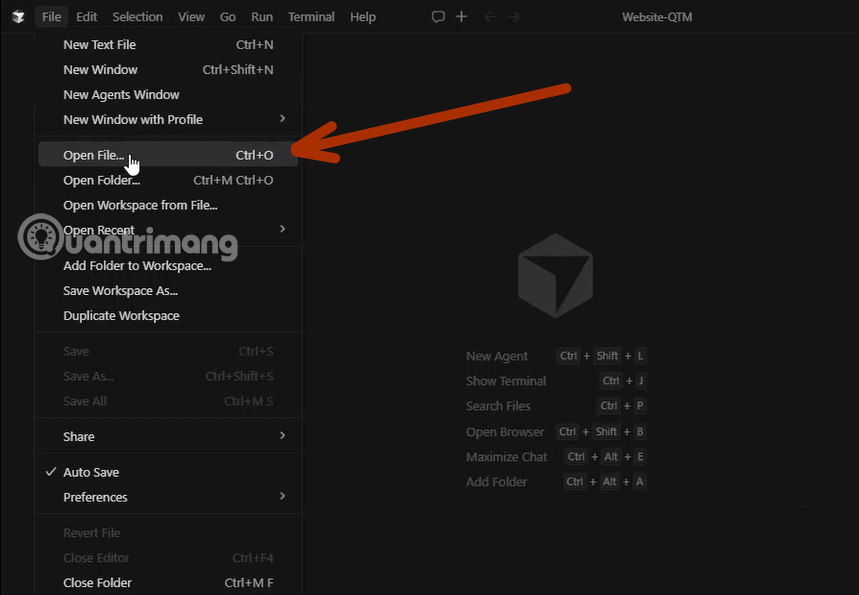
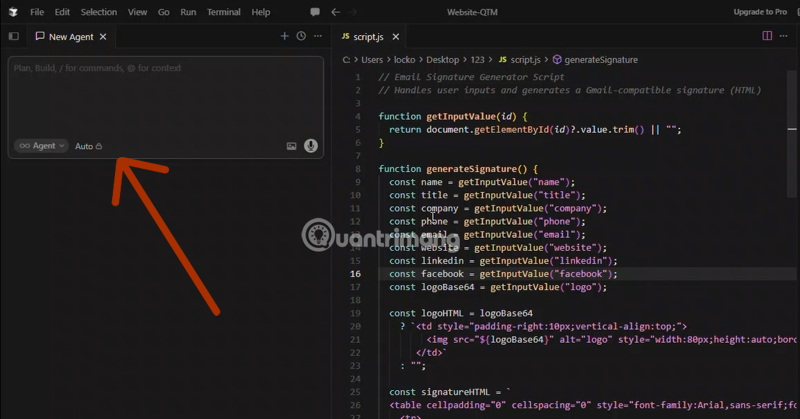
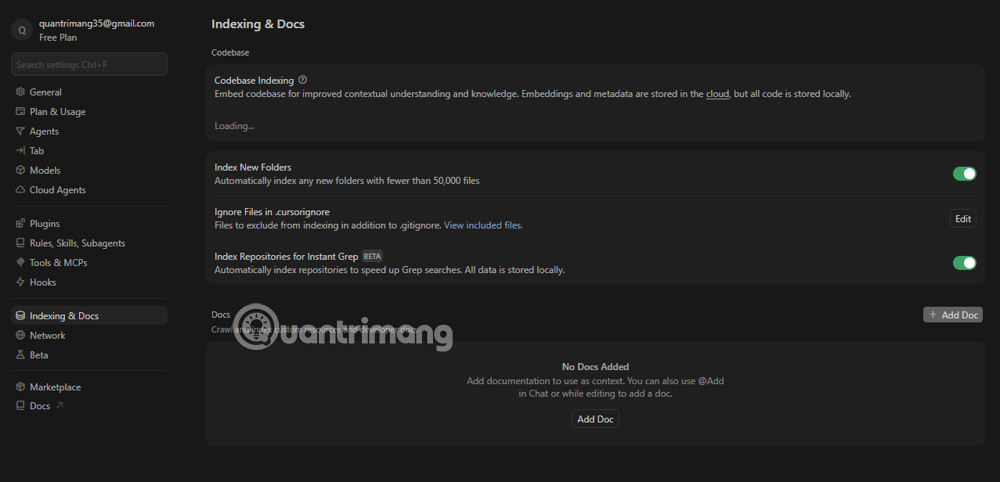
Cursor indexes codebases automatically. If answers omit files that should be available, check the indexing and ignore settings before repeatedly adding a large folder to the prompt. A comparison of Replit and Cursor explains why repository indexing is central to Cursor's workflow.
Attach known context with @ mentions
Type @ in the Agent input and start entering the name of the item you want to attach. Current Cursor documentation lists several useful context types:
- Files and folders: attach a specific file such as
@auth.tsor a focused directory such as@src/components/. - Terminal: include relevant command output or an exact error.
- Chats: reference a previous conversation when its decisions still matter.
- Git diffs: attach the working-state or branch diff to review changes.
- Browser: include material from Cursor's built-in browser when appropriate.
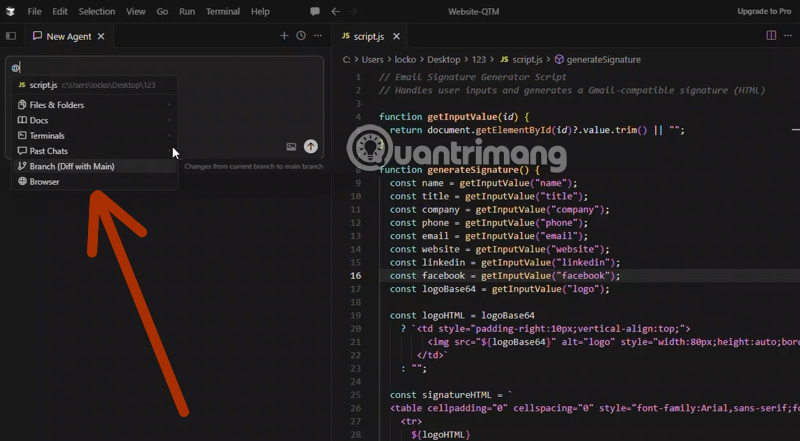
Cursor's official prompting guide notes that explicit @ mentions are most useful when you already know what is relevant. If you do not, ask Agent to investigate and explain which files it selected before editing.
Choose files before folders
For a small bug, attach the failing test, the implementation, and the exact error. Attach a folder only when the relationship among several files is part of the task. A backend directory adds noise to a CSS fix, while a full repository can crowd out the conversation and tool results.
Use a diff for review tasks
For regressions or code review, provide the working-state or branch diff plus the expected behavior. A diff shows what changed; it does not prove which line caused the problem, so ask Cursor to reproduce the failure and test its hypothesis.
State the outcome and verification steps
A useful request names the goal, constraints, relevant context, and acceptance checks:
Using
@auth.tsand@user.repository.ts, add registration with the existing password-hashing and error-handling patterns. Do not change the public login API or database schema. Update the existing authentication tests, run that test suite, and summarize the final diff.
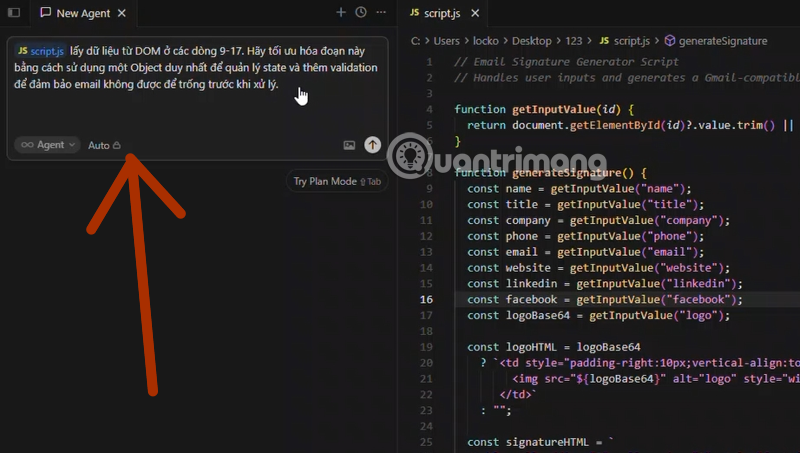
This is safer than asking Cursor to make a “similar” file because it says what compatibility means and how success will be checked. Review every edit and command; codebase context can improve relevance but does not guarantee correctness or security.
Put durable instructions in project rules
Do not repeat stable repository conventions in every prompt. Store version-controlled Project Rules under .cursor/rules, or use an AGENTS.md file if that format fits your tooling. Rules can describe test commands, architecture boundaries, generated files, naming conventions, and actions that require approval.
Keep rules short and verifiable. Replace vague statements such as “write clean code” with concrete constraints such as “run npm test -- auth after authentication changes” or “do not edit generated files under src/api/generated.” See Cursor's rules documentation for current rule types.
Control what Cursor can index
A root-level .cursorignore file can block selected paths from code accessible to Agent, Tab, Inline Edit, and @ references. Use it for large generated directories and files that should not be part of AI code context.
Do not treat .cursorignore as a complete security boundary. Cursor's documentation warns that terminal and MCP tools may still reach files through their own access paths. Keep secrets outside the repository, use operating-system and service permissions, and review tool calls.
Add MCP only when local context is insufficient
Model Context Protocol connections can expose external tools and data, such as an issue tracker or database metadata. Configure only a trusted server, grant the narrowest permissions, and verify what tools it exposes. A database integration should not receive production write access merely to answer schema questions.
Consult Cursor's MCP documentation for supported configuration and transports. Disconnect unused servers so their tool descriptions and access do not complicate unrelated tasks.
A compact context checklist
- Open the repository root and confirm the expected code is indexed.
- State the bug or desired result before attaching files.
- Add the smallest set of known files, diffs, logs, or screenshots.
- Use project rules for durable constraints.
- Ask Cursor to investigate when relevant files are unknown.
- Require tests or another reproducible acceptance check.
- Review the plan, commands, edits, and final diff.
For a broader evaluation of the editor, see whether Cursor is worth using and the comparison of Cursor and GitHub Copilot.
Related Articles
 How to Create a Codebase Index in Cursor11 minutes read
 How to Add a GitHub MCP Server to Cursor9 minutes read
 How to Activate Supabase in Cursor8 minutes read
 How to Use Cursors to Review Code Effectively6 minutes read
 What Is Plan Mode in Cursor?8 minutes read
 Cursor AI: User Guide with 10 Practical Examples13 minutes read
Reader Comments 0
Sign in with email or Google to join the discussion.