Table of Contents
The GitHub MCP Server gives Cursor tools for reading and, when permitted, changing GitHub repositories, issues, pull requests, and related data. The safest setup uses the official GitHub server, a narrowly scoped token stored in an environment variable, and Cursor's normal tool-approval prompts.
Before you start
- Update Cursor. GitHub's hosted server requires a Cursor version with Streamable HTTP support.
- Create a GitHub personal access token with only the repositories and permissions your intended tools need.
- Store the token in a system or shell environment variable named GITHUB_MCP_TOKEN. Do not paste a real token into a project file or commit it to Git.
- Use Docker only if you choose the local-server method.
MCP tools can perform real actions with your GitHub account. Start with read-only permissions where possible and review every tool call before approval.
Open Cursor's MCP settings
Open Cursor Settings, then find Tools & Integrations and MCP Tools. Labels may move slightly between Cursor releases, so you can also edit the configuration file directly.
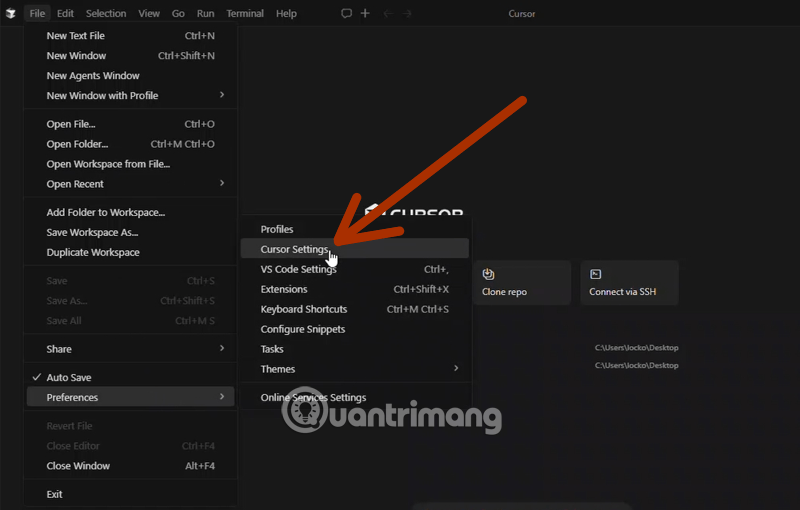
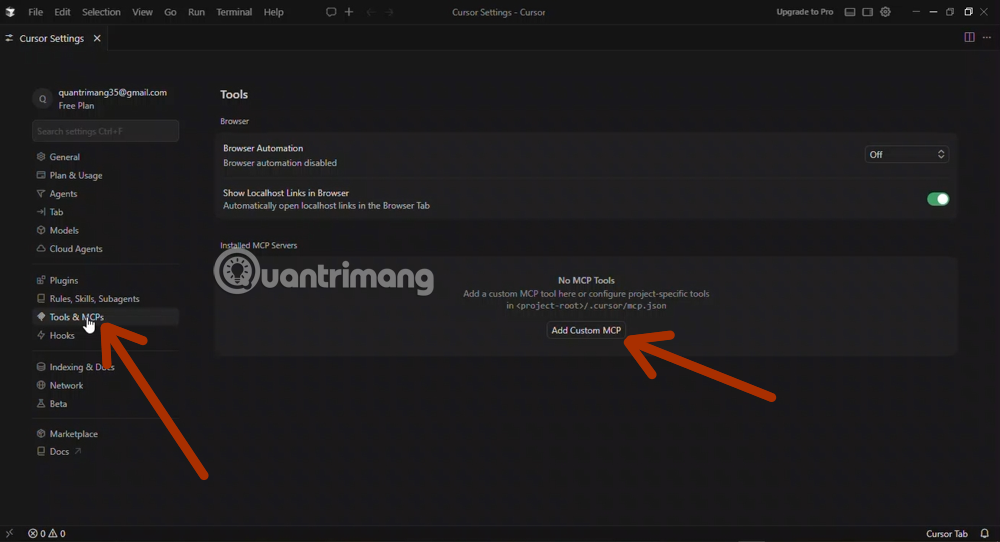
Option 1: Use GitHub's hosted MCP server
This is the simplest current option because Cursor connects to GitHub's official hosted endpoint and does not need to start a local process.
- Open the global file ~/.cursor/mcp.json. Use the global file for this authenticated server so the token reference is not shared with a project by accident.
- Add the configuration below.
- Make sure GITHUB_MCP_TOKEN is available in the environment that launches Cursor.
- Save the file and restart Cursor.
{
  "mcpServers": {
    "github": {
      "url": "https://api.githubcopilot.com/mcp/",
      "headers": {
        "Authorization": "Bearer ${env:GITHUB_MCP_TOKEN}"
      }
    }
  }
}
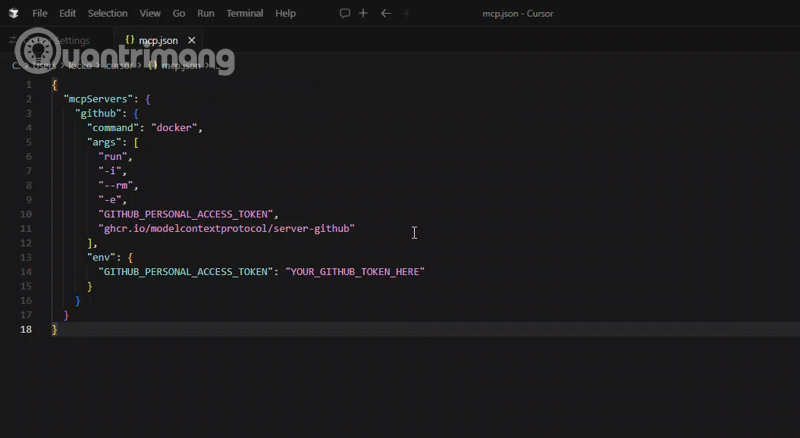
Cursor supports environment-variable interpolation in URL, header, command, argument, and environment fields. If Cursor reports an authentication error, first confirm that the variable is set in the same desktop or shell environment from which Cursor starts.
Option 2: Run the official server locally with Docker
Use the official GitHub image ghcr.io/github/github-mcp-server. The older npm package @modelcontextprotocol/server-github is no longer the supported installation path.
{
  "mcpServers": {
    "github": {
      "type": "stdio",
      "command": "docker",
      "args": [
        "run", "-i", "--rm",
        "-e", "GITHUB_PERSONAL_ACCESS_TOKEN",
        "ghcr.io/github/github-mcp-server"
      ],
      "env": {
        "GITHUB_PERSONAL_ACCESS_TOKEN": "${env:GITHUB_MCP_TOKEN}"
      }
    }
  }
}
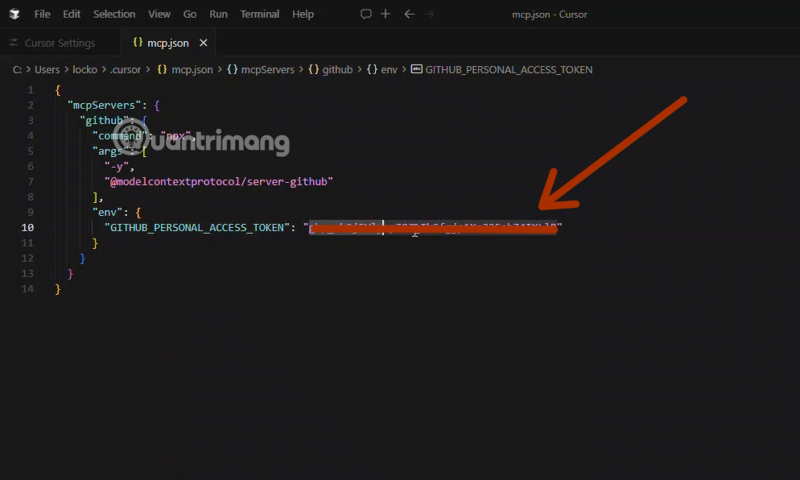
Docker Desktop or another compatible Docker runtime must be installed and running. If the server does not start, test that Docker is available and that the official image can be pulled before changing the Cursor configuration.
Global vs. project configuration
- Global: ~/.cursor/mcp.json makes a server available across projects.
- Project: .cursor/mcp.json limits configuration to one project and may be shared with the repository.
Never place a real token in a project MCP file. If a team shares project configuration, keep secrets in environment variables and document the required variable names separately.
Verify the GitHub tools
- Restart Cursor or reload MCP settings.
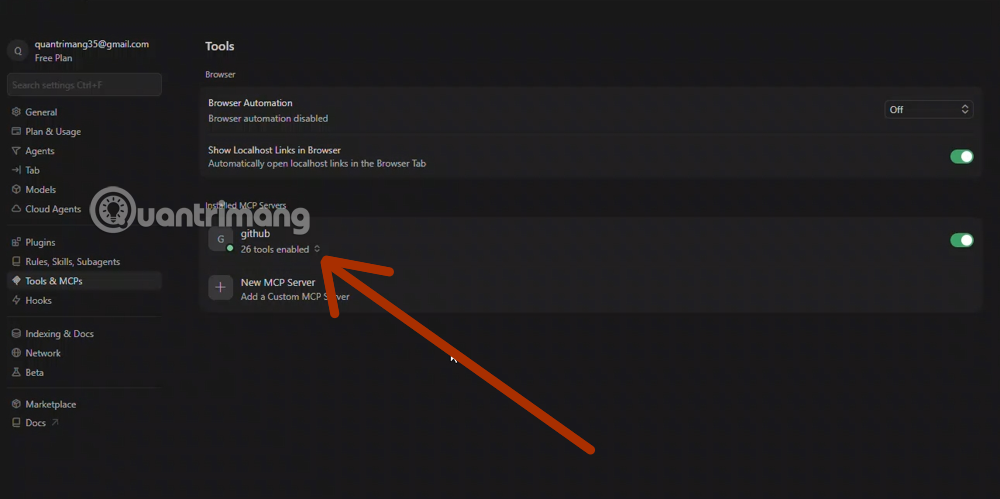
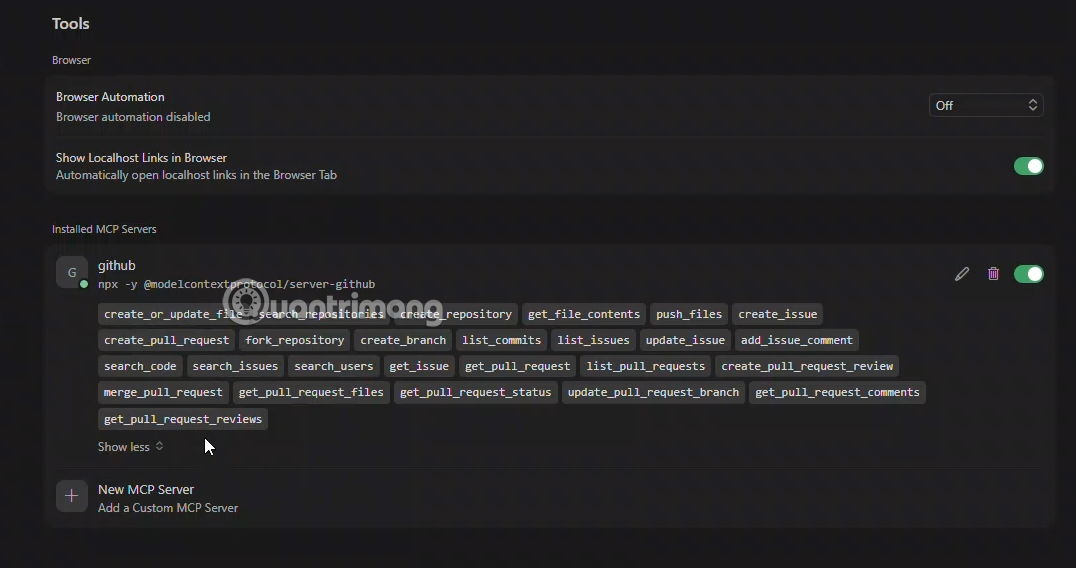
- Open MCP Tools and confirm that the GitHub server is enabled and connected.
- Expand the server and review the tools it exposes.
- Start with a read-only request, such as listing issues for a repository you are allowed to access.
- Inspect the proposed tool name and arguments before approving it.
Troubleshooting
- 401 or authentication failure: verify that the token is valid, unexpired, and available through GITHUB_MCP_TOKEN.
- Connected but tools are missing: check that the server is enabled and not restricted by Cursor or organization policy.
- Permission denied: the token may not cover the repository or operation. Add only the minimum permission required.
- Docker command fails: confirm Docker is running and the official image name is correct.
- Remote connection fails: check the exact hosted URL, firewall, proxy, and Cursor version.
Security checklist
- Install only official or reviewed MCP servers.
- Use environment variables instead of hardcoded credentials.
- Keep tokens narrowly scoped and rotate them if exposed.
- Do not enable write or delete permissions unless the workflow requires them.
- Review tool calls, especially those that create, modify, merge, or delete GitHub data.
For a broader comparison of coding assistants, see AI coding tools for development work. The comparison of Replit and Cursor explains where Cursor fits in a development workflow.
Related Articles
 Cursor vs GitHub Copilot: Which AI Coding Tool Wins?14 minutes read
 Guide to Connecting MCP GitHub Local Dev21 minutes read
 How to Use Claude in Cursor: What You Need to Know7 minutes read
 What Is GitHub? Overview of GitHub5 minutes read
 What Is Plan Mode in Cursor?8 minutes read
 How to Use Deploy Keys on Github7 minutes read
Reader Comments 0
Sign in with email or Google to join the discussion.