Table of Contents
Supabase can connect to Cursor through the Model Context Protocol (MCP), giving Cursor tools for inspecting a project, querying its PostgreSQL database, checking logs, generating types, and—when permitted—applying changes. The safest setup is to connect a development project, limit the server to that project, and start in read-only mode.
If Cursor is new to you, this comparison of Cursor and Replit explains where the editor fits in an AI-assisted development workflow.
Before you connect Supabase to Cursor
You need a Supabase account, a project you can safely use for development or testing, and a recent version of Cursor. Do not connect the MCP server to a production database containing real customer data. Supabase explicitly positions this integration as a development tool, and database content can contain prompt-injection attempts.
For a cautious first connection:
- Use a development project with test or obfuscated data.
- Scope access to one project instead of the entire organization.
- Enable read-only mode until write tools are genuinely necessary.
- Keep manual approval enabled for MCP tool calls and inspect every proposed query.
- Enable only the feature groups you plan to use.
Connect the Supabase MCP server in Cursor
1. Open Cursor's MCP settings
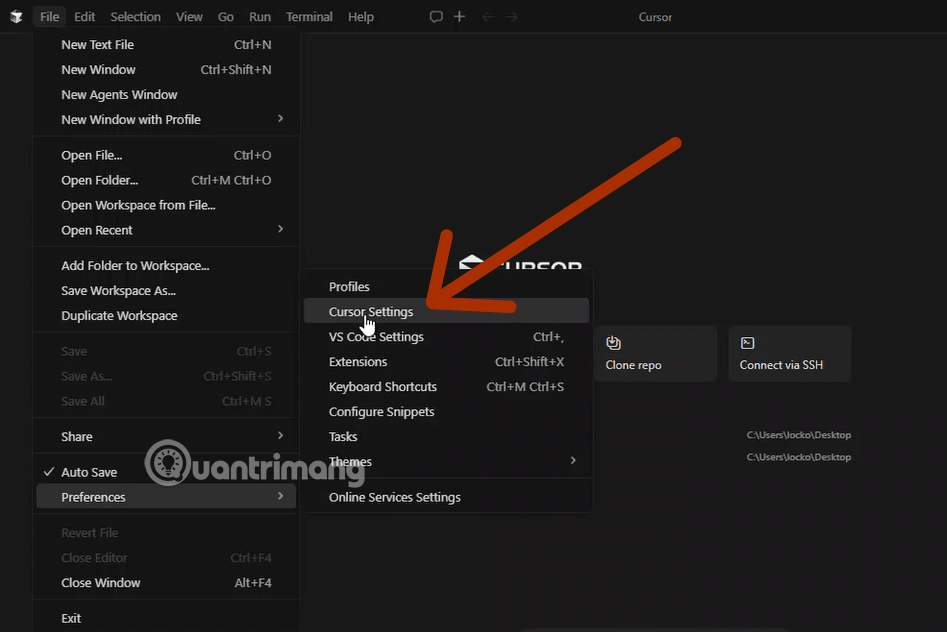
In Cursor, open Settings > Cursor Settings > Tools & MCP. The exact label may differ slightly between versions, but this is the page where Cursor lists configured MCP servers and their available tools.
2. Add a custom MCP server
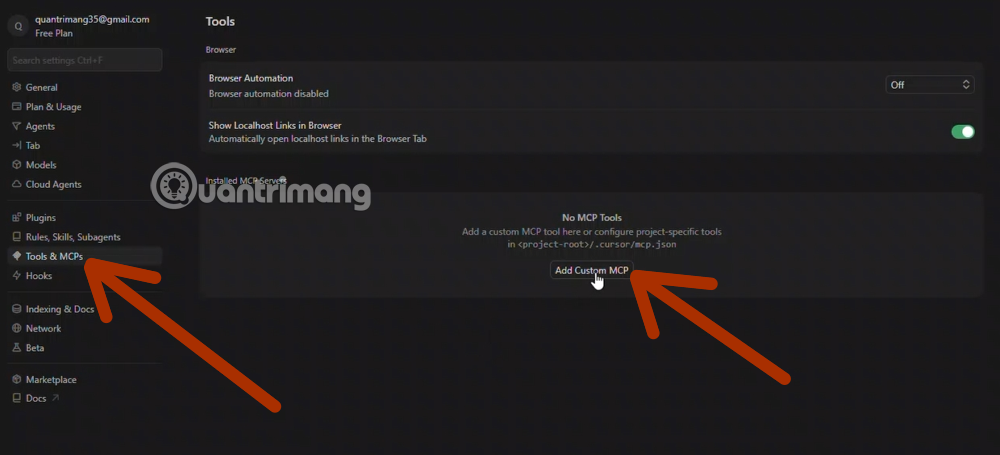
Select Add Custom MCP or the equivalent option. Cursor may present a configuration form or open an mcp.json file. A project-level file belongs at .cursor/mcp.json; a user-level configuration can be stored in ~/.cursor/mcp.json.
3. Add the Supabase server URL
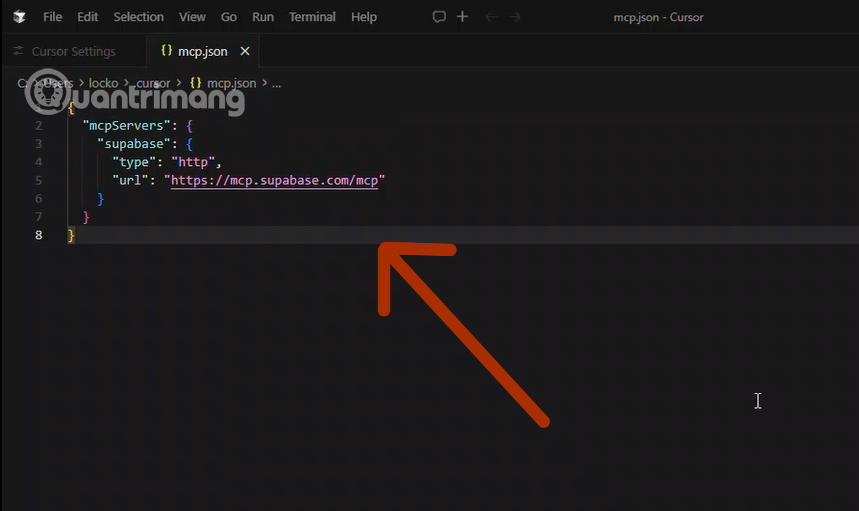
The minimal hosted configuration is:
{
  "mcpServers": {
    "supabase": {
      "type": "http",
      "url": "https://mcp.supabase.com/mcp"
    }
  }
}
That URL can expose projects across the authorized organization. For better isolation, copy the project reference from the Supabase dashboard and add project_ref. The following version also prevents write queries:
{
  "mcpServers": {
    "supabase": {
      "type": "http",
      "url": "https://mcp.supabase.com/mcp?project_ref=YOUR_PROJECT_REF&read_only=true"
    }
  }
}
Replace YOUR_PROJECT_REF with the actual project reference. Supabase also supports a features query parameter if you want to expose only selected tool groups, such as database and docs.
4. Authenticate with Supabase
Return to the MCP server list, locate Supabase, and choose Connect if Cursor does not start authentication automatically.
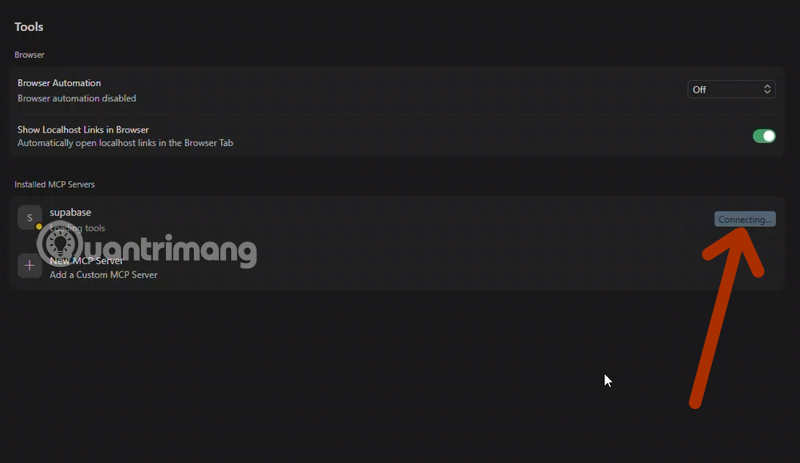
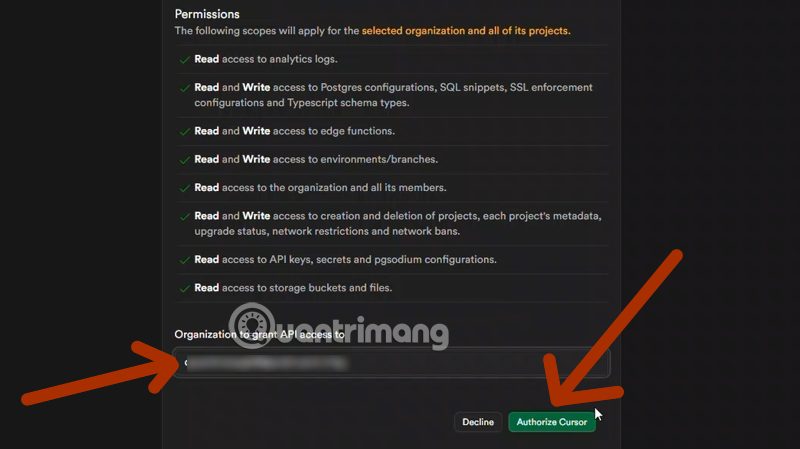
A browser window should open. Sign in to Supabase, choose the organization containing the development project, review the requested access, and authorize Cursor. The normal interactive flow uses browser-based authentication; you do not need to paste a personal access token into the JSON configuration.
5. Verify the connection
Back in Cursor, confirm that the Supabase server shows as connected. If the tools do not appear immediately, restart Cursor and revisit Tools & MCP.
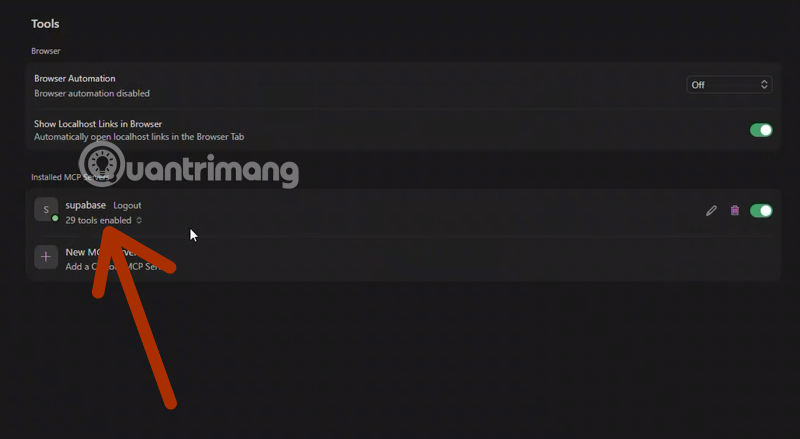
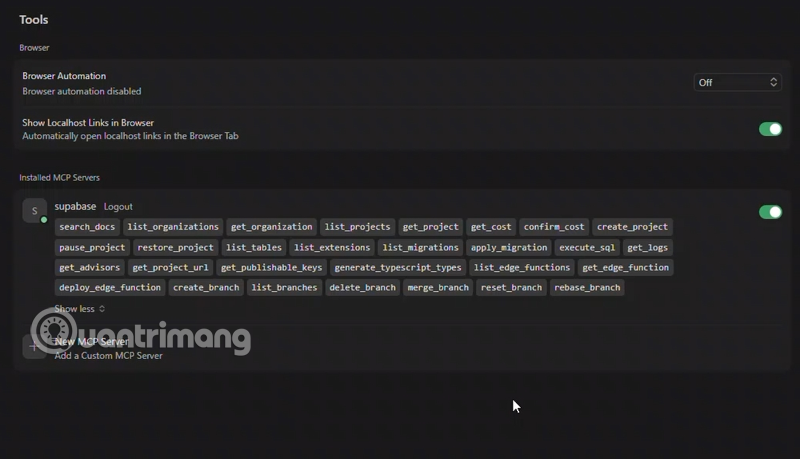
Open the server's tool list to confirm what the agent can call. In read-only mode, use a harmless request such as: “List the tables in this Supabase project using MCP tools.”
What Cursor can do through Supabase MCP
The exact tools depend on the enabled feature groups and access mode. Common capabilities include:
- Inspect the database: list tables, extensions, and migrations.
- Query development data: execute SQL and return results to the conversation.
- Generate project code: read the schema and generate matching TypeScript types or application queries.
- Investigate problems: query logs and retrieve Supabase security or performance advisor findings.
- Manage changes: apply migrations or deploy Edge Functions when write-capable tools are enabled.
- Search documentation: look up Supabase guidance without leaving the editor.
MCP gives the agent access to tools; it does not make every answer correct. Review generated SQL, migrations, and code as carefully as changes written by a human contributor. Developers who are still building those review habits may find the workflow advice in How to Code useful.
Useful prompts to try
Start with requests that are narrow, verifiable, and appropriate for a development database:
- “Use Supabase MCP to list the tables and explain their foreign-key relationships. Do not make changes.”
- “Generate TypeScript types for this project, then show which files you propose to update.”
- “Check the security advisors and explain each finding before suggesting a fix.”
- “Draft a migration to add an index for this query. Show the SQL, but do not apply it.”
Explicit limits such as “read only,” “show the SQL first,” and “do not apply changes” make the requested behavior easier to review.
Security settings that matter
Keep production data out of the connection
Use a separate development project or database branch. A read-only connection reduces the risk of accidental writes but does not prevent sensitive data from being read or exposed to the model.
Limit the project and feature groups
Add project_ref so the server cannot browse unrelated projects. If you only need schema questions, enable the database and documentation groups instead of account-management, functions, or branching tools.
Review tool calls for prompt injection
Database rows, support tickets, and other user-generated content are untrusted input. A malicious record can contain instructions intended to manipulate an AI agent. Keep manual tool approval on, inspect the query and its target, and do not let content retrieved from the database authorize a second action automatically.
Troubleshoot without weakening security
If the server will not connect, check that the JSON is valid, the URL is typed correctly, and Cursor completed browser authentication. Restart Cursor if the tool list stays empty. Avoid solving connection problems by placing access tokens directly in a project file or granting broader database permissions.
Once the connection works, keep it scoped and read-only for routine inspection. Enable write access only for a specific development task, review the proposed operation, and disable it again when the task is complete.
Related Articles
 What Is YOLO Mode in Cursor?7 minutes read
 How to Connect Supabase to n8n - Automate Database Workflows9 minutes read
 How to Use Claude in Cursor: What You Need to Know7 minutes read
 Cursor AI: User Guide with 10 Practical Examples13 minutes read
 Is Cursor Worth It? AI Coding Editor Review for 202614 minutes read
 How to Use Cursor Rules File (. Mdc)11 minutes read
Reader Comments 0
Sign in with email or Google to join the discussion.