Table of Contents
Cursor Rules store reusable instructions for an AI coding session. Project rules live in .cursor/rules/ as .mdc files. Use them for conventions the assistant needs repeatedly, such as project-specific architecture, supported runtime versions or test expectations.
Rules provide guidance, not a guarantee that generated code is correct. Keep compiler checks, tests, linting and permission controls in place. If you are new to the editor, this Cursor and GitHub Copilot comparison explains their different workflows.
Create a rule through chat
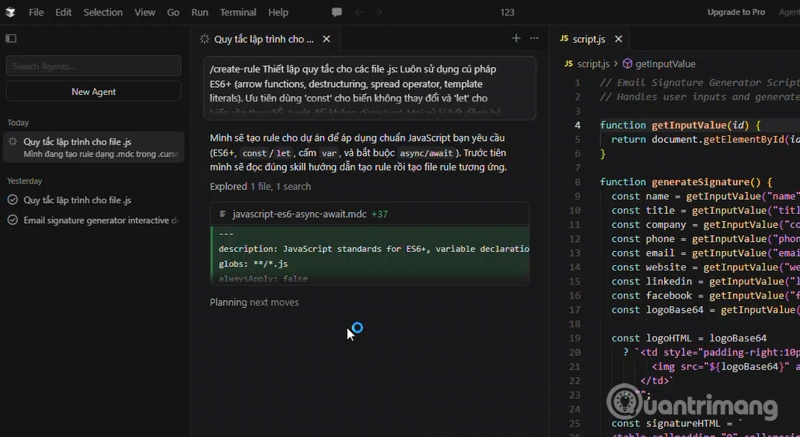
Open the intended project folder first. The screenshots illustrate an earlier Cursor interface; panel locations and labels can vary.
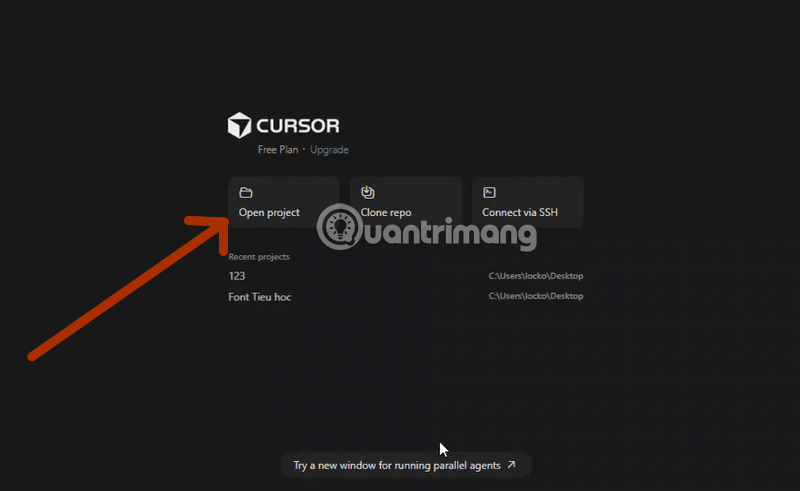
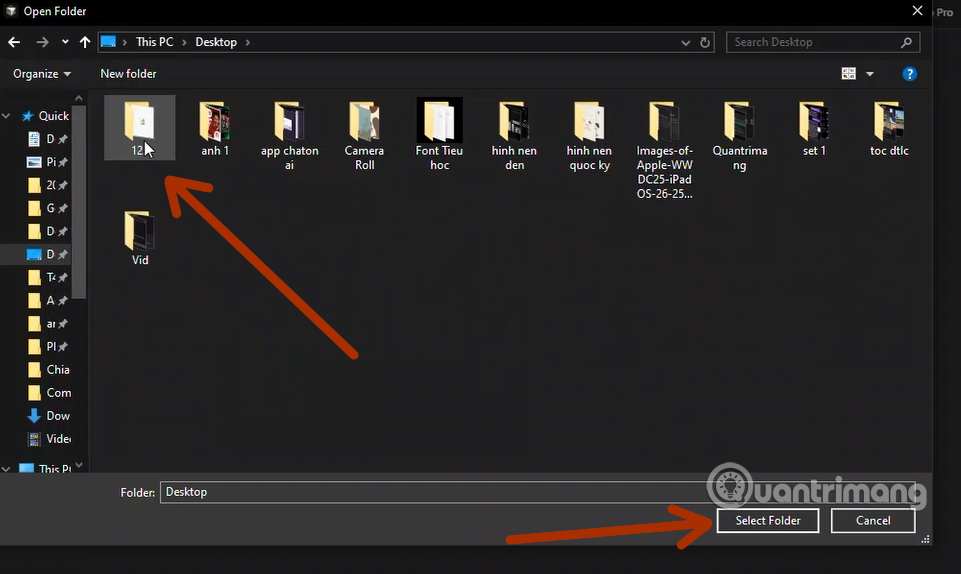
Open the Agent or chat panel. If you use keyboard shortcuts, check the binding in your installation rather than assuming it has not been customized.
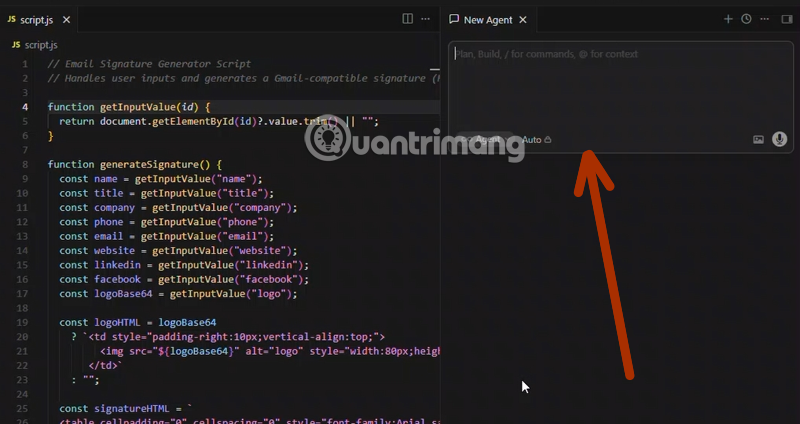
Type /create-rule and describe the requirement. For a project that already uses Tailwind CSS and Lucide React, you could request:
/create-rule For UI changes in this project, reuse existing Tailwind styles and Lucide React icons. Inspect nearby components first. Do not add another styling or icon dependency without explaining why.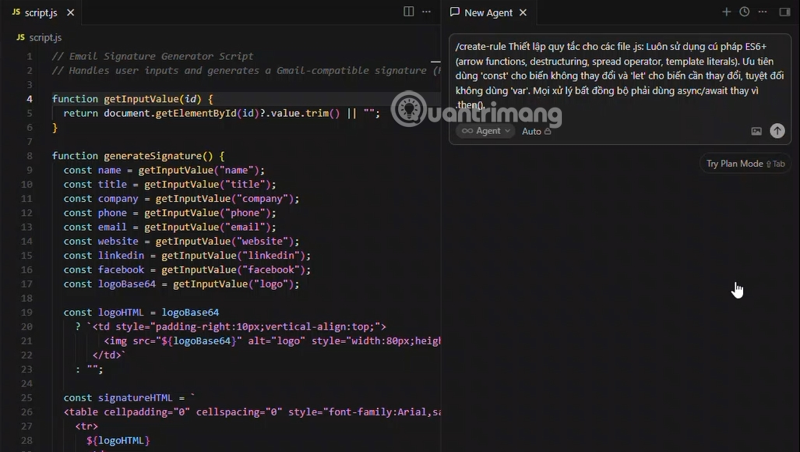
Inspect the generated file, including its scope, before accepting it. The instruction should describe the repository as it actually exists rather than introduce a new stack accidentally.
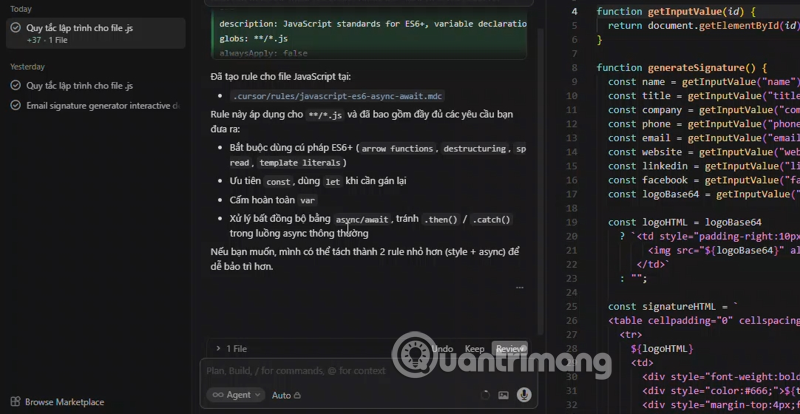
Create a rule in the interface or manually
The current Cursor Rules documentation also provides Customize → Rules → Add Rule. Use the available rule controls to review the resulting file and how it applies. Older command-palette tutorials may use different command names.
To create a project rule manually, make the .cursor/rules directory in the project root, then add a file such as typescript-standard.mdc. A plain .md file in that directory is not a project-rule replacement.
Here is a complete example. Preserve the line breaks and the three-hyphen delimiter lines:
---
description: Conventions for TypeScript source and React components.
globs: "**/*.ts, **/*.tsx"
alwaysApply: false
---
# TypeScript conventions

- Follow the TypeScript version and configuration in this repository.
- Reuse existing shared types before adding new ones.
- Preserve exported APIs unless the requested change requires otherwise.
- Explain any new dependency before adding it.
- Use the existing test framework for behavior changes.
- State which checks ran and which could not run.
These are example team preferences, not universal TypeScript rules. Adapt them to the project instead of adding arbitrary limits such as “every function must be under 30 lines.”
Choose when the rule applies
| Mode | Intended use |
|---|---|
| Always Apply | A small set of instructions needed in every session. |
| Apply Intelligently | The agent selects the rule based on its description. |
| Apply to Specific Files | The rule attaches when matching files are in context. |
| Apply Manually | You explicitly mention the rule in chat. |
The mode controls interact with description, globs and alwaysApply. When alwaysApply is true, the rule is included regardless of its glob pattern. With false and a pattern present, matching files determine attachment. Inspect the selected mode rather than relying on a filename to establish scope.
For patterns, **/*.ts covers TypeScript files through nested directories, while src/components/**/*.tsx narrows the rule to that component tree. Separate multiple patterns with commas. A manual @ mention attaches guidance; it does not force flawless compliance.
Keep a large rule collection understandable
Separate unrelated subjects into focused files: one for API conventions, another for database changes, and another for frontend components. Reference a canonical example in the repository where useful rather than copying a large block that will become stale.
Distinguish a project-wide rule from a user preference that applies across projects. Review shared rules with your team and keep project rules under version control so changes are visible.
Do not assume a more specific glob automatically resolves conflicting instructions. Remove contradictory requirements or clarify their scope. A rule saying “always memoize callbacks” may conflict with the project's actual performance approach and should not be added merely because it sounds precise.
Check that a rule works
- Confirm the file is in the intended project's
.cursor/rulesdirectory and has the.mdcextension. - Check the frontmatter and application mode.
- Open or attach a representative file that matches the intended pattern.
- Ask for a small, reversible change and inspect whether the relevant instructions were followed.
- Review the diff and run the appropriate checks before accepting it.
If the result is wrong, first check context, scope and conflicting guidance. Revise rules when dependencies or architecture change. For comparisons with other approaches, see these AI coding assistant alternatives; a rule file's format and activation behavior are specific to the host application.
Related Articles
 How to Use Cursor Rules File (. Mdc)11 minutes read
 How to Write General Rules in Cursor - Creating General Rules in Cursor3 minutes read
 How to Add a GitHub MCP Server to Cursor9 minutes read
 How to Use Claude in Cursor: What You Need to Know7 minutes read
 How to Adjust Sensitivity for Rules of Survival8 minutes read
 What Is Plan Mode in Cursor?8 minutes read
Reader Comments 0
Sign in with email or Google to join the discussion.