How to change the theme in Cursor
This guide provides step-by-step instructions on changing themes in Cursor IDE, along with a detailed analysis of whether developers should use a light or dark theme.
- Guide to changing themes in Cursor - Detailed step-by-step instructions
- How to enable automatic theme switching based on time in Cursor:
- How to install additional themes from the Marketplace
- Should you use dark mode or light mode in Cursor?
- Lightmode interface
- What should you use?
- Frequently Asked Questions about Themes in Cursor
- Conclude
- Dark Mode Interface Analysis - Late Night and Neon Lights
Cursor is one of the most popular code editors among the programming community today – especially thanks to its powerful AI integration that helps support writing, suggesting, and explaining code directly in the work environment. However, besides its AI power, your daily experience with Cursor depends heavily on a seemingly small but impactful factor: the theme .
A suitable theme not only helps you see your code more clearly, but also:
- Reduce eye strain during long work shifts of 6–10 hours.
- Improve code readability by clearly distinguishing syntax colors.
- Improve your work mood - an aesthetically pleasing environment helps you focus better.
- Express your personal style - your workspace is your own private space.
This article will guide you step-by-step on how to change the theme in Cursor, and will also delve into the question that millions of programmers still debate: should you use dark mode or light mode?
Guide to changing themes in Cursor - Detailed step-by-step instructions
Cursor is built on the VSCode platform, so changing themes is quite familiar to those who have used VSCode before. However, if you are a beginner, here is the most complete guide:
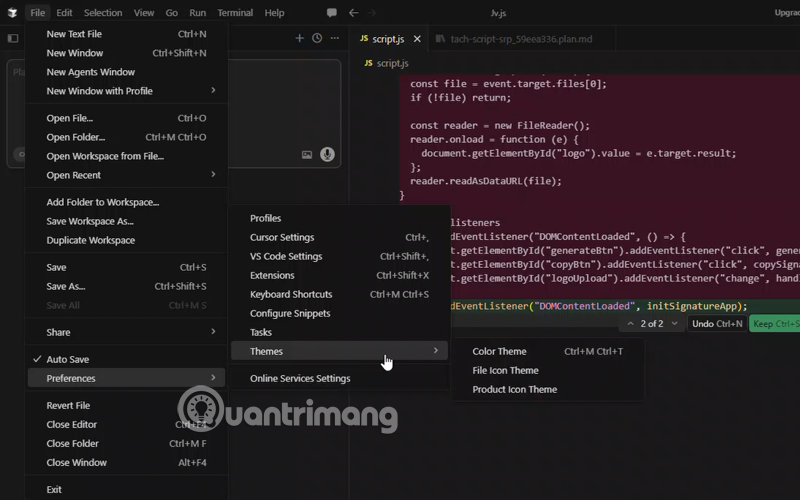
Step 1: Launch Cursor on your computer. Look at the menu bar at the top of the Cursor window, click "File" (on Windows 11 /Linux) or "Cursor" (on macOS). The menu bar will display a list of options.
In the File dropdown menu, find and click "Preferences" . Another submenu will appear, which includes the "Color Theme" option – this is where you change the overall color scheme of the entire editor. Click "Color Theme" to continue.
Faster shortcut: You can skip steps 2 and 3 by pressing the key combination
Ctrl + KthenCtrl + T(Windows/Linux) orCmd + KthenCmd + T(macOS) to open the theme selector directly.
Step 2:
In addition to Color Theme, you will also see:
- File Icon Theme: Change the file icon in the Explorer bar.
- Product Icon Theme: Changes the overall interface icons.
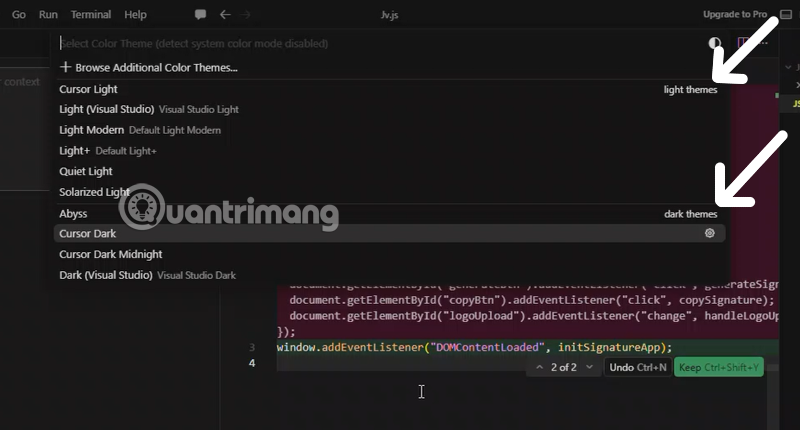
A theme selection panel will appear in the center of the screen, displaying a list of all available themes. Cursor comes with several popular default themes such as:
- Dark+ (the default dark theme, very popular)
- Light+ (default light theme)
- Monokai (dark background, vibrant colors)
- Solarized Dark / Solarized Light (soft background)
- High Contrast (for users requiring visual acuity assistance)
- One Dark Pro , Dracula , GitHub Theme (if the extension is installed)
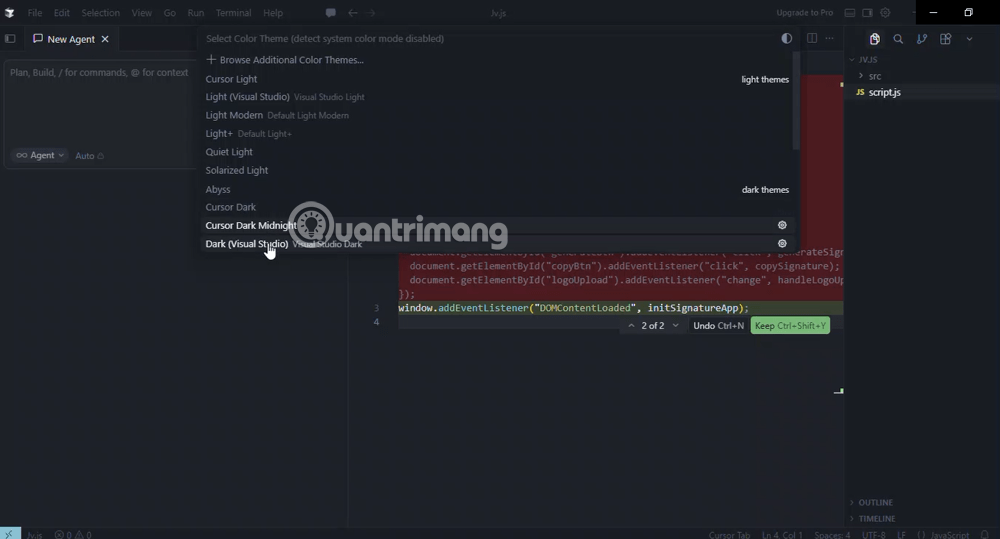
When you hover over each theme in the list, the editor will automatically preview it immediately – no confirmation click required. This allows for visual comparison before making a decision.
Step 3 - Click to select a theme to apply.
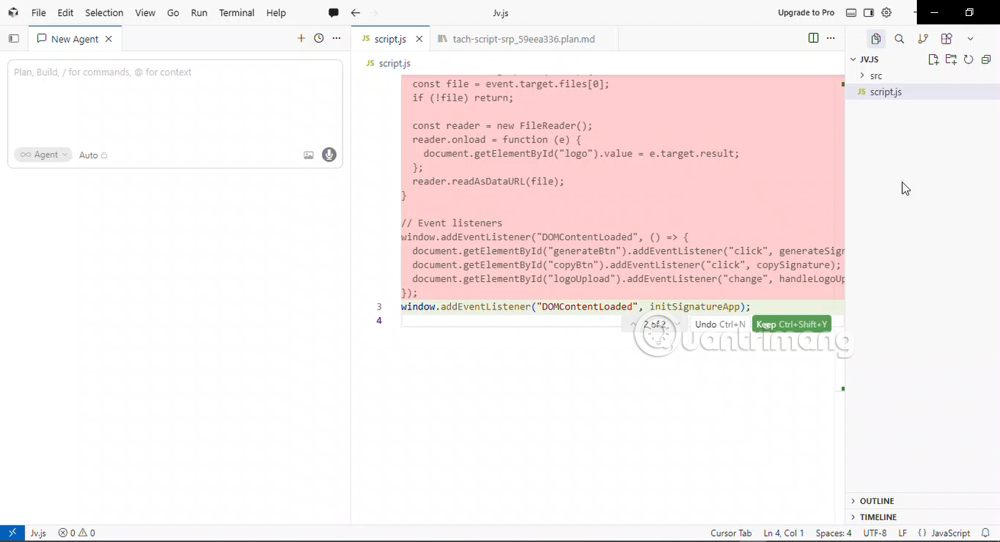
Once you've found a theme you like, click on its name. The editor will automatically switch to the selected theme immediately – the entire background color, text color, syntax highlighting color, and panel interface will all change accordingly.
No need to restart Cursor. No need to save settings. The new theme is applied immediately and saved automatically.
How to enable automatic theme switching based on time in Cursor:
Cursor supports built-in settings settings.jsonto automatically follow the operating system's theme:
"window.autoDetectColorScheme": true, "workbench.preferredDarkColorTheme": "One Dark Pro", "workbench.preferredLightColorTheme": "GitHub Light"
With this configuration, Cursor will automatically switch to a dark theme when the operating system enables dark mode (usually at night) and to a light theme when the operating system enables light mode (during the day). It's completely automatic, no manual adjustments required.
How to install additional themes from the Marketplace
If the default theme list isn't enough, you can install thousands more themes from the VSCode Marketplace – because Cursor is fully compatible with VSCode extensions.
How to install a new theme:
- Press
Ctrl + Shift + X(Windows/Linux) orCmd + Shift + X(macOS) to open the Extensions panel. - Type the theme name into the search box, for example: "Dracula", "One Dark Pro", "Catppuccino", "Tokyo Night"
- Click Install on the theme you want to install.
- After installation is complete, return to steps 4–6 above to activate the newly installed theme.
Here are some of the most popular themes among Vietnamese and international developers today:
| Theme name | Style | Suitable for |
|---|---|---|
| Dracula DE | Dark, purple, and pink | Working at night |
| One Dark Pro | Dark, soothing to the eyes. | Working all day |
| Cappuccino Mocha | Evening, warm pastel | Aesthetic, creative |
| Tokyo Night | Dark, deep blue | Cyberpunk atmosphere |
| GitHub Light | Bright, clean | During the day, there are meetings. |
| Solarized Light | Bright, pale yellow background | Reduce daytime eye strain. |
| Panda Syntax | Dark, green | Custom Code |
Should you use dark mode or light mode in Cursor?
This is one of the longest-running debates in the programming community – not unlike the "tabs vs. spaces" debate. There's no single right answer for everyone, but there's plenty of scientific and practical evidence to help you make the best choice for yourself.
Dark Mode Interface Analysis - Late Night and Neon Lights
Dark mode is the choice of the majority of developers – Stack Overflow Developer Surveys have consistently shown that over 70% of developers prefer dark themes for many years . Why?
Advantages of the dark interface:
- The first and most obvious benefit is reduced eye strain in low-light environments . When you work in a dark room or at night, a bright white screen creates too much contrast between the screen and its surroundings – forcing your eyes to constantly adjust, leading to fatigue and dryness more quickly. Dark mode reduces the overall brightness of the screen, making it more comfortable for your eyes in low-light conditions.
- Secondly, with OLED screens (common on MacBook Pro and many high-end laptops), dark mode also significantly saves battery life – because the black pixels on OLED screens are actually turned off instead of glowing. During a 4-hour coding session, the difference in battery life can be as much as 10–20%.
- Thirdly, many programmers believe that dark themes help syntax highlighting stand out more – the blue, yellow, and pink text colors against a dark background create greater distinction between different types of tokens in the code (keywords, variables, strings, comments), making the code faster to read and review.
- Fourth, the psychological and cultural factors are undeniable : dark themes create a "hacker" atmosphere, one that is focused and professional in the perception of many – helping some programmers get into a more fluid flow.
Disadvantages of the dark interface:
- Conversely, visual science research indicates that reading bright text on a dark background is actually more difficult than reading dark text on a bright background—especially with long texts. This is because the human eye evolved to read dark ink on light paper (reflected light), not luminous text on a dark background (emitted light).
- For programmers who have to read a lot of documentation, long comments, or review other people's code, dark mode can sometimes cause "halation" —bright characters on a dark background create small halos around them, blurring the edges of the text and causing discomfort for those sensitive to light.
- Additionally, when you need to take screenshots to share or write documents , dark mode images sometimes look unattractive and are difficult to read against the white background of emails, notifications, or websites.
Lightmode interface
Bright interfaces are often dismissed as "boring" or "not for real developers"—but there are actually many scientific and practical reasons to consider.
Advantages of a light interface:
- Research from the University of Waterloo (Canada) and several other visual research centers shows that, in bright daylight, dark text on a light background allows for faster reading speeds and higher comprehension rates compared to light text on a dark background. This is why printed books, newspapers, academic documents—and most websites—use white backgrounds.
- For programmers who have to read and review a lot of code , work with complex documentation, or frequently switch back and forth between the editor and the browser (white background), light mode helps reduce the time it takes for the eyes to adapt to sudden changes in brightness between windows.
- Light mode also often produces better screenshots and screenshares – which is crucial for those who frequently pair programming, present code reviews, or create tutorials.
Disadvantages of a light interface:
- In low-light environments or when working at night, light mode produces excessively high screen brightness , affecting the circadian rhythm and the ability to sleep after work. This is why many users utilize the automatic scheduling feature : light mode during the day, and dark mode from 6-7 PM onwards.
What should you use?
| Who are you | Should use |
|---|---|
| Working primarily at night or in dimly lit rooms. | Dark mode |
| Work during the day by a window or in a brightly lit office. | Light mode |
| Regularly share screenshots, create tutorials, and write documentation. | Light mode |
| Sitting and coding for many hours straight can easily cause eye strain. | Dark mode reduces screen brightness by 20%. |
| If you use a MacBook Pro OLED, battery life is a concern. | Dark mode |
| Read more than you write (review code, read documentation). | Light mode or Solarized Light |
| For optimal results | Enable auto theme switching at specific times of the day. |
Frequently Asked Questions about Themes in Cursor
Is the cursor compatible with VSCode themes?
- Cursor is built on the VSCode platform, so all themes from the VSCode Marketplace will install and run normally within Cursor.
How do I synchronize themes across multiple computers?
- Log in with the same Cursor account on all your devices. Cursor will automatically sync your settings, extensions, and themes to the cloud.
Does the theme affect Cursor performance?
- It's negligible. Most themes are just color schemes and don't affect Cursor's processing speed or AI features.
Can I create my own theme?
- Cursor supports creating custom themes via JSON files. You can also use VS Code Theme Color as a reference.
Conclude
Changing the theme in Cursor only takes less than a minute, but its impact on your daily work experience is significant. Take some time to try a few different themes a week and see how your eyes feel after each work session.
There's no single "perfect" theme for everyone – but the best theme is one that helps you stay focused, comfortable, and maintain peak productivity throughout the workday. For those unsure where to start, One Dark Pro (dark) or GitHub Light (light) are two safe and highly-rated starting points among the developer community.
You've just finished reading the article "How to change the theme in Cursor" edited by the TipsMake team. You can save how-to-change-the-theme-in-cursor.pdf to your computer here to read later or print it out. We hope this article has provided you with many useful tech tips and tricks. You can search for similar articles on tips and guides. Thank you for reading and for following us regularly.
- 9 ways to change the theme on Windows 11
- How to Change Your Cursor
- Fixed an issue where the theme could not be changed on Windows 7
- Cursor AI: User Guide with 10 Practical Examples
- Steps to change the Windows 11 theme so that the computer has a new and more beautiful interface
- How to change the theme on Windows 11