Table of Contents
To use Claude in Cursor, select an available Claude model in the chat or Agent model picker, provide the relevant project files and ask for a specific coding task. Enabling a model in settings makes it available; selecting it for the conversation determines which model you use.
You do not need to treat Claude Sonnet 4.6 or Opus 4.6 as the latest release. The models offered can change with Cursor updates, your plan, region and team policy. The screenshots below illustrate an earlier interface; labels may differ in your version.
1. Find and select a Claude model
- Open Cursor and sign in to the account you intend to use.
- Open Cursor Settings and look for the model controls. In the interface shown here, these are under Models.
- Enable the Claude model you want if a visibility toggle is present.
- Return to the chat or Agent panel and select that model explicitly from the model picker.
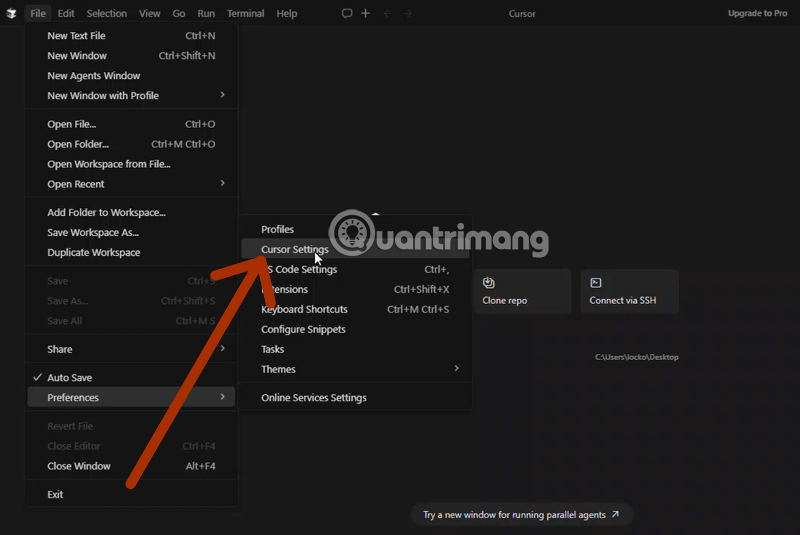
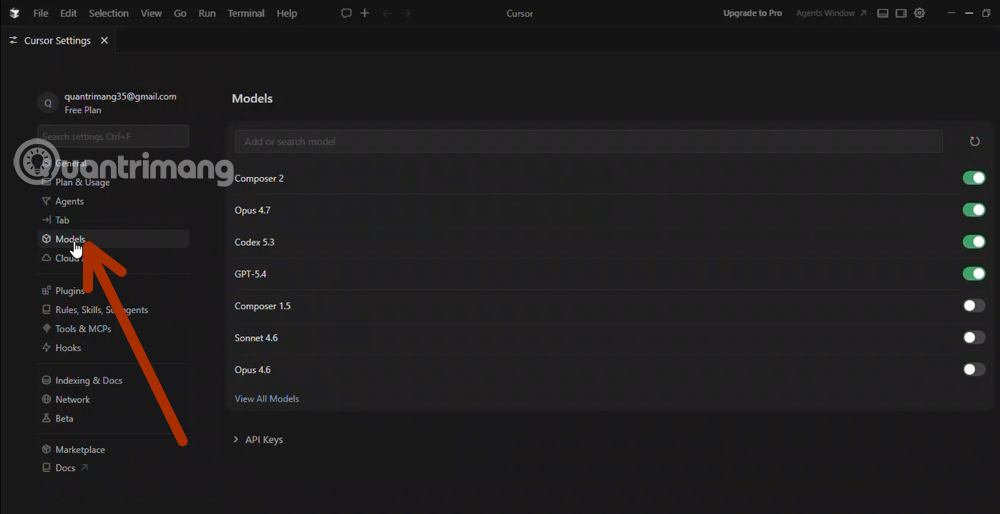
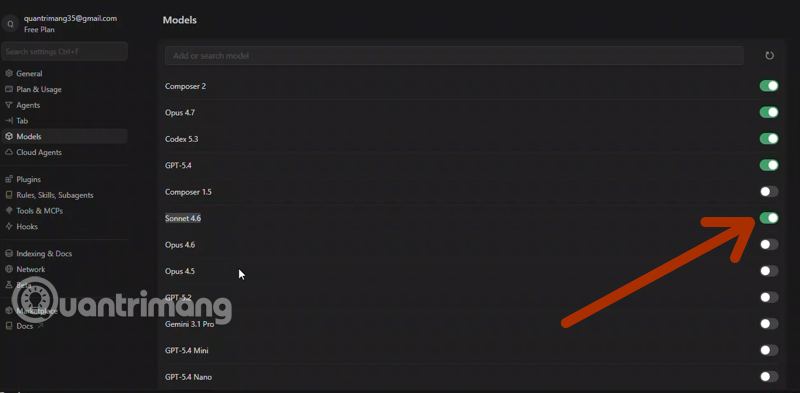
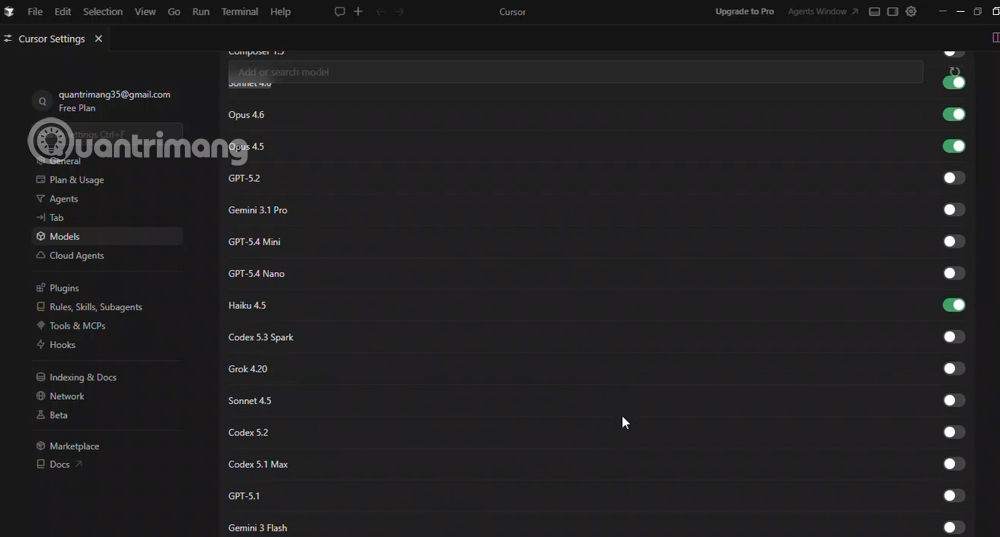
Do not leave the picker on Auto if your purpose is to use a particular Claude model. Auto can route requests to an available model; it is not a promise to use Claude.
Check Cursor's models and pricing documentation for usage accounting. A Claude chat subscription is not a reason to assume that requests made through Cursor are free or included in that subscription.
2. Give Claude a bounded task and relevant context
Open the project and use the context attachment controls, including @ references where available, to identify the files or documentation needed. The @ character is an at sign, not a colon. Attaching context does not prove that every file in the repository has been read.
A useful first request is an explanation or a plan:
Inspect the selected request handler and its tests. Explain why an empty input produces the reported error. Identify the smallest fix and the regression test you would add. Do not edit files yet. State any missing information.
After checking the explanation, request the agreed change. Keep unrelated refactoring out of the same task. For multi-file work, review the proposed scope before allowing edits and commands.
3. Store recurring instructions as project rules
Use Cursor's current project rules workflow for conventions that should apply repeatedly. The documentation describes creating rules in .cursor/rules through Customize → Rules → Add Rule or the /create-rule chat command.
Useful rules identify the project's actual language and framework versions, test commands, naming conventions and areas that should not change. Avoid vague instructions such as “always use the latest syntax” when your runtime requires an older version.
For example: “Preserve the public API; use the repository's existing test framework; add no dependency without explaining why; report any test that could not be run.” Rules guide the assistant, but they do not guarantee compliance.
4. Choose Sonnet or Opus by the task
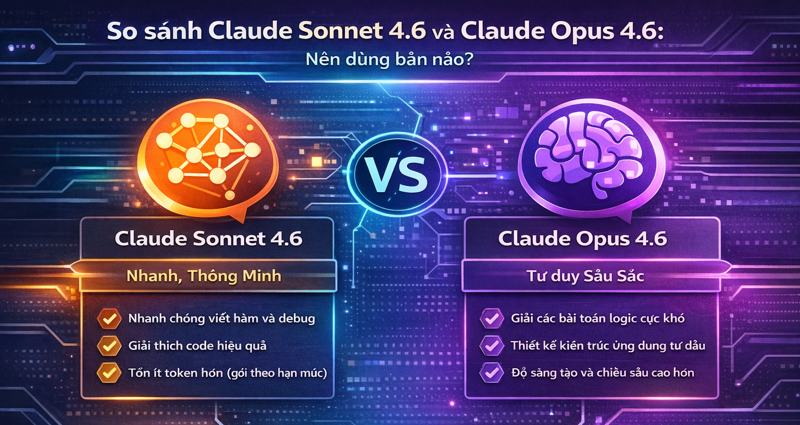
Start with an available model whose cost and response time fit the work. Try a more capable or differently configured option when the first model cannot resolve a well-defined problem. Before switching, check whether missing context or an unclear request is the real obstacle.
Compare the models on the same task and evaluate the patch, tests and explanation. Do not assume that Sonnet always uses fewer tokens or that Opus always produces a correct architecture. These Cursor and Copilot workflow differences can also help distinguish editor features from model capabilities.
5. Check changes and troubleshoot access
- Model missing: update Cursor, check the signed-in account and available models, and review team or regional restrictions. Cursor documents regional model availability.
- Unexpected output: confirm the selected model, attached files, instructions and actual project versions.
- Unexpected cost: inspect Cursor's usage dashboard and applicable model pricing before continuing a large task.
- Before accepting: inspect the diff, run relevant tests, check error handling and retain a way to revert the changes.
If you are comparing environments, see these AI coding assistant alternatives. Whatever tool you choose, keep credentials and unrelated confidential files out of the task, and review actions before they affect shared systems.
Related Articles
 Which AI Programming Tool Is Right for You: Claude Code or Cursor?10 minutes read
 How to Enable and Use the GPT-5.5 Codex in Cursor (Detailed Instructions)7 minutes read
 Tips for Using Project in Claude Effectively to Create a Personal AI Space8 minutes read
 How to Add a GitHub MCP Server to Cursor9 minutes read
 Claude AI Registration Guide and How to Use Claude AI6 minutes read
 What Is Plan Mode in Cursor?8 minutes read
Reader Comments 0
Sign in with email or Google to join the discussion.