Table of Contents
This guide organizes the entries in "5 Video Features on Canva That Many Professional Editors Don't Have" and explains what each option, idea, or example offers. It also highlights practical details that matter when comparing the choices.
5. Preset design template
While professional video editors offer some advanced features, they aren't always beginner-friendly. When using Premiere Pro and DaVinci Resolve, many people spend months learning how to use both tools effectively. Meanwhile, their video projects aren't very good, and they often feel it's better to create something simple and upload content quickly.
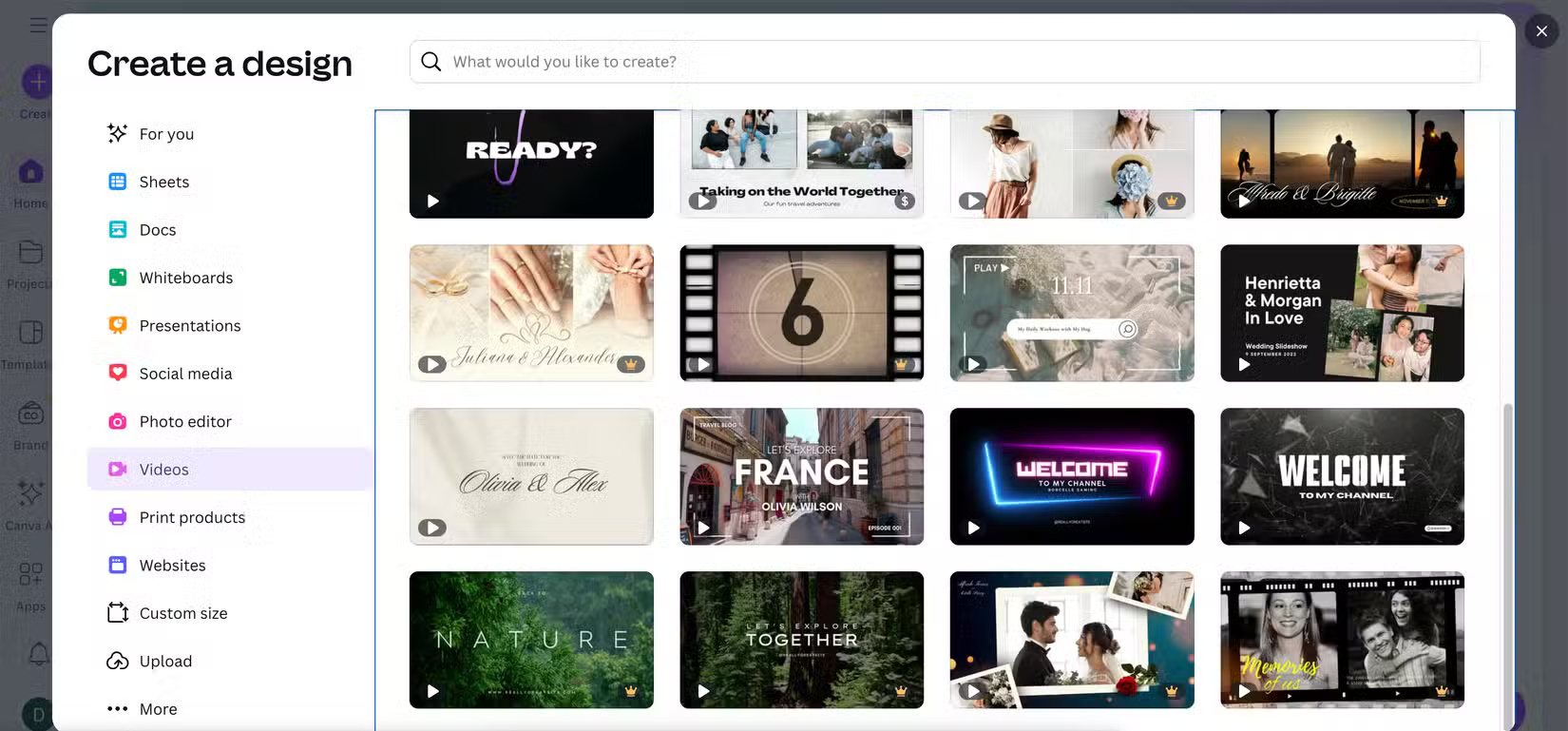
Canva is the best tool for creating simple yet effective videos. When you start a new project, you can choose from a variety of design presets. You can divide your options by theme, with a range of minimalist options and more complex options.
4. Multiple templates in one timeline
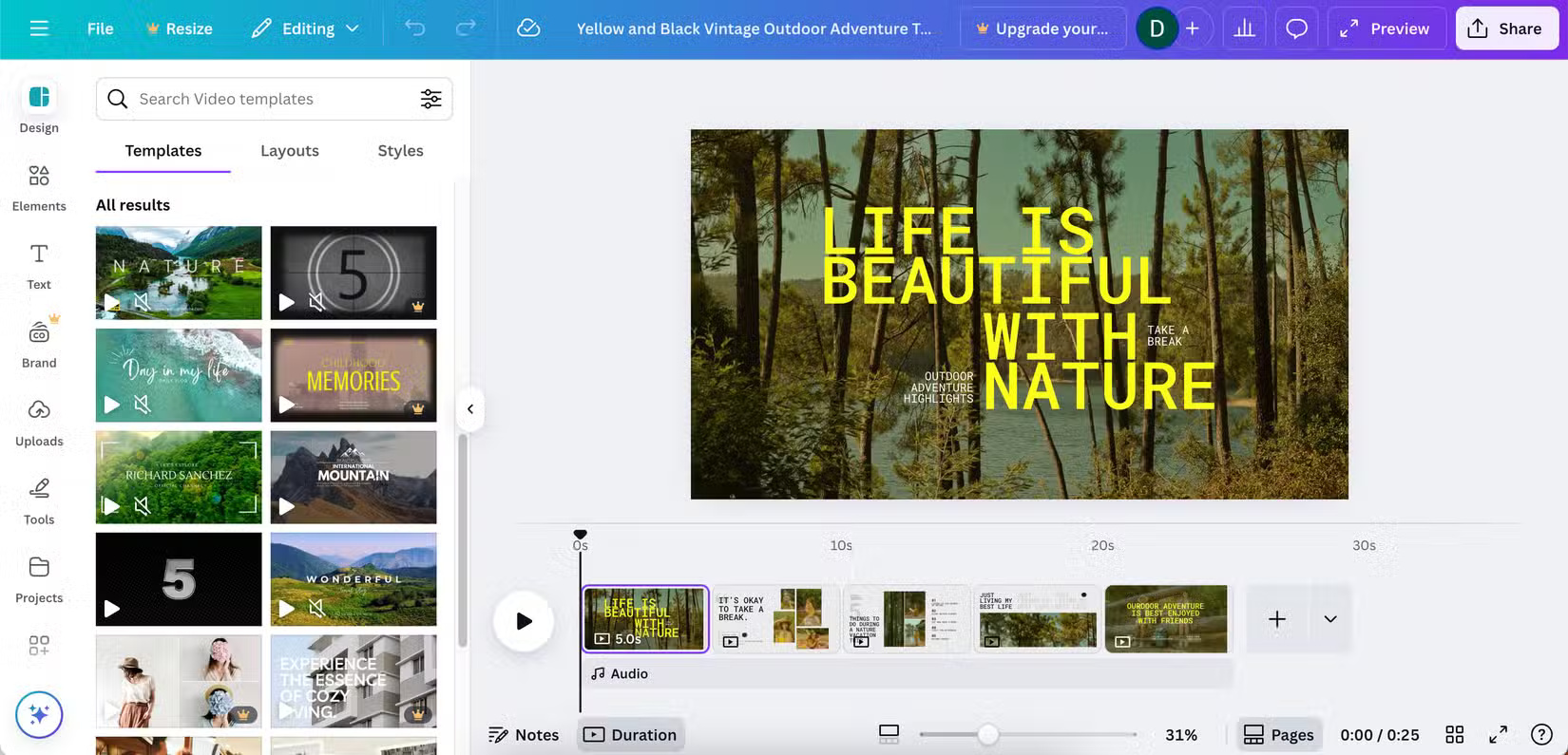
Sometimes people stick to one theme throughout their Canva projects, and these are often the easiest to complete. However, other times people want to mix up their projects. In those cases, you may need to use multiple types of video templates.
With more popular video creation tools, this is quite difficult. For example, doing it in software like DaVinci Resolve is often time-consuming and requires manual changes to many elements, such as fonts. As a result, users often feel stifled in their creativity, even though they technically have access to more features.
3. Better drag and drop interface
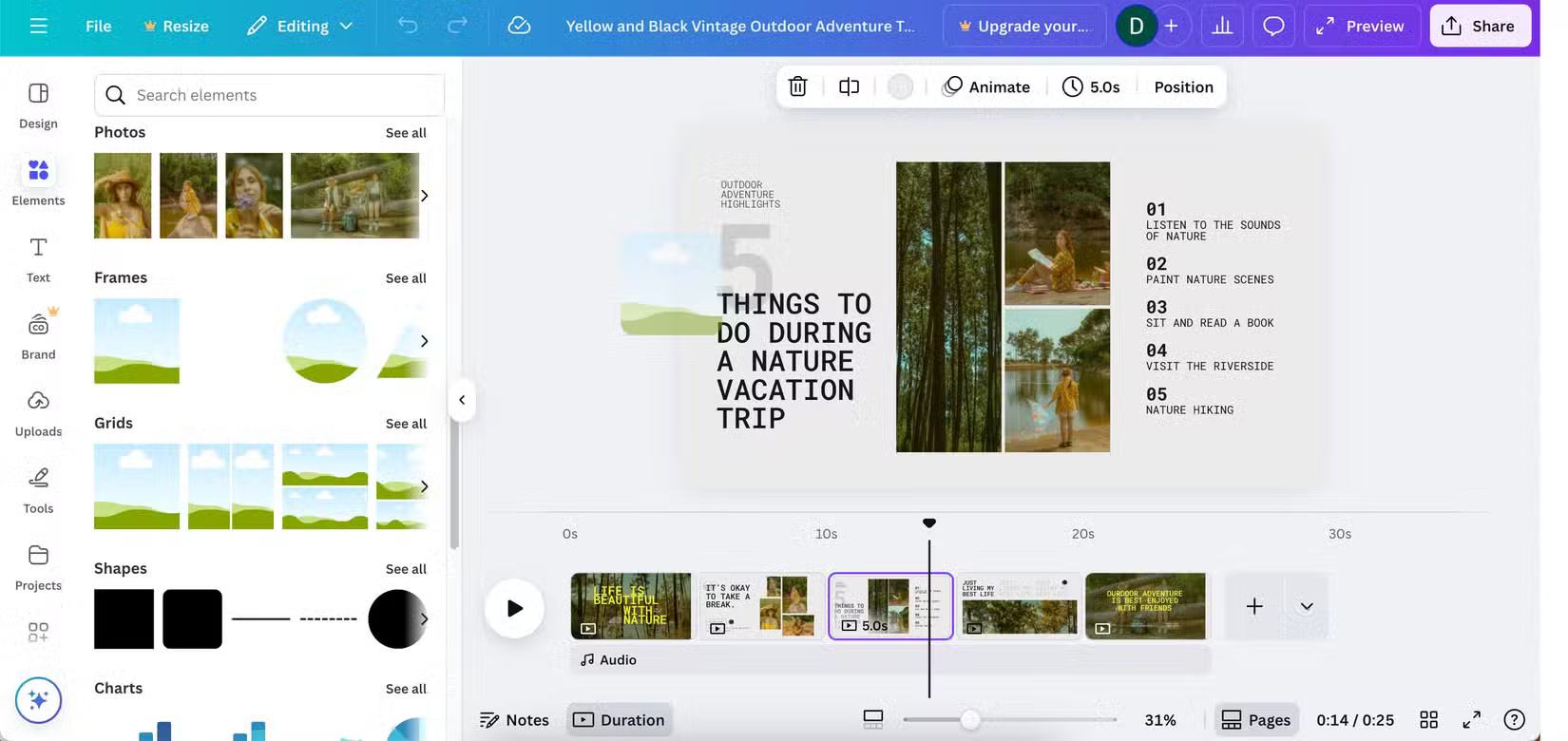
Many people create small video projects for their social media channels, rather than long-form content. For content up to 60 seconds long, having something that is easy to navigate is essential. The best way to do this is through drag and drop; while many video editors have this feature as a base, not all of them do it well.
When using large video editors like Premiere Pro, their drag and drop features often feel sluggish. This is quite annoying, especially when you don't want to make major changes. For this reason, many people have stopped using such tools for simple adjustments.
2. Edit in browser
One of the biggest drawbacks of most professional video editors is the lack of browser access. For example, you need Premiere Pro and DaVinci Resolve apps to combine your projects. While this may not be a problem for some, not everyone likes having too many apps on their device. Plus, the online video editing interface is better than the app.
In addition to desktop and smartphone apps, Canva lets you edit videos right in your browser. It's simple, and all changes are saved in real time. Right now, people do most of their editing in the browser and are happy with this approach.
1. Canva has tons of elements
Perhaps the biggest complaint people have about professional video editors is that they often lack advanced features. For example, with Premiere Pro, you'll need After Effects to get the most out of the service. While After Effects has some useful tools, it does mean you'll need to learn another app.
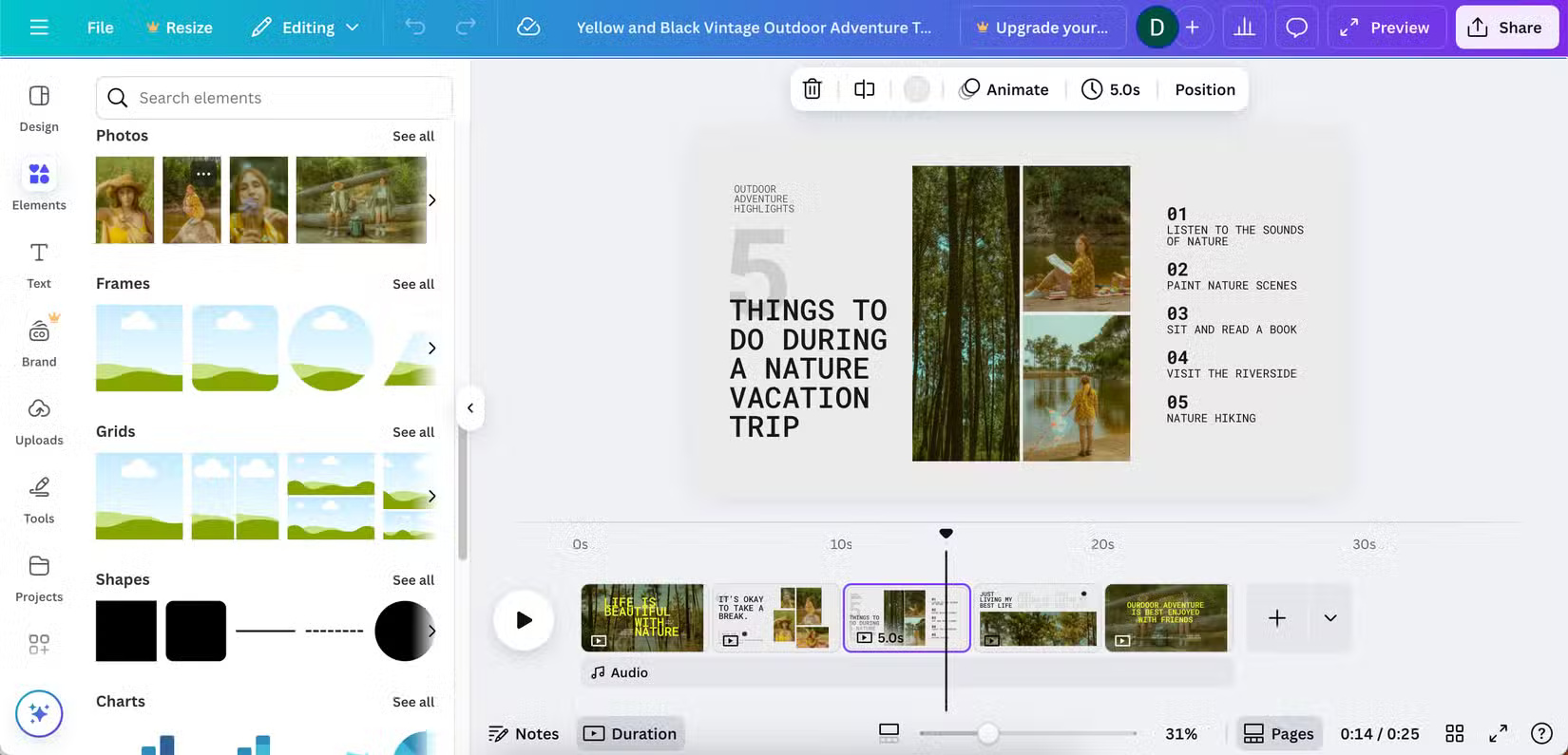
The way Canva integrates everything into one interface is great for casual users. Some of the elements you can access within the app include graphics, frames, and stickers.
FAQ
What should you know about 5. Preset design template?
While professional video editors offer some advanced features, they aren't always beginner-friendly. When using Premiere Pro and DaVinci Resolve, many people spend months learning how to use both tools effectively. Meanwhile, their video projects aren't very good, and they often feel it's better to create something simple and.
What should you know about 4. Multiple templates in one timeline?
Sometimes people stick to one theme throughout their Canva projects, and these are often the easiest to complete. However, other times people want to mix up their projects. In those cases, you may need to use multiple types of video templates.
What should you know about 3. Better drag and drop interface?
Many people create small video projects for their social media channels, rather than long-form content. For content up to 60 seconds long, having something that is easy to navigate is essential. The best way to do this is through drag and drop; while many video editors have this feature as a base, not all of them do it well.
What should you know about 2. Edit in browser?
One of the biggest drawbacks of most professional video editors is the lack of browser access. For example, you need Premiere Pro and DaVinci Resolve apps to combine your projects. While this may not be a problem for some, not everyone likes having too many apps on their device. Plus, the online video editing interface is.
Related Articles
 4 New Canva Features You'll Love11 minutes read
 Guide to Adding AI Music to Videos in Canva7 minutes read
 Instructions to Slow Down Videos on Canva3 minutes read
 How to Create AI Videos on Canva Using Veo 32 minutes read
 5 Steps to Design a Free Logo on Canva3 minutes read
 Canva Pro Features Make Subscribing Worth It7 minutes read
Reader Comments 0
Sign in with email or Google to join the discussion.