Table of Contents
This practical guide explains how to improve Spotify 10x with this simple mod. Follow the steps in order, review the requirements first, and use the troubleshooting notes when a setting or option does not work as expected.
What is Spicetify? Why should you care?
The Spotify Windows app is essentially just a web player wrapped in Electron. This means that if you can edit a website, you can edit Spotify. Spicetify connects to this by allowing you to override CSS and inject JS. This unlocks themes, extensions, snippets, and full apps.
The native Spotify on Windows is almost identical to the mobile app. That's fine on phones where battery and performance are important, but on the desktop it feels too simple and limited.
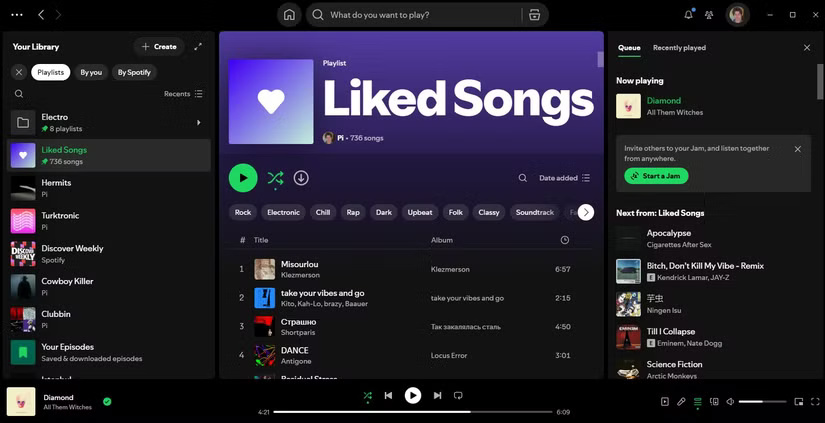
With Spicetify, you're no longer stuck with that boring interface. The best way to understand its impact is to see it for yourself. Check out the humble setup by Spicetify's standards below.
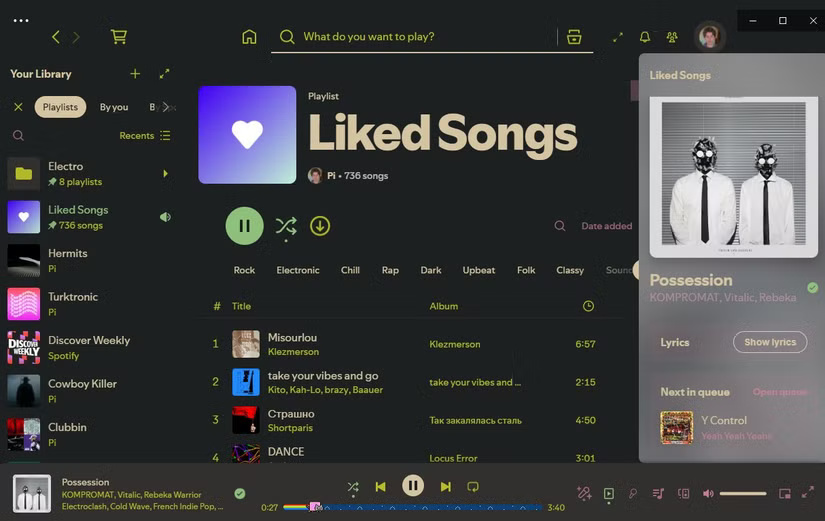
Whether you like these customizations or not is subjective, but the ability to personalize Spotify exactly how you want is a great thing.
What does Spicetify offer?
Spicetify doesn't just stop at aesthetics—it adds powerful new features, too. One of our favorites is the Better Spotify Genres extension. It adds a little genre tag underneath each song, solving one of the biggest pain points: figuring out what genre a particular track is.
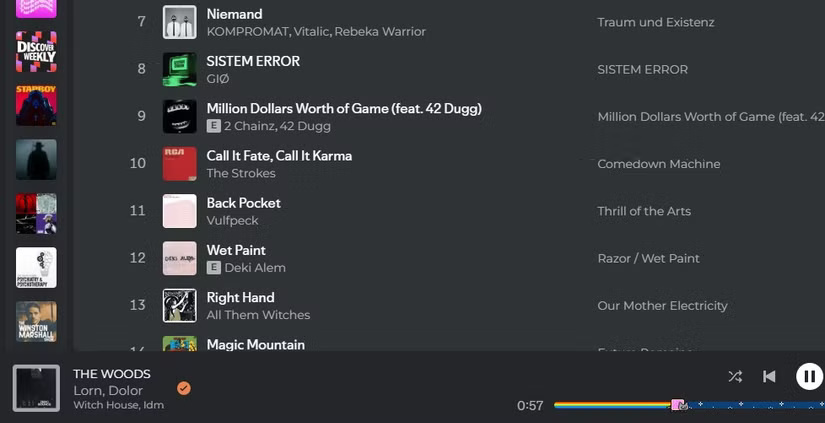
Typically, searching for a song's genre on Google only gives you the artist's main genre, which can be misleading if, say, an electronic artist releases a metal track. Spicetify accurately tags each individual song and even provides quick access to playlists based on that genre.
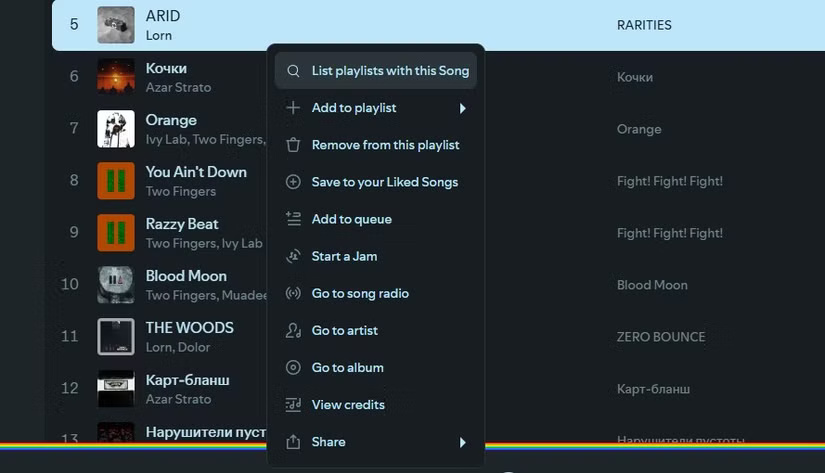
Another great extension that helps you find playlists containing a specific song from your library. It's great for quickly cleaning up your playlists without having to search forever.

Back to aesthetics, another essential extension is Beautiful Lyrics. Spotify's built-in lyrics feature is decent but limited, especially on desktop. Beautiful Lyrics offers dynamic, perfectly synchronized lyrics that put Spotify on par with Apple Music's polished interface. It even offers a gorgeous full-screen mode—perfect if you use multiple monitors and want to keep the lyrics open on a secondary display.
Installing Spicetify is easier than you think
The installation process is very simple. You have to run a command, but this is extremely simple. It's just a simple command line and you don't need admin rights.
Note : We recommend installing the standard Spotify desktop app (with EXE installer), not the Microsoft Store version, for the best experience.
Open PowerShell. Right-click Start > Terminal (non-admin). Spicetify intentionally refuses to run as admin, so you don't accidentally mess up your system. Then, type this command and press Enter :
winget install Spicetify.SpicetifyThat's right. Previously, installing mods like this required a third-party command-line package manager, but thanks to Winget, it's become incredibly user-friendly. Next, set up Spicetify with this command:
spicetify update && spicetify apply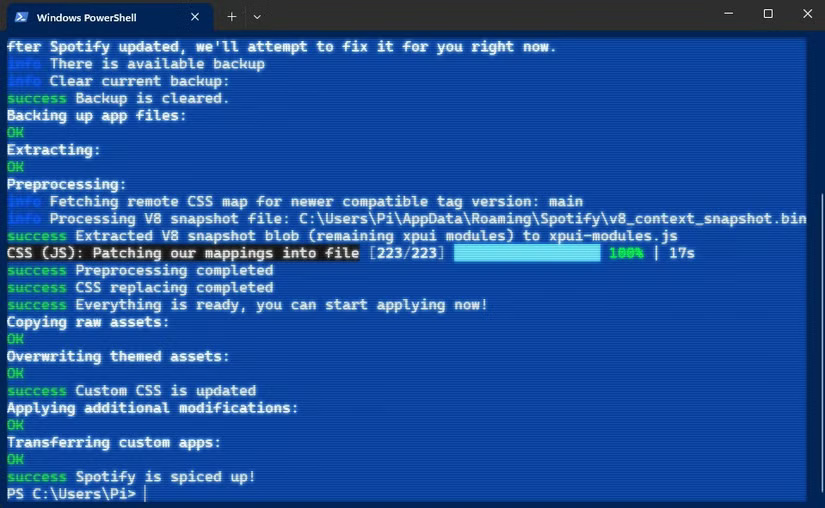
If Spotify is already running, it will restart automatically. If it doesn't, just restart Spotify yourself.
Note : Spicetify also supports Linux and macOS - see Spicetify's official documentation for setup instructions on these platforms.
Customize Spotify your way
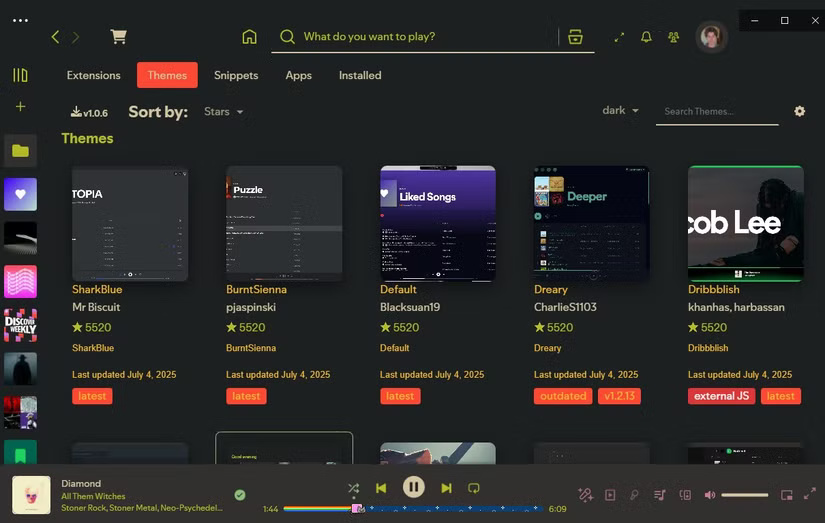
select the small app store icon in the top left corner and enjoy customizing to your liking. You will see different categories to explore:
|
Snippets |
Some minor CSS tweaks to improve visuals, such as rounding the album art. |
|
Extensions |
Add functionality with CSS and JavaScript. |
|
Apps |
Many significant plugins are installed from GitHub (again, no admin rights required). |
|
Themes |
Change the look of Spotify - you can even create your own. |
Enabling these customizations is simple. Click to install your chosen add-ons directly from the Spicetify app store or manually add files downloaded from GitHub to your Spicetify folder.
Spicetify itself is just a tool for Spotify's web UI — there are no vulnerabilities or account risks. However, third-party extensions and apps can cause security or stability issues. Use the official Spicetify app store or check the GitHub repositories carefully. If you want to revert to the original version, run the following command:
spicetify restoreAfter using Spicetify, many people say they'll never go back to the original Spotify. Sure, on mobile, Spotify's minimalist interface saves resources, but on PC, there's no reason to settle for a less-than-ideal interface.
Spicetify has been a part of many people's setups for a long time, but surprisingly few people know about it. Maybe the fact that it's a single line of code to run or the lack of an official app store listing puts some people off, but this simple tweak is worth every second of setup.
FAQ
What is Spicetify? Why should you care?
The Spotify Windows app is essentially just a web player wrapped in Electron. This means that if you can edit a website, you can edit Spotify. Spicetify connects to this by allowing you to override CSS and inject JS. This unlocks themes, extensions, snippets, and full apps.
What does Spicetify offer?
Spicetify doesn't just stop at aesthetics—it adds powerful new features, too. One of our favorites is the Better Spotify Genres extension. It adds a little genre tag underneath each song, solving one of the biggest pain points: figuring out what genre a particular track is.
What should you know about installing Spicetify is easier than you think?
The installation process is very simple. You have to run a command, but this is extremely simple. It's just a simple command line and you don't need admin rights.
What should you know about customize Spotify your way?
select the small app store icon in the top left corner and enjoy customizing to your liking. You will see different categories to explore:
Related Articles
 How to Improving Spotify Podcast Recommendations5 minutes read
 22 Tips to Improve Your Listening and Streaming Like a Pro on Spotify16 minutes read
 3 Features Users Want Spotify to Add to Podcasts: What You Need to Know6 minutes read
 How to Remove Spotify from Your Facebook Account9 minutes read
 Instructions for Customizing Music Quality on Spotify4 minutes read
 Instructions for Installing Spotify on Samsung Smart TV3 minutes read
Reader Comments 0
Sign in with email or Google to join the discussion.