Table of Contents
Canva Create 2025 introduced four tools that handle different parts of a design workflow. Visual Suite 2.0 keeps multiple formats in one project. Canva Sheets turns structured data into designs and charts. Canva AI drafts content and layouts, while Canva Code generates interactive components.
1. Combine formats with Visual Suite 2.0
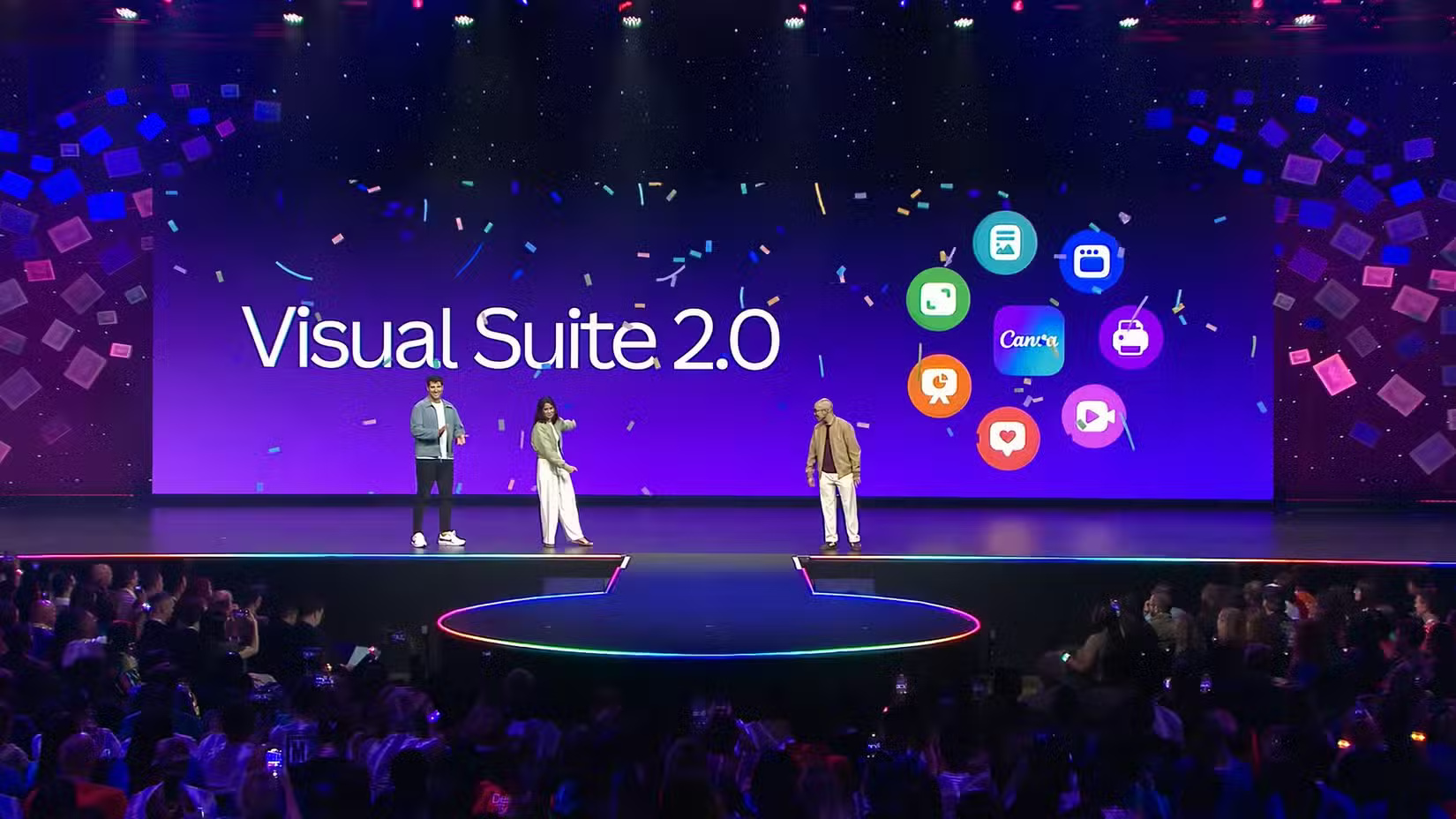
Keep a campaign brief, a presentation, and social graphics in the same design so the team can find related materials together. Check the intended output for each part before sharing. A presentation, a video, and a document may need different export formats even when they live in one project.
2. Work with data in Canva Sheets
Start with a sheet and verify formulas
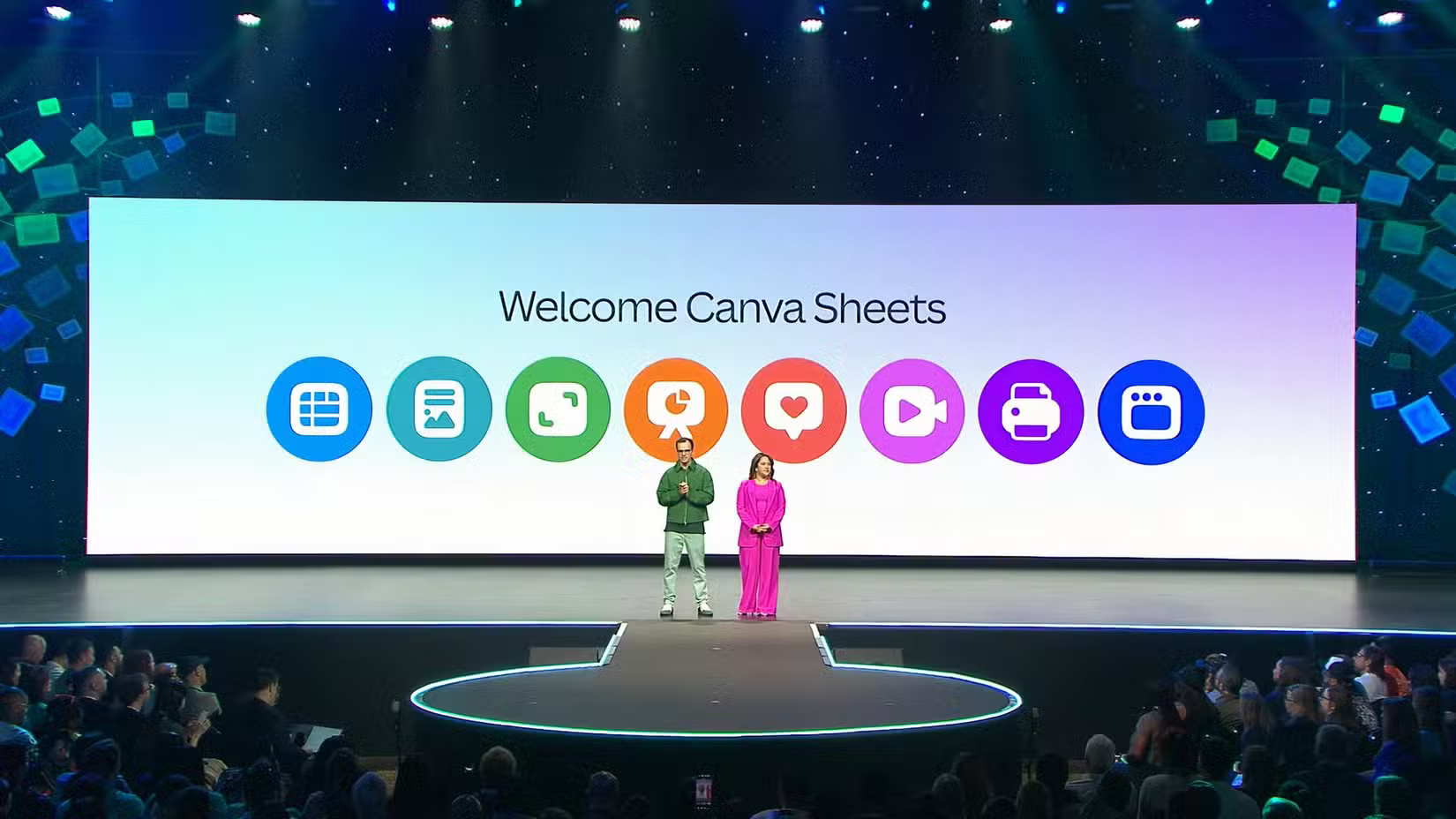
Create or import a table with clear headers. If you use a generated formula, check the cell range and compare the result with a few rows you can calculate yourself. See how to create a Canva data sheet.
Generate branded variants from rows
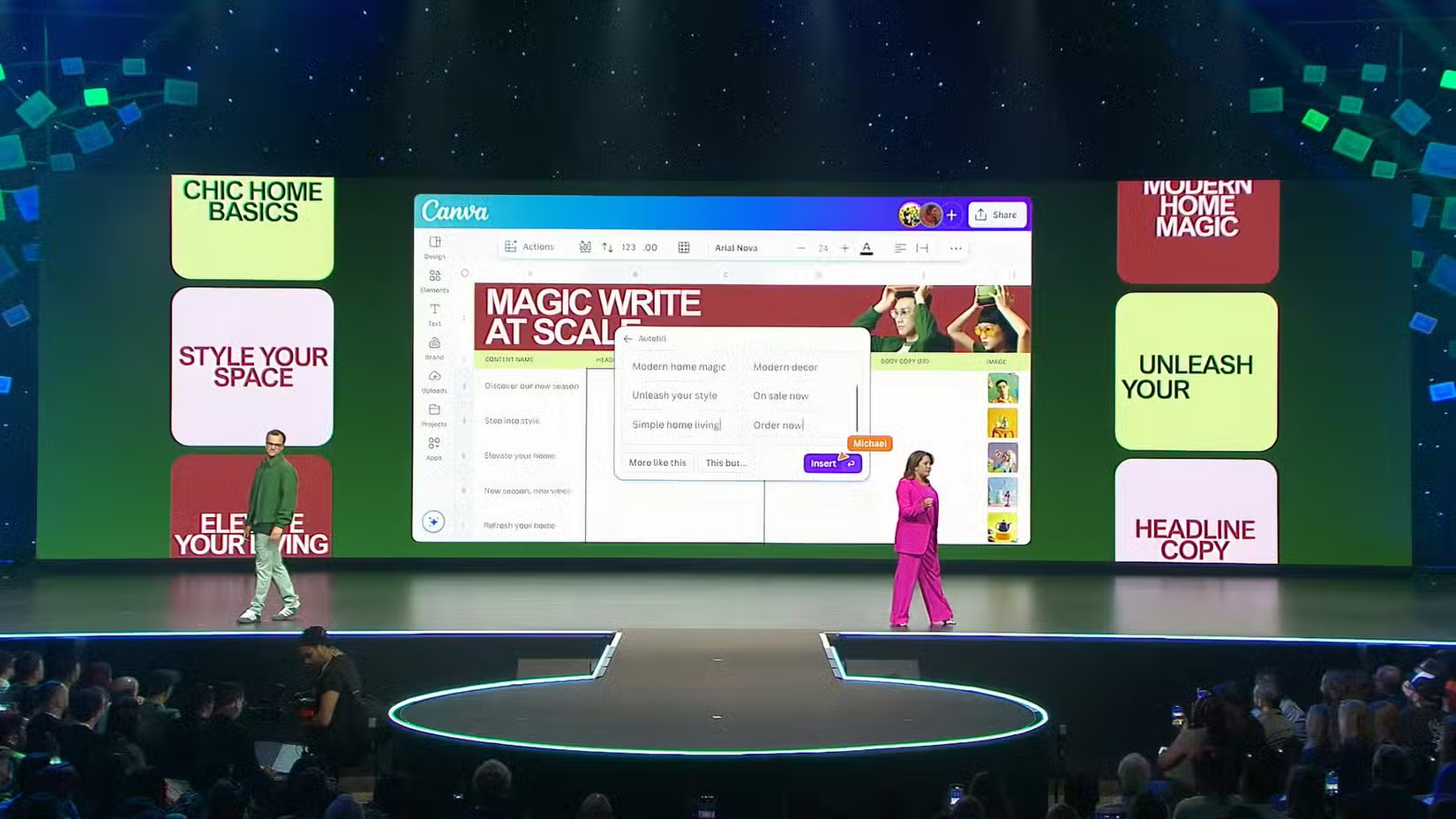
For a set of event cards, place each event’s name, date, and venue on its own row. Map the columns to template fields and preview a few entries before generating the rest. Include your longest title in the test to catch overflow. See how to prepare a template for bulk designs.
Turn data into a chart

Magic Charts can suggest a chart type from selected data. Review the axes, dates, and units before adding it to a report. A bar chart makes category comparisons easier, while a line chart can show a trend across dates. You can also edit Canva charts manually.
3. Use Canva AI for a first draft
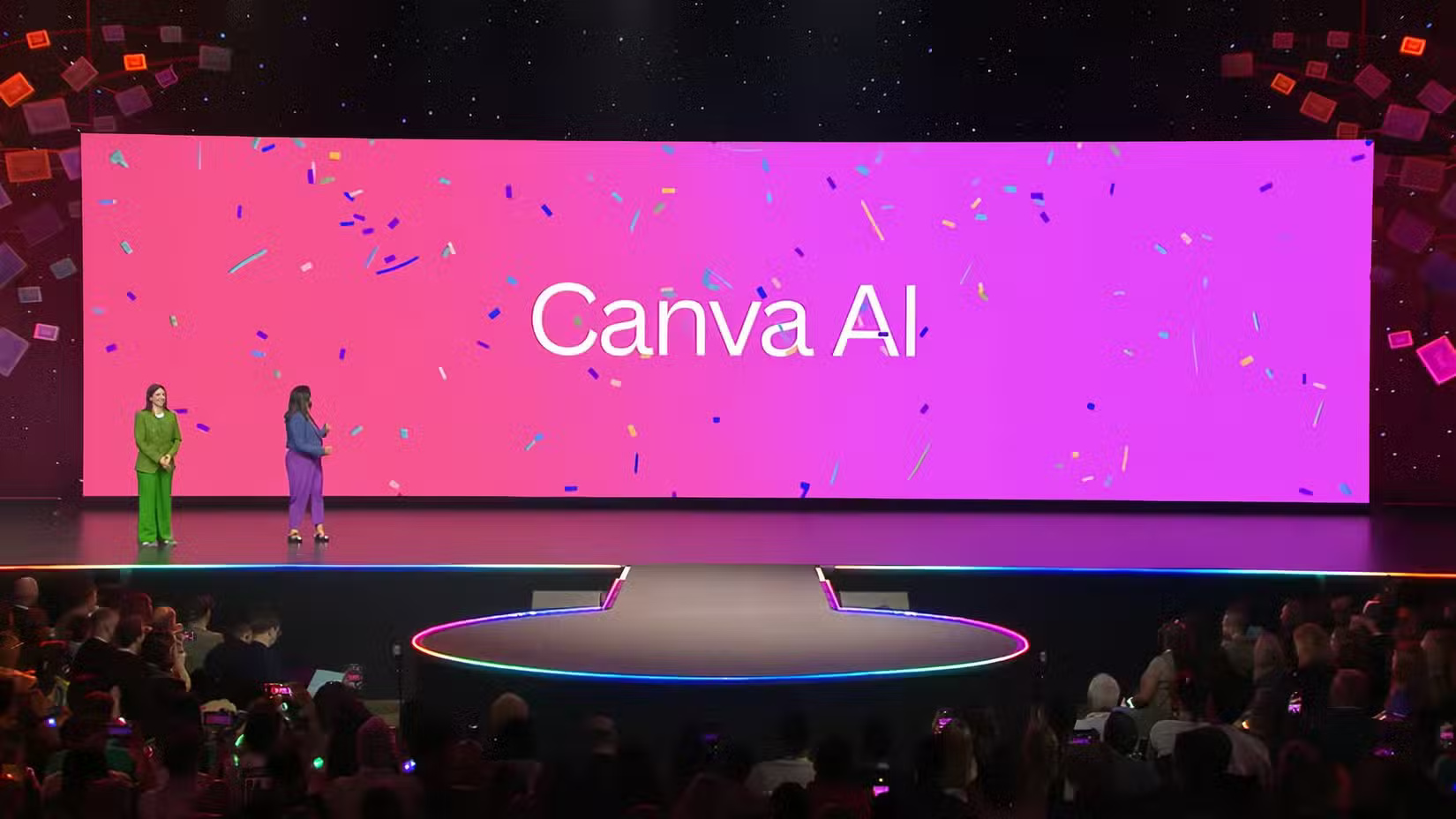
Draft a layout from a prompt
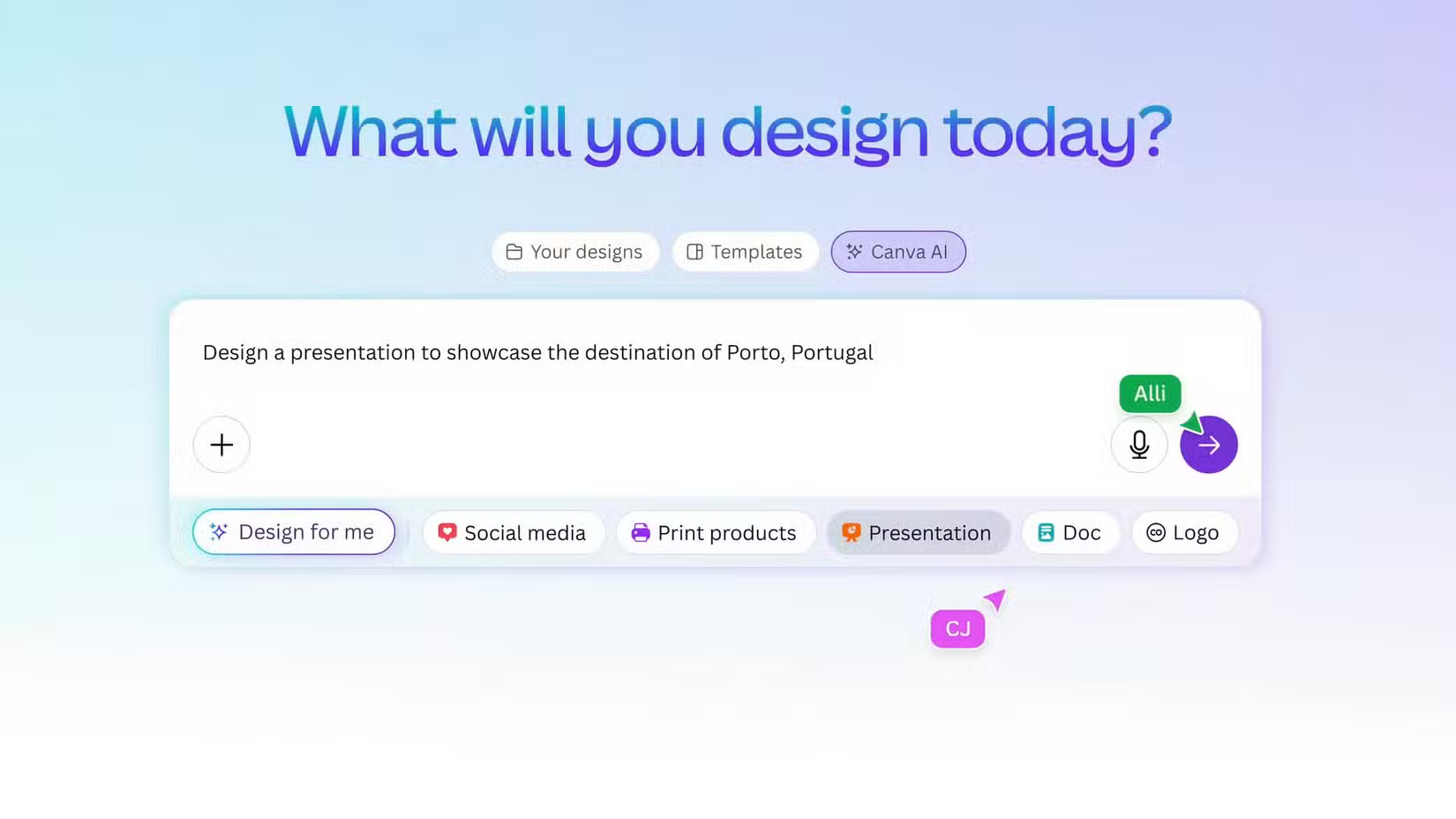
Specify the format, audience, and required details. For example, request a portrait flyer for a school event with room for a date, venue, and contact line. Replace generated details with confirmed information and check legibility at the final size.
Draft a document
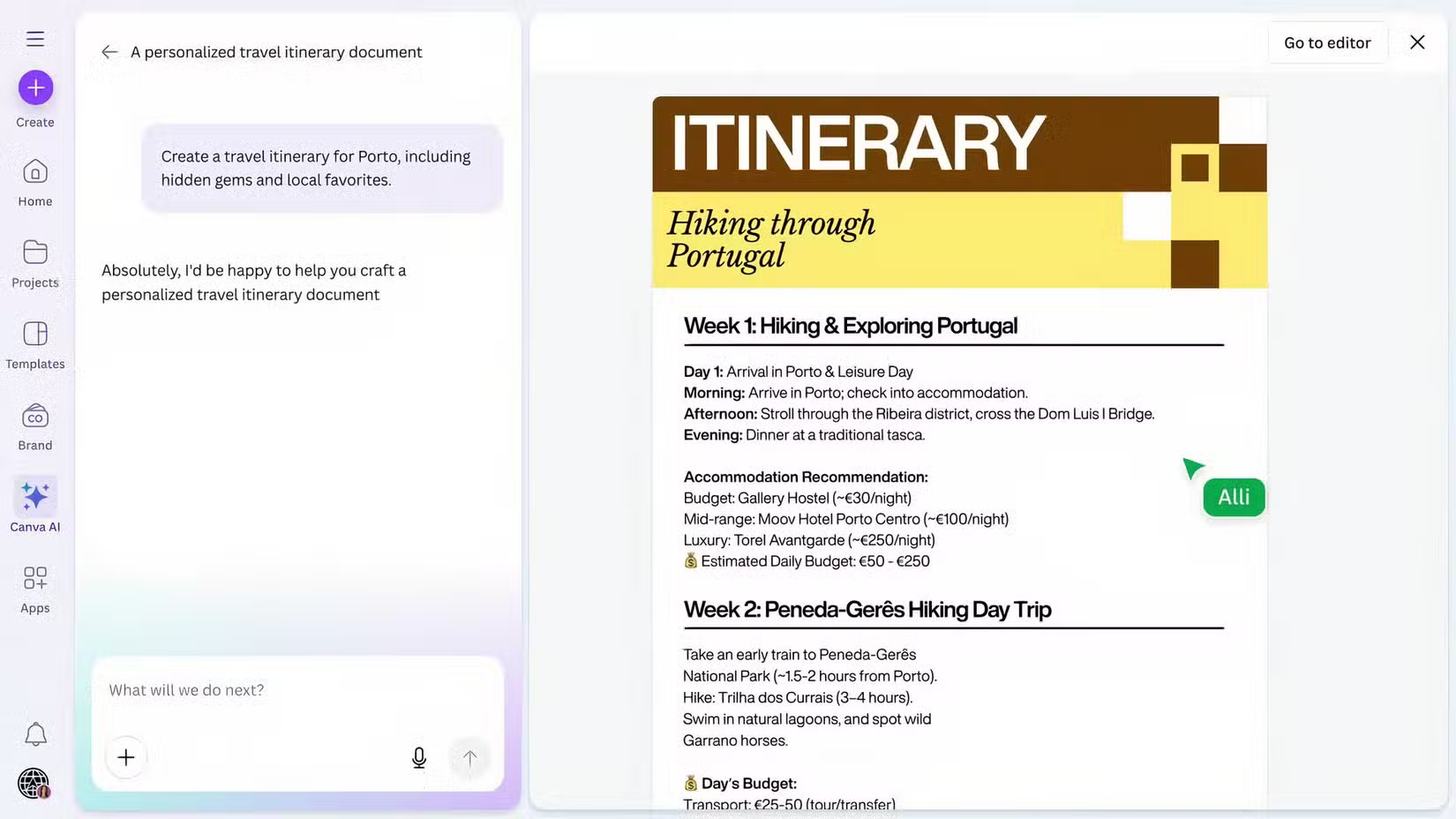
Use a document prompt to create a starting outline for a brief or agenda. Provide the facts you already have, then verify names, times, numbers, and any claims the draft adds.
Generate an image

Describe the subject, background, and composition. If you use a reference image, use one you have rights to. Check the generated image for distorted text and keep approved logos as separate design elements.
4. Build a simple interactive component with Canva Code
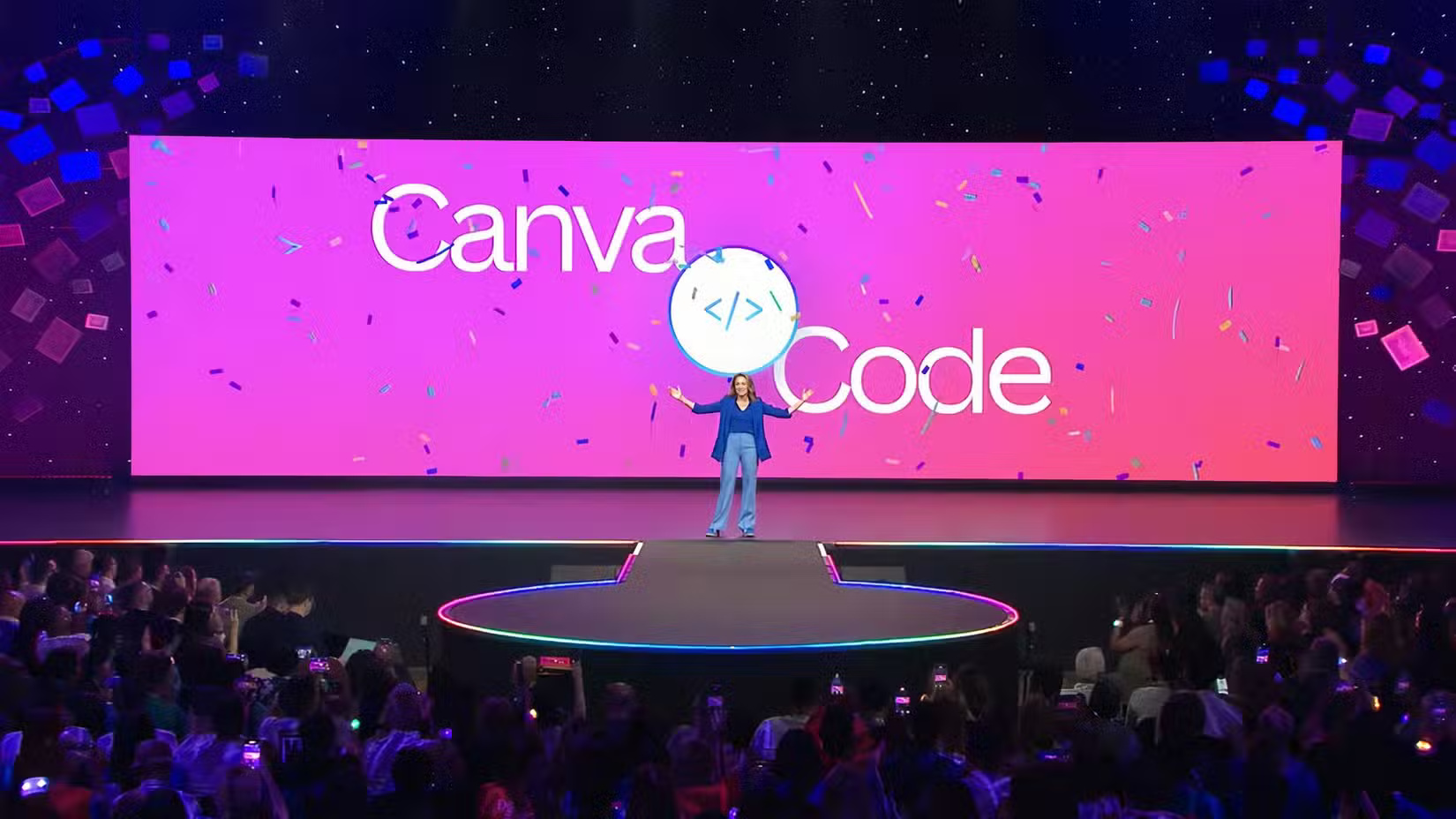
Start with a narrow task, such as a three-question quiz that explains each answer. Describe what happens on each click and how the reader can restart. Test the result on a phone and with a keyboard. Share it in a format that supports interaction, since a static image export won’t retain button behavior.
Try the tools on one small project

A small event campaign can exercise several tools together. Start with one design and a sheet of three events. Verify one generated card and one chart before using the full dataset. See Canva’s launch recap for the original announcements.


Reader Comments 0
Sign in with email or Google to join the discussion.