Table of Contents
This practical guide explains how to show outlook notifications without time limit. Follow the steps in order, review the requirements first, and use the troubleshooting notes when a setting or option does not work as expected.
How to show Outlook notifications without time limit
Step 1:
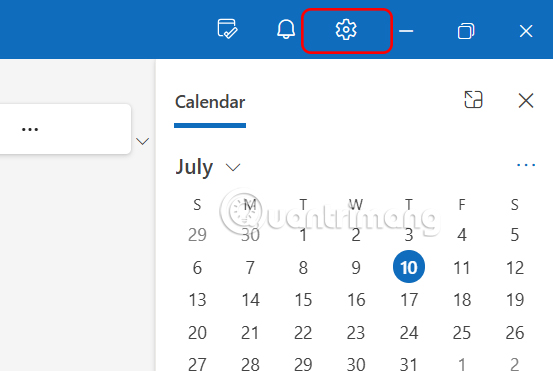
Open Outlook on your computer, then click the gear icon to access the application settings.
Step 2:
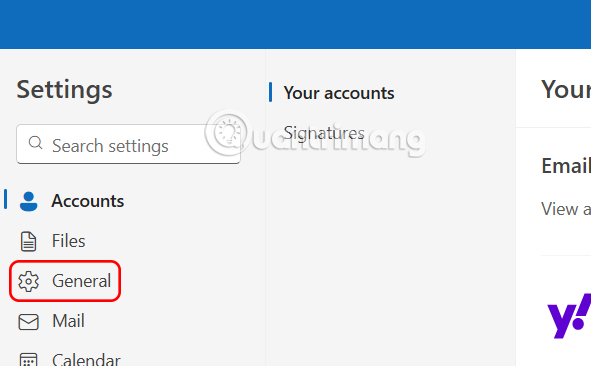
Switch to the new interface, users select General to access general settings.
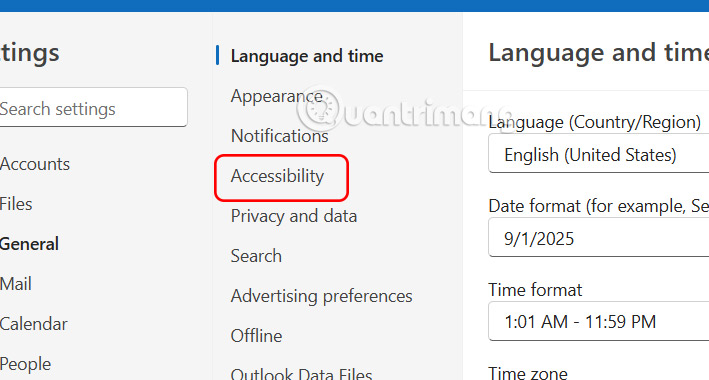
Looking at the content next to it, we select Accessibility to continue.
Step 3:
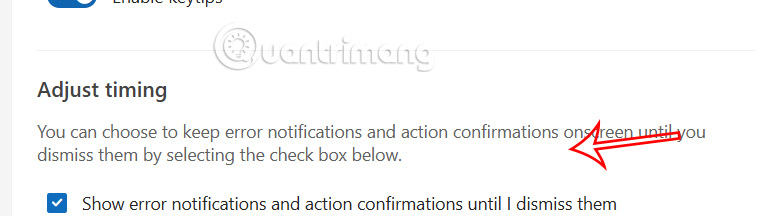
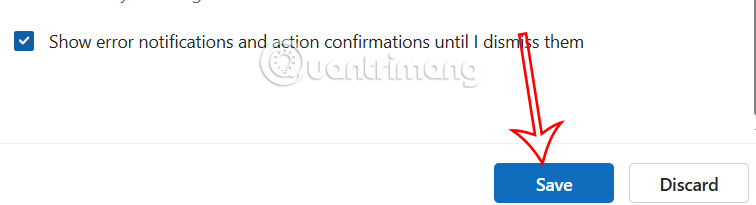
Now you will see the Adjust timing setting option to adjust the notification according to the time. We will check Show error notifications and action confirmations until I dismiss them to display the notification on the screen until you dismiss them.
Finally, click Save to save the new settings for Outlook.
FAQ
How to show Outlook notifications without time limit?
Open Outlook on your computer, then click the gear icon to access the application settings.
What does this guide cover?
This guide explains show outlook notifications without time limit, including the main steps, important details, and practical considerations.
Who is this guide for?
It is designed for readers who want a clear, practical overview and a reliable process they can follow without unnecessary complexity.
Related Articles
 How to Turn Off or Set up Notifications in Outlook5 minutes read
 Outlook Error 0x8004060c During Sending / Receiving Mail, This Is5 minutes read
 Increase the Size of Attachments in Outlook 2010: Guide2 minutes read
 How to Receive Outlook Notifications on the Desktop Screen3 minutes read
 How to Reduce the Size of Outlook Data Files (. PST and. OST)5 minutes read
 How to Increase the Outlook Attachment Size Limit: Step-by-Step Guide5 minutes read
Reader Comments 0
Sign in with email or Google to join the discussion.