Table of Contents
You can add a YouTube video to a Canva Doc by inserting an Embed block and pasting the video's public URL. In presentations and other Canva designs, the YouTube app is often more convenient because it lets you search and place a video directly from the editor.
Method 1: Embed a YouTube URL in Canva Docs
- Open the Canva Doc and place the cursor where the video should appear.
- Click the + button beside the document content.
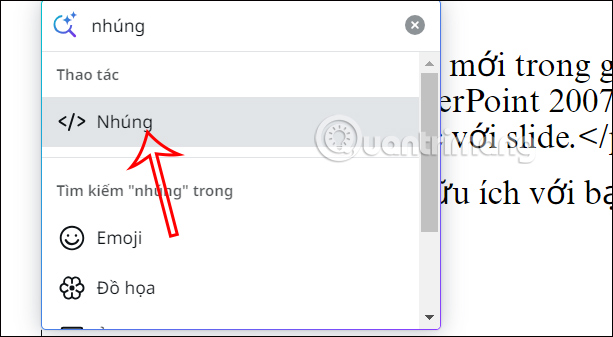
- Search for and select Embed.
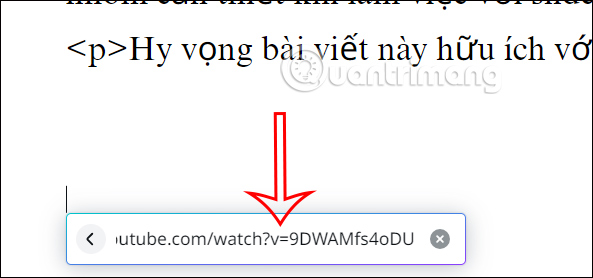
- Paste the full YouTube video URL.
- Press Enter or choose the option to add the content.
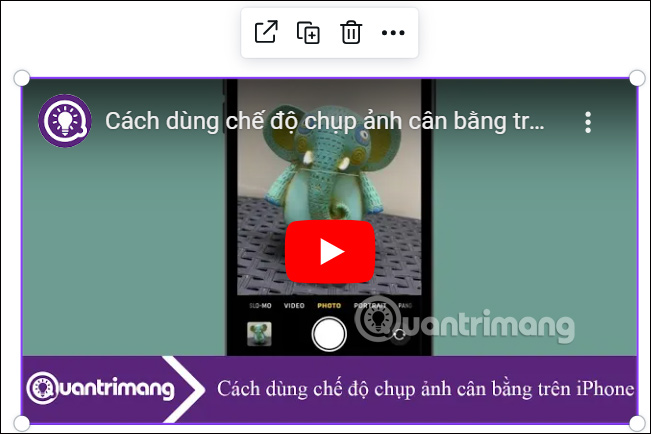
Wait for Canva to load the preview, then move or resize the embed if the document layout permits it. If pasting the URL directly into a blank line automatically creates a preview in your editor, that shortcut is fine; the Embed block gives you a clearer fallback.
Method 2: Use Canva's YouTube app
This method is useful in presentations, whiteboards, and designs that expose Canva Apps in the left toolbar.
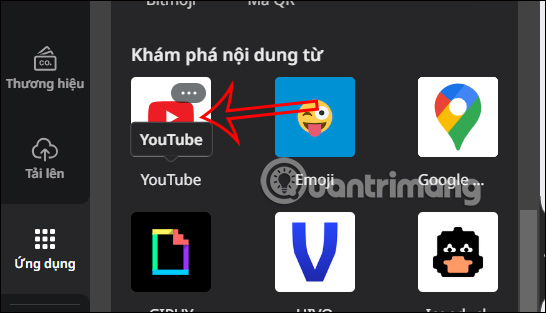
- Open Apps in the left sidebar.
- Search for YouTube.
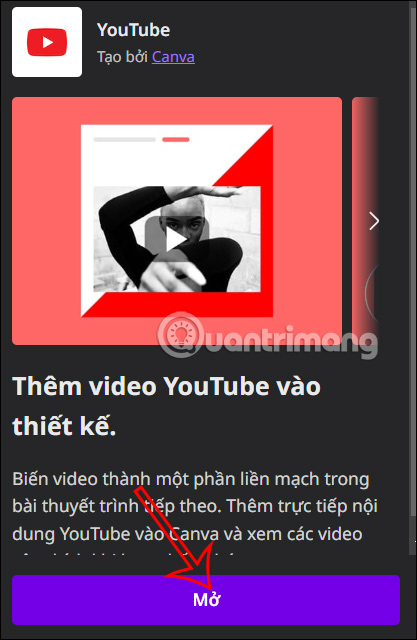
- Open the YouTube app. Canva may ask you to accept app permissions.
- Search by title, channel, or keywords.
- Select the correct result to add it to the page.
- Resize and position the video like another design element.
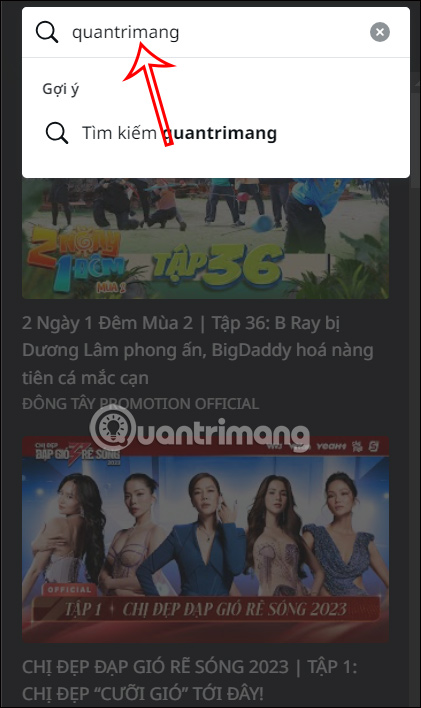
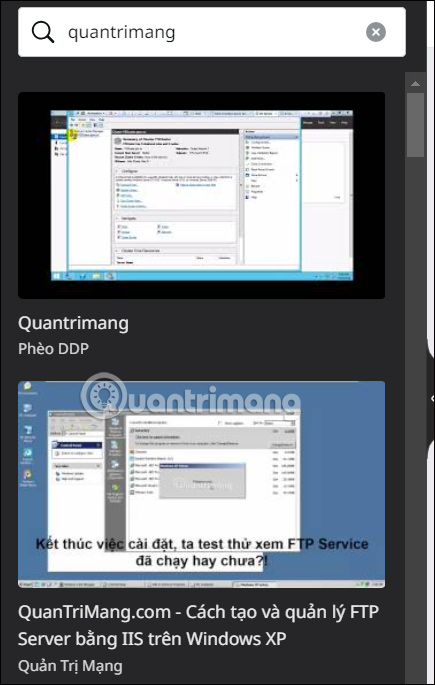
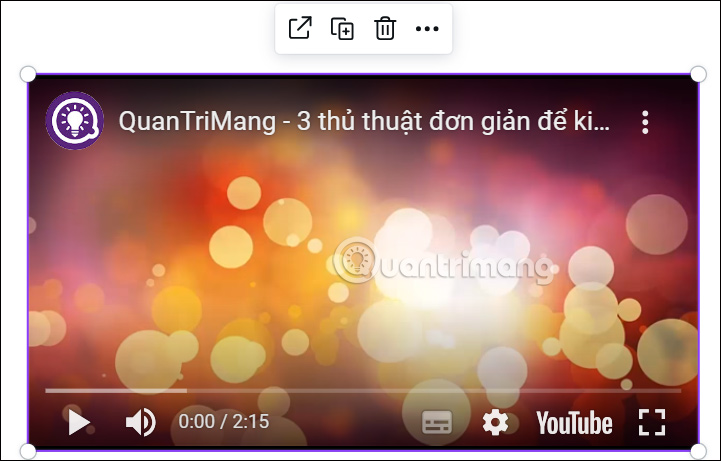
Confirm the video's channel, thumbnail, and title before adding it; common search terms can return unrelated or reuploaded copies.
Embedded video vs. uploaded video
| Option | Best for | Important limitation |
|---|---|---|
| YouTube embed | Link-based Docs, presentations, and shared designs | Playback depends on YouTube availability, internet access, and viewer permissions. |
| Uploaded video file | Editing, trimming, animation, and an MP4 export | You need rights to the file and must meet Canva's upload requirements. |
| Linked thumbnail | PDFs or formats that cannot preserve interactive playback | Viewer leaves the document to watch the video. |
An embed does not copy the YouTube video into your Canva storage. If the owner removes it, changes its visibility, blocks embedding, or restricts the viewer's region or age, it may stop playing.
Test the final sharing format
Interactive playback is most reliable when viewers open the Canva design through a shared or published link or view a presentation in Canva. A PDF, PNG, or printed document cannot contain a functioning video player; it may show only a thumbnail or link. An MP4 export may not incorporate a remotely embedded YouTube video as footage.
Before publishing:
- open the viewer link in a private browser window;
- test playback without editor permissions;
- confirm the document works on both desktop and mobile;
- check that the video is public or appropriately unlisted;
- provide a text link or transcript when accessibility matters.
If the YouTube video will not embed
- Use the standard watch URL: Copy the address from YouTube's Share command instead of a playlist or Studio URL.
- Check visibility: Private videos will not work for viewers who lack access.
- Check embedding restrictions: A video owner can prevent playback on other sites.
- Reload Canva: Save the document, refresh the editor, and try the Embed block again.
- Try a viewer link: Editor previews and exported files do not always behave the same way.
- Use a linked image: When playback cannot be embedded, add the thumbnail with descriptive text and link it to the YouTube page.
Copyright and privacy checks
Embedding a public video does not transfer ownership or grant permission to re-edit it. Use the original uploader's version, identify the creator where appropriate, and avoid presenting third-party material as your own. Do not embed an unlisted classroom, client, or internal video in a broadly shared Canva document without authorization.
Canva's video and animation help section is the best place to check current editor behavior. For related editing options, see TipsMake's overview of Canva video features.
Bottom line
Use an Embed block and a YouTube URL for Canva Docs; use the YouTube app when working in a design or presentation. Test the published format because an interactive embed can become a static thumbnail when exported.
Related Articles
 Trick to Insert Autoplay Code for YouTube Videos2 minutes read
 How to Insert Online and Offline Videos into Word6 minutes read
 How to Use Canva Mobile to Edit Videos on Your Smartphone9 minutes read
 How to Insert Photos into Canva Simply and Quickly: Clear Instructions7 minutes read
 Instructions for Inserting YouTube Videos into Word 20132 minutes read
 How to Insert YouTube Videos into Facebook Fanpage Page3 minutes read
Reader Comments 0
Sign in with email or Google to join the discussion.