Table of Contents
Sometimes Chrome can run slow, or it can crash and freeze due to extensions, installation issues, profile issues, or configuration issues. Whatever the case, the browser has a reset default settings button to help fix most common issues. This feature will reset Google Chrome's settings and shortcuts, disable extensions, and clear cookies and other temporary files. Here's how to reset Google Chrome to its default settings.
Instructions to reset Chrome general settings to default
Step 1:
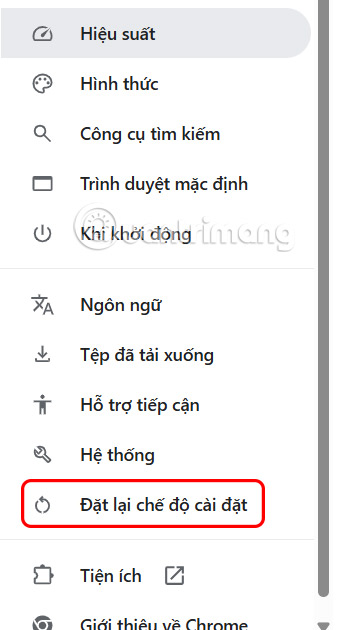
In Google Chrome, users select the 3-dot icon and select Settings . Switch to the new interface, select Reset settings on the left side of the interface.
Step 2:
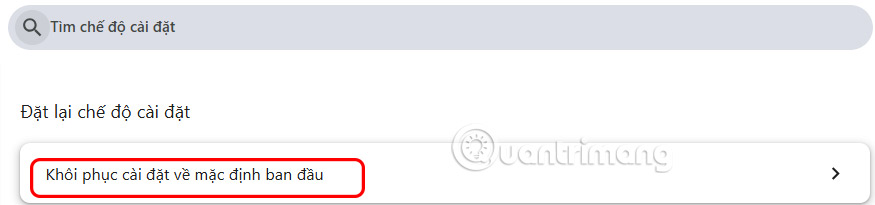
Look to the side and click Restore settings to factory defaults.
Display the pop-up interface as shown below, click Reset settings to perform.
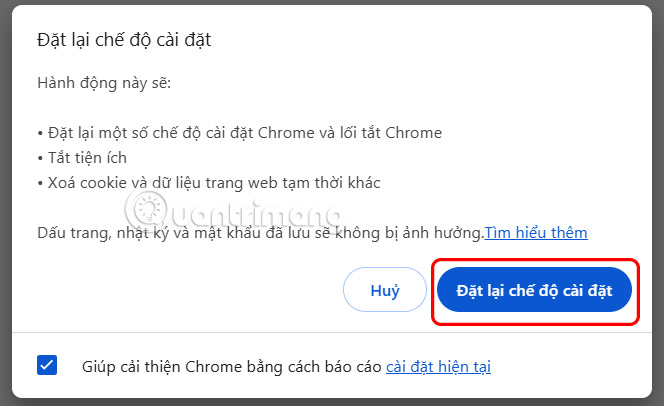
After you complete the steps, Google Chrome will restore default settings, disable extensions, and clear cached data like cookies, but your bookmarks, history, and passwords will be retained.
How to reset all settings to default on Chrome
Step 1:
Start by close Google Chrome browser, then open File Explorer on your computer. Continue to enter the path below in the address bar and press Enter to access.
%LOCALAPPDATA%GoogleStep 2:
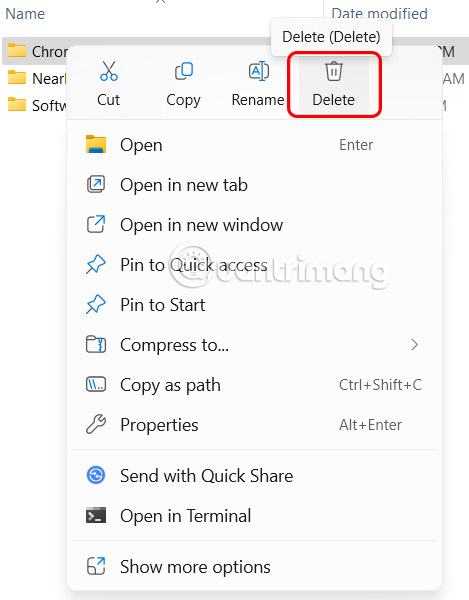
In the new interface that appears, right-select the Chrome folder and select Delete to delete the browser settings. Continue to follow the steps displayed on the screen.
Once you have completed the steps, restart your Chrome browser to continue with the initial setup of the browser.
Final Thoughts
Following the steps in order and checking version-specific settings should make it easier to Reset Google Chrome to Default. If an option looks different, verify the device, app, or operating-system version before changing additional settings.
FAQ
What is the best way to Reset Google Chrome to Default?
Start with the requirements described in the article and follow the steps in order. Sometimes Chrome can run slow, or it can crash and freeze due to extensions, installation issues, profile issues, or configuration issues. Whatever the case, the browser has a reset default settings button to help fix most common issues.
What should you know about Instructions to reset Chrome general settings to default?
In Google Chrome, users select the 3-dot icon and select Settings. Switch to the new interface, select Reset settings on the left side of the interface.
What should you do if the instructions do not match your screen?
Check the device, software version, account permissions, and regional settings. Interfaces can change after updates, so use the closest matching option and consult the official support documentation when necessary.
Related Articles
 How to Restore Chrome, Firefox, IE Browser to the Default State?6 minutes read
 Reset Chrome Browser to the Default Setting on Windows 104 minutes read
 How to Reset the Homepage for Google Chrome Browser2 minutes read
 Remove Bing from Chrome and Reset Default Search Engine: Step-by-Step Guide7 minutes read
 How to Fix 'an App Default Was Reset' Error on Windows 106 minutes read
 Here's How to Reset Edge Browser to the Initial Default Settings on4 minutes read
Reader Comments 0
Sign in with email or Google to join the discussion.