Table of Contents
Unlike the built-in or pre-installed apps on most Smart TVs, Kodi doesn't limit you to a single brand's ecosystem.
Kodi is more than just a streaming app like Netflix or Hulu. It's a powerful open-source media center that lets you organize, stream, and play almost any type of content, including movies, TV shows, live channels, music, and even photos. People love Kodi because it's fully customizable and organizes everything in a single, intuitive interface.
Unlike the built-in or pre-installed apps on most Smart TVs, Kodi doesn't limit you to a single brand's ecosystem.
Install Kodi on Smart TV
There are a few ways to set up Kodi on different TV brands.
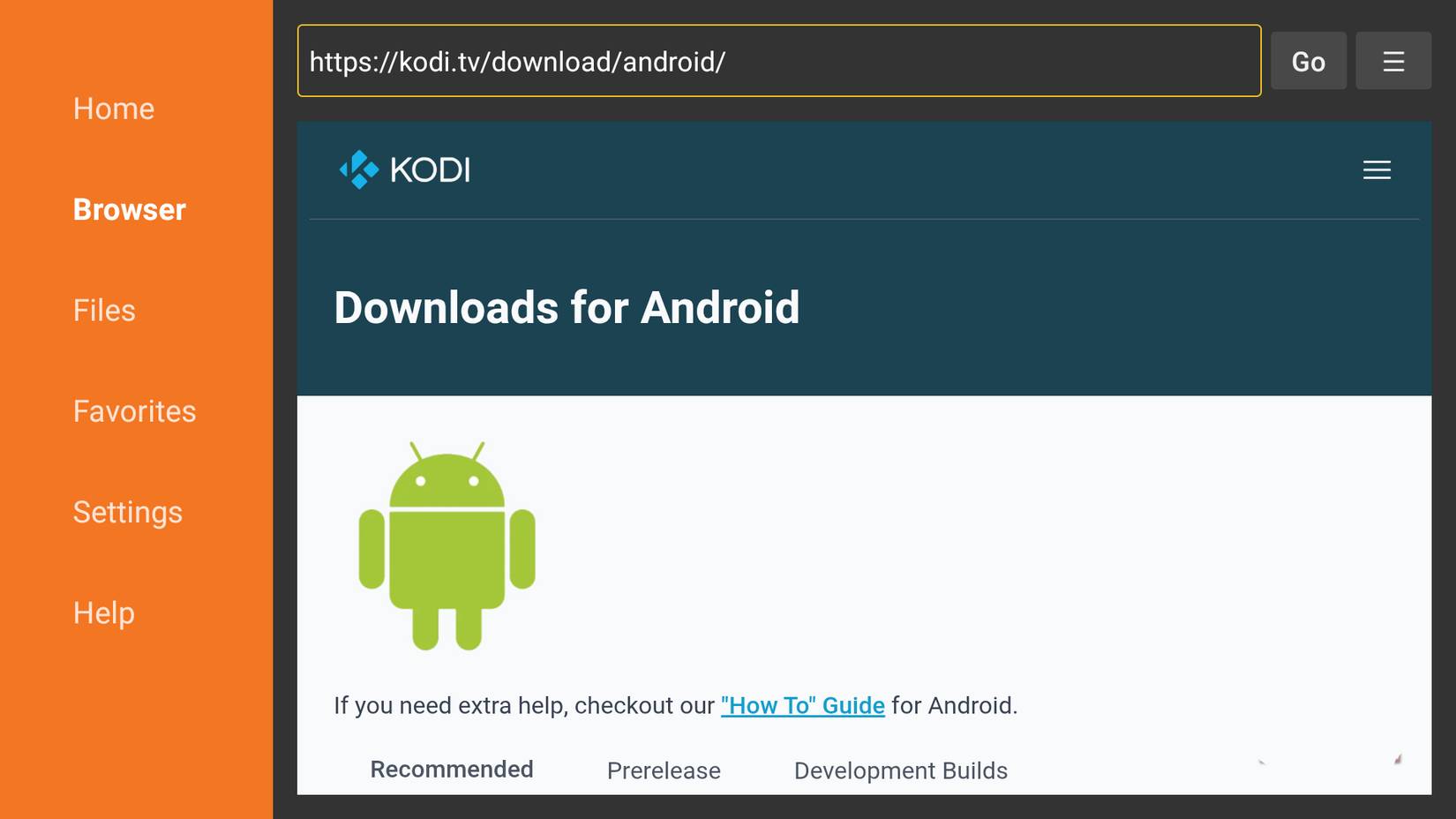
Installing Kodi is not complicated; however, the process will vary depending on your Smart TV brand and its specific functionality.
If you have an Android TV, like a Sony, Hisense, or TCL, this is the simplest process. Just open the Google Play Store, search for Kodi , and install it like any other app.
If you have a Samsung, LG, or another brand that doesn't support the Google Play Store, this process will require a few extra steps. Since you can't add Kodi directly to their app store, you'll need to use an external streaming device (like the Amazon Fire TV Stick 4K). Installation is easy via a downloader app, and you can be up and running with the full Kodi experience in just a few minutes.
Why is Kodi superior to default streaming apps?
Unlock customization, content variety, and control of your Smart TV
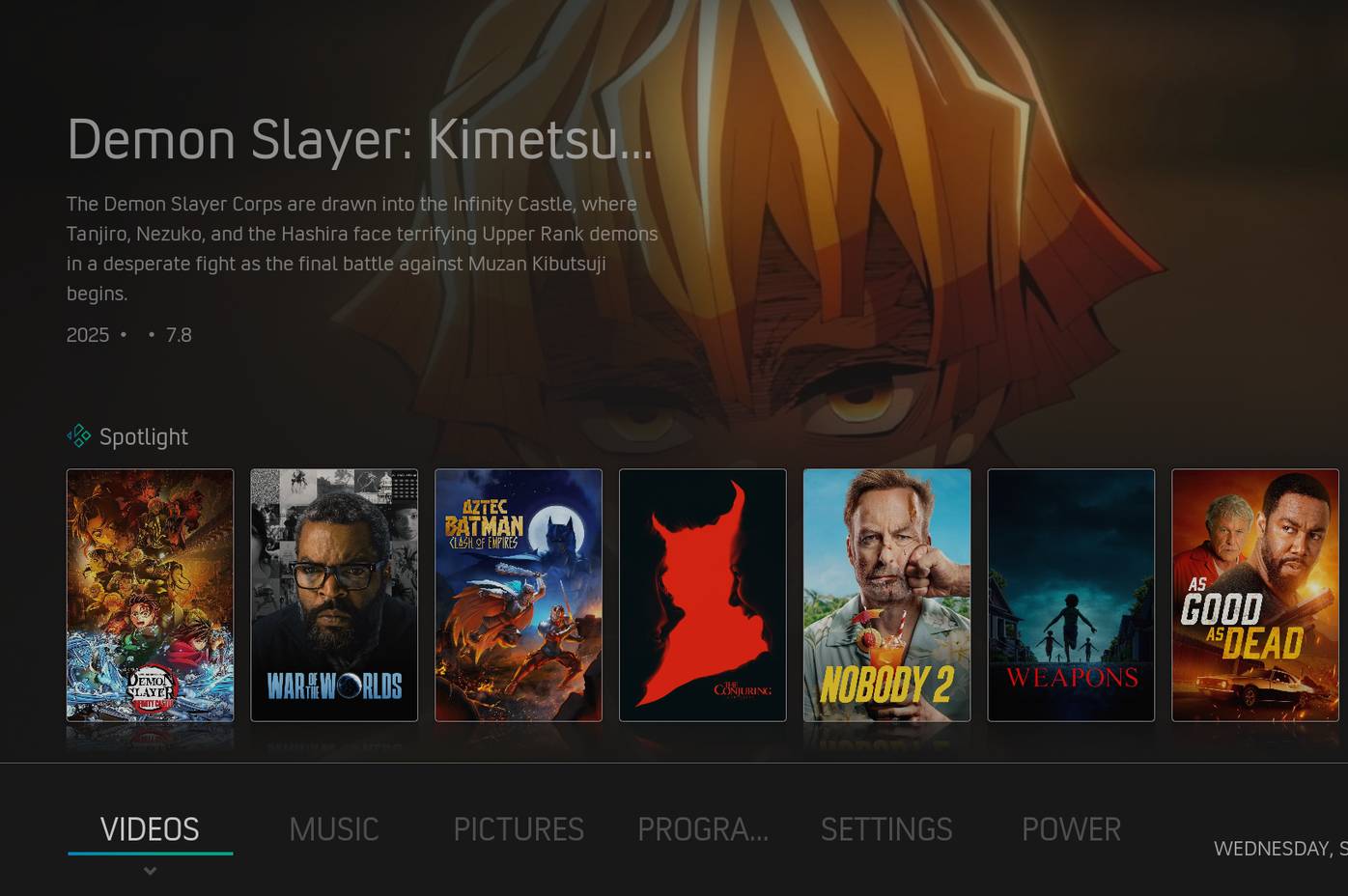
Most Smart TVs come with pre-installed apps or support for downloading popular streaming apps like Netflix and Prime Video, but they all work independently of each other. Kodi seamlessly integrates all your favorite services into one intuitive, customizable hub. From here, you can access your entire media library, including apps, movies, music, live TV, and even your Google Photos account. You can easily change themes or 'skins,' rearrange menus, and organize metadata exactly how you want, and it looks consistent across all your accounts.
But the real power of Kodi lies in its add-ons. These are purpose-built applications that you can install as needed, turning the platform into a powerful media center. I installed The Movie Database (TMDb) and YouTube add-ons, which make discovering and playing new content easy, and Plex for Kodi, which organizes local files with promotional images and metadata. There are even a number of curated live TV channels and on-demand programming, adding flexibility and variety to your Kodi entertainment center.
Troubleshooting and Protecting Yourself While Using Kodi
Common issues, safe add-ons, and security tips for safe streaming
Like any powerful tool, Kodi works best when properly managed. People have encountered issues like buffering and add-ons not loading properly, but these issues are usually fixed by clearing Kodi's cache or updating add-ons.
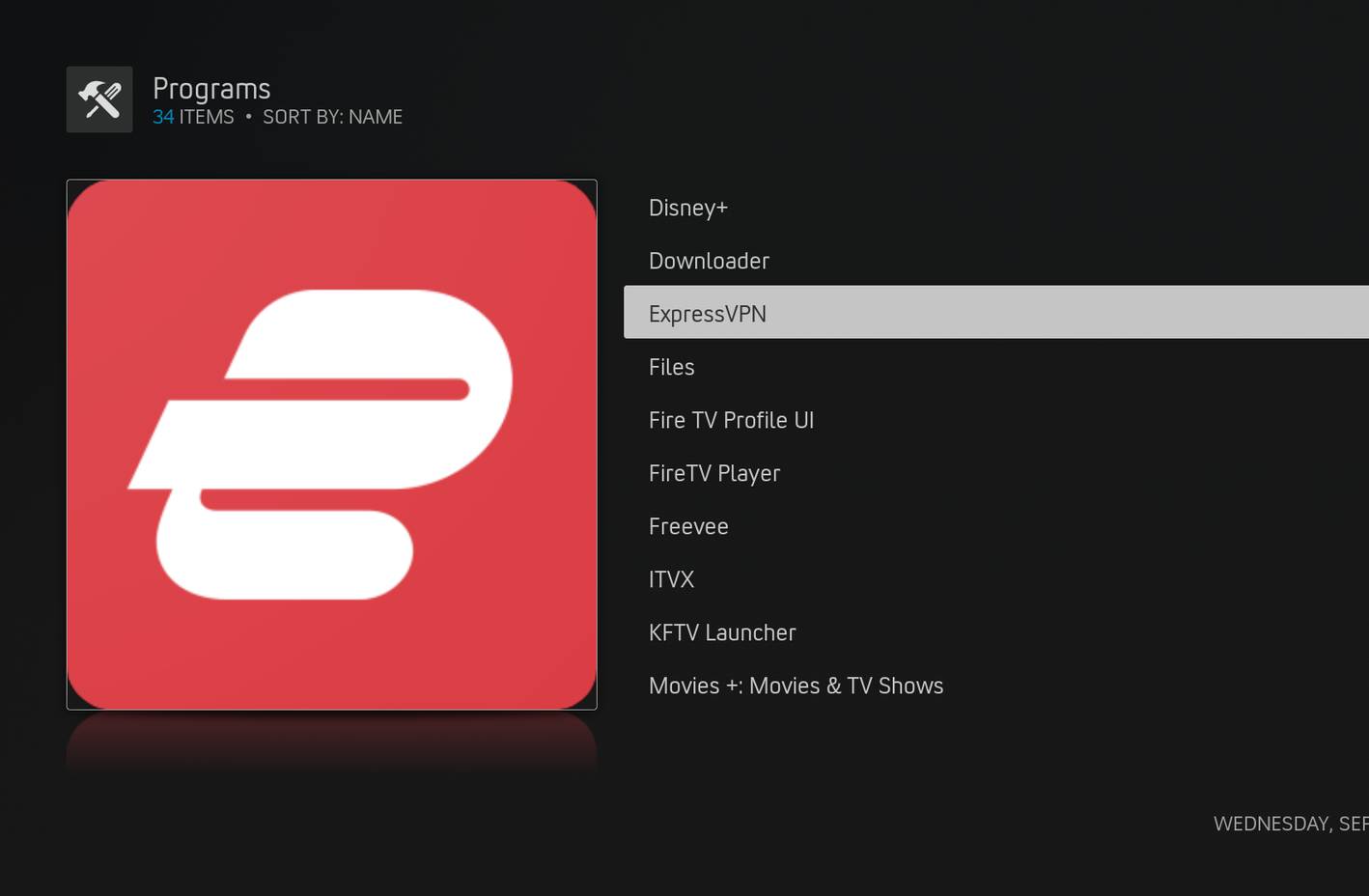
Another thing worth mentioning is security. As with any centralized system that uses third-party add-ons, it's important to make sure you only download from trusted sources. Only download from the official Kodi repository or repositories that have been deemed safe by the Kodi community. For added security, install the ExpressVPN app on your Fire TV Stick, accessible through the Kodi interface, which lets you stream region-specific apps and protects you if you stream from public or unverified sources.
Finally, make sure to keep Kodi updated.
FAQ
How do you install kodi and complete your smart TV setup?
In practical terms, unlike the built-in or pre-installed apps on most Smart TVs, Kodi doesn't limit you to a single brand's ecosystem.
What should you check before getting started?
Review the requirements, compatible device or software version, and any warnings described in the guide before making changes.
What should you do if the steps do not work?
Repeat the steps in order, confirm that your app or system is up to date, and review the troubleshooting details provided above.
Related Articles
 Instructions for Installing and Using Kodi on Computers5 minutes read
 How to Install Kodi on a Chromebook6 minutes read
 How to Install Kodi on Linux6 minutes read
 How to Install Kodi on iPhone Without Jailbreak9 minutes read
 Instructions for Updating Kodi on Android4 minutes read
 How to Install Kodi7 minutes read
Reader Comments 0
Sign in with email or Google to join the discussion.