Table of Contents
Using Google TV isn't too difficult, but some of its default settings can be a bit annoying. Autoplay previews, a cramped home screen, and slow startup can all disrupt the experience, but the good news is that these issues only take a few minutes to fix.
8. Mute system
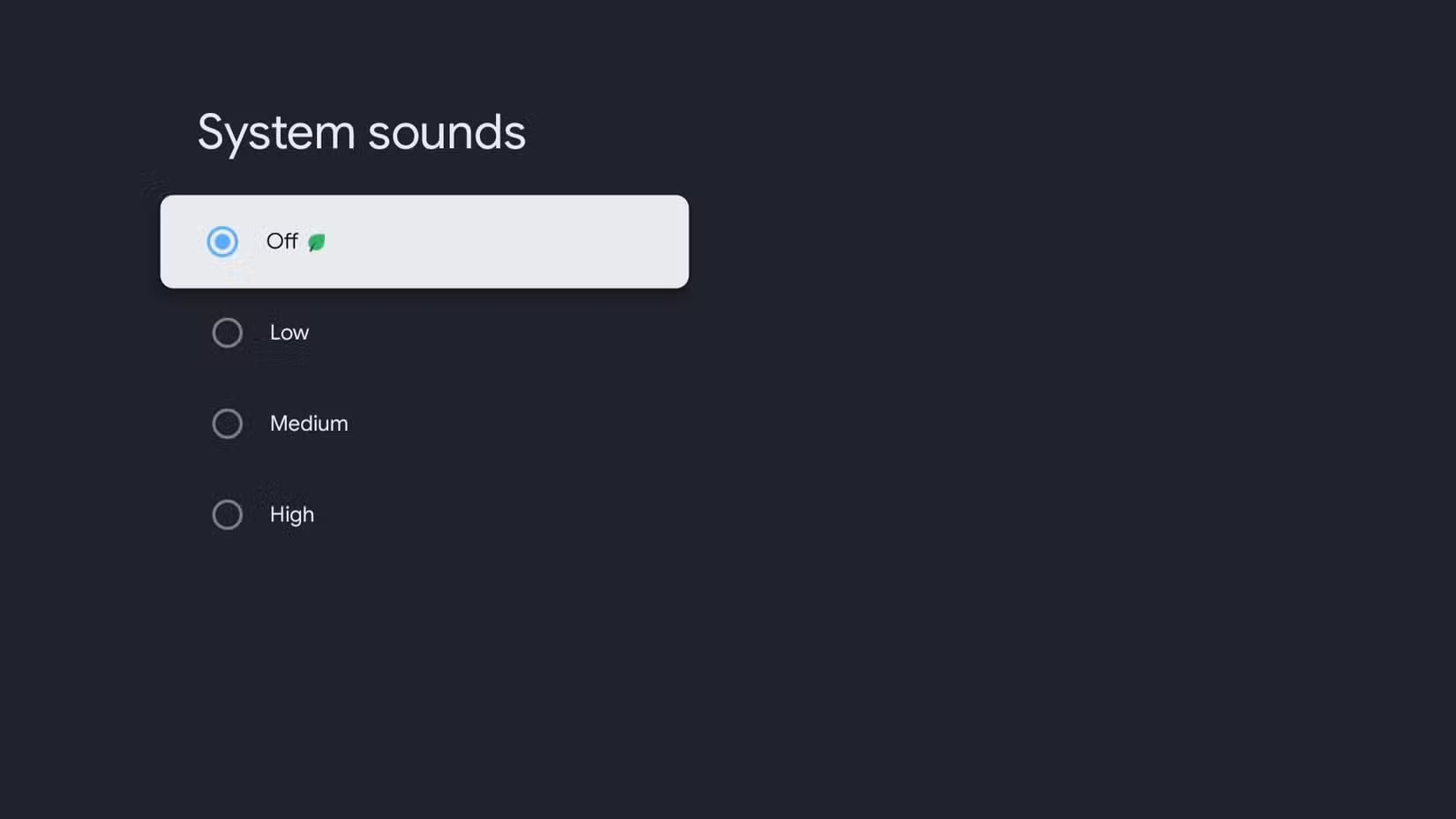
One of the first things you'll notice about Google TV is that it makes a sound almost every time you press a button on the remote. Scrolling through apps, navigating through menus, or selecting an item all trigger a little chime.
Luckily, Google TV makes it easy to turn off these system sounds. You can also lower their volume without affecting the overall volume of your system. To do this, go to Settings > System > System Sounds and select Low or Off . Once you've done that, you'll be able to use Google TV without the constant chime interrupting you.
7. Turn off autoplay
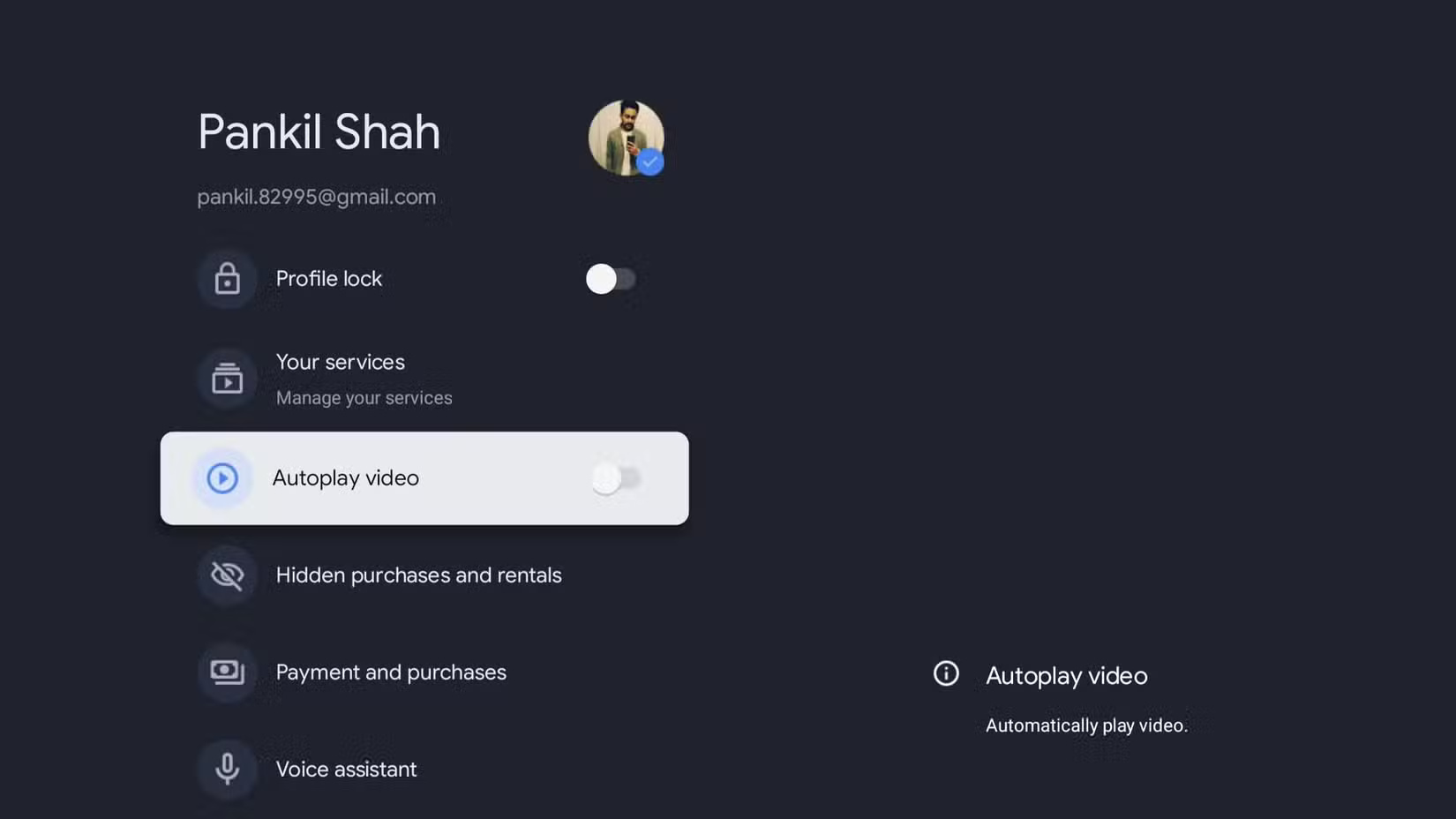
To stop trailers from automatically playing, you can turn off autoplay for your Google TV profile. Go to Settings > Accounts and Profiles, select your profile, and turn off the Autoplay video toggle. With this change, you can browse titles, read descriptions, and discover new shows without interruption.
6. Turn on fast startup
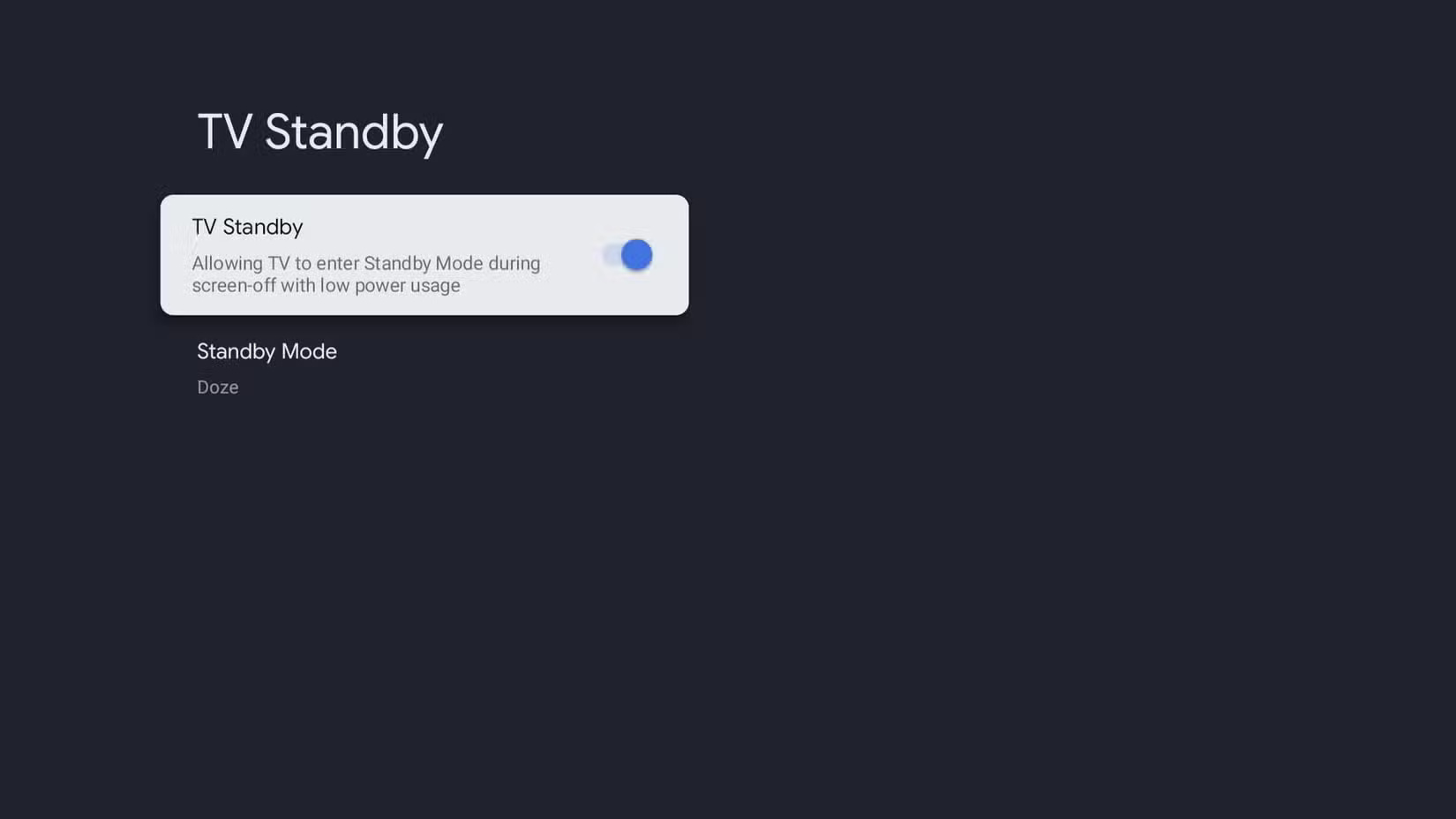
When you're ready to relax with your favorite TV shows and movies, the last thing you want is to wait patiently for Google TV to boot up and get to the home screen. Those extra seconds can feel surprisingly long when you're staring at the screen.
To enable fast startup, go to Settings > System > Power and Energy and turn on the TV Standby button. You can shorten Google TV's startup time even further by changing the power-on behavior and clearing the cache.
5. Recommended resource management
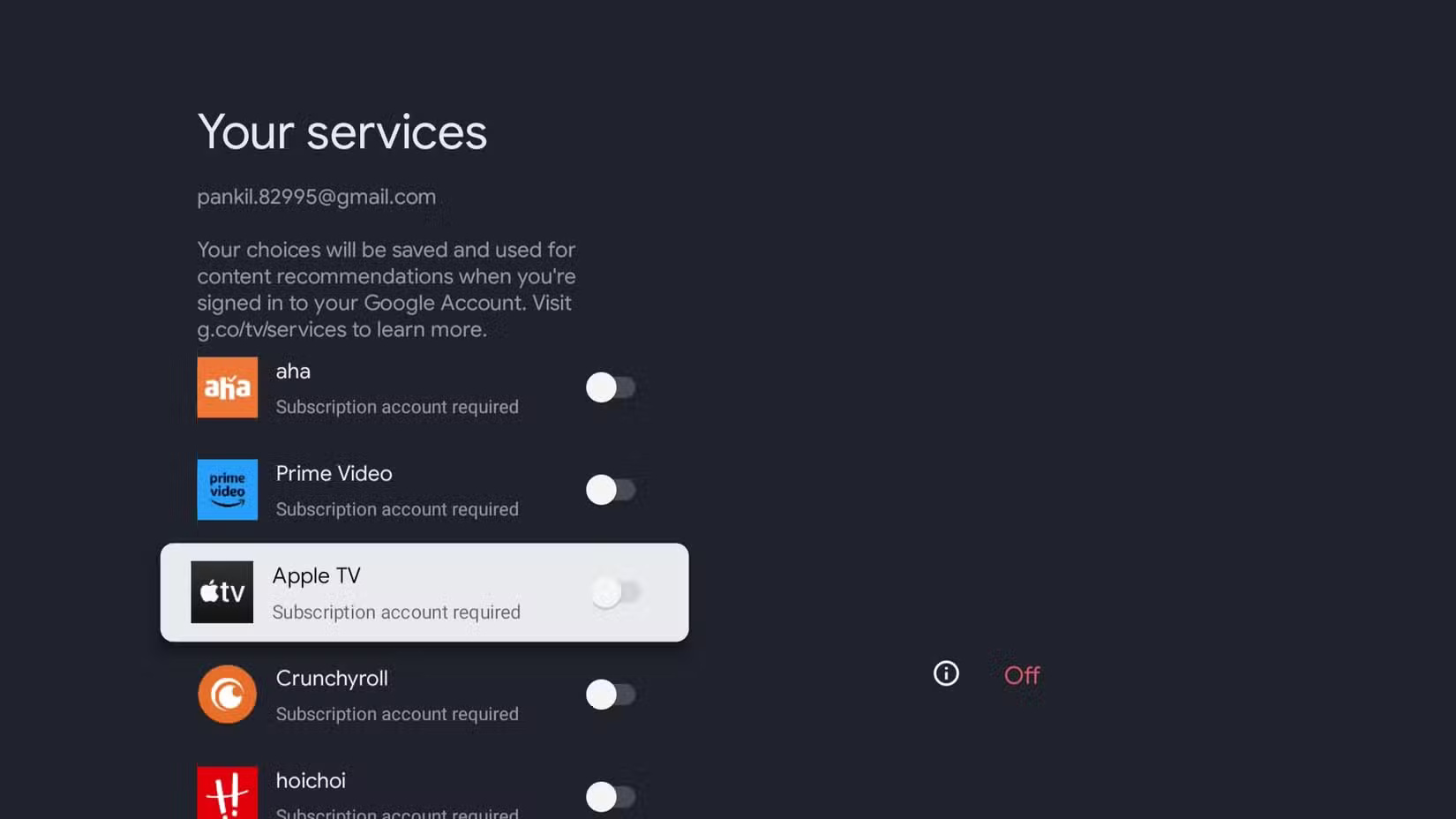
For more relevant suggestions, you can hide suggestions from services you don't use. Go to Settings > Accounts and Profile and select your profile from the list. From there, select Your Services and turn off any apps you don't want to receive suggestions for.
This simple change will help keep your home screen cleaner and ensure the shows and movies Google TV recommends are actually things you can watch.
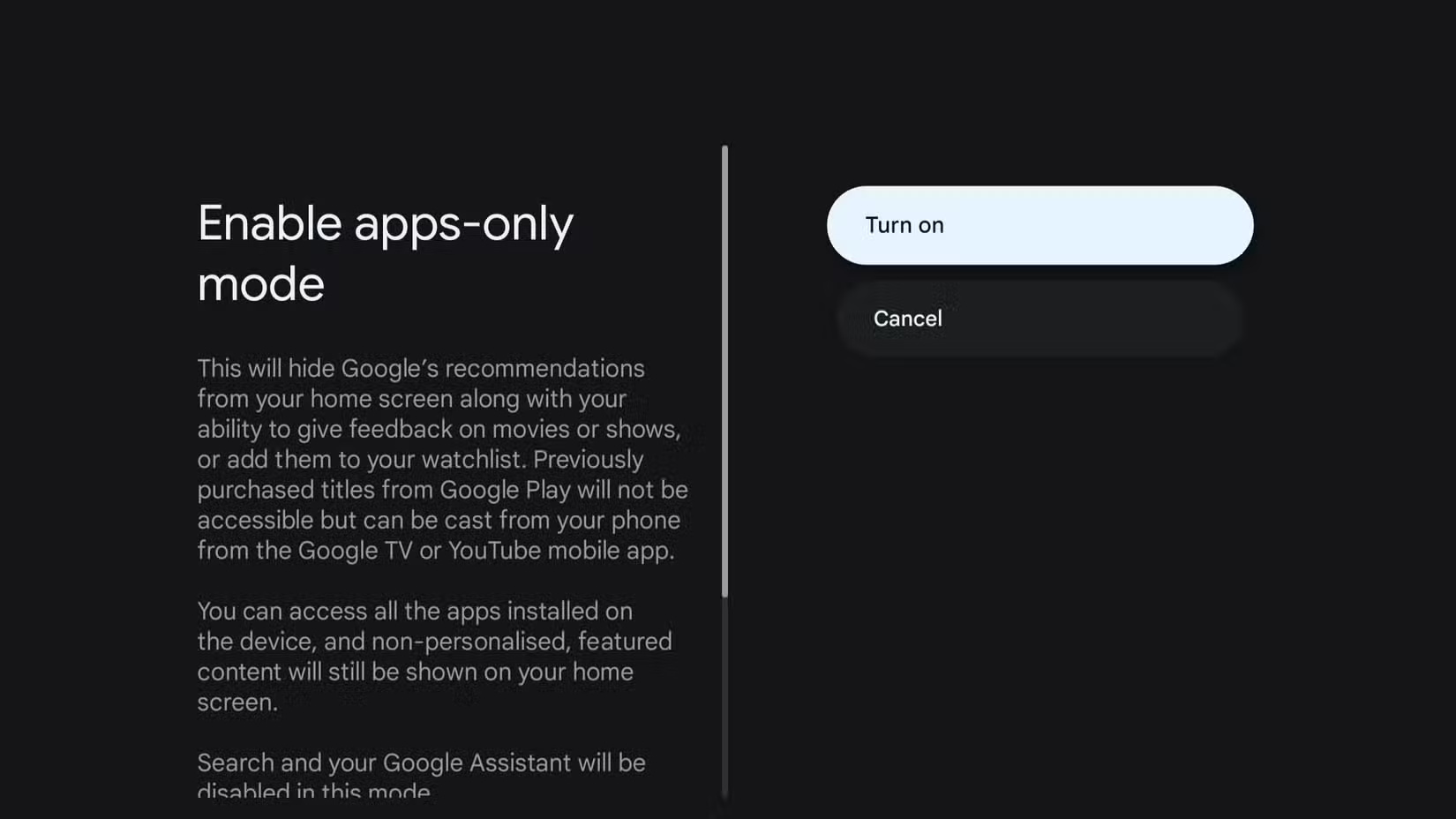
4. Use app-only mode
With this mode enabled, you can access your favorite streaming apps faster, avoiding unnecessary scrolling and distractions. This mode is perfect if you prefer a seamless experience and don't like being interrupted by recommendations or trending content.
Enabling this mode is simple.
- Open the Settings menu, tap Accounts and Profile , and then select your profile.
- Then select Apps only mode and tap Turn on to confirm.
Once done, go back to the home screen and you will notice the difference immediately.
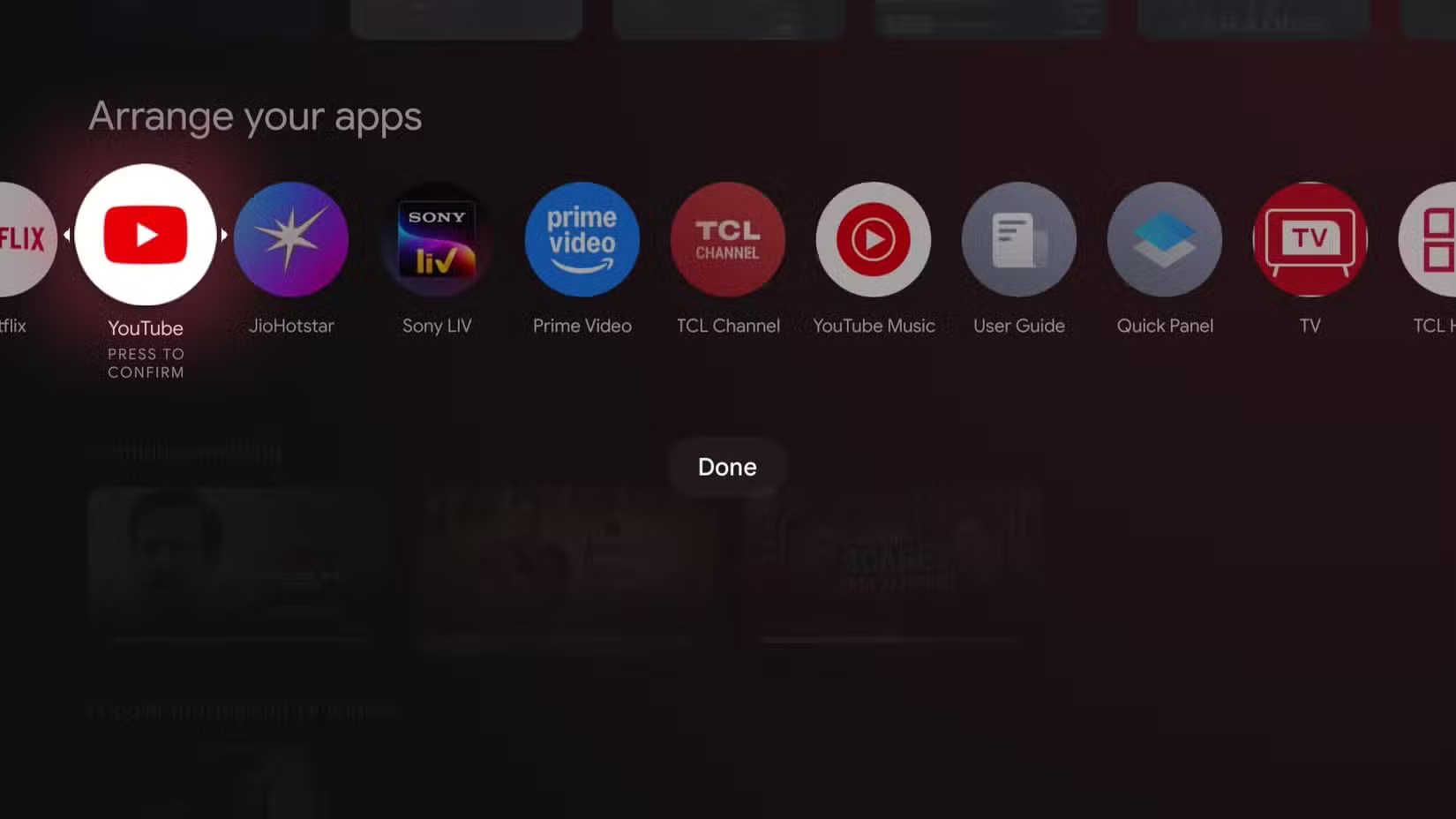
3. Rearrange apps on the home screen
Luckily, Google TV lets you rearrange your apps so that the ones you use most often are always within reach. Just navigate to the app you want to move, press and hold the Select button on your remote, and select Move . You can then drag the app to the desired location and confirm its new location.
After organizing your apps this way, you'll be able to access your favorite apps even faster.
2. Increase the auto-off timer
Luckily, you can extend this timer to keep your TV on longer during long movie nights or binge-watching sessions. Go to Settings , then select System > Power and Energy . From there, find the Energy Saver option and choose a longer time, like 20 minutes or 1 hour , depending on your preference.
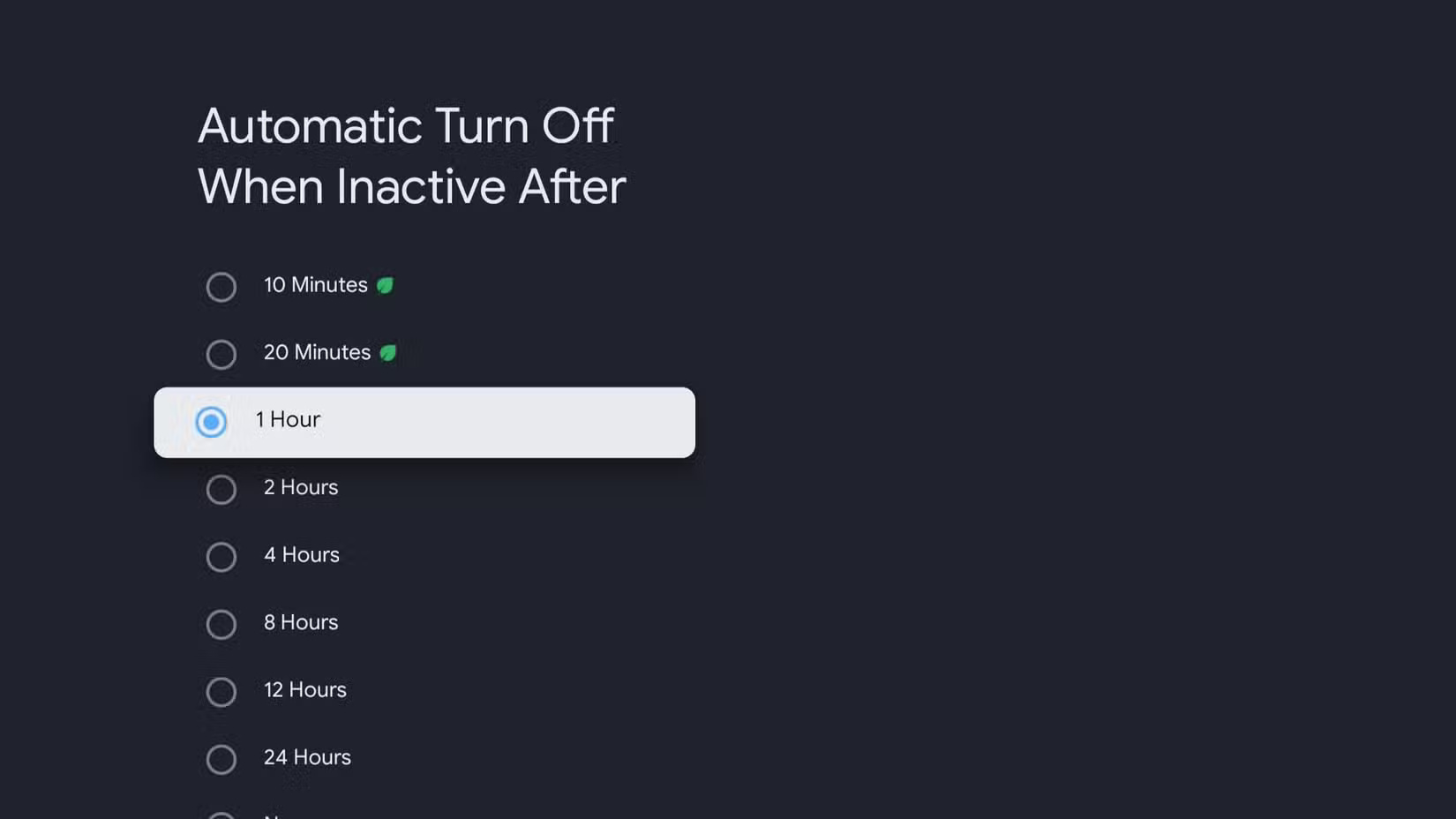
This is a small tweak that keeps your Google TV from turning off when it's not needed, but it's best not to leave this on for too long if you tend to fall asleep while watching.
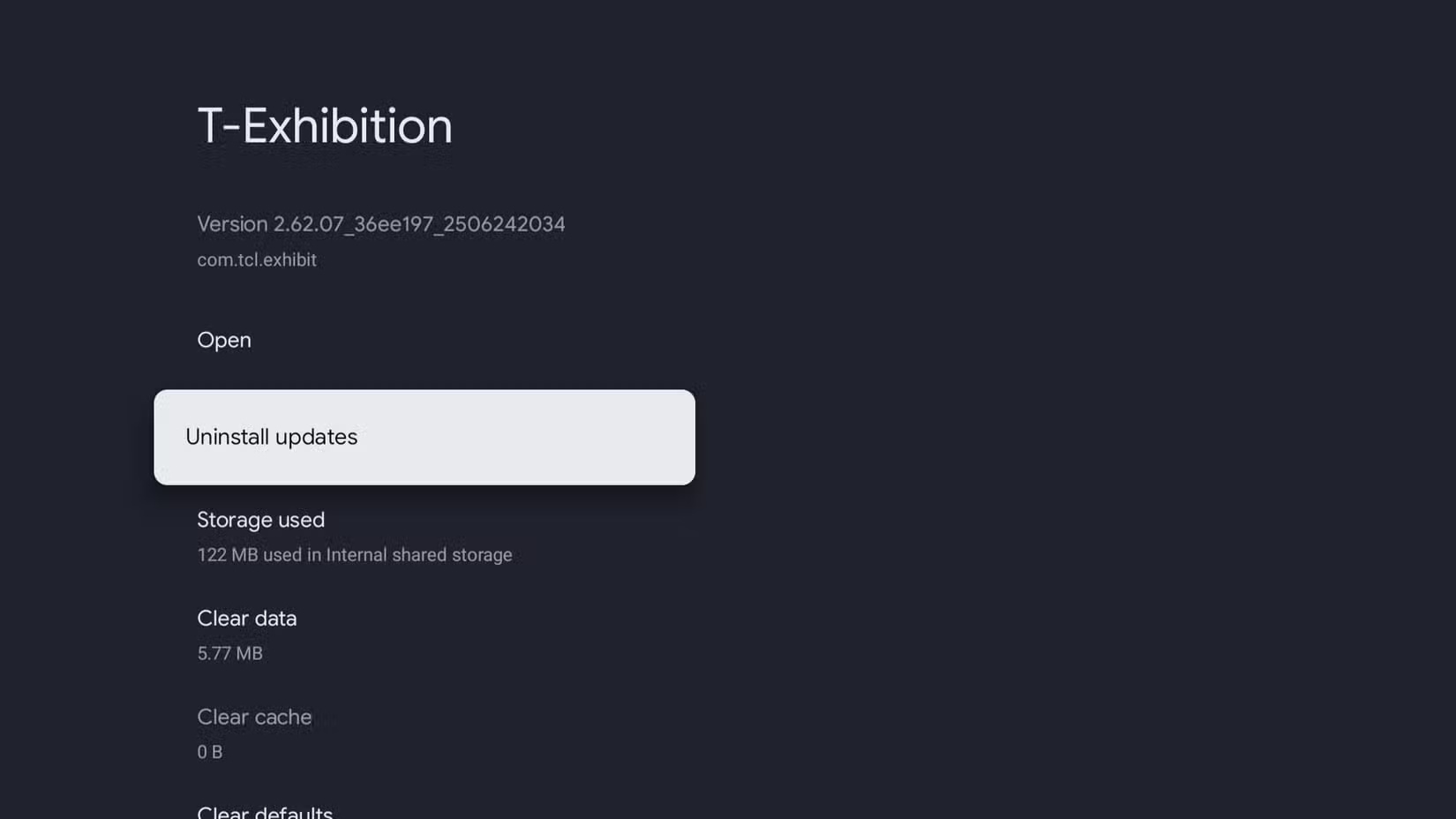
1. Uninstall unwanted pre-installed apps
Depending on the make and model of your TV, it may come with a number of pre-installed apps, such as the manufacturer's smart home app, a browser, and a few streaming apps to get you started. You can delete any pre-installed apps you don't need from your Smart TV to free up storage space.
- Navigate to Settings > Apps and select the app you want to delete.
- If this option is available, select Uninstall .
That said, you won't be able to remove all pre-installed apps. For those that can't be removed, you can select Uninstall updates . This will restore the app to its original default version and stop it from running in the background.
Final Thoughts
Overall, Make Google TV Less Annoying in Just 10 Minutes! is best understood by considering the main facts, practical context, and limitations together. Use the details above as a clear starting point and confirm time-sensitive information when necessary.
FAQ
What does this article explain about Make Google TV Less Annoying in Just 10 Minutes!?
Using Google TV isn't too difficult, but some of its default settings can be a bit annoying. Autoplay previews, a cramped home screen, and slow startup can all disrupt the experience, but the good news is that these issues only take a few minutes to fix.
What should you know about 8. Mute system?
One of the first things you'll notice about Google TV is that it makes a sound almost every time you press a button on the remote. Scrolling through apps, navigating through menus, or selecting an item all trigger a little chime.
Should time-sensitive details be verified?
Yes. Software features, game codes, product specifications, prices, and research findings can change. Confirm important details with an official or primary source when accuracy affects your decision.
Related Articles
 Take 30 Minutes to Make Windows Less Annoying!: What You Need to Know7 minutes read
 30+ Most Annoying and Annoying Things in the World6 minutes read
 5 Annoying Features on Google Photos You Should Turn Off Immediately6 minutes read
 5 Settings That Make Using Google Photos Easier: Explained8 minutes read
 6 Annoying Google Photos Features You Should Turn Off5 minutes read
 How to Apply Call Minutes on Network, Off-net When the Money Runs Out5 minutes read
Reader Comments 0
Sign in with email or Google to join the discussion.