Table of Contents
You don't need extensive technical knowledge to install apps on Fire TV Stick without Play Store.
People love the Amazon Fire TV Stick for its responsive user interface and ability to turn their old TV into a modern Smart TV. However, the Fire TV Stick doesn't have the Play Store. It has Amazon's own version of the App Store, which boasts a massive app library, but still lacks many apps due to limitations, a customized user interface, or region-locking that many You can't live without.
If you are trying to download one of the region-locked or missing apps on your Amazon Fire TV Stick, don't worry. You can still download your favorite apps on your Amazon Fire TV Stick. You don't need any advanced technical knowledge to install apps on your Fire TV Stick without the Play Store.
Install apps from Downloader on Fire TV Stick
Downloader is basically a browser app that lets you access the internet and download any app you want. The app is easy to use, user-friendly and intuitive, allowing you to access any website and download apps on your Fire TV Stick from trusted and verified sources.
How to download Downloader on Fire TV Stick
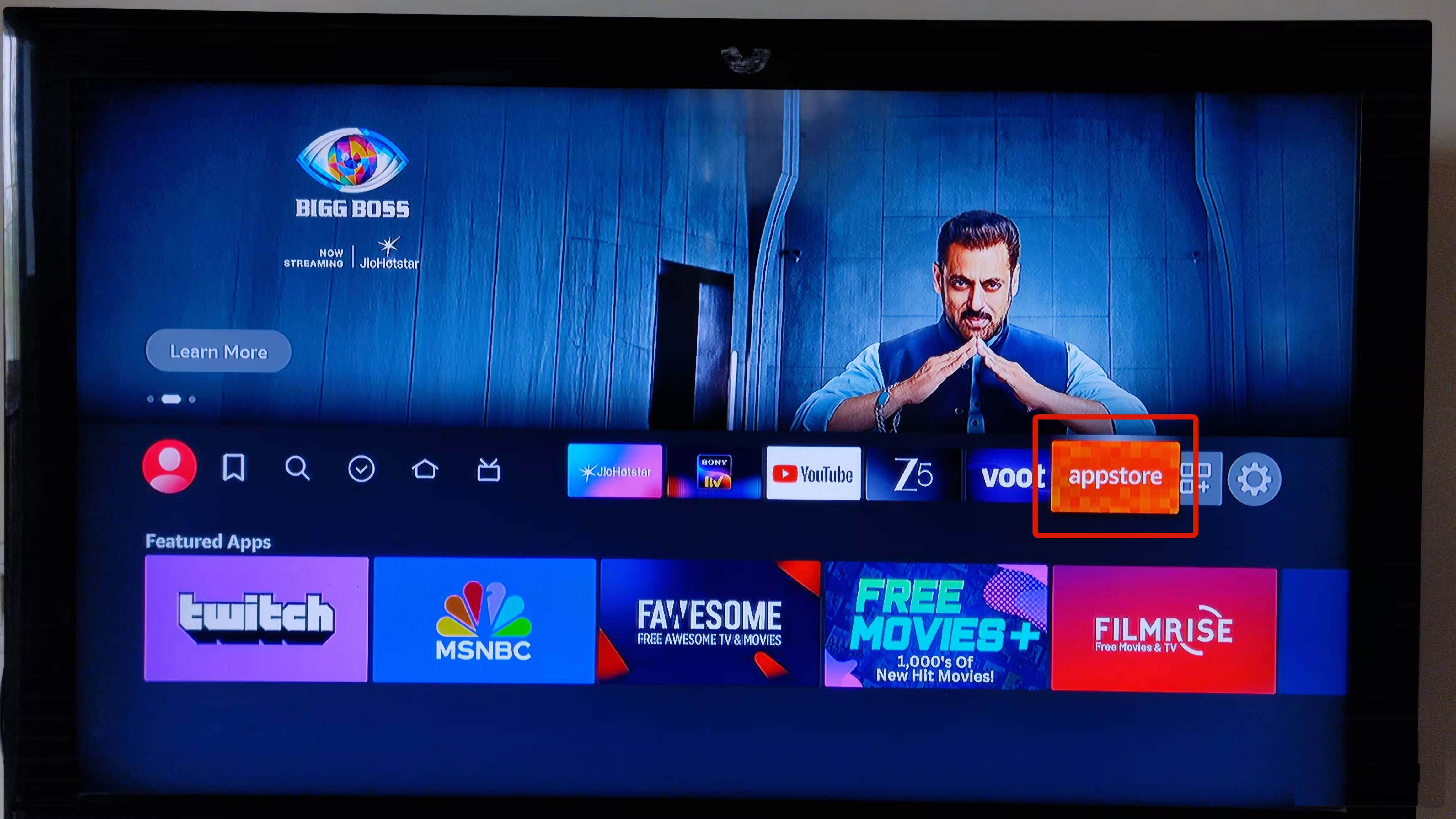
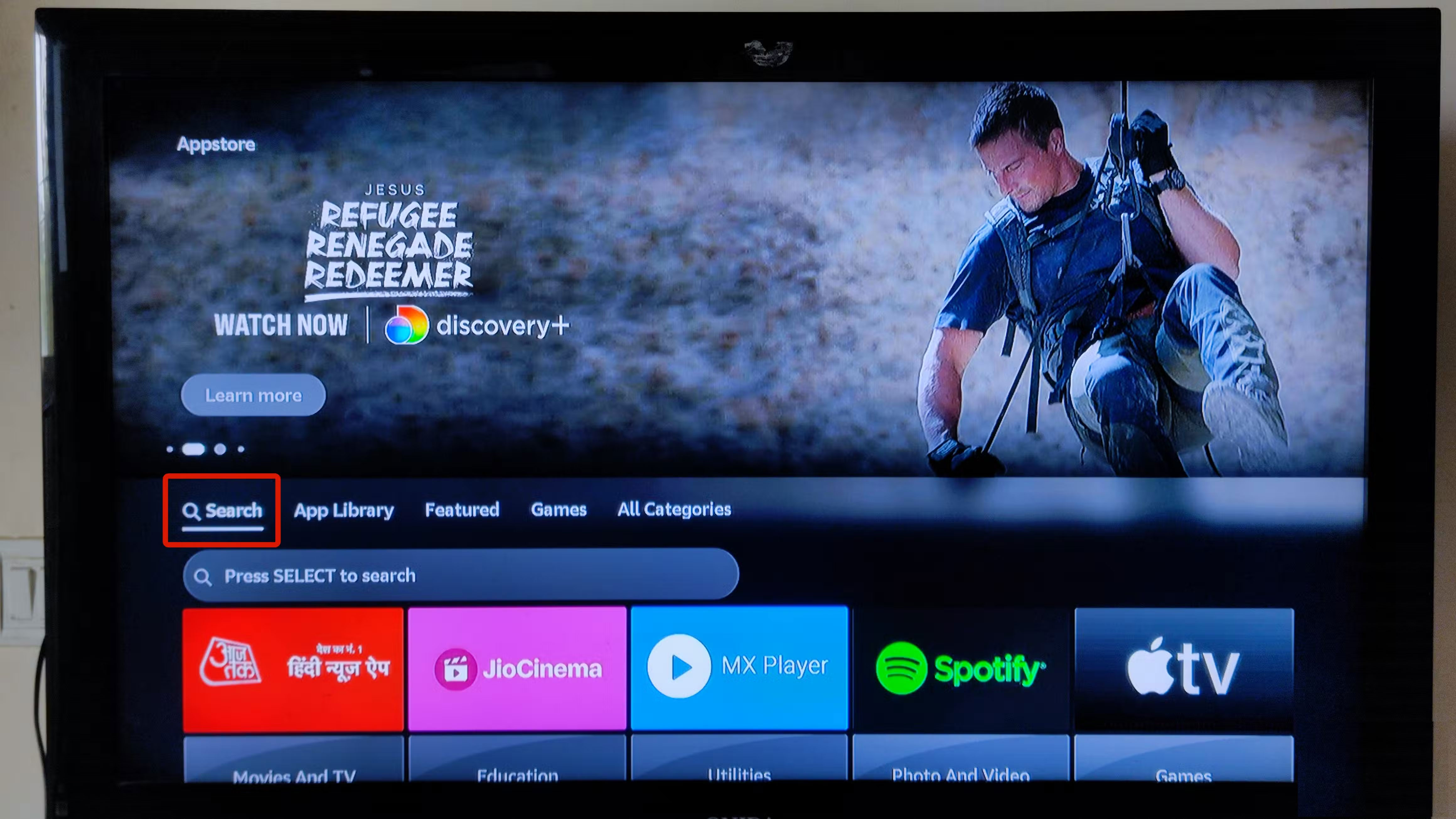
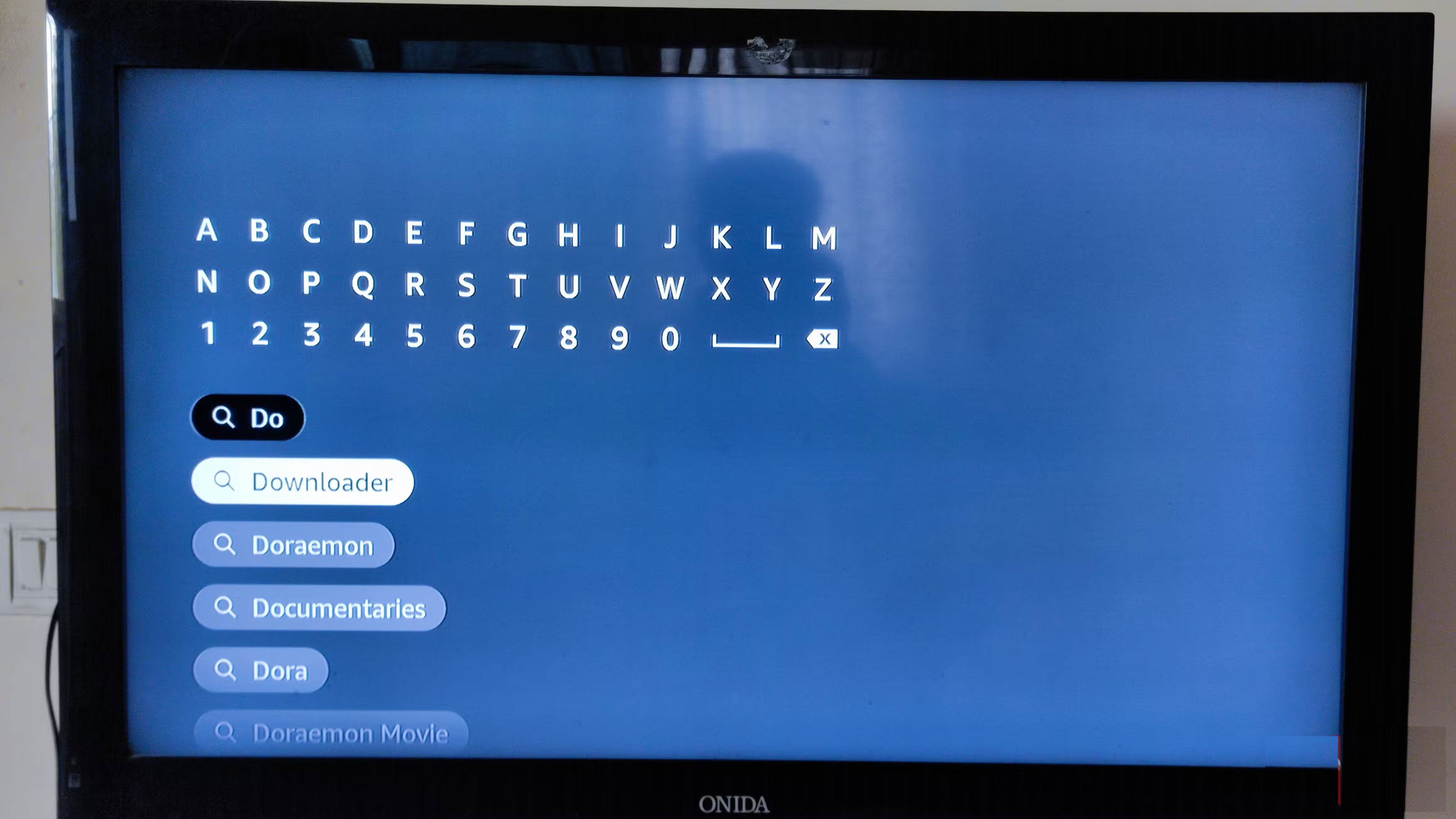
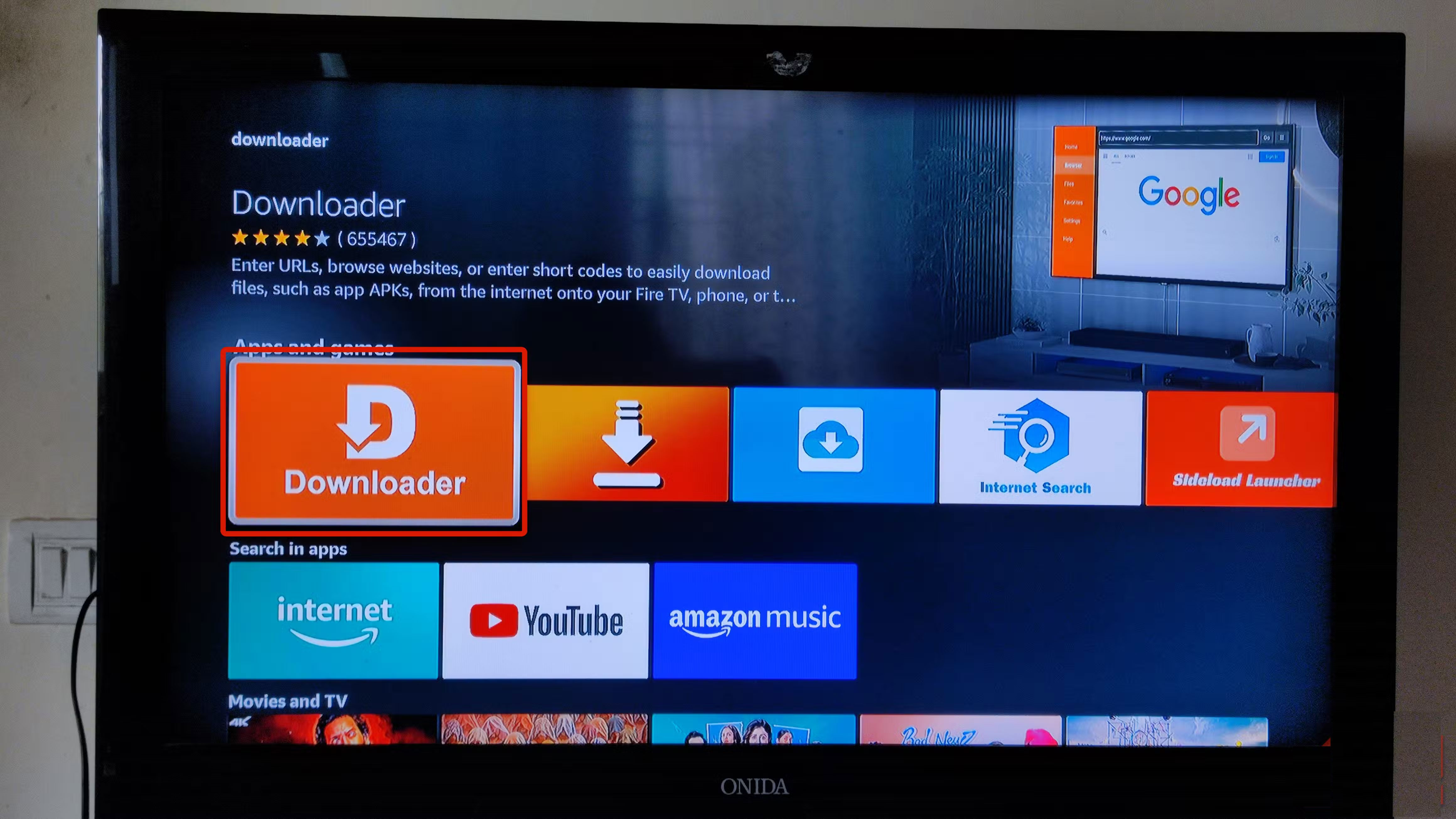
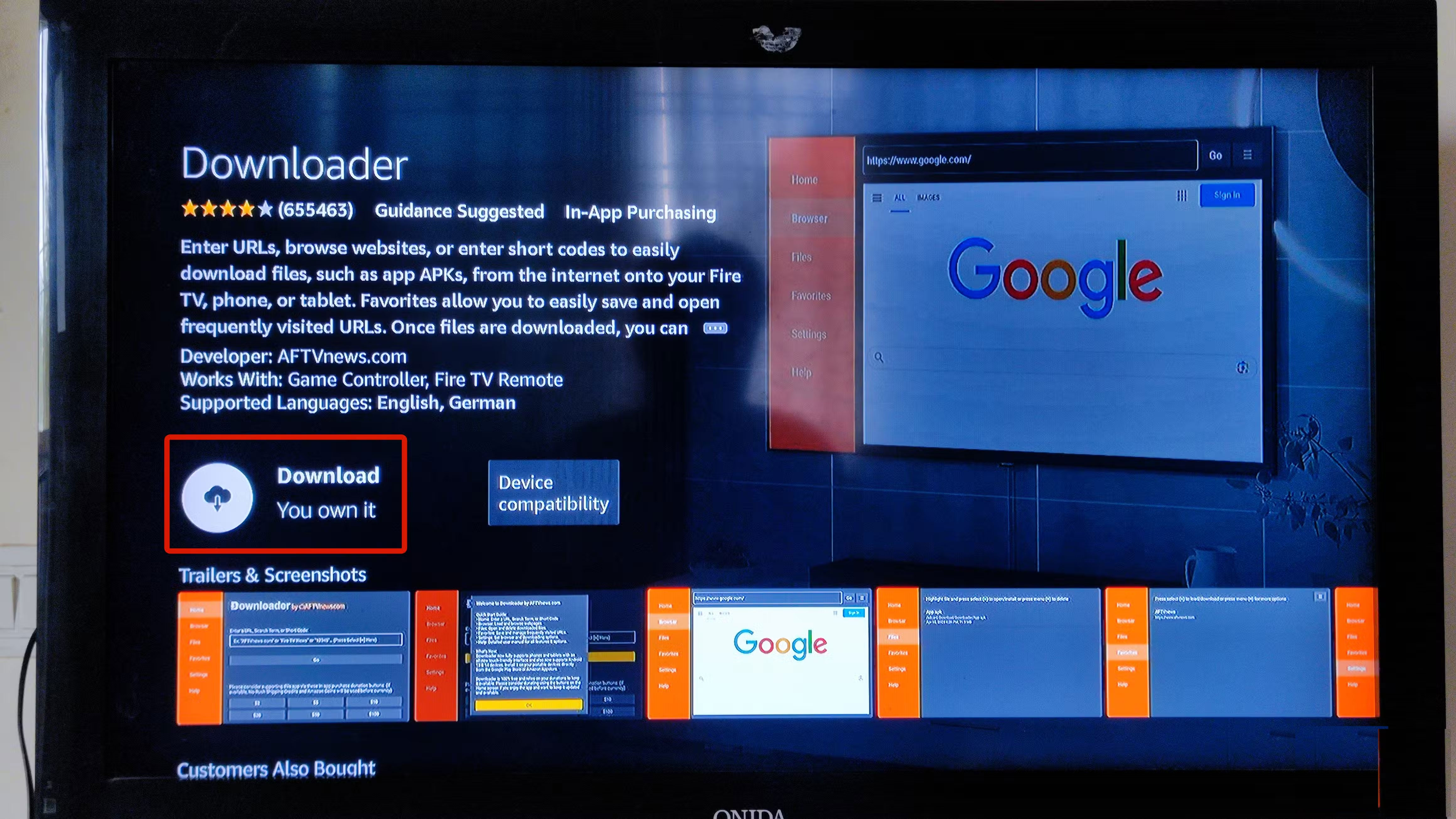
- Go to The App Store On your Fire TV Stick.
- Navigate to the Search Tab.
- Search Downloader.
- Click Get App And wait until the installation process is complete.
After installing Downloader, prepare your Fire TV Stick to enable installation of apps from unknown sources. This allows installation of apps downloaded from Downloader.
Enable installation from unknown sources on Fire TV Stick
Here's how to enable installation from unknown sources on your Fire TV Stick. It may seem like a hassle, but it's actually not that long. This is a one-time process, and you won't have to repeat it unless you reset your Fire TV Stick.
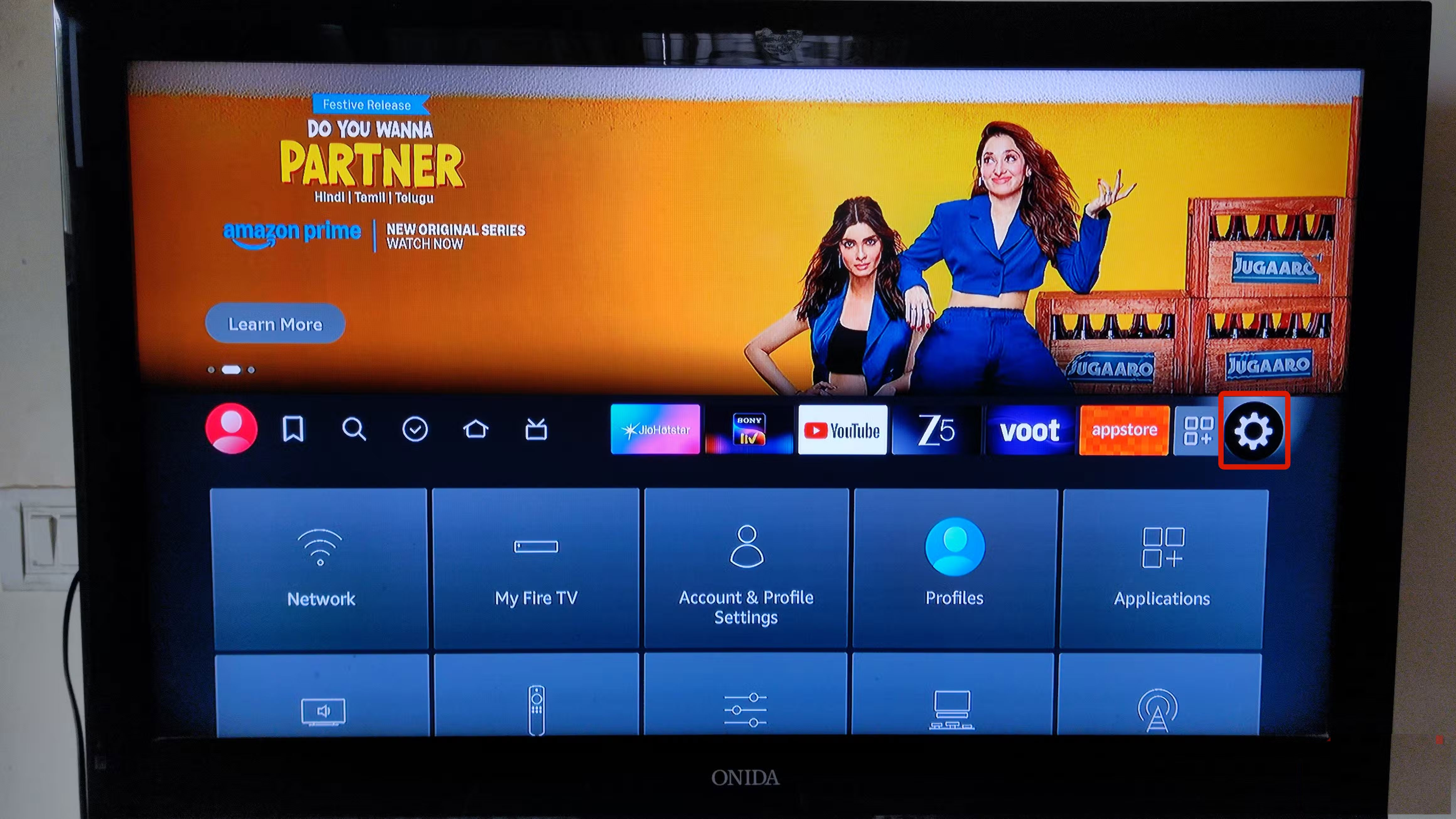
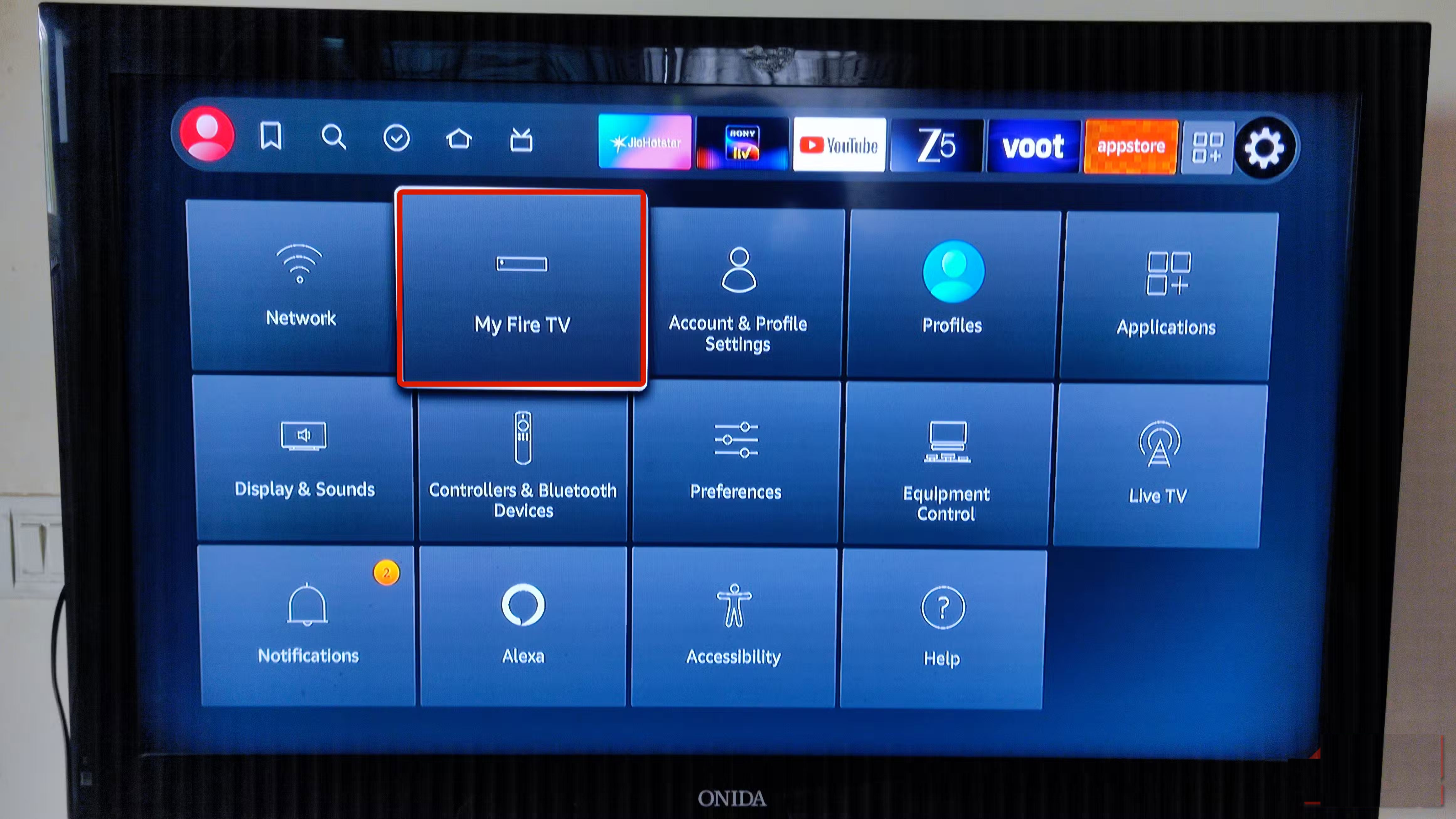
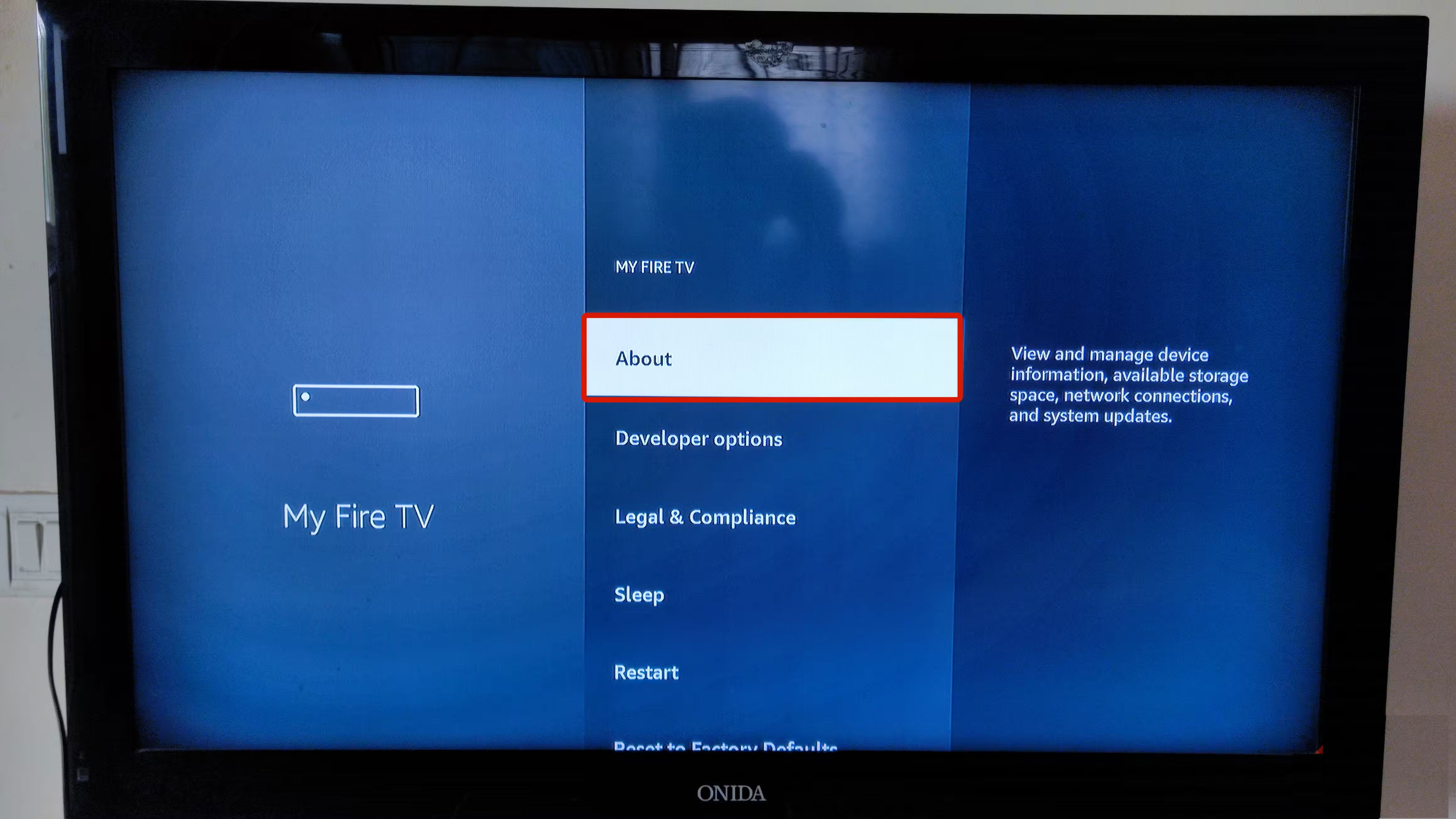
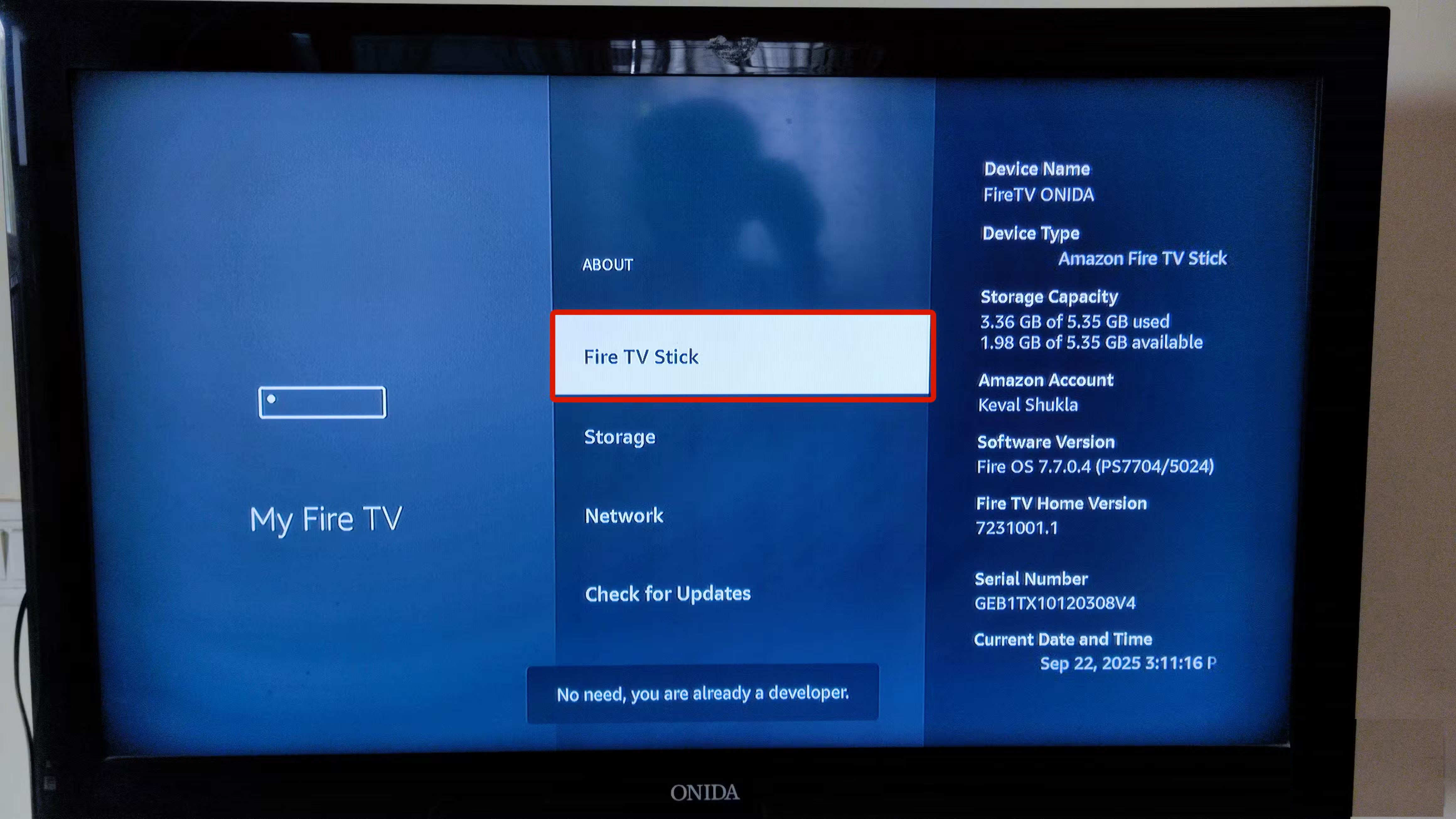
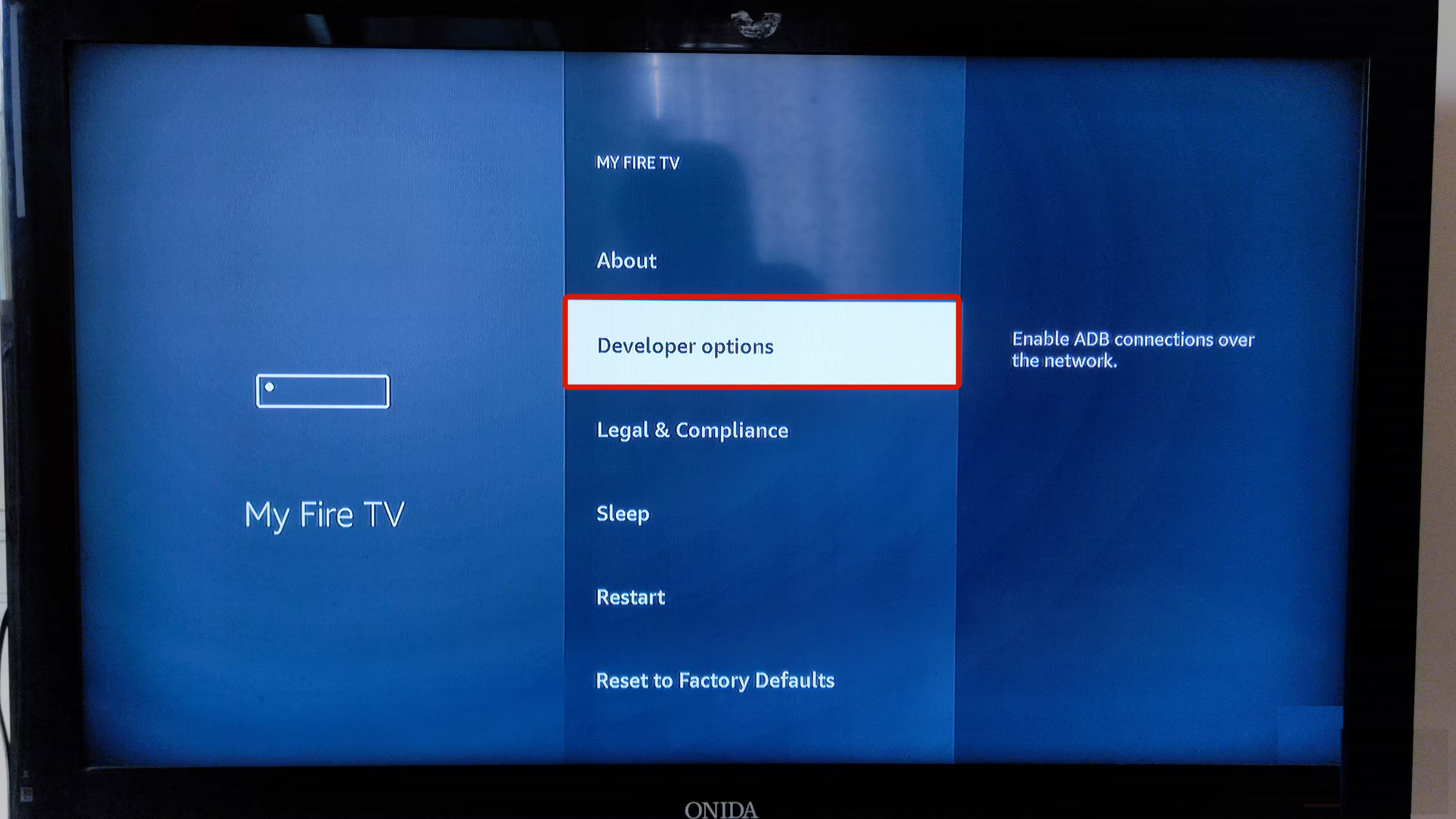
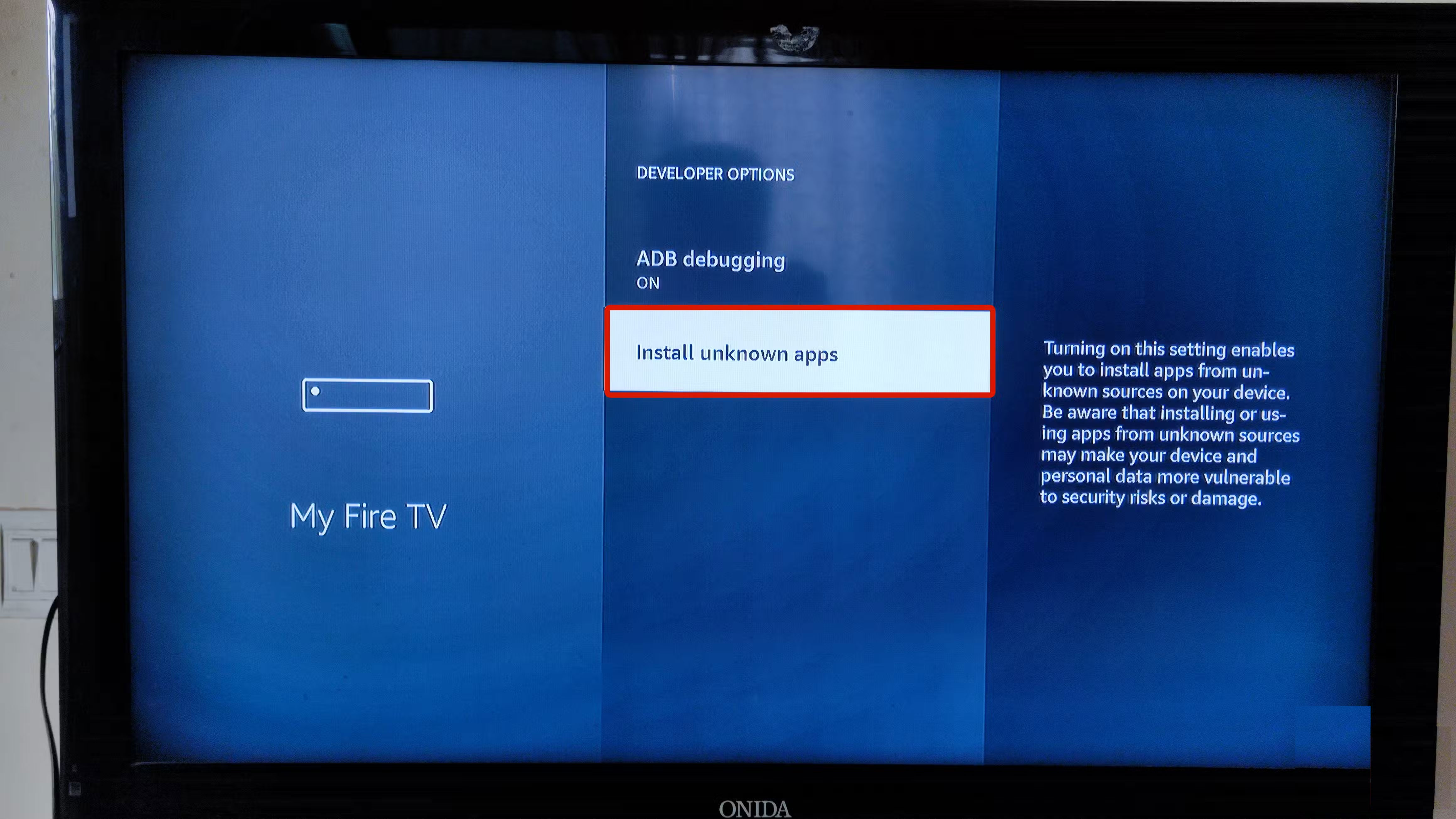
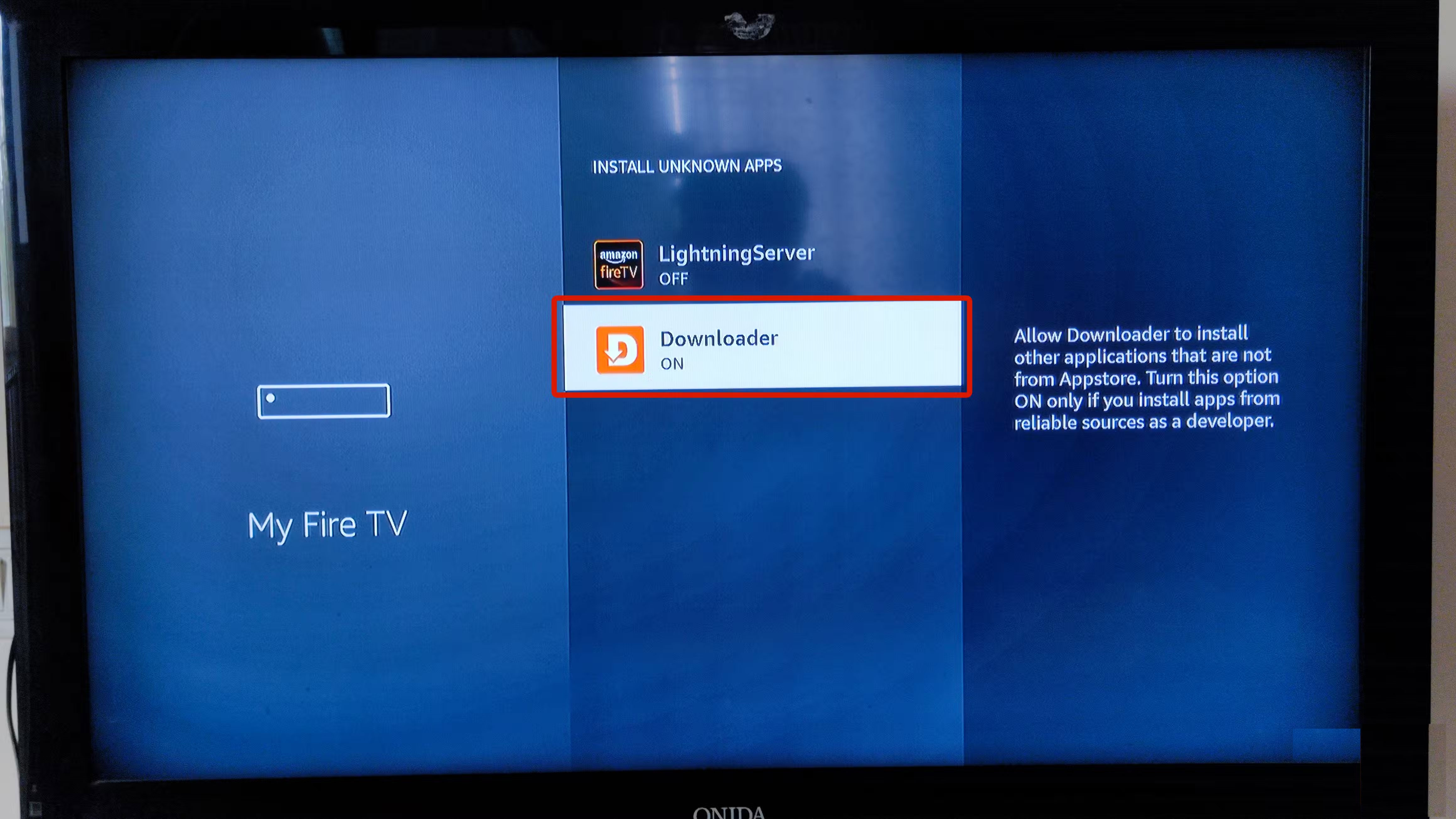
- Go to The Settings Tab on your Fire TV Stick.
- Here, navigate to My Fire TV .
- Go to About And select that item.
- Now scroll to Fire TV Stick And click 7 times quickly.
- Once you see the pop-up window saying you're now a developer, return to the My Fire TV Menu.
- Here you will see that the developer options are unlocked. Scroll down and select Developer options .
- Navigate and select Install unknown apps .
- Scroll down and click on the Downloader App in the list.
- Turn on the application.
Note :
- If you don't see "Install unknown apps," look for " Apps from unknown sources " in the Developer menu. Select the app, enable it, then skip steps 8 and 9.
- From here, you are ready to browse the internet from your Amazon Fire TV Stick and download and install any apps you want.
Install apps on Fire TV Stick using Send Files to TV (SFTTV) app
If you don't want to go through the hassle of installing Downloader on your Fire TV Stick, as accessing the site using your Fire TV remote can be a bit inconvenient, then this is what you should do.
This is the commonly used method to download the app you want on your Amazon Fire TV Stick, especially if the app is not yet available on the App Store.
How to Install Send Files to TV (SFTTV) on Fire TV Stick
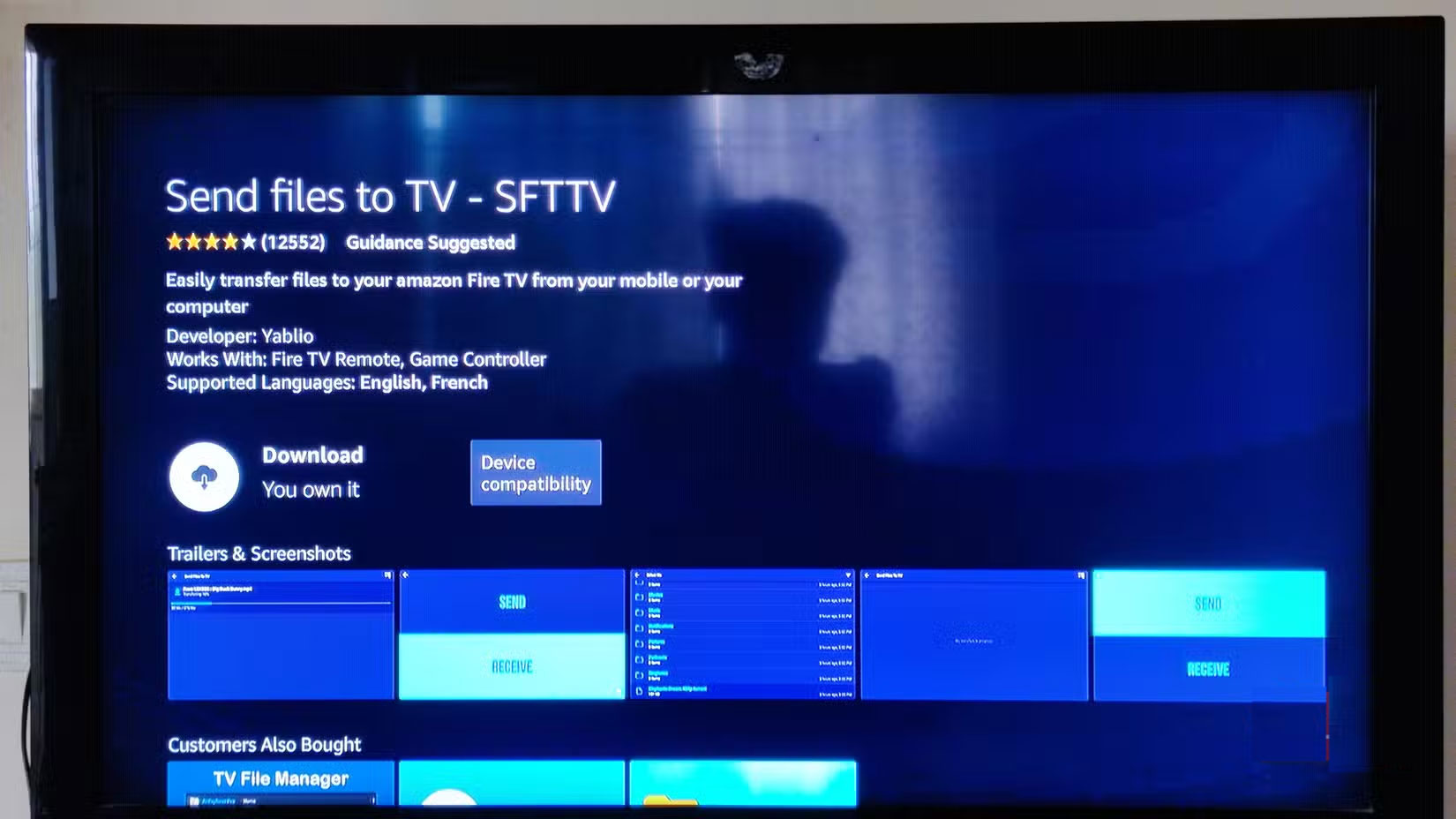
- Open the App Store on your Fire TV Stick.
- Search for the Send Files to TV (FSTTV) app.
- Navigate and click Get App .
Once installed, follow the steps mentioned above in the Downloader section to grant Send Files to TV permission, allowing you to install the app. Once done, follow the steps below to install the desired app using FSTTV. You will also need the Send Files to TV (SFTTV) app on your Android phone to send the app file to your Fire TV Stick. Here, your phone will act as the sender and your Fire TV Stick will act as the receiver.
How to install apps using Send Files to TV (SFTTV)
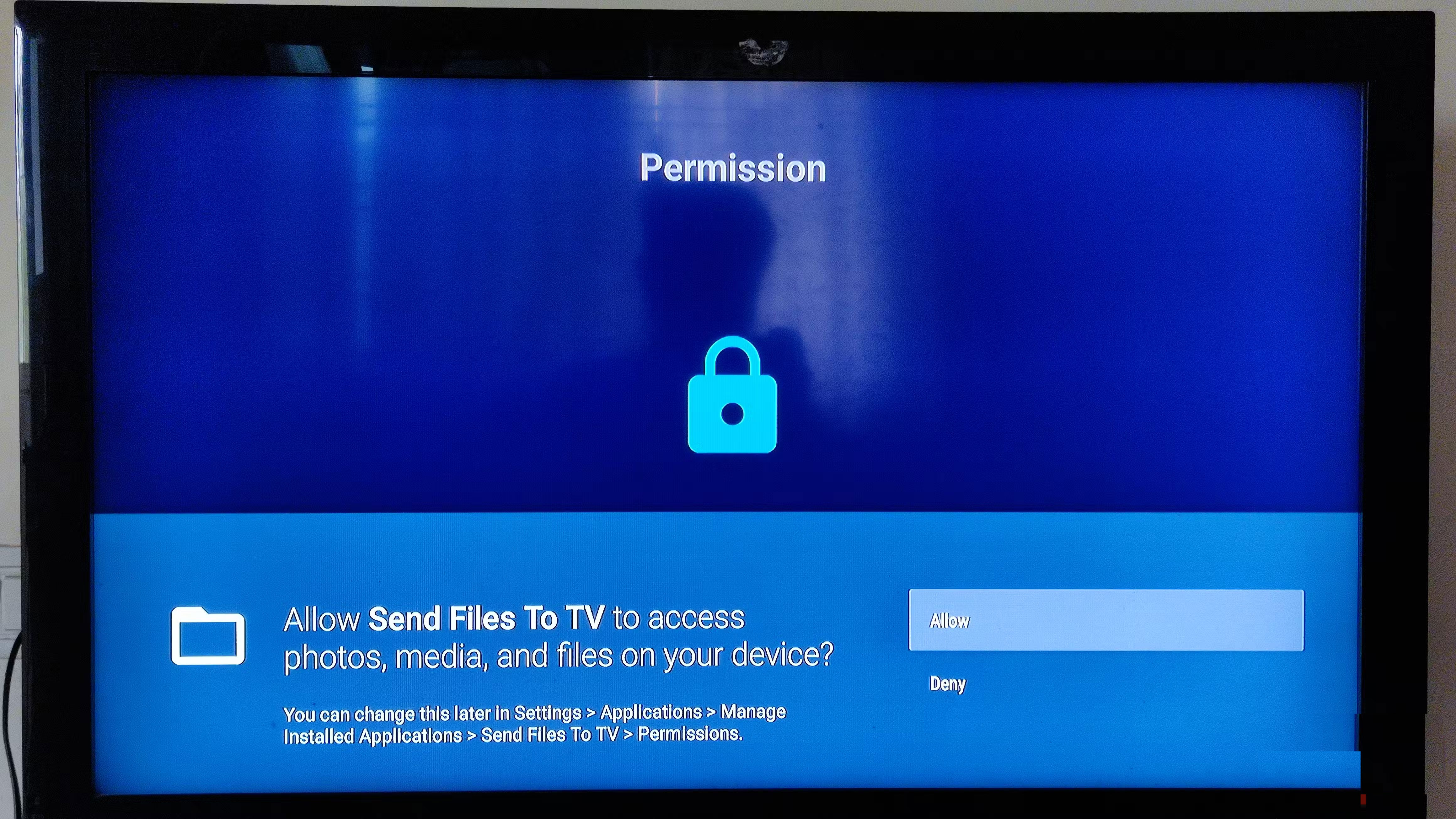
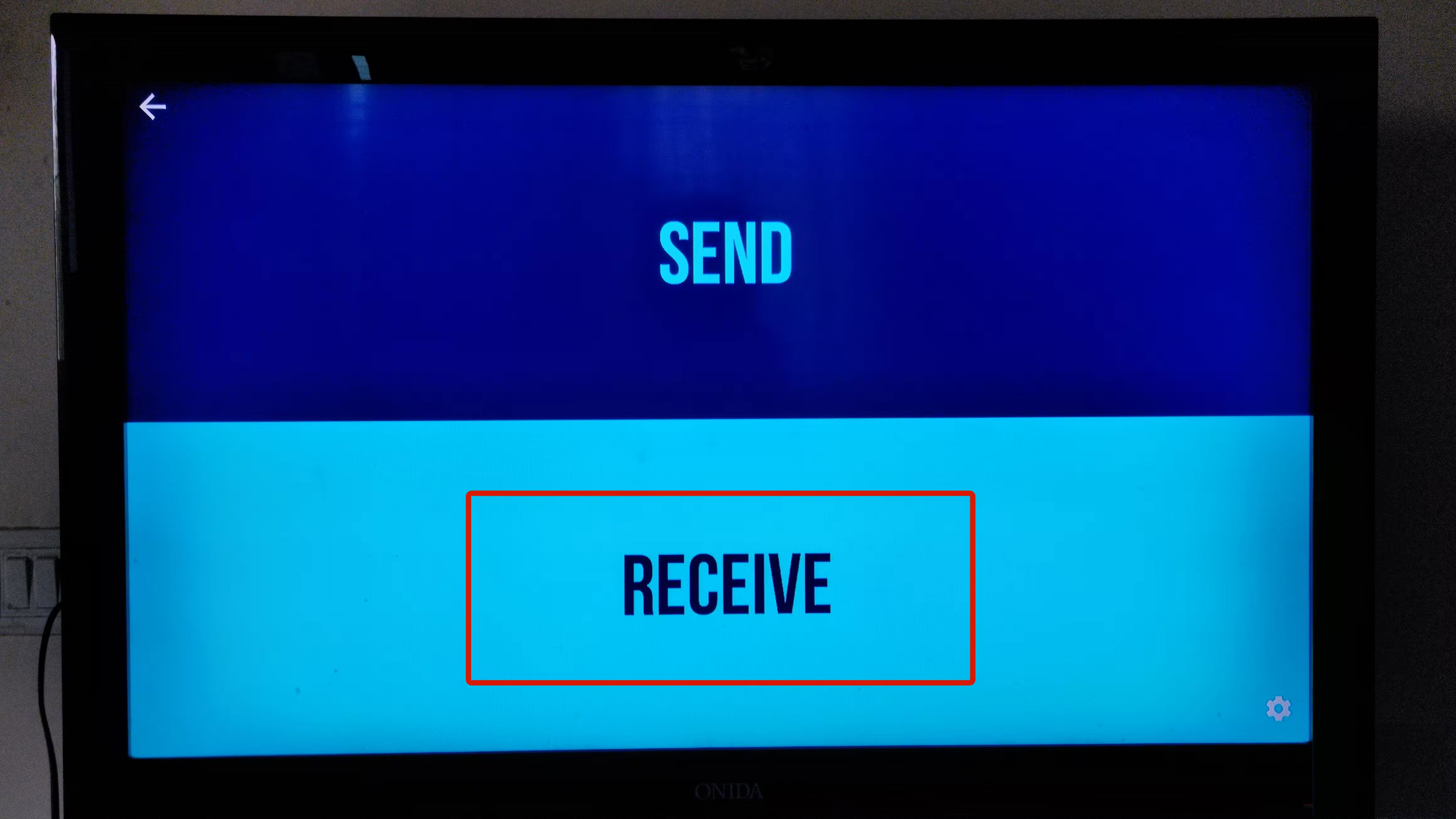
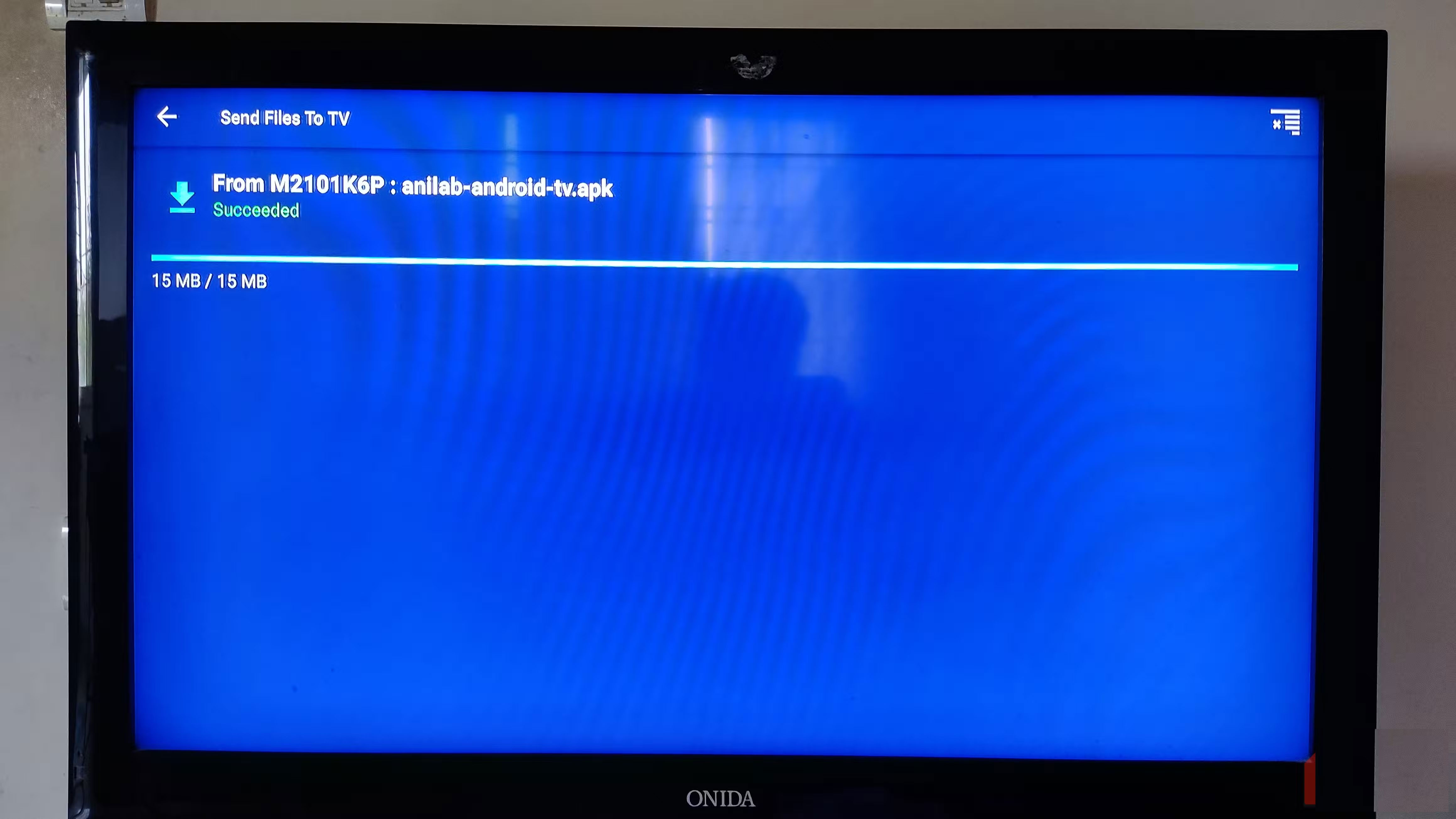
- Go to the All Apps Tab on your Fire TV Stick.
- Navigate and launch the Send Files to TV (SFTTV) app.
- Once opened, grant the app the necessary permissions.
- Now, select Receive On the TV.
- Open your phone and launch the Send Files to TV App.
- Press Send On your phone.
- Navigate and select the application file on your phone.
- Press Send On your phone.
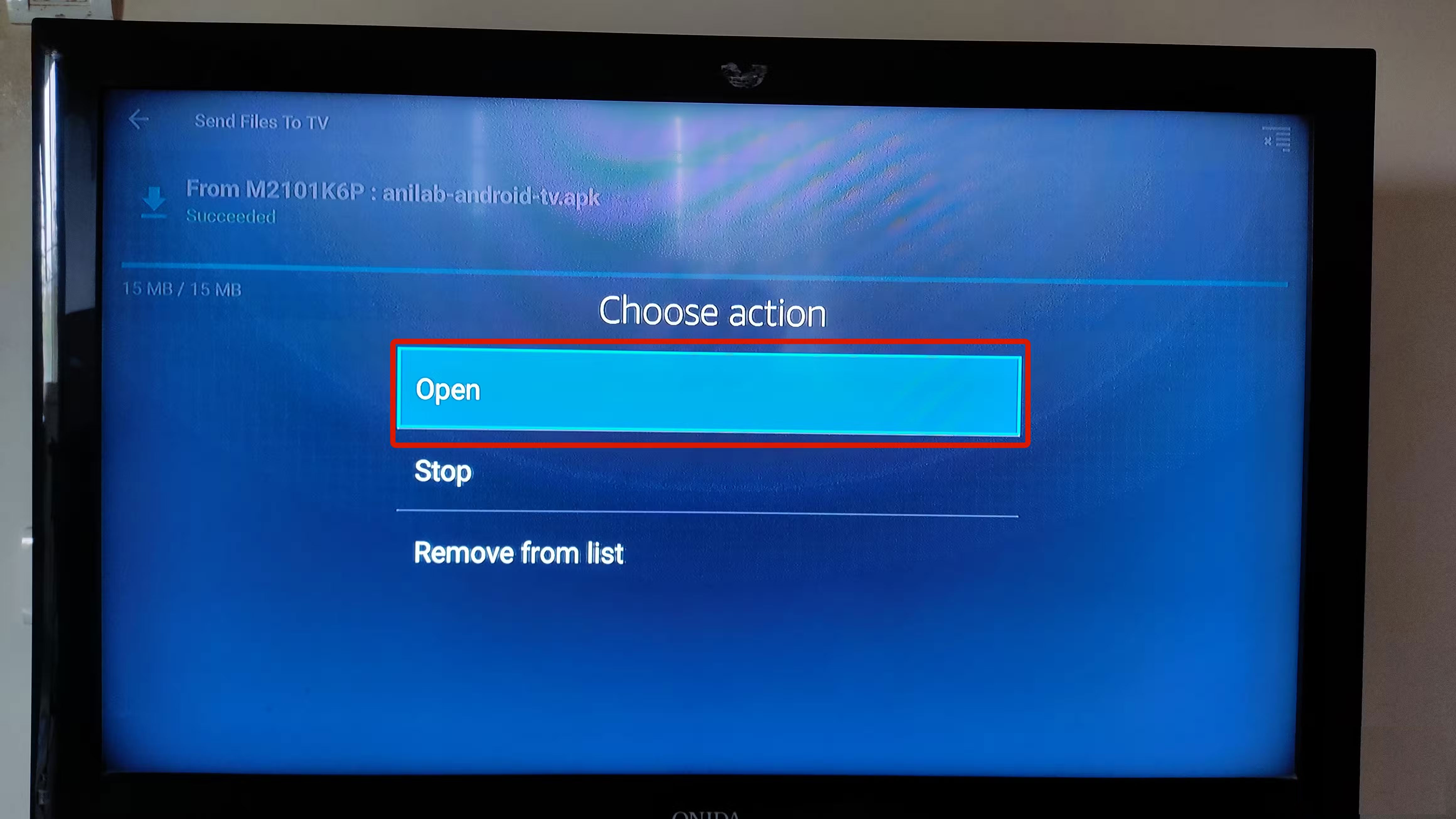
- Once you receive the file, click on it and select Open .
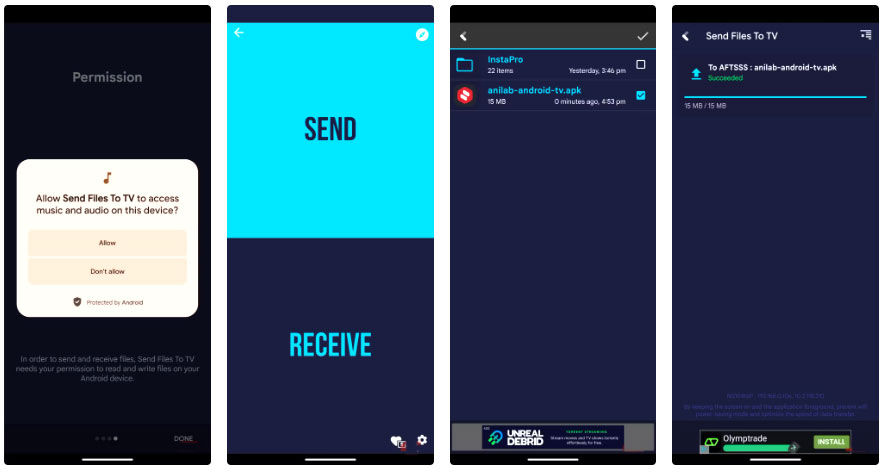
That's it! You'll see a progress bar as the file is being sent to your Fire TV Stick. Once it's finished, you'll see it appear in your app history. Tap the file and hit Install .
Note : Make sure your phone and Fire TV Stick are using the same Wi-Fi network for the Send Files to TV app to work smoothly.
Enhance your Fire TV content experience with the apps you want
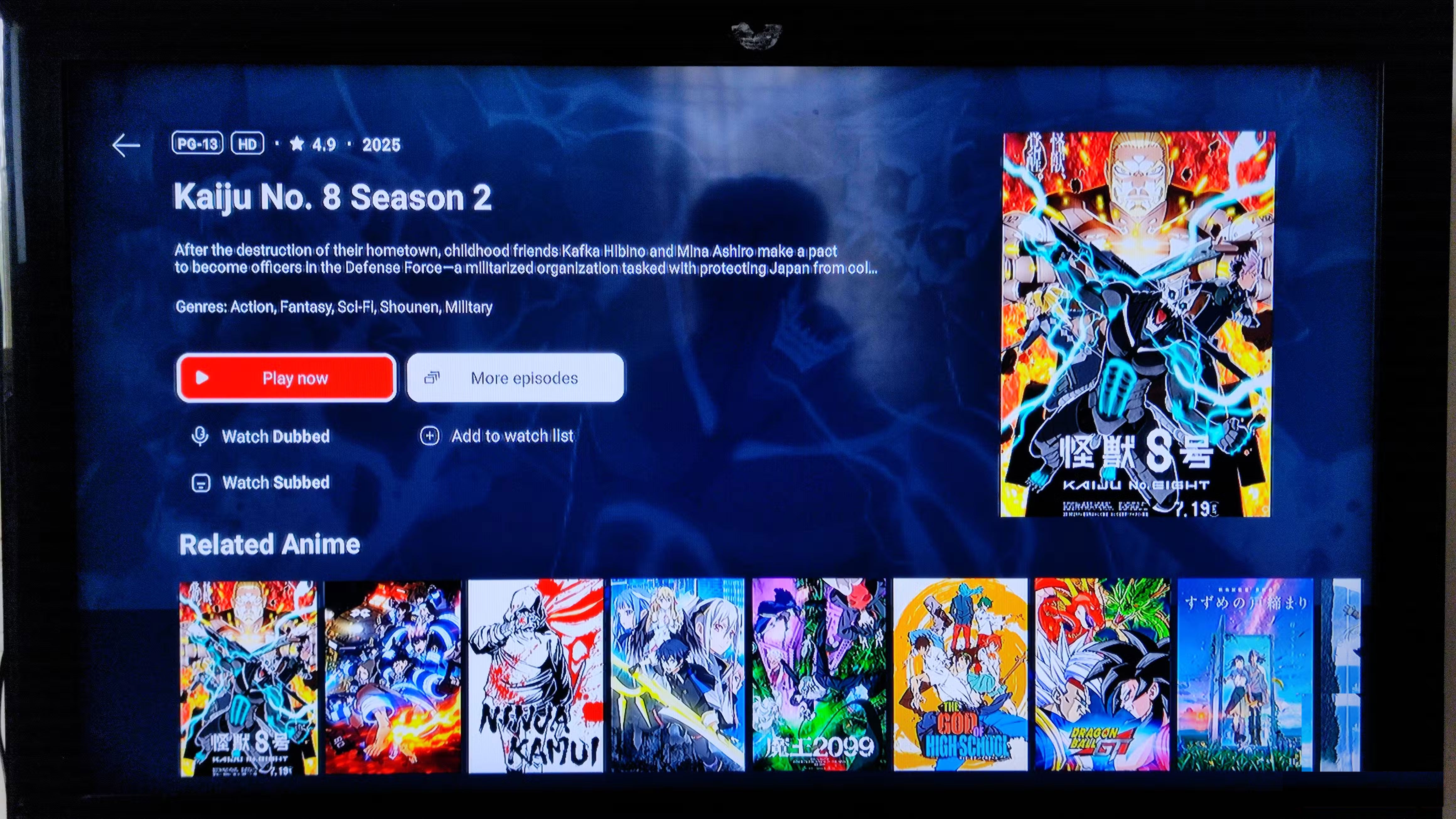
Due to regional restrictions and the limited library of apps on the Amazon App Store, sometimes we need to find other ways to fully enjoy our favorite shows. If you can't find the right streaming app on the App Store or due to regional restrictions, follow one of the following methods to download the app you're looking for to your Fire TV Stick.
FAQ
What should you know about get any app you want on fire TV without the play store?
In practical terms, you don't need extensive technical knowledge to install apps on Fire TV Stick without Play Store.
Why does get any app you want on fire TV without the play store matter?
The article highlights that install apps from Downloader on Fire TV Stick Downloader is basically a browser app that allows you to access the internet and download any app you want.
What is the main takeaway?
The main takeaway is that enhance your Fire TV content experience with the apps you want Due to regional restrictions and the limited library of apps on the Amazon App Store, sometimes we need to find other ways to fully enjoy our favorite shows.
Related Articles
 How to Get Google Play Store on Amazon Fire7 minutes read
 How to Playing Martyrs VNG for Newbies7 minutes read
 Garena Free Fire: Free Fire OB51 Version16 minutes read
 Popular Tactics in Free Fire4 minutes read
 How to Use Sniper Rifles in Garena Free Fire5 minutes read
 How to Make Friends in the Game Garena Free Fire5 minutes read
Reader Comments 0
Sign in with email or Google to join the discussion.