Table of Contents
For years, people used the physical buttons on their Samsung phones for basic tasks like adjusting the volume or turning the device on and off. Then they discovered Routines+. It turned those mundane buttons into powerful shortcuts for the actions you use most throughout the day.
Download the Good Lock Routines+ module
Unlock hidden customization options
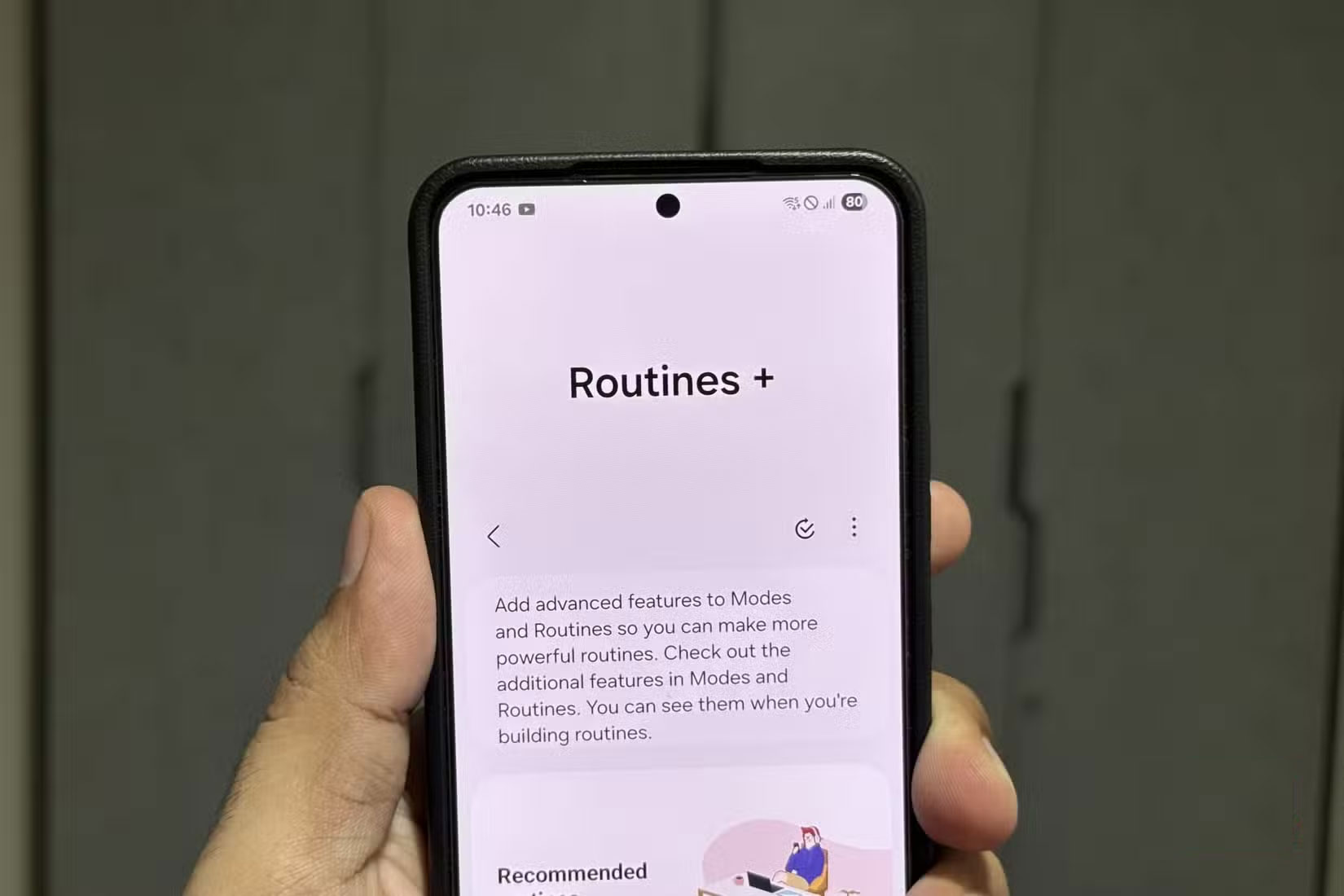
Most new Samsung Galaxy phones only have three physical buttons – volume up, volume down, and the Side button. By default, they perform essential functions like adjusting the volume, locking the device, and waking the screen. However, you can customize them to do much more.
This is where the Routines+ module can help. Like Modes and Routines on Samsung phones, it lets you automate actions but gives you more options. You can use it to assign custom functions to buttons when you press and hold them or double-tap them.
To get started, you'll first need to install Samsung's Good Lock app, which acts as a hub for your customization tools. You can download it for free from the Galaxy Store. Once installed, open Good Lock, go to the Plugins tab, and find Routines+ . Download and install it, and you'll be ready to get the most out of your phone's buttons.
Set up custom button actions
Do more with your phone buttons
Once you install Routines+, things get really interesting. Setting up a custom action is pretty easy.
- Open Routines+ from Good Lock and tap the Modes and Routines icon in the upper right corner.
- Tap the plus (+) icon at the top to create a new habit.
- In the If section, click Add what will trigger this routine .
- Scroll down to the Routines+ section and select Button action .
- Select the button you want to configure: Side , Volume Up or Volume Down .
- Select the interaction you want - Double press or Press and hold - then tap Done .
- Click Add what this routine will do .
- Select the action you want your button to perform.
- Click Save and you're done.
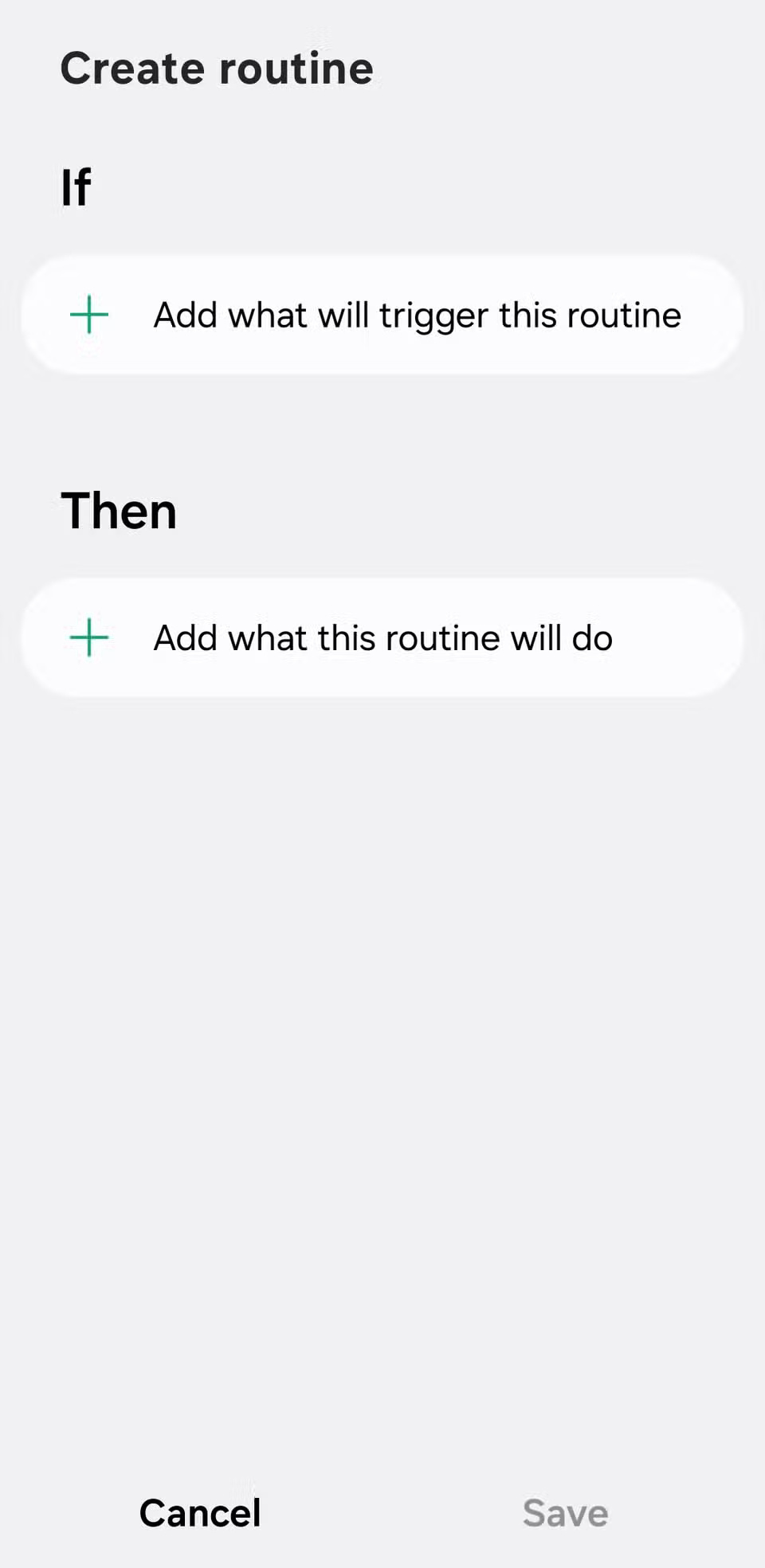
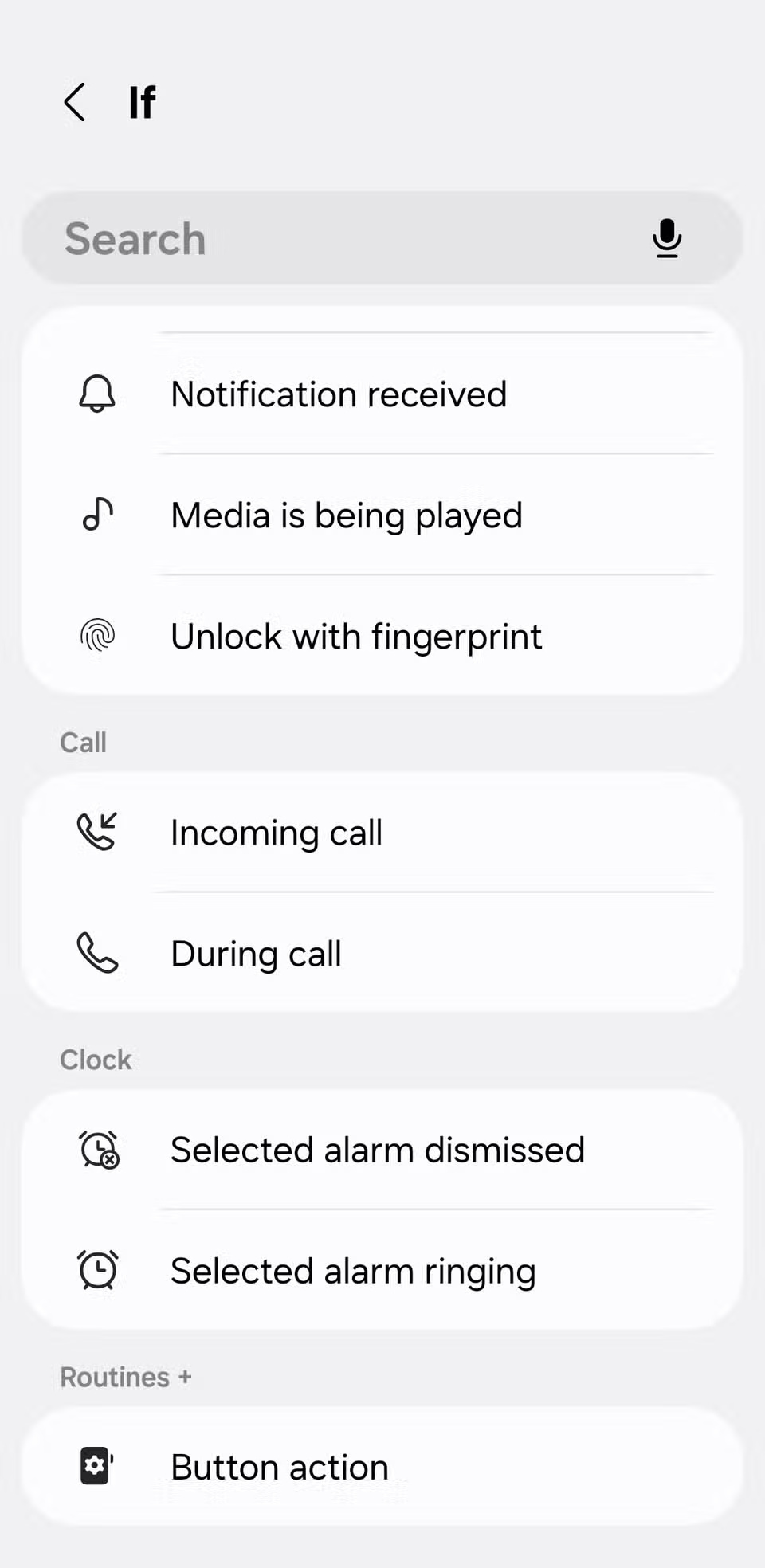
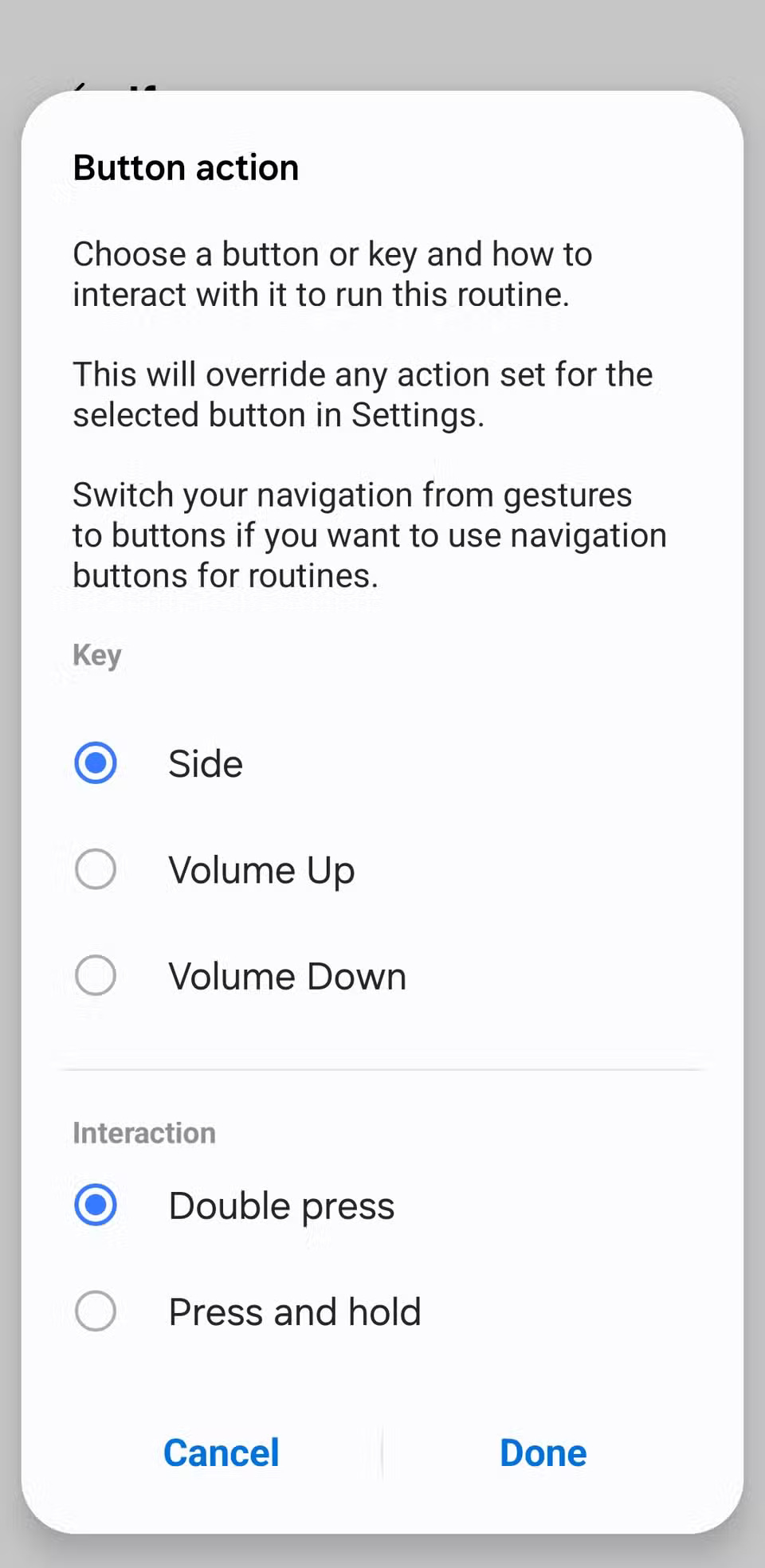
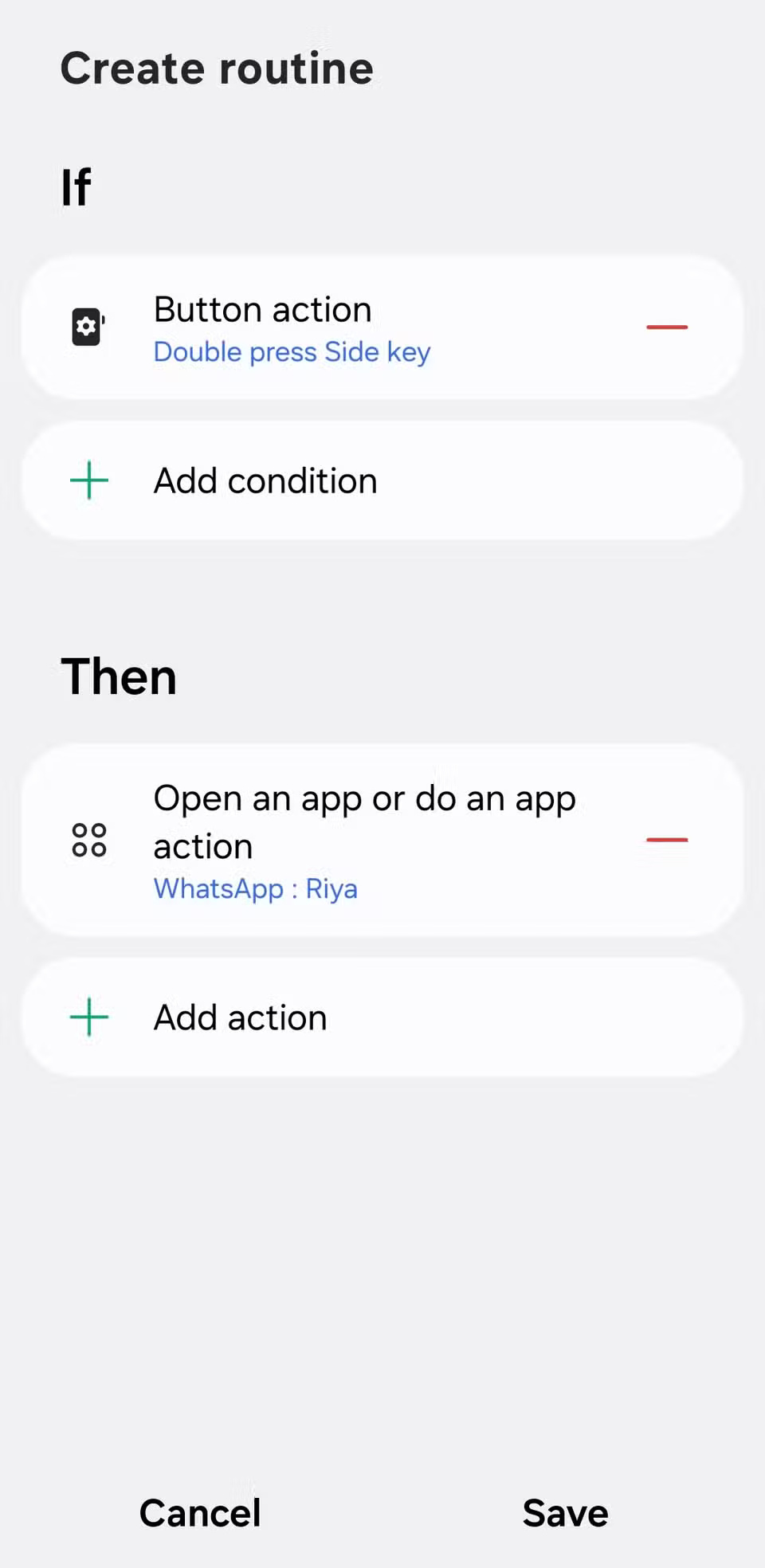
You can repeat these steps for all three buttons, setting up both double-taps and long-presses. There are six customizable actions in total, allowing you to get creative.
Of course, using a button on your phone to open an app or turn on the flashlight isn't all that exciting. What makes this feature worth using is the number of options it offers. You can control system settings like Wi-Fi, Bluetooth, mobile data, and hotspot. It also lets you instantly turn on battery saving mode, launch music playback, start screen recording, or activate your most-used accessibility features.
Some of the most powerful options, however, are under Apps > Open an app or do an app action. Tapping a button can take you straight to a payment app, open a new incognito browser tab, go directly to a specific Discord server, access a Google Drive folder, switch to a specific Gmail account, or go to a selected Slack channel.
How to set up your phone buttons to do more
The sheer number of options in Routines+ can feel a bit overwhelming at first. Instead of endlessly scrolling through every possible action, here's a simpler approach: Work backwards. Think about the tasks you frequently perform on your phone, and then look for those actions inside Routines+.
Here's how to set up the buttons:
- Press and hold the volume up button : Open the WhatsApp chat with your wife. This is the fastest way to send her a quick message without having to search for the app.
- Press and hold the volume down button : Jump straight to Instagram direct messages. Since that's where most social media conversations happen, this is much faster than navigating within the app.
- Press and hold the Side button : Opens Chrome's incognito window, perfect for quick searches you don't need in your main browsing history.
- Press and hold the volume up button : Open your work account directly in Gmail. This saves you the trouble of manually switching accounts.
- Double-tap the volume down button : Create a brand new text note in Google Keep. Whenever inspiration strikes, you can jot something down in no time.
- Double-tap the Side button : Open Google Maps directions home. This is especially useful after a late night out when you just want to get home without having to fumble through menus.
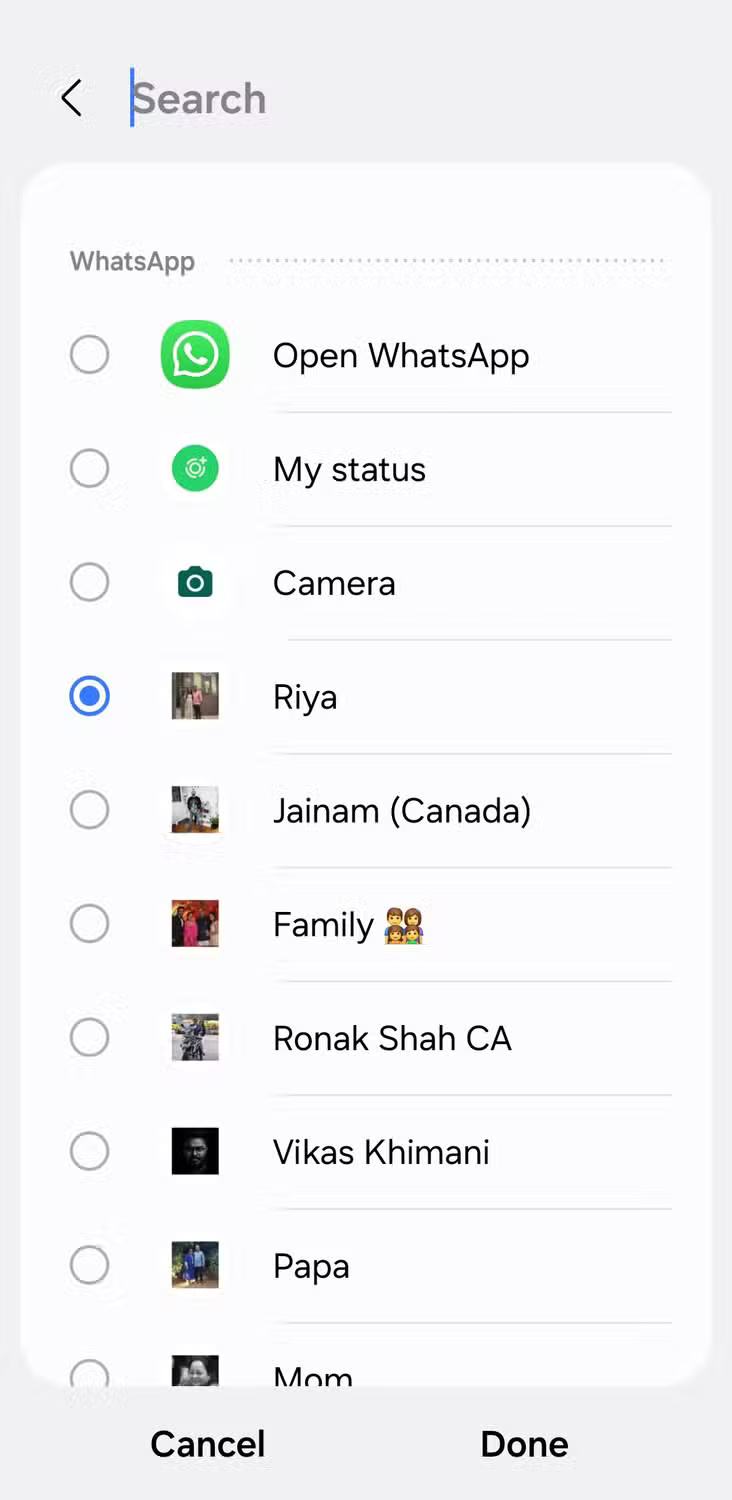
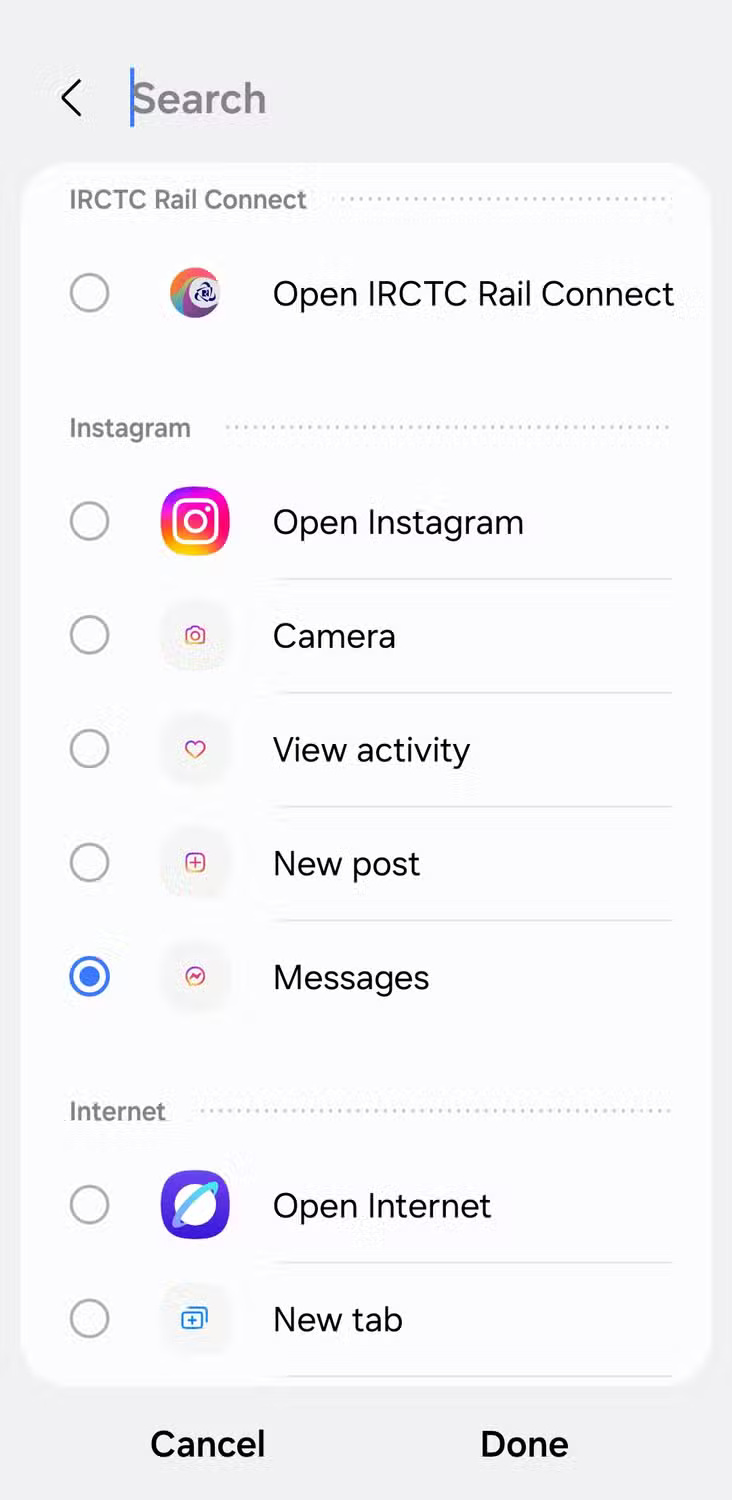
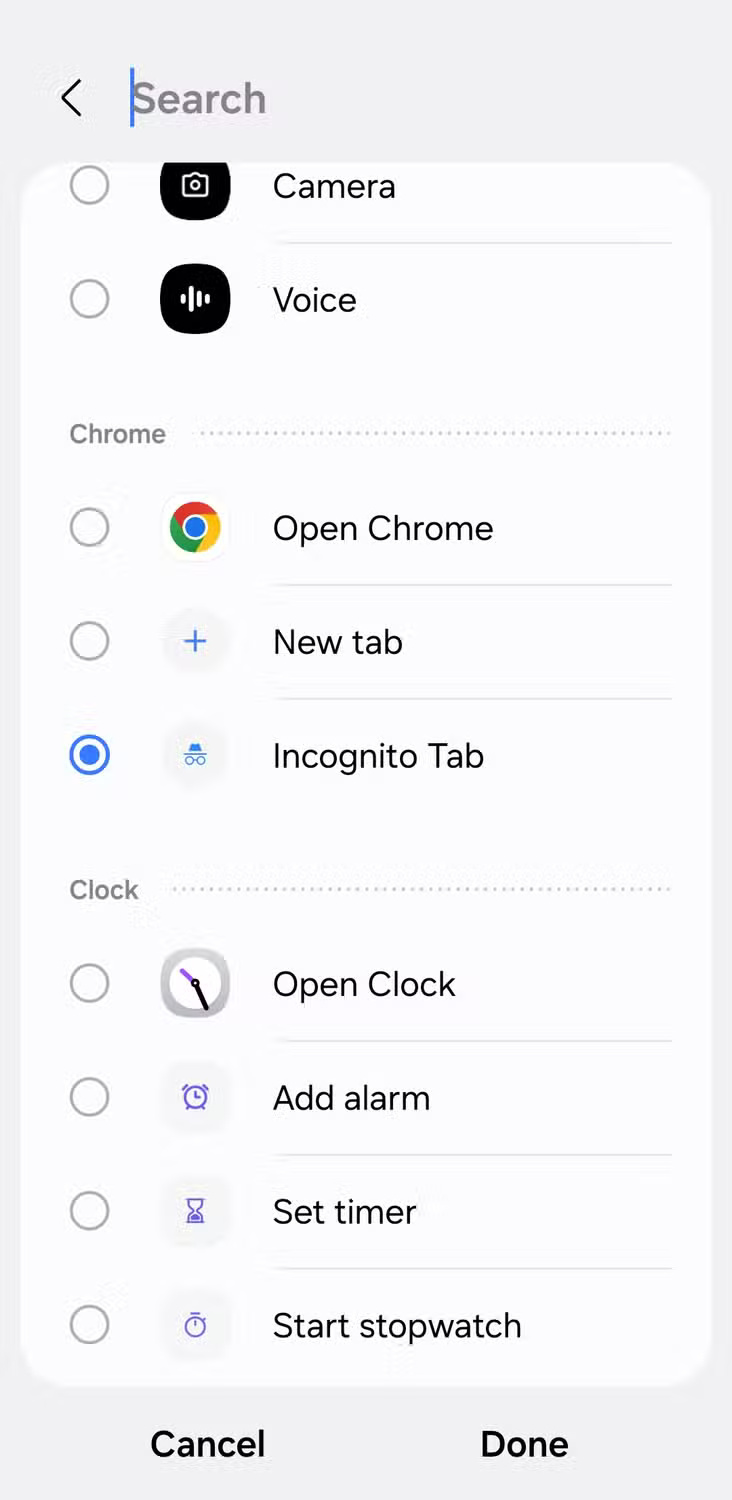
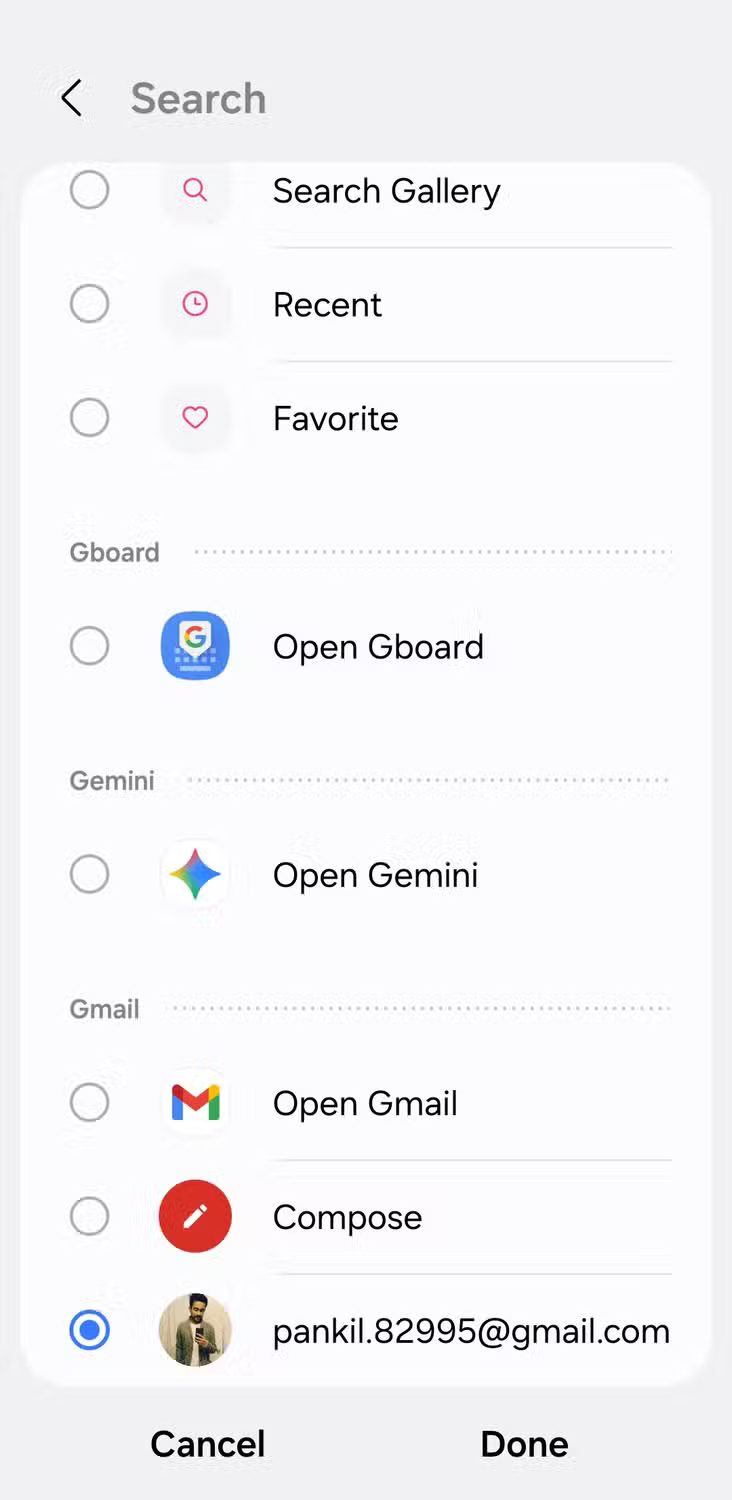
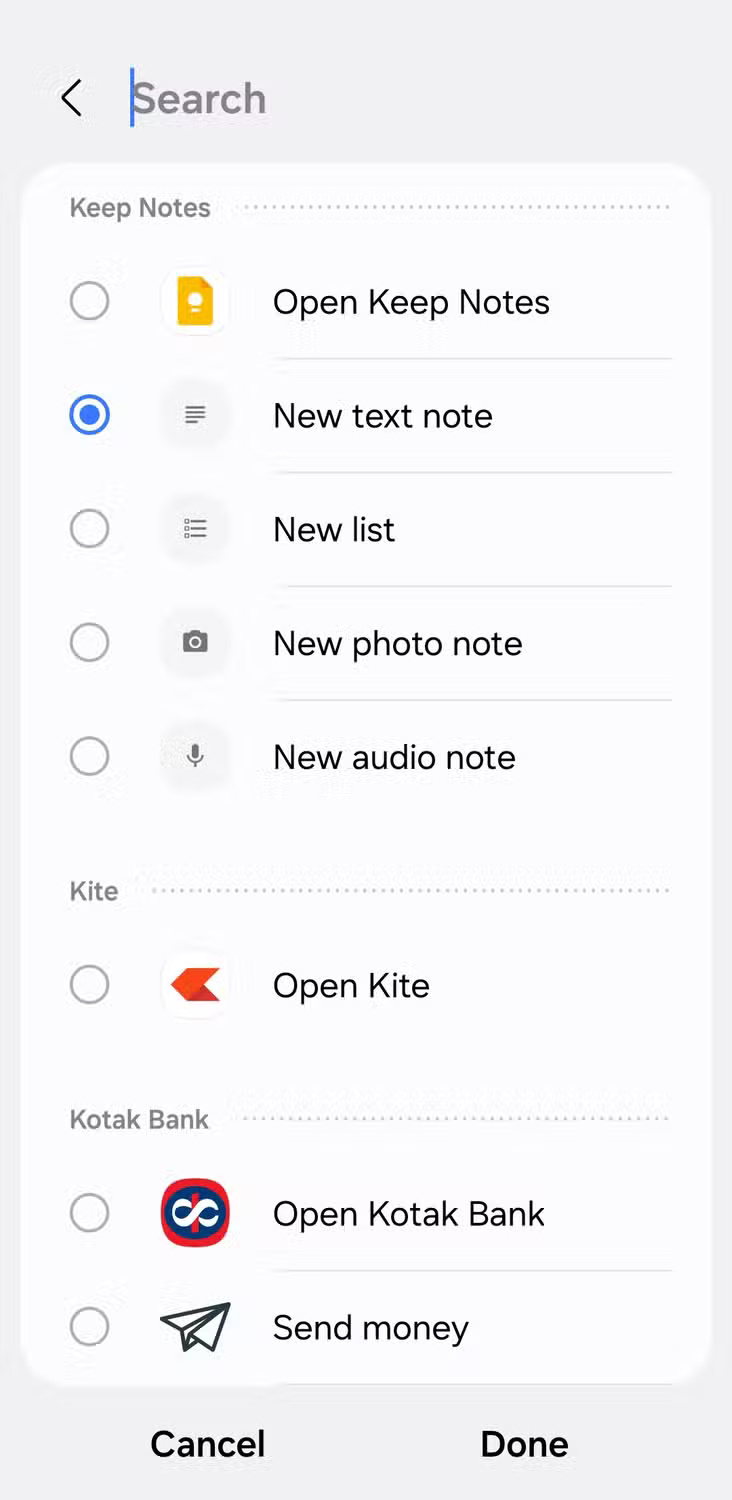
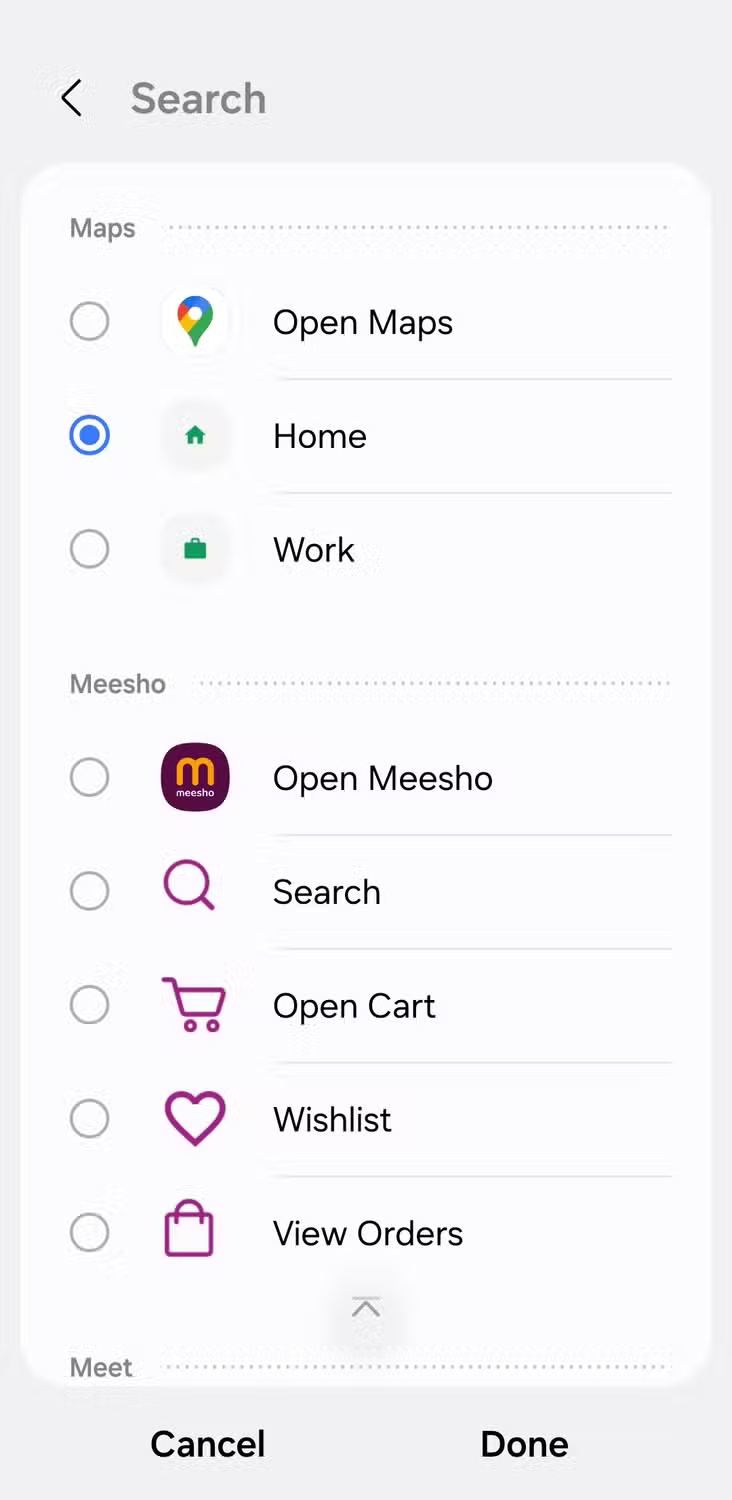
This is just an example of how to set up buttons. The options you see will depend on the apps you have installed, so it's worth experimenting.
One of the things I really appreciate about Samsung phones and One UI is how much you can personalize your device. With Routines+, you can customize the physical buttons to handle your most common tasks, and now it's hard to go back to the old interface.
There are so many other One UI features that set Samsung phones apart from other Android devices that it can feel almost impossible to switch to another Android phone, let alone an iPhone.
Final Thoughts
Overall, Tips to Make the Buttons on Your Samsung Phone Much More Useful is best understood by considering the main facts, practical context, and limitations together. Use the details above as a clear starting point and confirm time-sensitive information when necessary.
FAQ
What does this article explain about Tips to Make the Buttons on Your Samsung Phone Much More Useful?
For years, people used the physical buttons on their Samsung phones for basic tasks like adjusting the volume or turning the device on and off. Then they discovered Routines+.
What should you know about Unlock hidden customization options?
Most new Samsung Galaxy phones only have three physical buttons – volume up, volume down, and the Side button. By default, they perform essential functions like adjusting the volume, locking the device, and waking the screen.
Should time-sensitive details be verified?
Yes. Software features, game codes, product specifications, prices, and research findings can change. Confirm important details with an official or primary source when accuracy affects your decision.
Related Articles
 7 Simple Ways to Make Your Samsung Phone Look Less Boring8 minutes read
 7 Android Apps That Make the Most of Physical Buttons on Your8 minutes read
 Are You Using the Full Potential of the Buttons on Your Android Phone?8 minutes read
 6 Simple Tips to Help Your Samsung Phone Last for Years7 minutes read
 8 Settings to Make Your Samsung Phone Run Faster9 minutes read
 Tips to Exploit the Full Potential of the USB Port on Samsung Phones7 minutes read
Reader Comments 0
Sign in with email or Google to join the discussion.