Table of Contents
Many people have been experiencing Wi-Fi issues at home for a while, until they discovered a secret menu on their Samsung phones — Connectivity Labs — that helps troubleshoot and provide a more reliable Wi-Fi experience at home.
Connectivity Labs makes troubleshooting common Wi-Fi problems simple
Connectivity Labs is a built-in Wi-Fi diagnostic tool on Galaxy phones. It lets you identify problems with your Wi-Fi network and fix them right on your phone.
This is a great utility to have for a couple of reasons. First, it takes the guesswork out of troubleshooting Wi-Fi issues. Second, it saves you time from using dedicated Wi-Fi tools, which are often complicated and less user-friendly. Plus, having the tools on your phone makes it easy to move around and check your connection in real time, versus being tethered to your desktop or carrying around a laptop.
How to access Connectivity Labs on Galaxy phones
Samsung has hidden the Connectivity Labs menu in the Wi-Fi settings, probably to keep the rest of the menu clean.
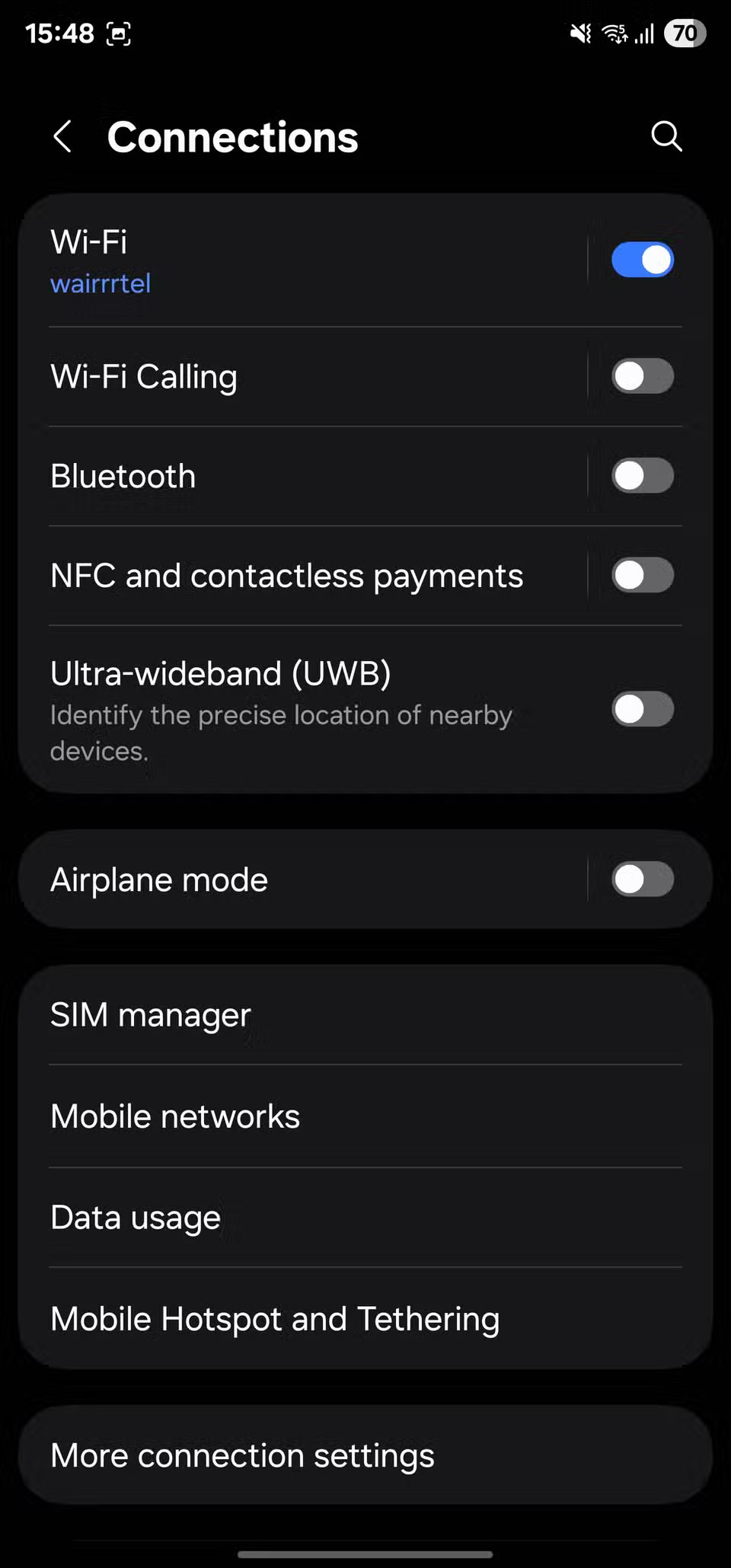
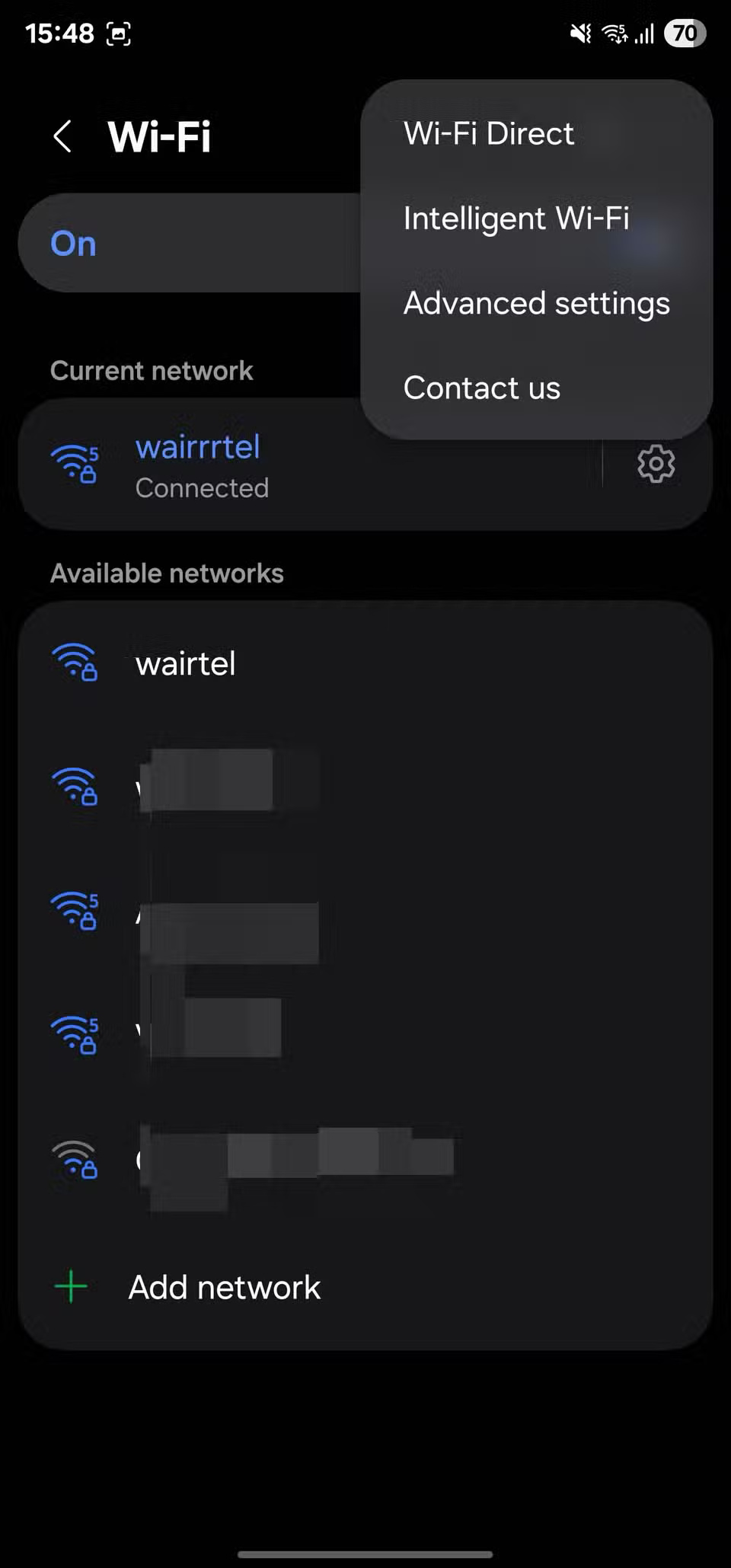
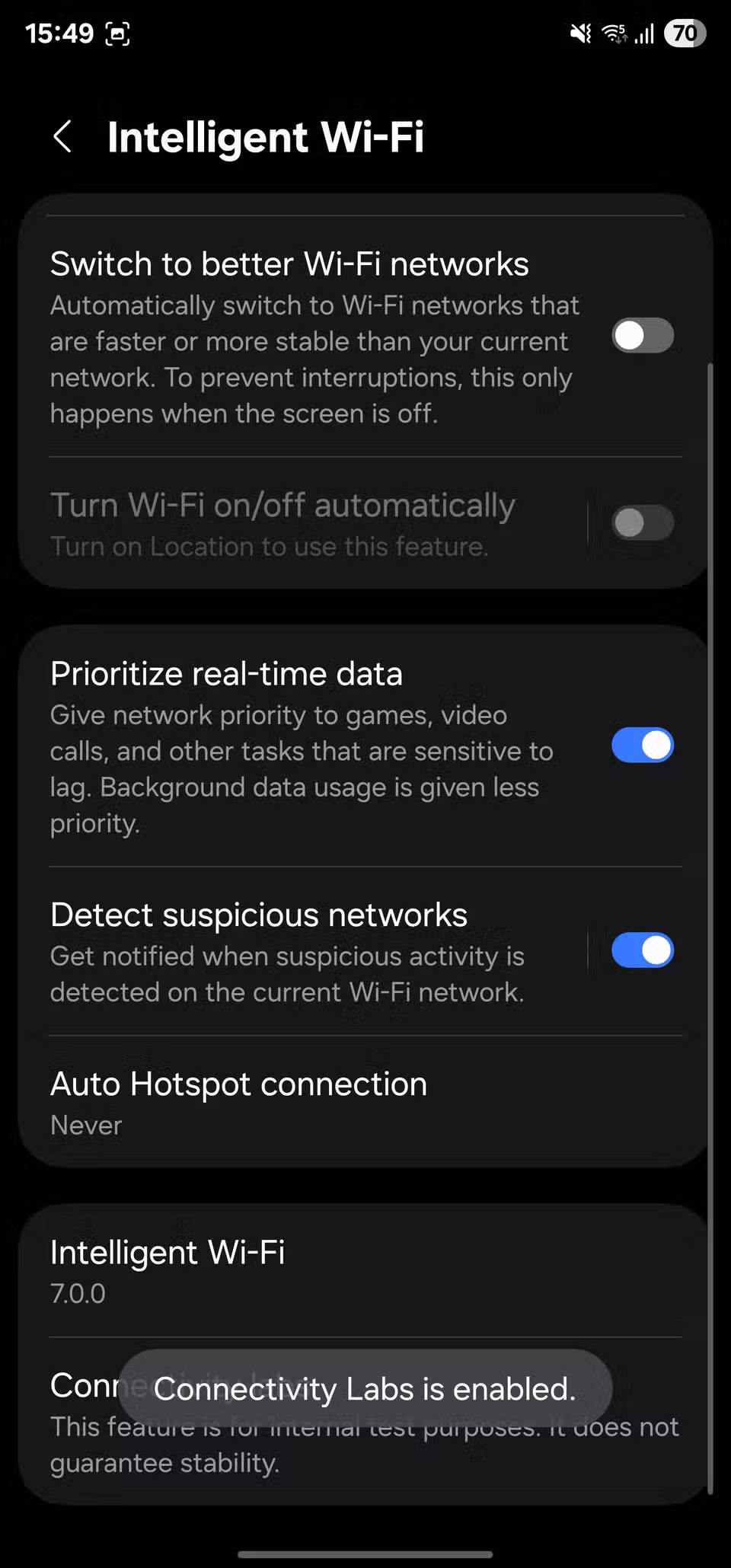
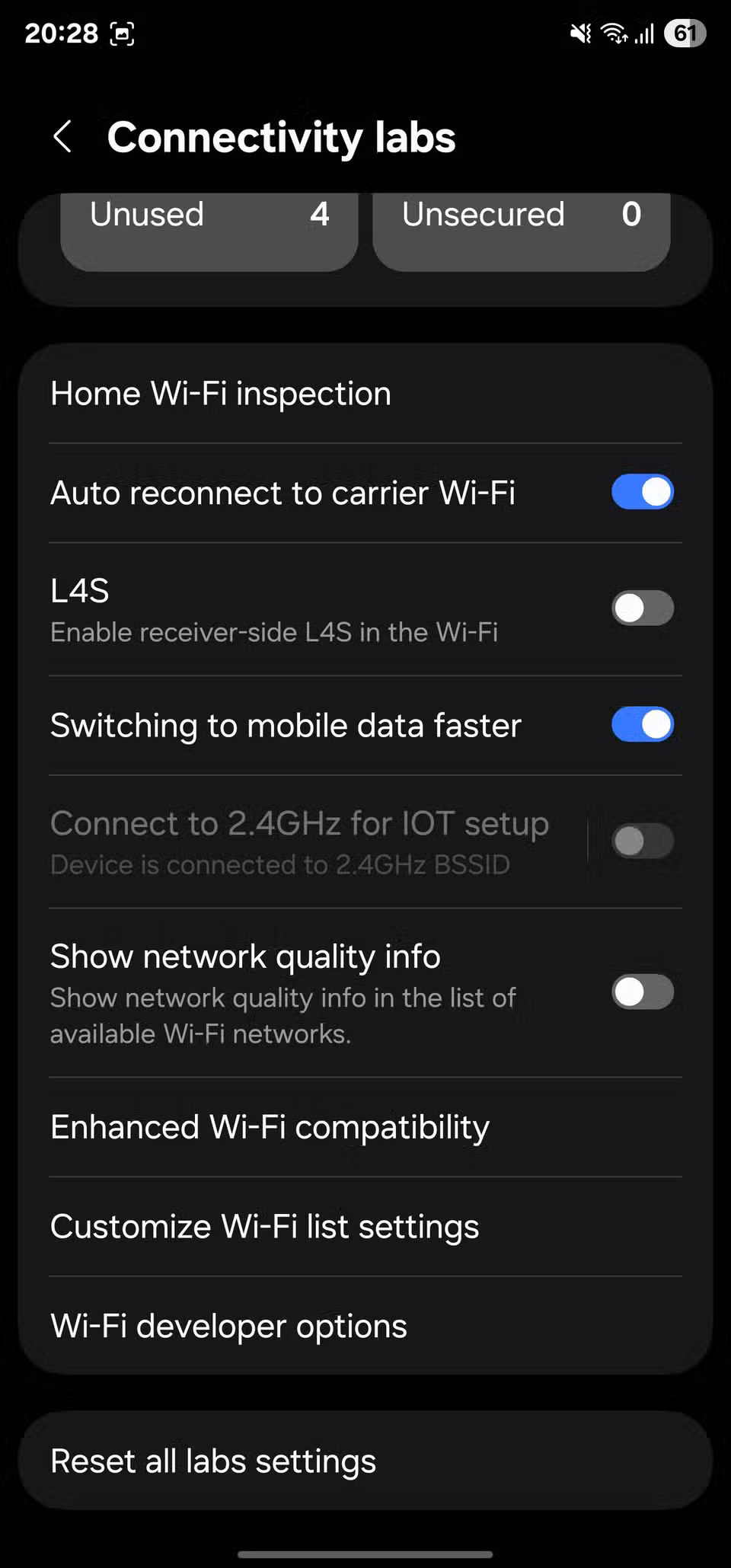
To access it, open Settings and go to Connections > Wi-Fi . Tap the three-dot menu in the top-right corner and select Intelligent Wi-Fi . Scroll down to the bottom and tap Intelligent Wi-Fi 7 times, then you'll see Connectivity Labs is enabled .
From there, tap on Connectivity labs , then you will see all the tools and options available.
How Connectivity Labs Troubleshoots Home Connectivity Problems
Connectivity Labs includes a variety of useful tools to help identify and troubleshoot various Wi-Fi issues. For many, the combination of these tools has worked wonders.
Home Wi-Fi Test Helps You Find the Ideal Location for Your Router
When moving into a new apartment, many people place their main router in the living room. They also install a second router — a signal extender — in the hallway to extend coverage to other rooms, thinking they've eliminated all the dead spots in the house. However, they soon realize they're wrong, when they start experiencing signal loss in their balcony.
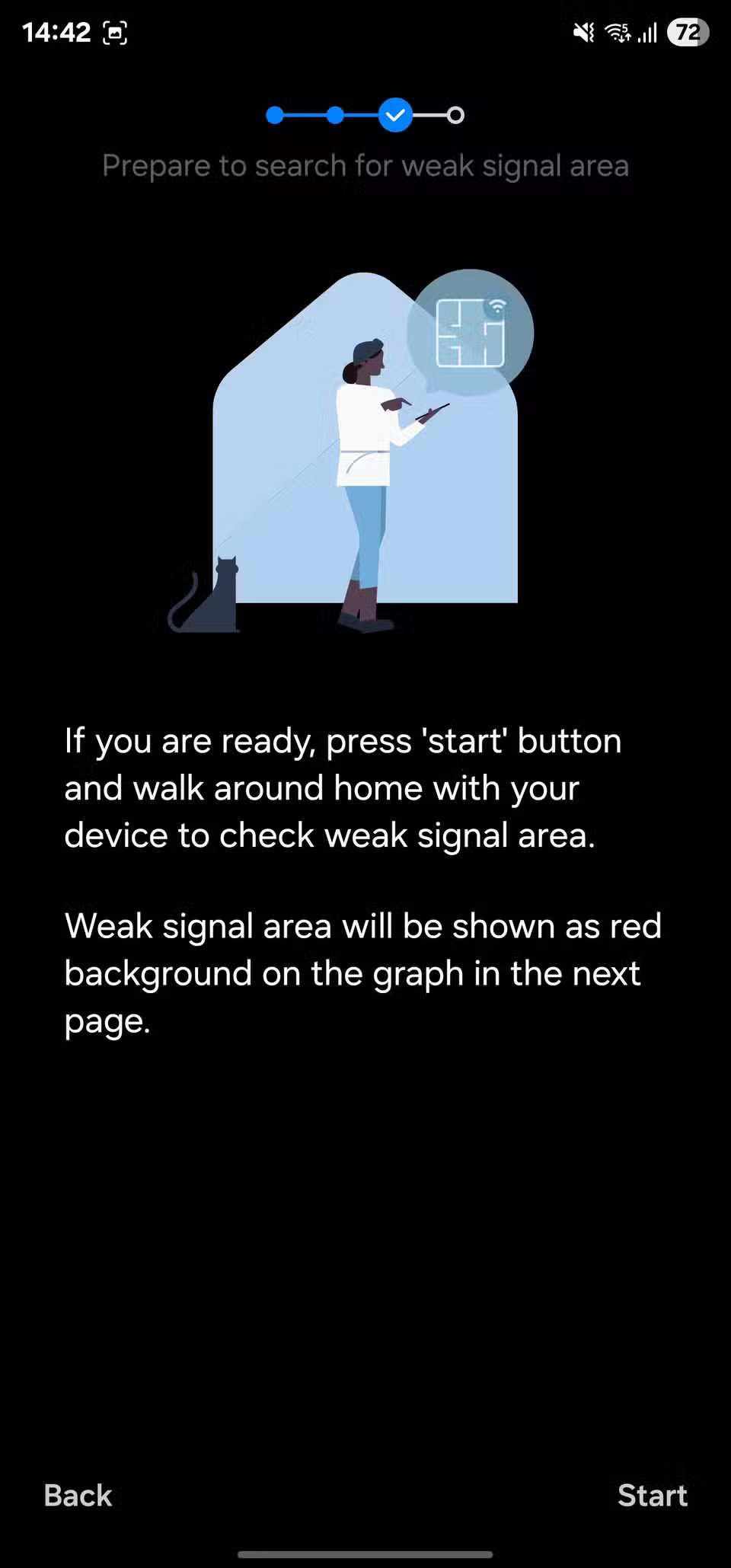
It could be that your extender is misplaced and you want to confirm that. So, let's do a quick check with the Home Wi-Fi inspection tool. The tool will prompt you to select your network and start walking around your home. As you move, the tool will map the signal strength and quality in different areas on a graph. This is all the information you need to find the strongest signal locations for your router and extender, and then place them appropriately.
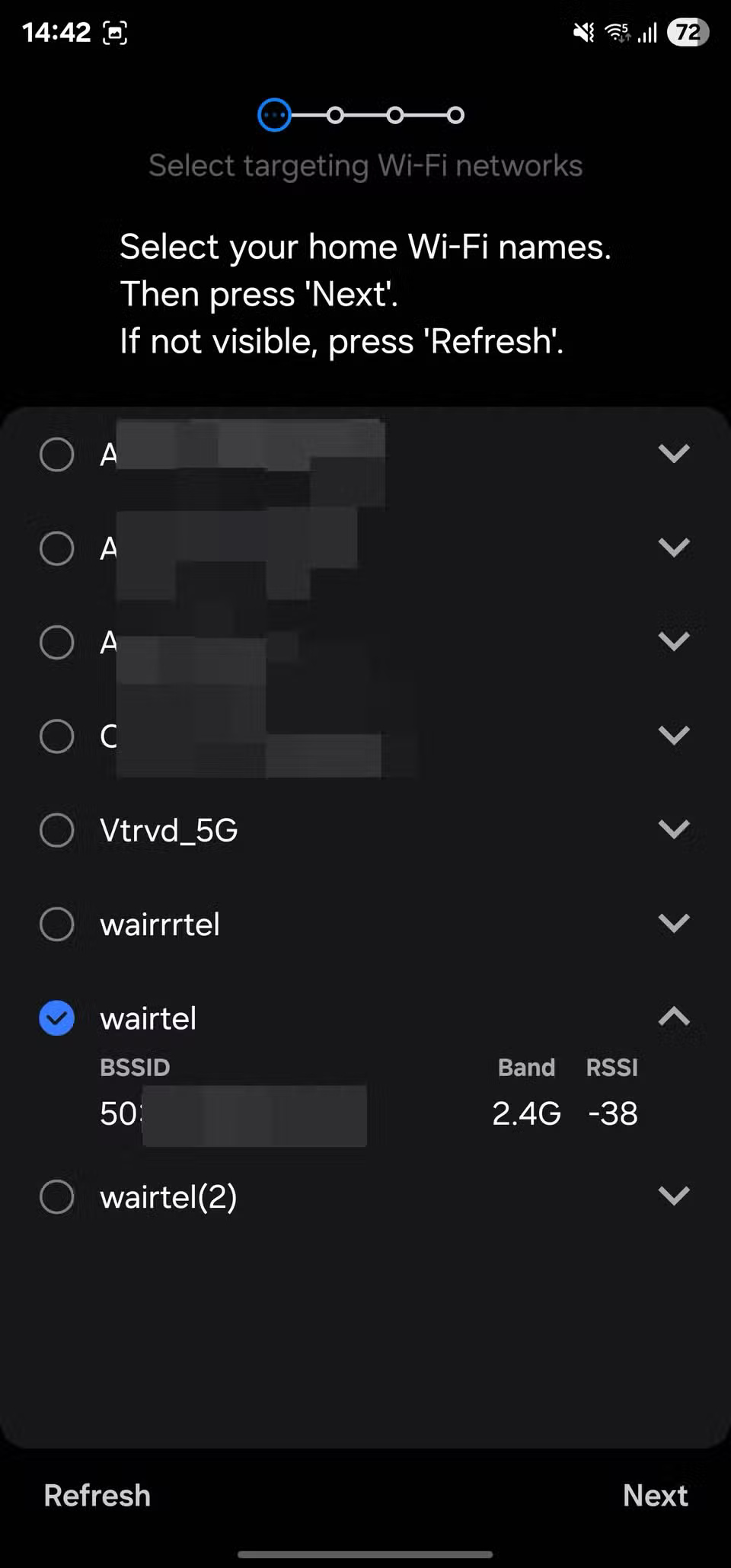
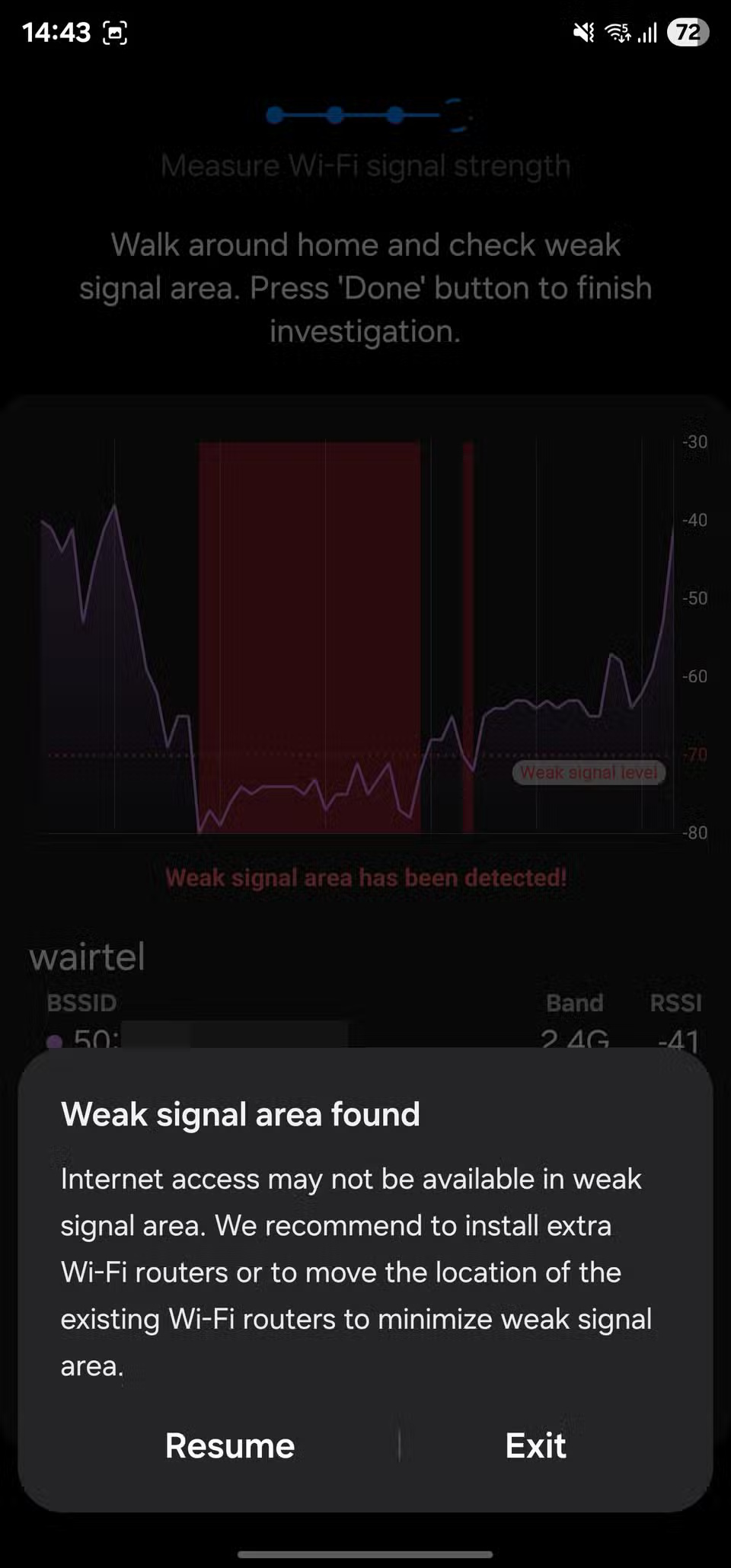
In addition to strength mapping, Home Wi-Fi inspection also prompts you to set stronger Wi-Fi security settings for your network if it detects weaker or potentially vulnerable protocols. That way, you can increase the overall security of your network.
Nearby Wi-Fi information helps optimize the network
Living in an apartment means having dozens of Wi-Fi networks around. Sometimes, many of these networks can be on the same router channel, leading to a phenomenon called co-channel interference (CCI). This is exactly what leads to problems like caching, slower speeds, and dropped connections.
The Nearby Wi-Fi information tool — available as a developer option in the Connectivity labs — will help you diagnose and troubleshoot problems. It lists all the nearby Wi-Fi networks around you, along with a bunch of useful information like Received Signal Strength Indicator (RSSI) and frequency band. It sorts them based on strength into Best , Good , Bad , and Worst .
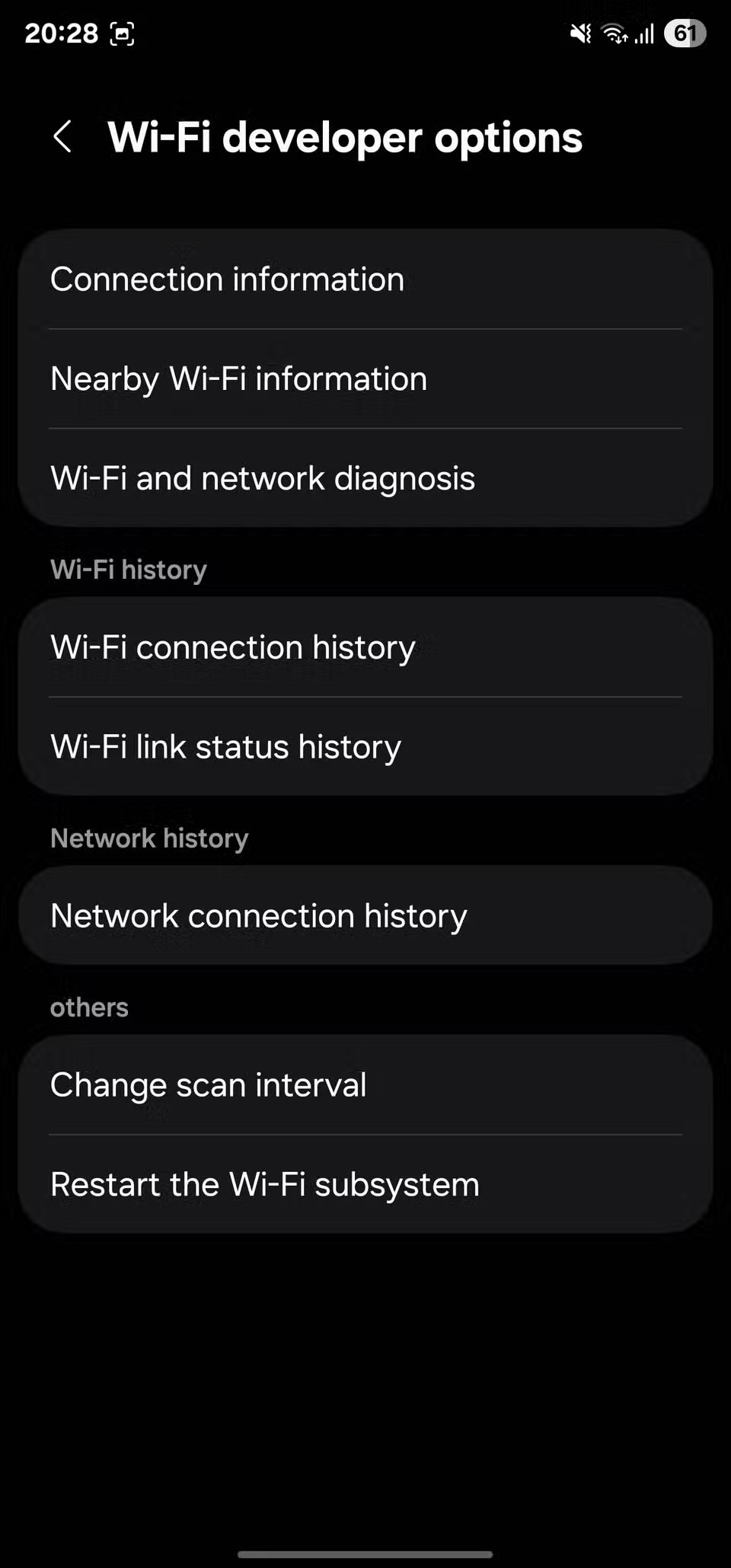
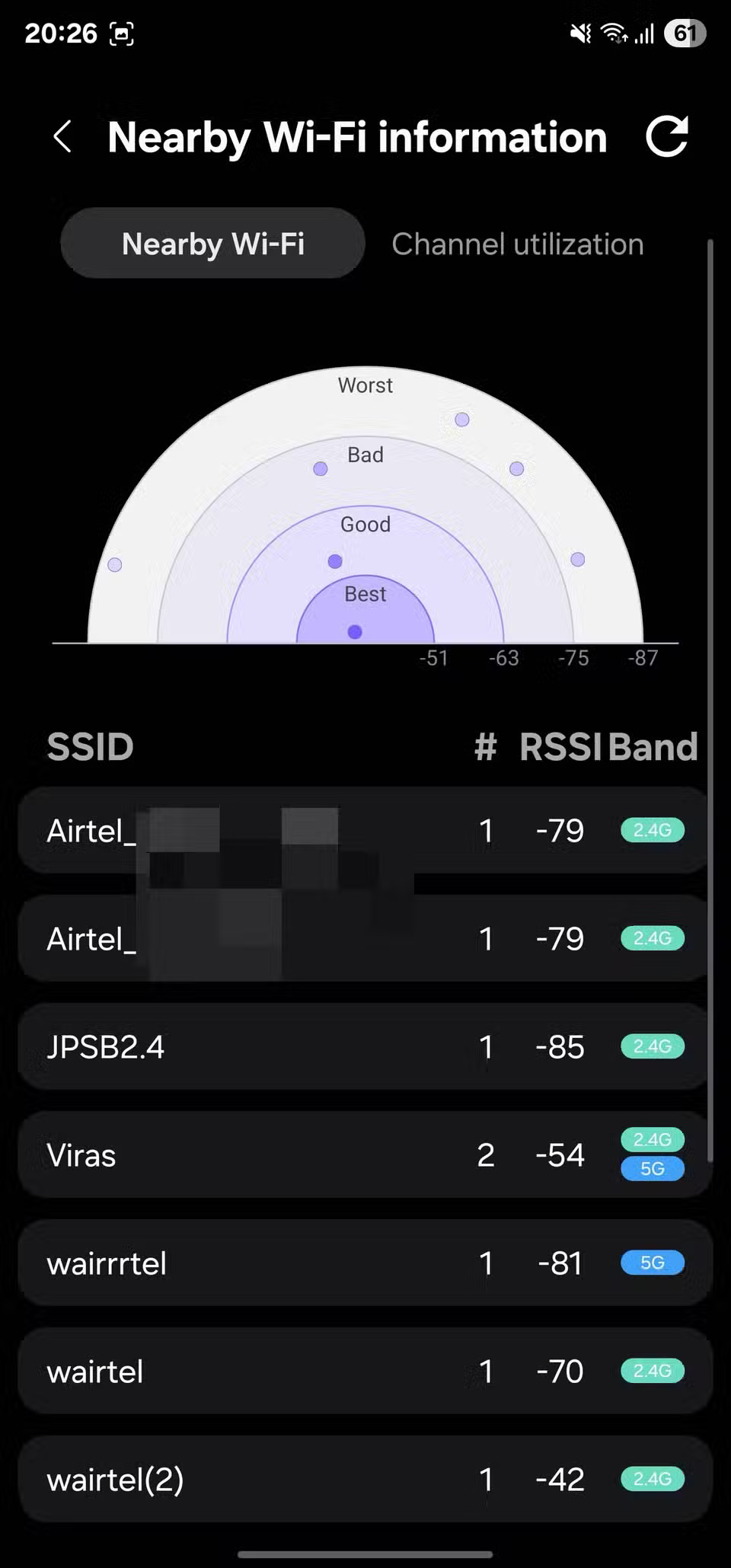
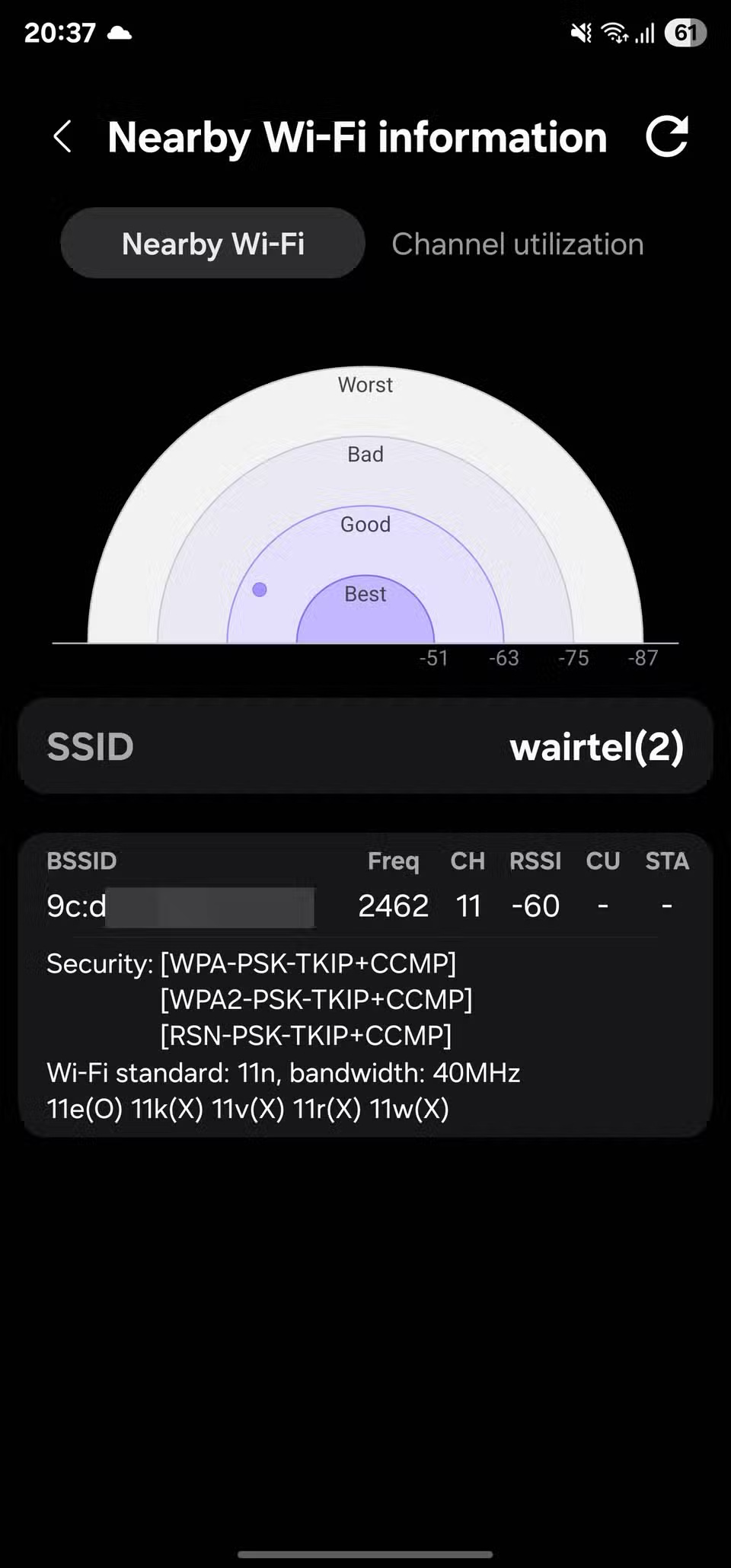
Also, tapping on a network will reveal more details about that network, including the channel it's using. This will help you identify channels for your Wi-Fi network and any other networks you think might be conflicting. Then, switch to the Channel utilization tab in Nearby Wi-Fi information , which provides details about channel congestion — that is, how many networks are using a particular channel.
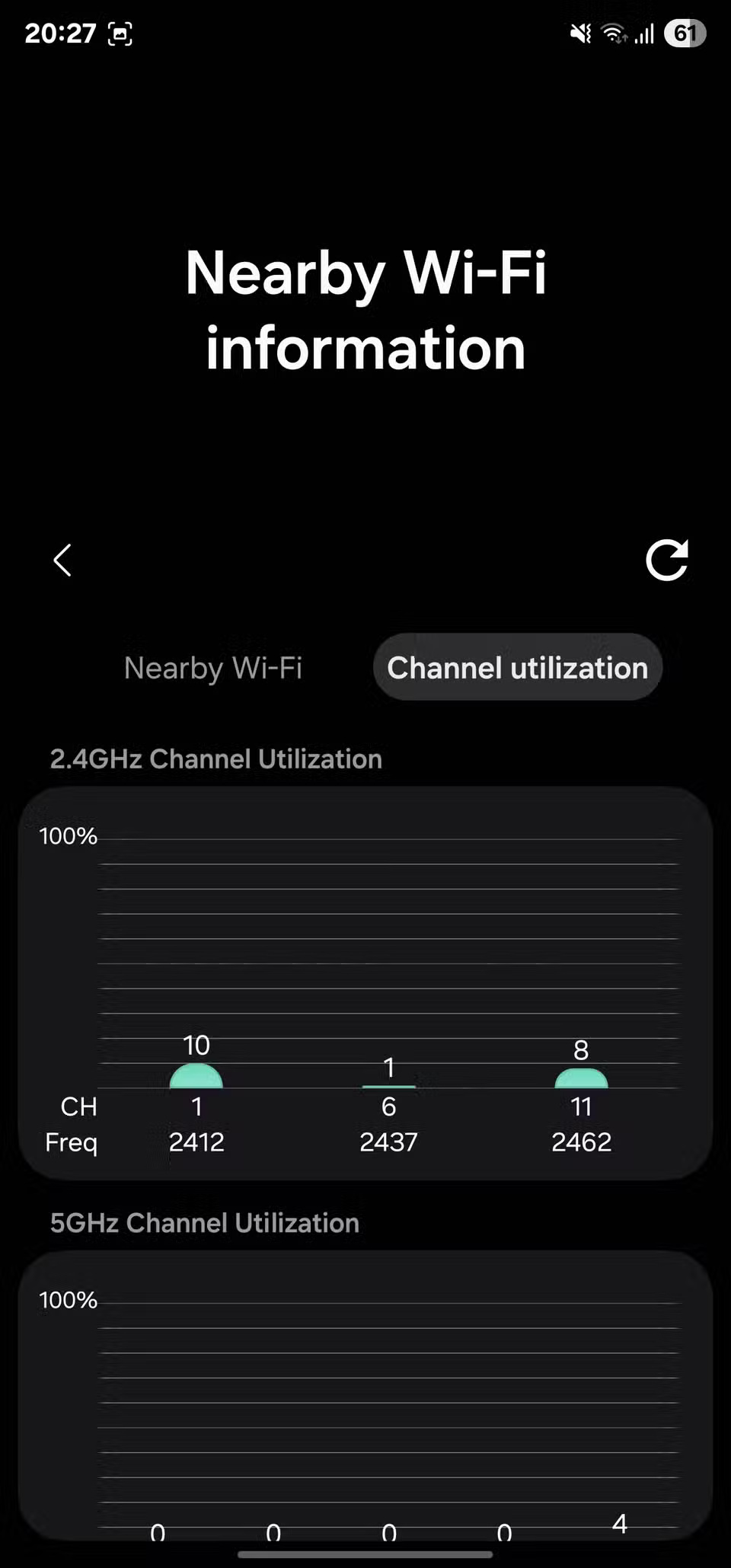
Then go to the admin page of both the router and the range extender and change their channels. All current issues should be resolved.
Connectivity labs isn't an app you'll use every day, but it's a smart choice to have on your phone, as it equips you with a number of useful tools that you might need when your Wi-Fi starts to have issues. I wish more phones had this tool - at least for simple network issues - as it would make our lives much simpler and eliminate our reliance on third-party apps.
Final Thoughts
Overall, Connectivity Labs Secret Menu Makes Samsung Phone's Wi-Fi Connection is best understood by considering the main facts, practical context, and limitations together. Use the details above as a clear starting point and confirm time-sensitive information when necessary.
FAQ
What does this article explain about Connectivity Labs Secret Menu Makes Samsung Phone's Wi-Fi Connection?
Many people have been experiencing Wi-Fi issues at home for a while, until they discovered a secret menu on their Samsung phones — Connectivity Labs — that helps troubleshoot and provide a more reliable Wi-Fi experience at home.
What should you know about Connectivity Labs makes troubleshooting common Wi-Fi problems simple?
Connectivity Labs is a built-in Wi-Fi diagnostic tool on Galaxy phones. It lets you identify problems with your Wi-Fi network and fix them right on your phone.
Should time-sensitive details be verified?
Yes. Software features, game codes, product specifications, prices, and research findings can change. Confirm important details with an official or primary source when accuracy affects your decision.
Related Articles
 Windows Computers and Samsung Phones Are the Perfect Match: Complete Guide6 minutes read
 Smart TVs Have a Secret Menu: Here's How to Access It!9 minutes read
 7 Samsung Features You May Not Be Using for Better Photos8 minutes read
 Meet Samsung Studio: the Secret Video Editor That's Much Better Than7 minutes read
 Free Microsoft Labs Repositories Include: Windows Server, SQL5 minutes read
 6 Simple Tips to Help Your Samsung Phone Last for Years7 minutes read
Reader Comments 0
Sign in with email or Google to join the discussion.