Table of Contents
A Samsung Galaxy’s USB-C port can do more than charge the phone, but the features depend on the model, cable, and accessory. Check your phone’s specifications before buying a dock or display adapter. A cable that charges may lack the data or video capability you need.
1. Copy files to or from a USB drive
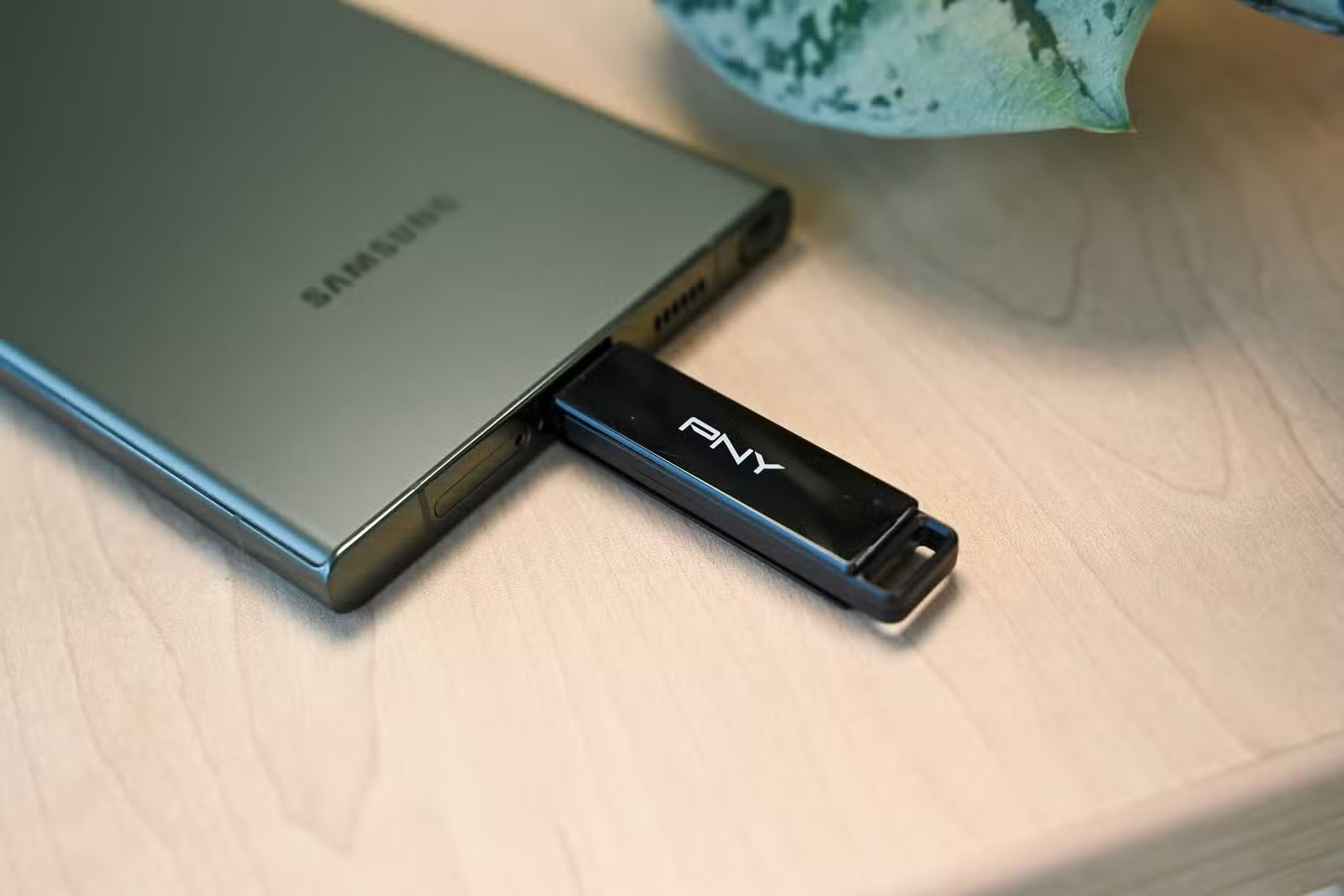
Connect a compatible drive directly or through a USB OTG adapter. Open My Files and look for USB storage. Copy a small file and open the destination copy before moving important videos or documents. Eject the drive where the device offers that option. See the Android USB drive guide for more details.
2. Use Samsung DeX on a compatible display
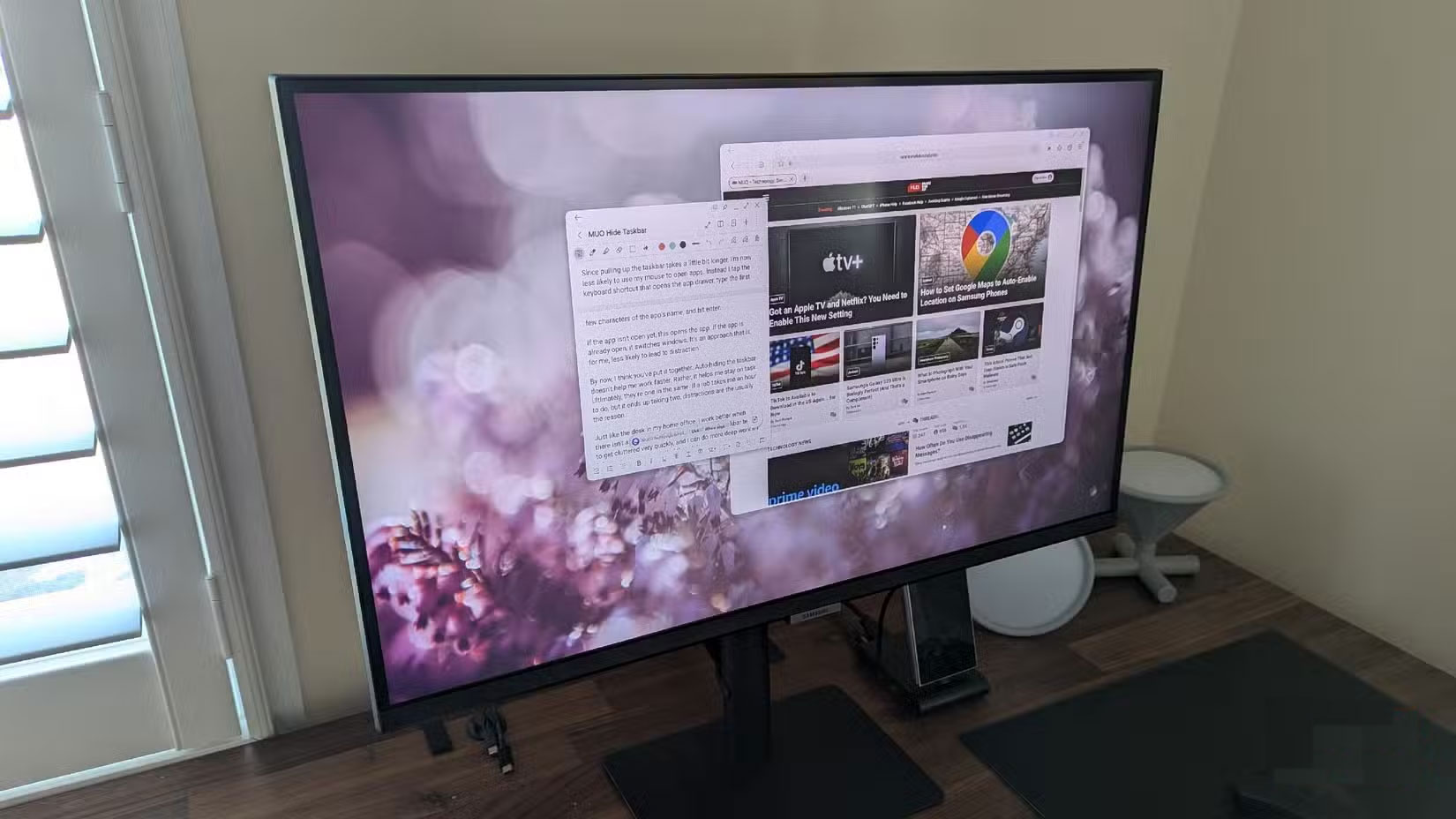
Check Samsung’s DeX compatibility and connection guide for your model. A supported phone can show a desktop-style interface on an external display. Test your USB-C adapter, keyboard, mouse, and work apps before depending on the setup.
3. Use the phone as a second screen for a PC
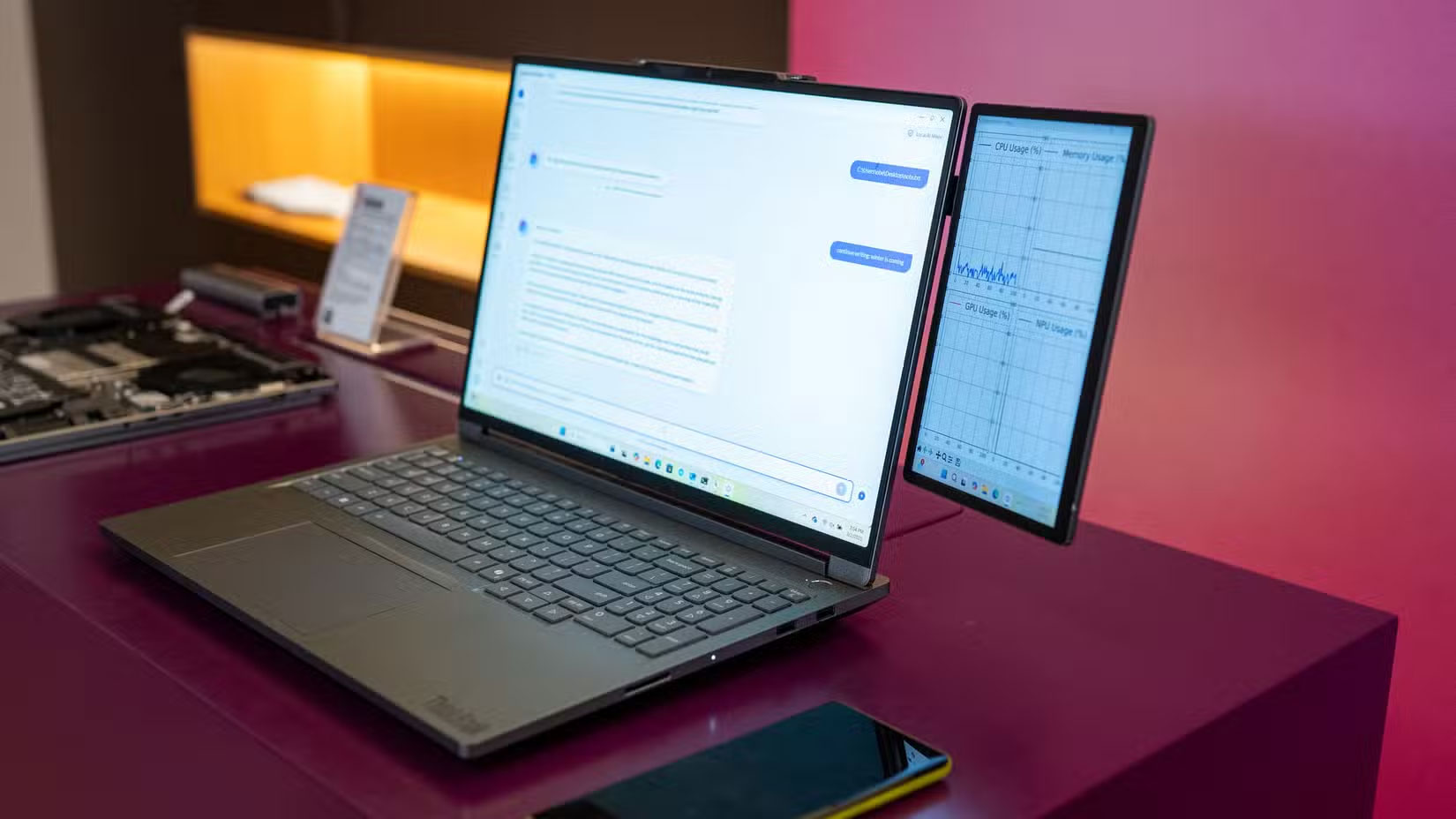
Apps such as GlideX can extend a Windows desktop to a compatible Android device. Check the PC and phone requirements and consider the wireless mode first. For a wired connection, use a trusted PC and review the app’s USB permission requirements.
4. Supply emergency power to a small accessory
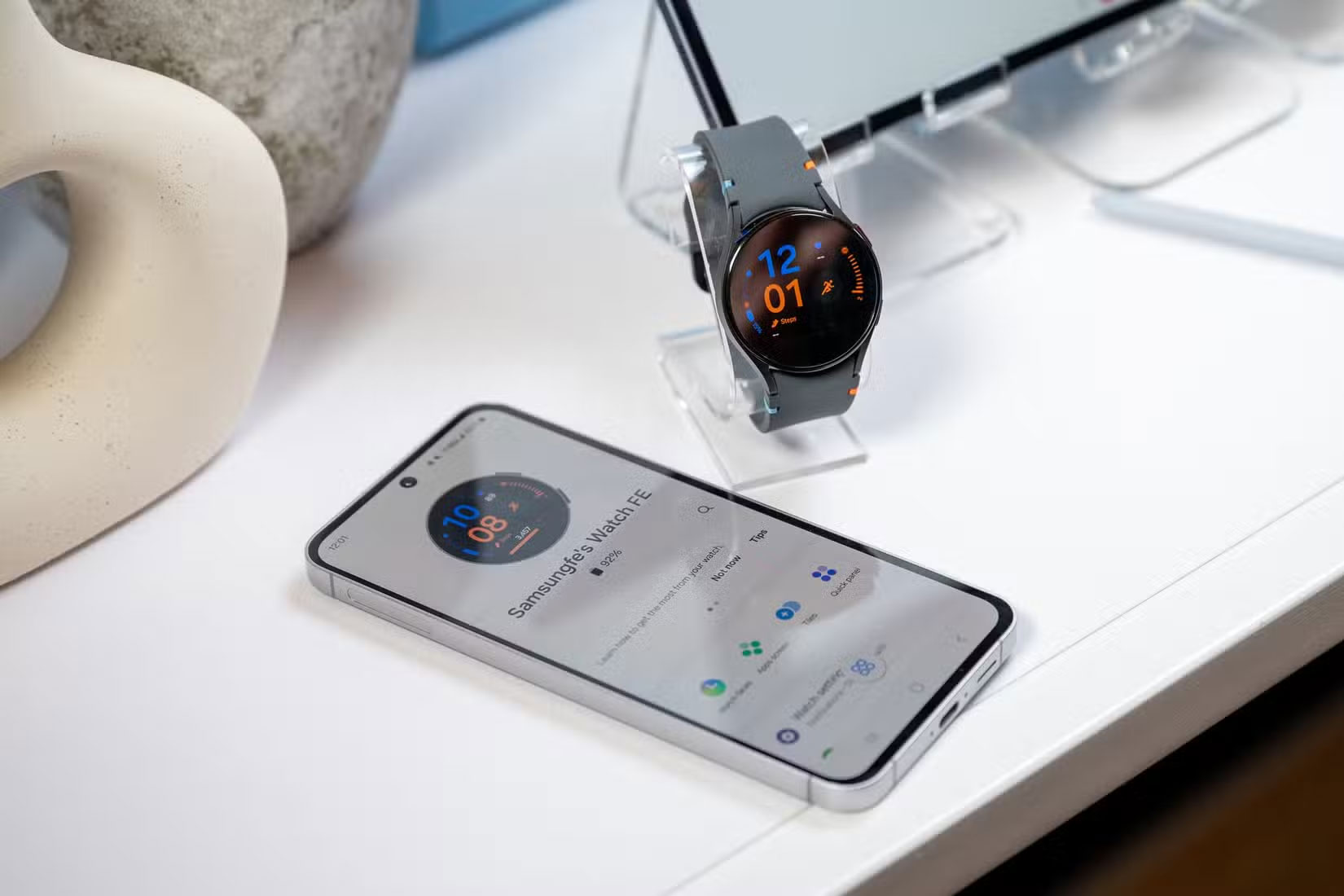
Some phone and accessory combinations can transfer power over USB-C. Check which device is charging once connected. The rate and direction depend on the devices and cable. Use a dedicated charger when reliable or sustained power is important.
5. Connect a controller or another wired accessory
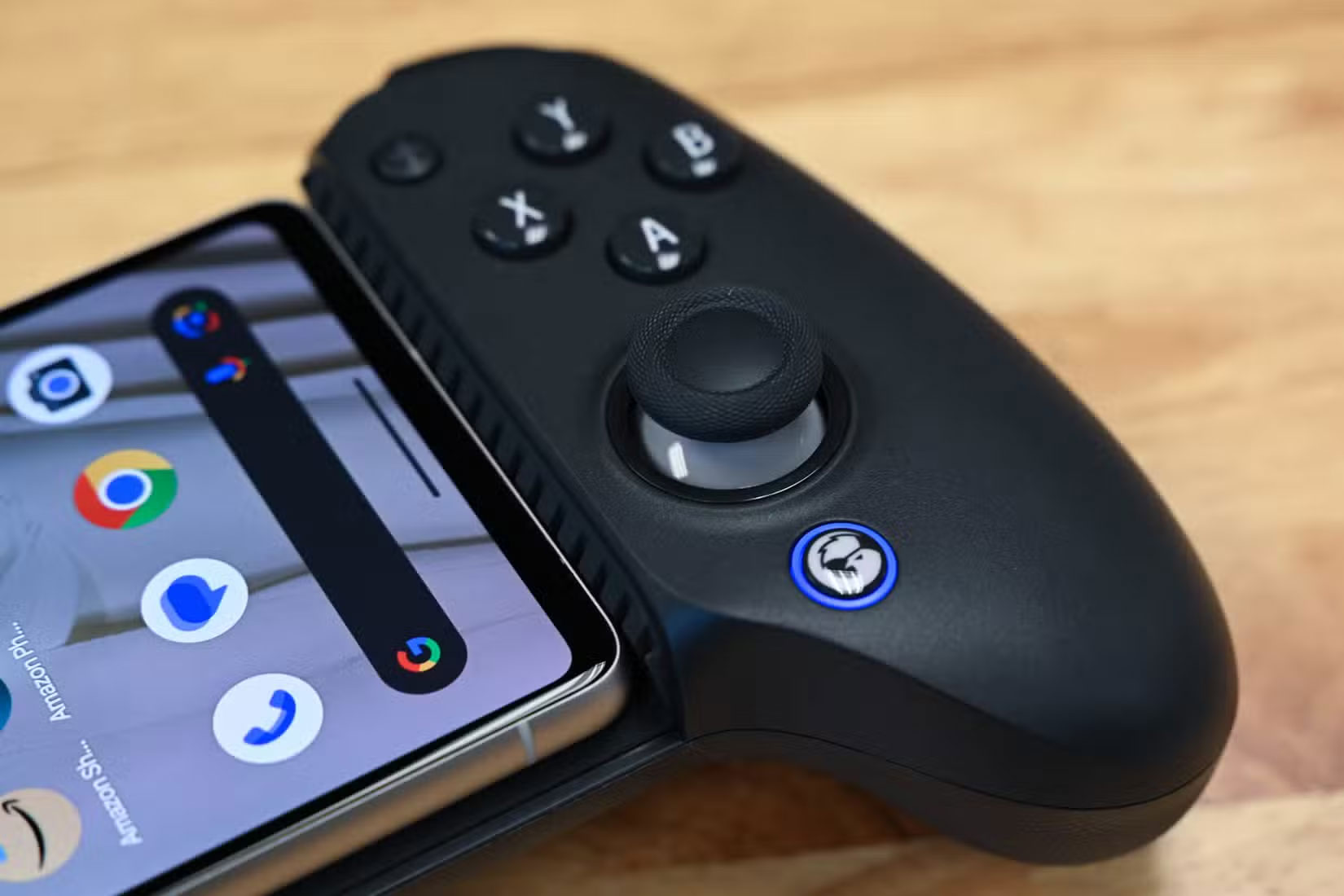
Try a USB controller, compatible microphone, or Ethernet adapter. It needs support from Android and, where applicable, from the game or recording app. Start with a data-capable cable and see how USB OTG connections work if the accessory isn’t recognized.
Related Articles
 6 simple tips to help your Samsung phone last for years
 10 Devices You Can Plug into the HDMI Port on Your Smart TV
 5 NotebookLM Tips for Better Source-Grounded Research
 9 tips to help you use Google apps to their full potential
 What is Type C charging port? Should I use it or not?
 7 Samsung Features You May Not Be Using for Better Photos
Reader Comments 0
Sign in with email or Google to join the discussion.