Table of Contents
This guide answers "Are You Using the Full Potential of the Buttons on Your Android Phone?" with a clear explanation, practical context, and the details that matter most.
7. The Basics
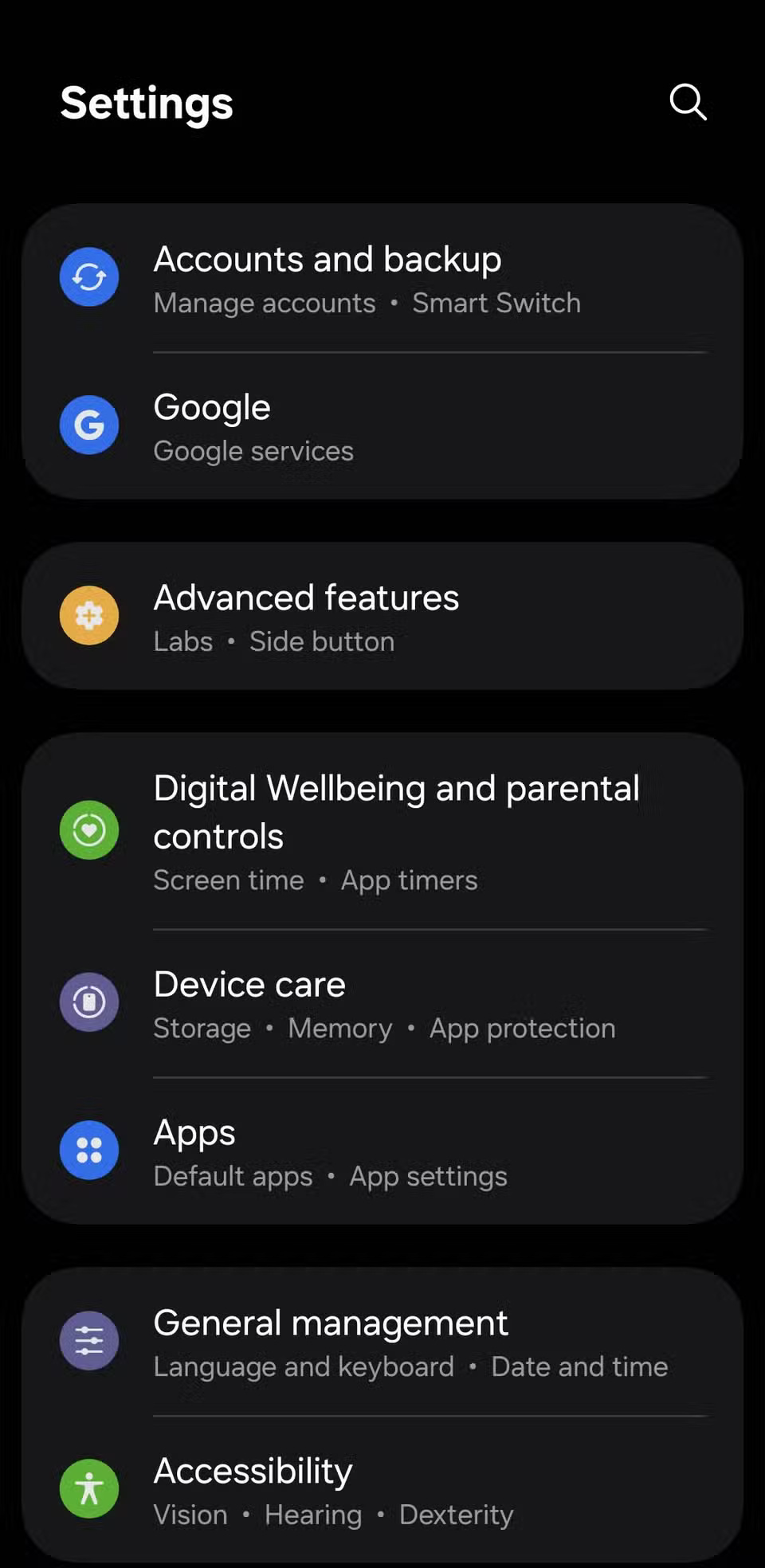
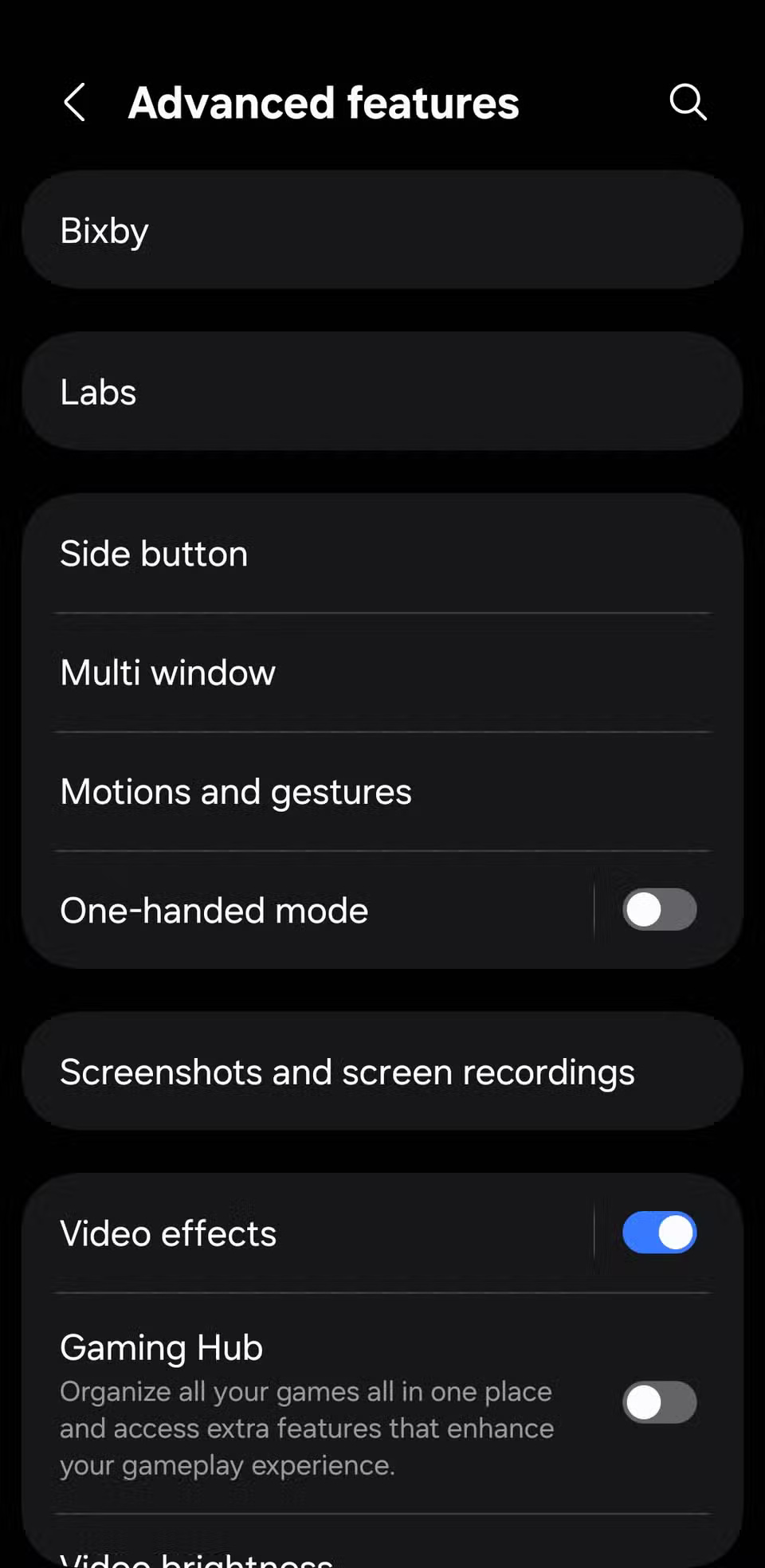
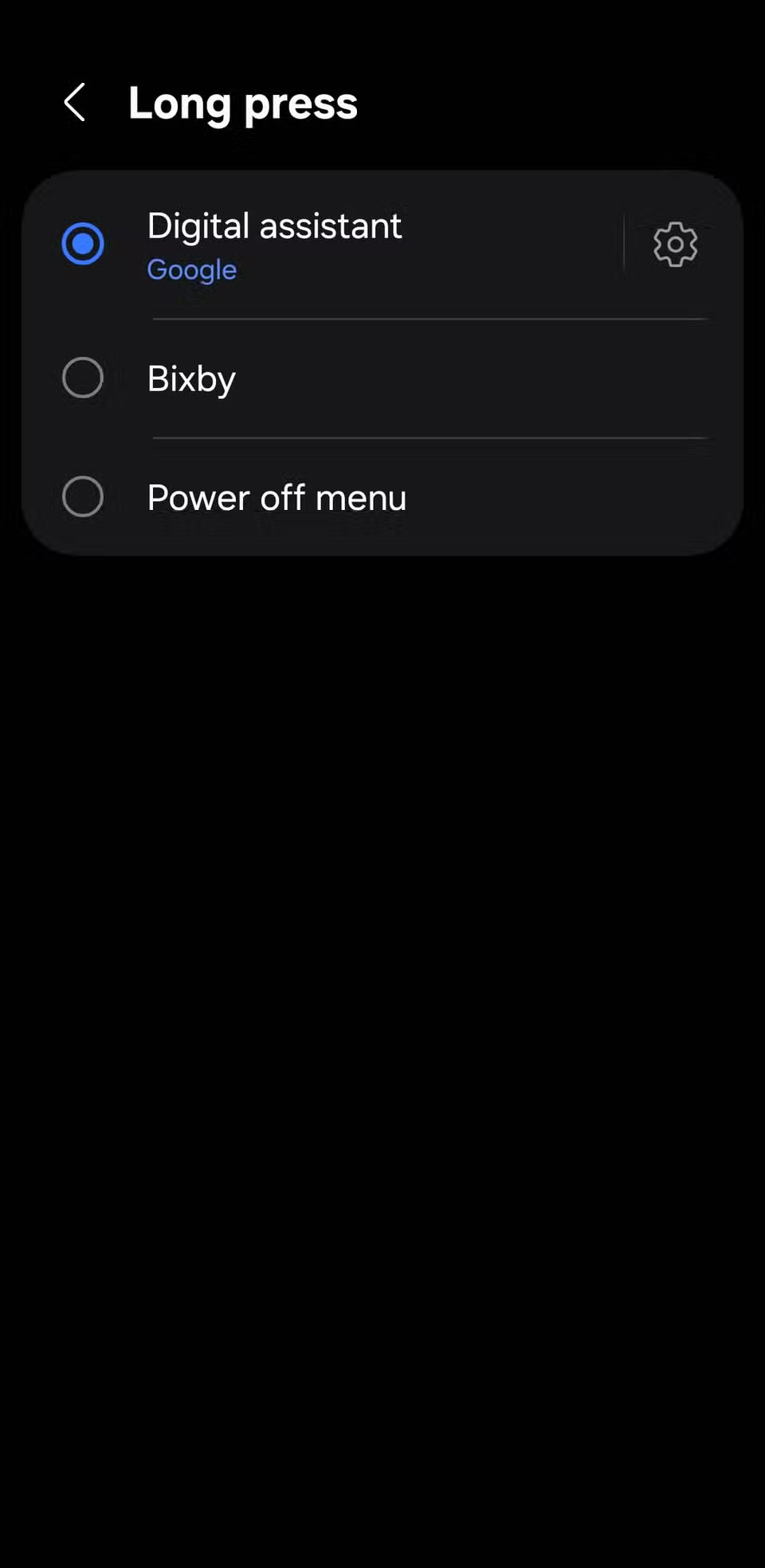
You already use the power button to lock and unlock your phone, but if you press and hold it, it won't power off your phone, but will instead launch your default digital assistant, be it Gemini, Bixby, or any other assistant. You can change which assistant is activated or disable this shortcut altogether by going to Settings > Advanced Features > Side Button > Long press .
If you hold down the power button and the volume down button at the same time, you'll see the power menu. From there, you can turn off your device, restart it, or boot into Safe Mode (by pressing and holding the Power Off icon).
6. Instant photography
The camera on your Android phone is capable of taking stunning photos and sharp videos. But not every moment requires you to unlock your screen, launch the camera app, and press the shutter button. For those blink-and-you-miss-it moments, your phone's physical buttons can come to your rescue.
On most Android devices, double-pressing the power button will instantly launch the Camera app. By default, this opens the rear camera, but you can customize it to launch the video camera, the front camera, or even portrait mode. Go to Settings > Advanced Features > Side Button > Double press , tap the gear icon next to Camera , and select the option you want.
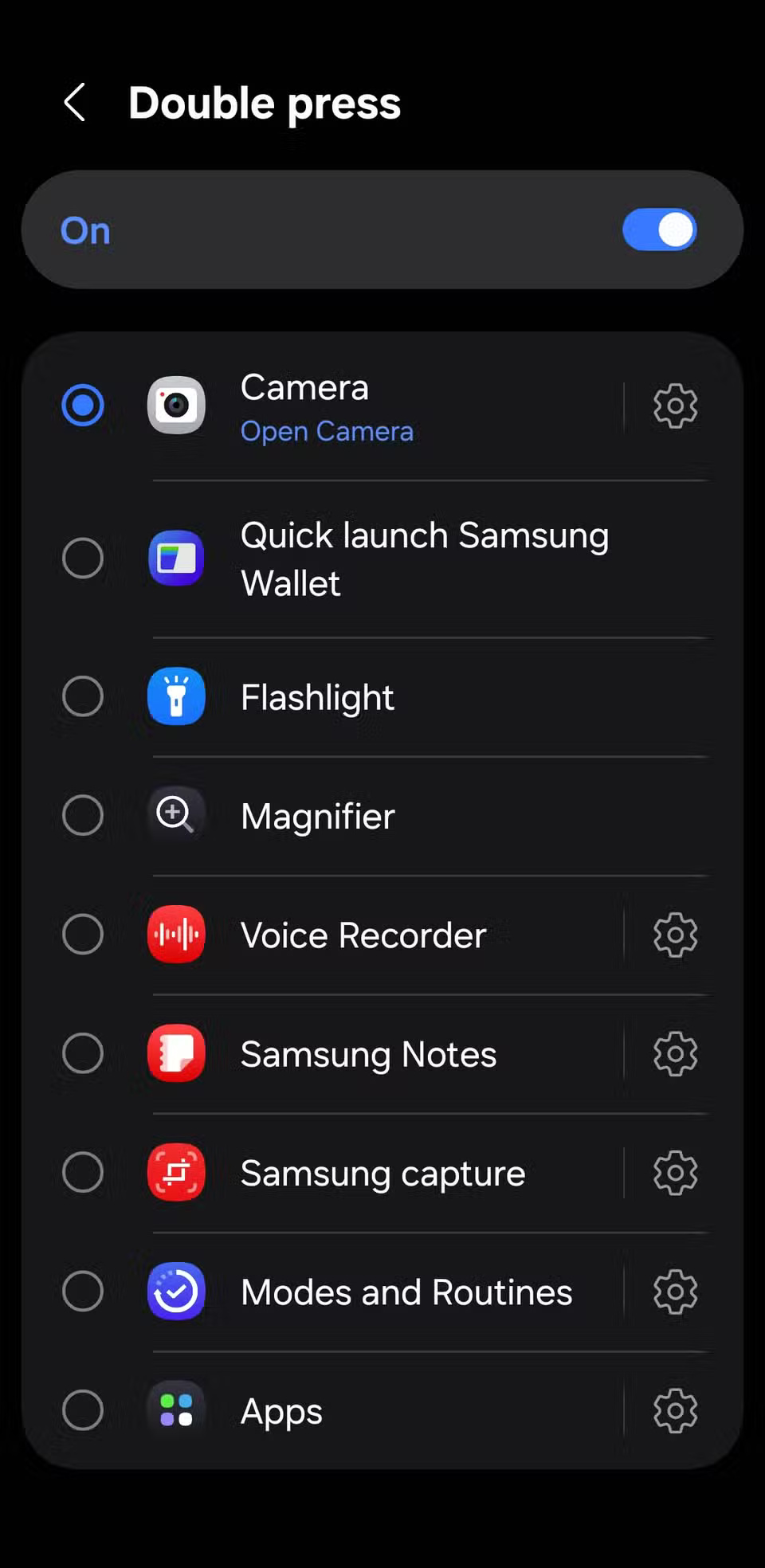

Once the camera opens, you don't need to press the shutter button; just press either volume button to take a photo. This is especially useful when you want to hold the phone steady or take a quick shot with one hand.
5. Activate emergency assistance quickly
In an emergency, every second counts. That's why Android phones come with built-in emergency features that let you act quickly when you need help most.
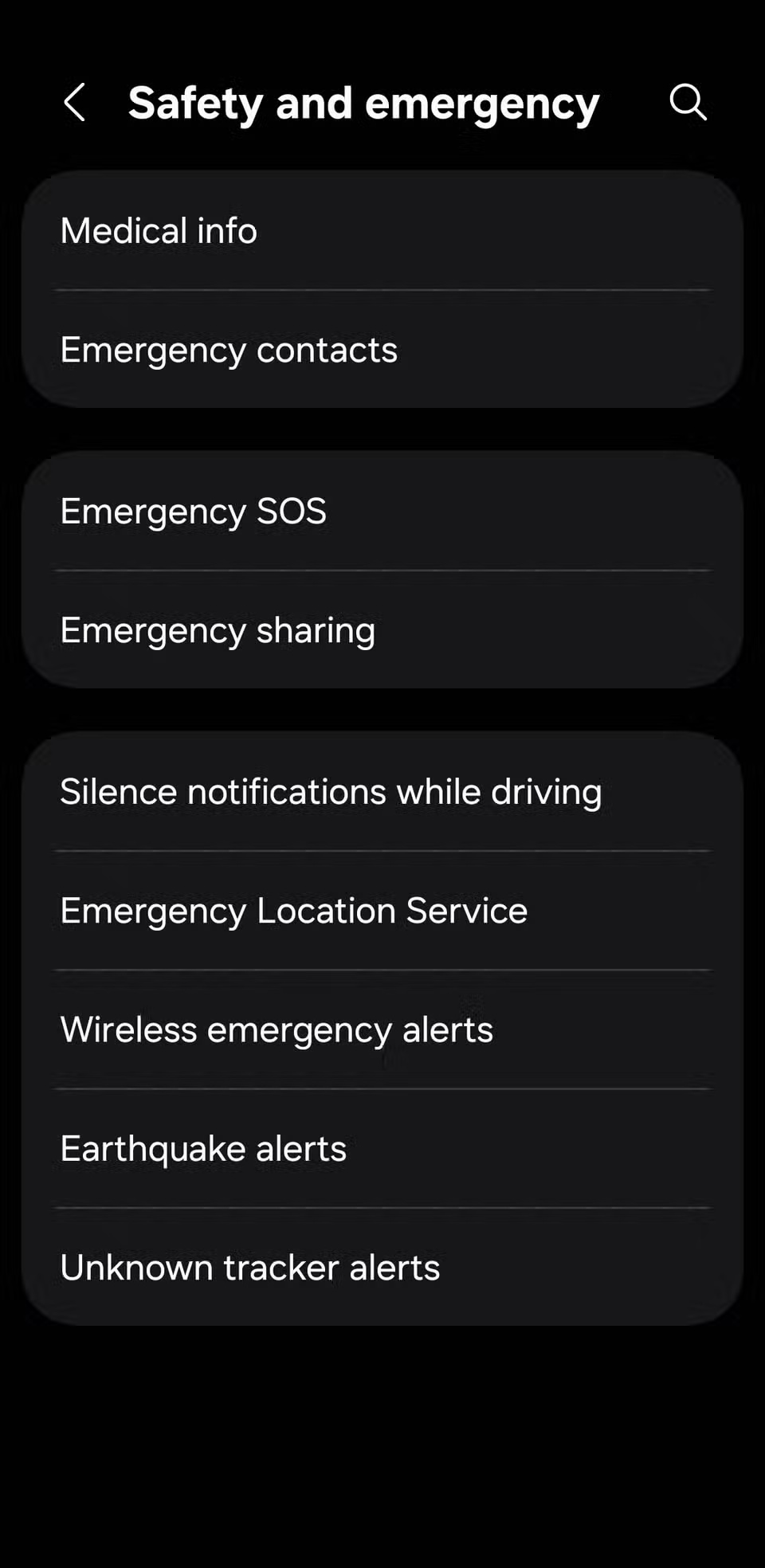
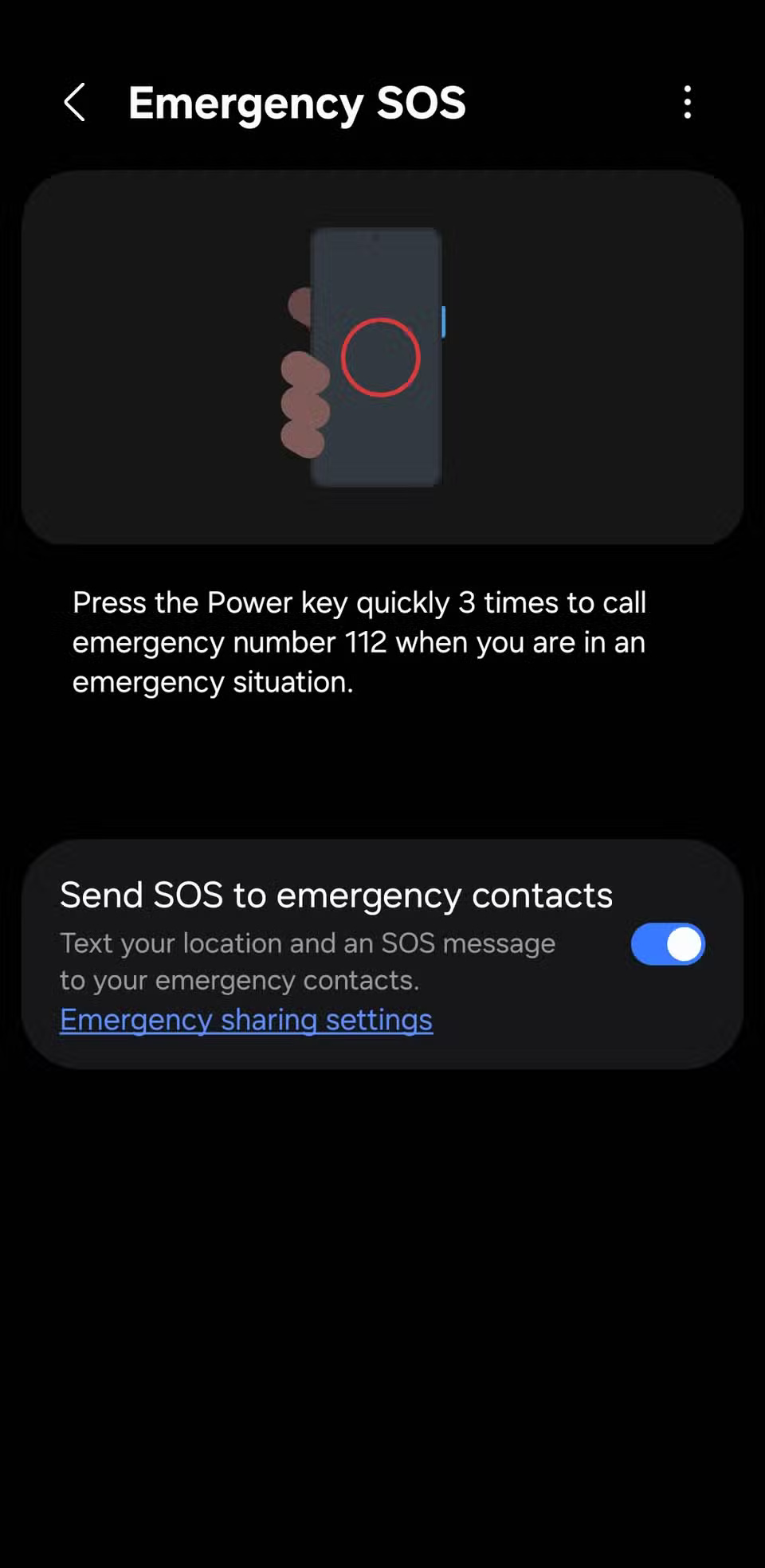
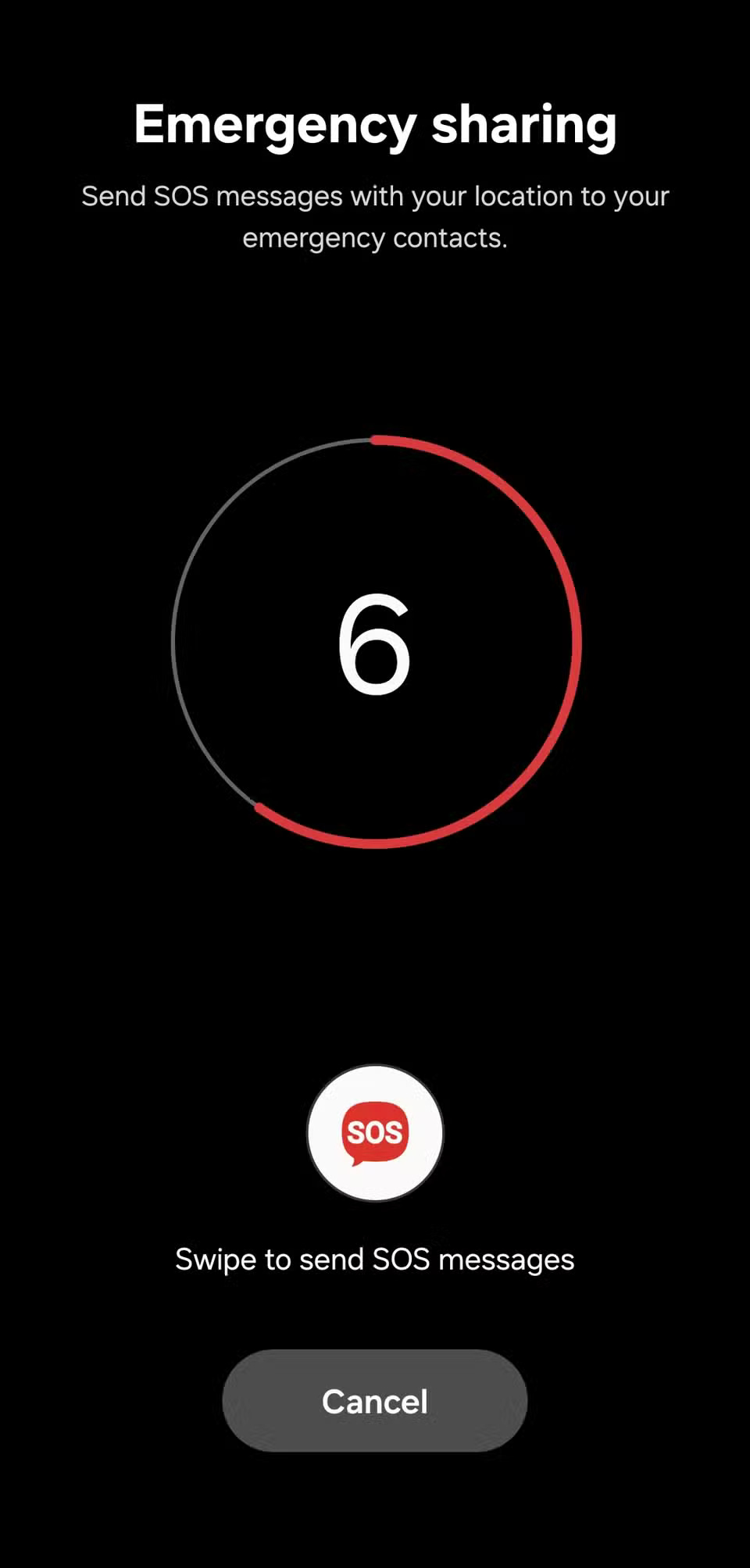
Simply press the power button 5 times quickly to activate the phone's Emergency SOS feature. If you're using a Samsung phone, just press it 3 times quickly. This will immediately start calling your local emergency number. If you have emergency contacts set up on your phone, it will also send them a text message with your real-time location.
4. Answer, end, or mute a call
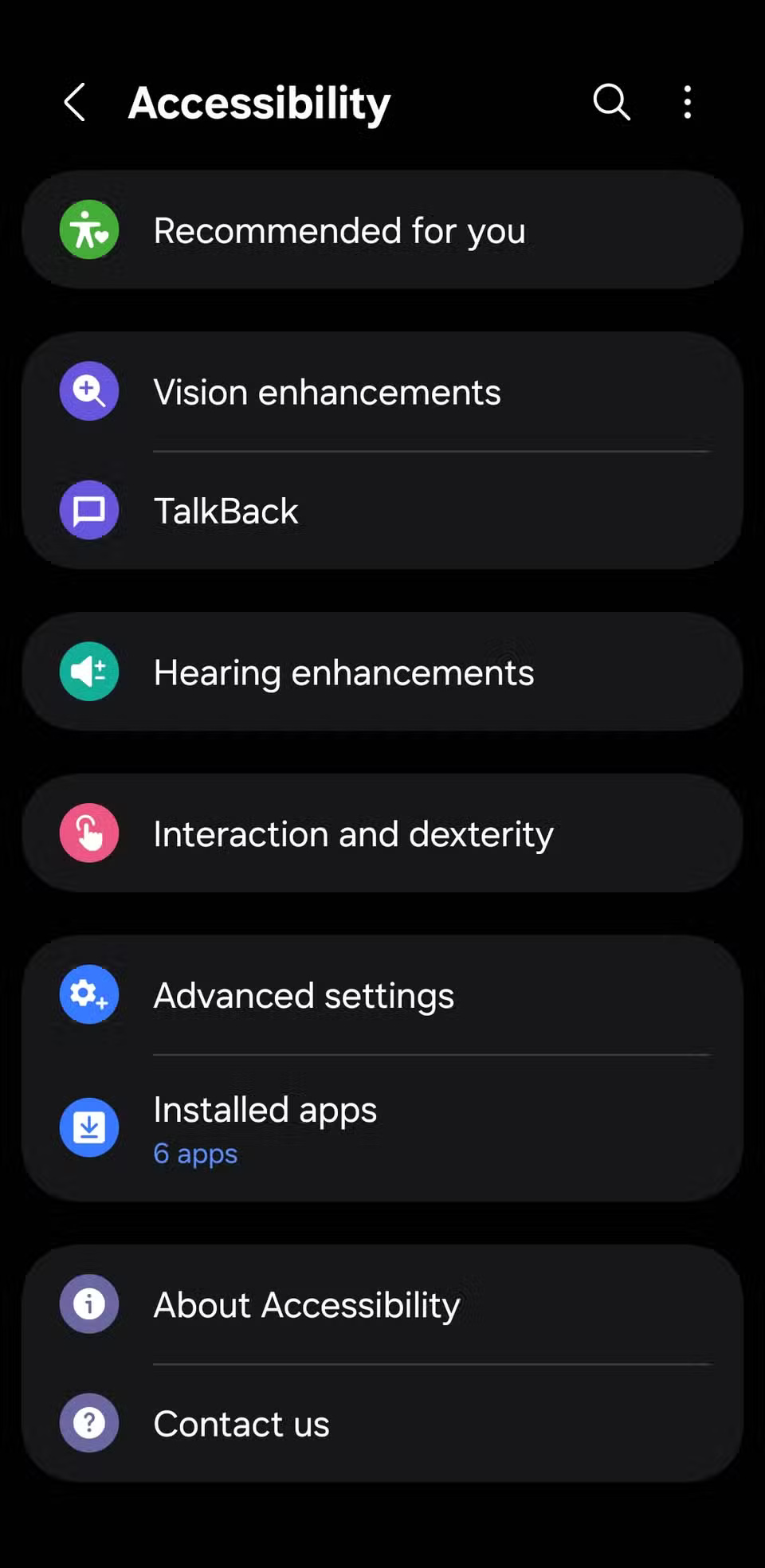
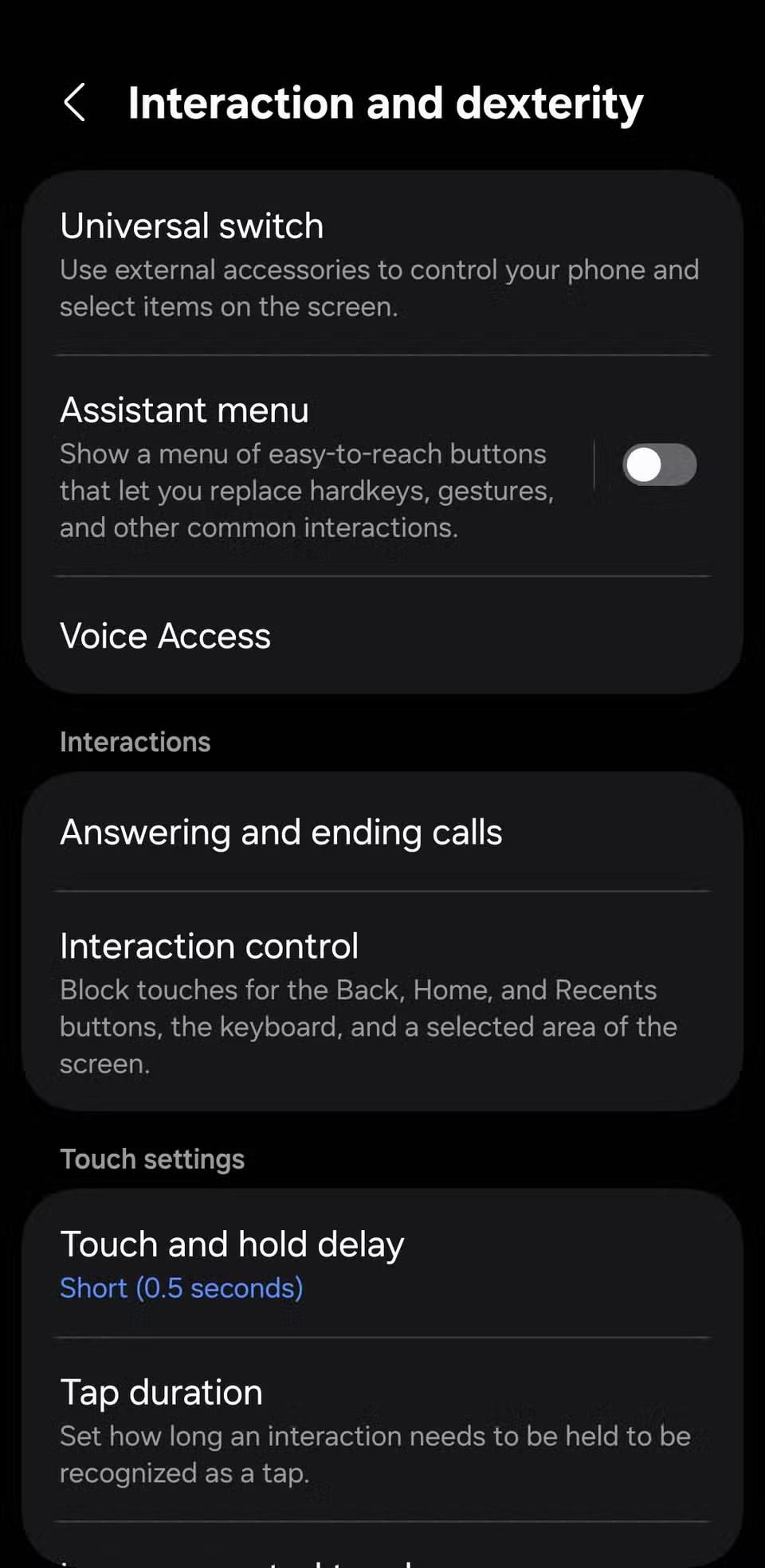
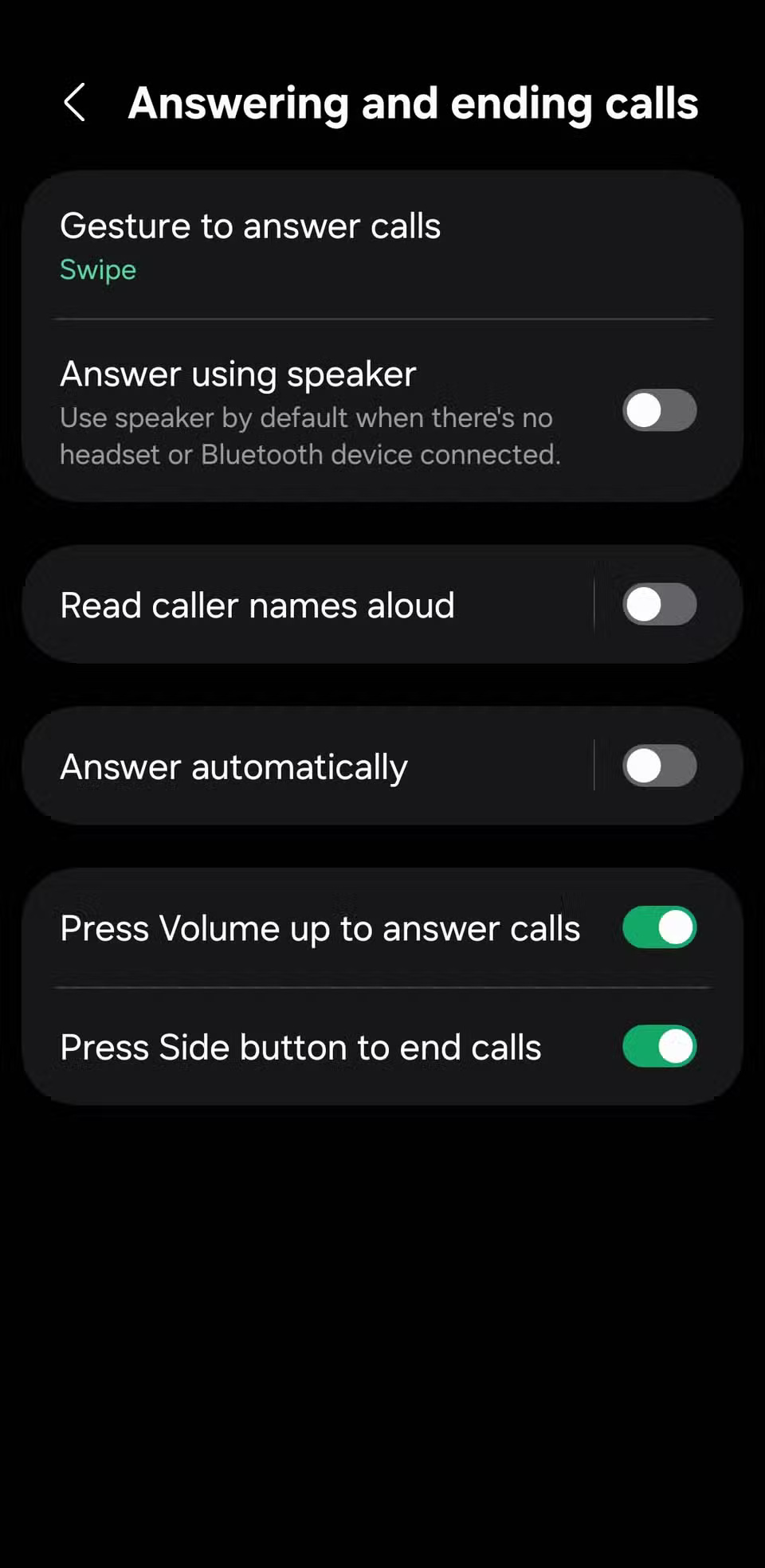
Answering or rejecting a phone call is usually simple, but what about when your hands are dirty, wet, or wearing gloves? Sure, if you're wearing a headset that supports call controls, you'll be protected. But if not, the physical buttons on your phone can handle calls just as easily.
When a call comes in, press either volume button to instantly silence the ringer. This is a quick way to silence an incoming call, even if your phone is still in your pocket.
And that's it; you can now manage your phone calls with just one tap. Just be careful not to accidentally hang up when you're about to turn off your screen!
3. Unlock hidden accessibility shortcuts
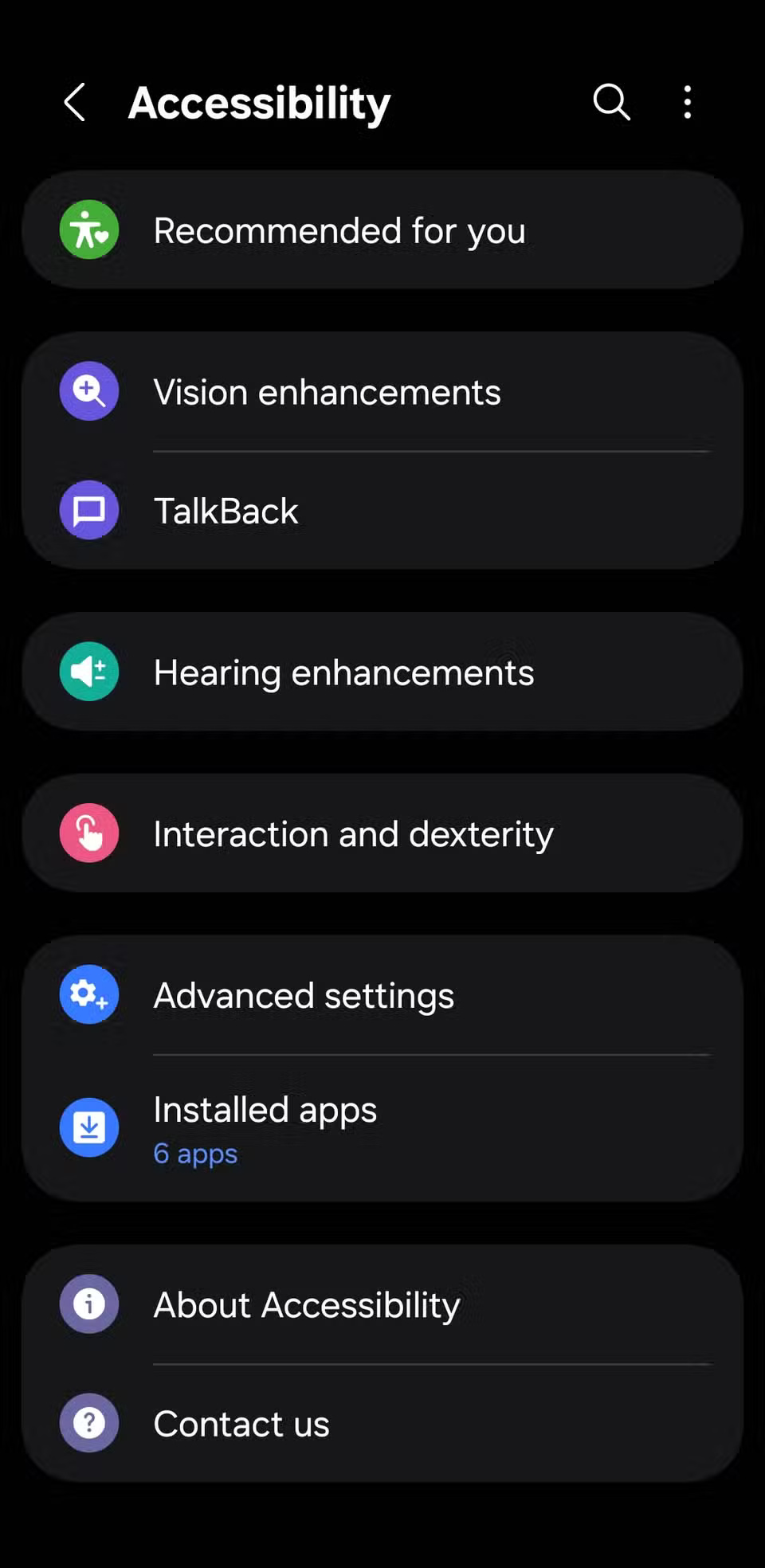
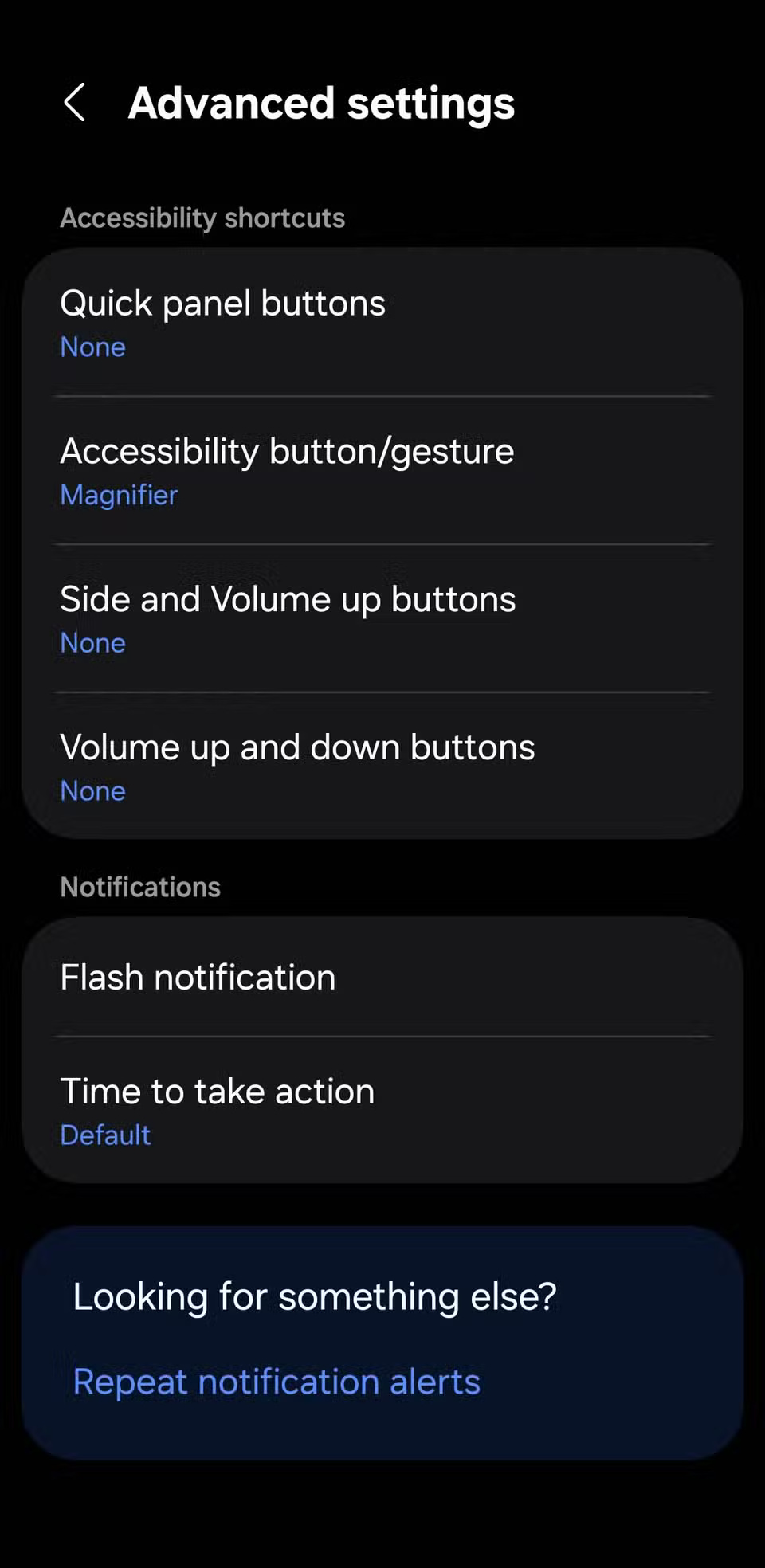
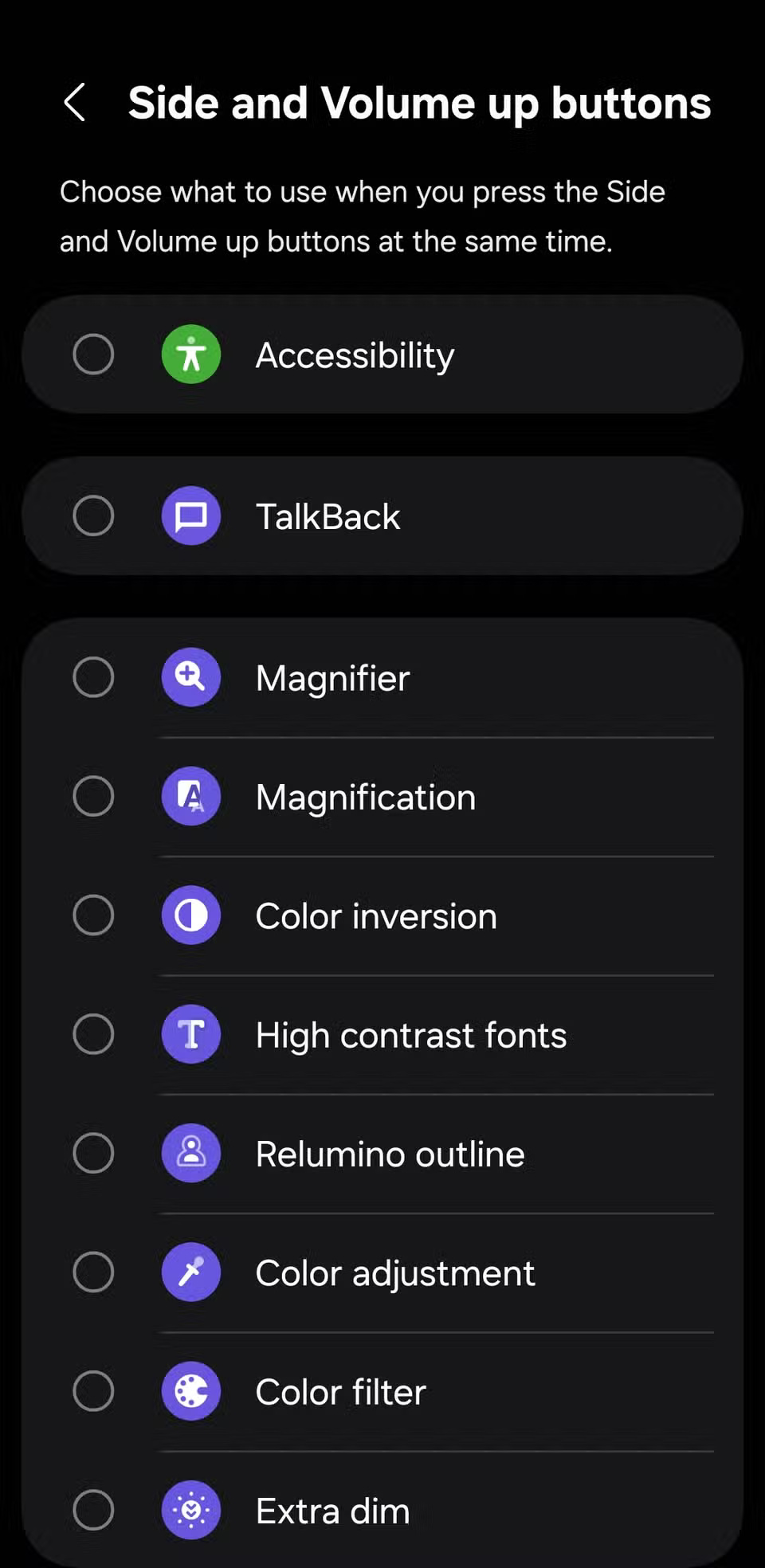
Android phones come with built-in accessibility features that are helpful to everyone. For example, Magnification turns your camera into a magnifying glass, while Extra dim reduces the screen brightness below the normal minimum. You also have Live Caption , which automatically adds captions to videos so you can enjoy them in noisy environments or when you need to turn down the volume.
And luckily, you don't have to dig through the settings menu every time you want to use these features. Instead, you can turn your phone's physical buttons into quick-access shortcuts.
2. Professional music control
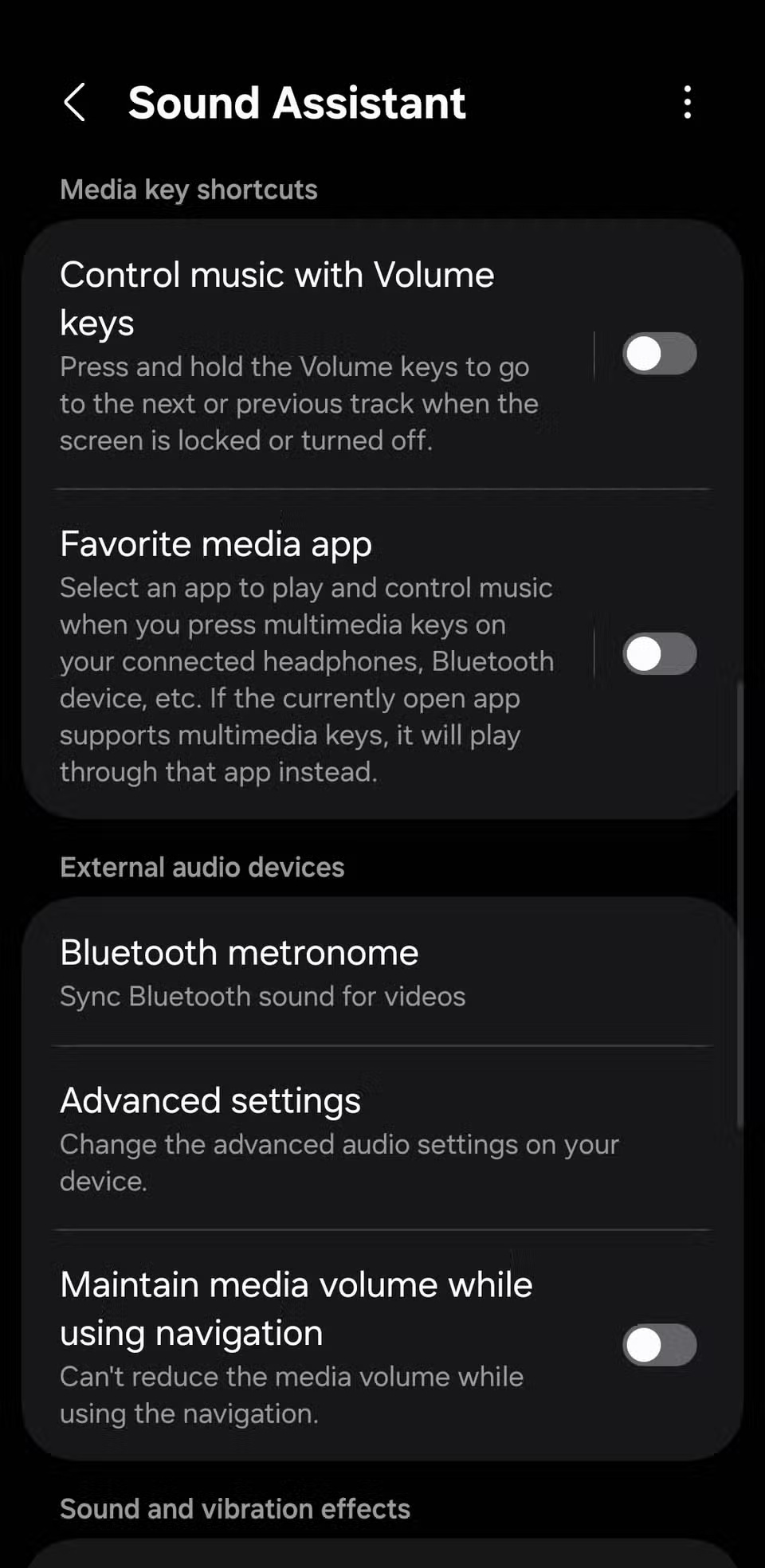
You don't have to wake your phone to skip tracks when listening to music or a podcast; pressing and holding the volume buttons on your phone can help you do that. By default, Android doesn't let you skip tracks using the volume keys, but that's easy to change with an app.
If you're using a Samsung Galaxy phone, download the Sound Assistant app from the Galaxy Store. Once you've set it up, turn on the Control music with Volume keys option. You can then choose to hold the volume up button to skip to the next or previous song, and do the same with the volume down button.

1. Customize buttons to do almost anything
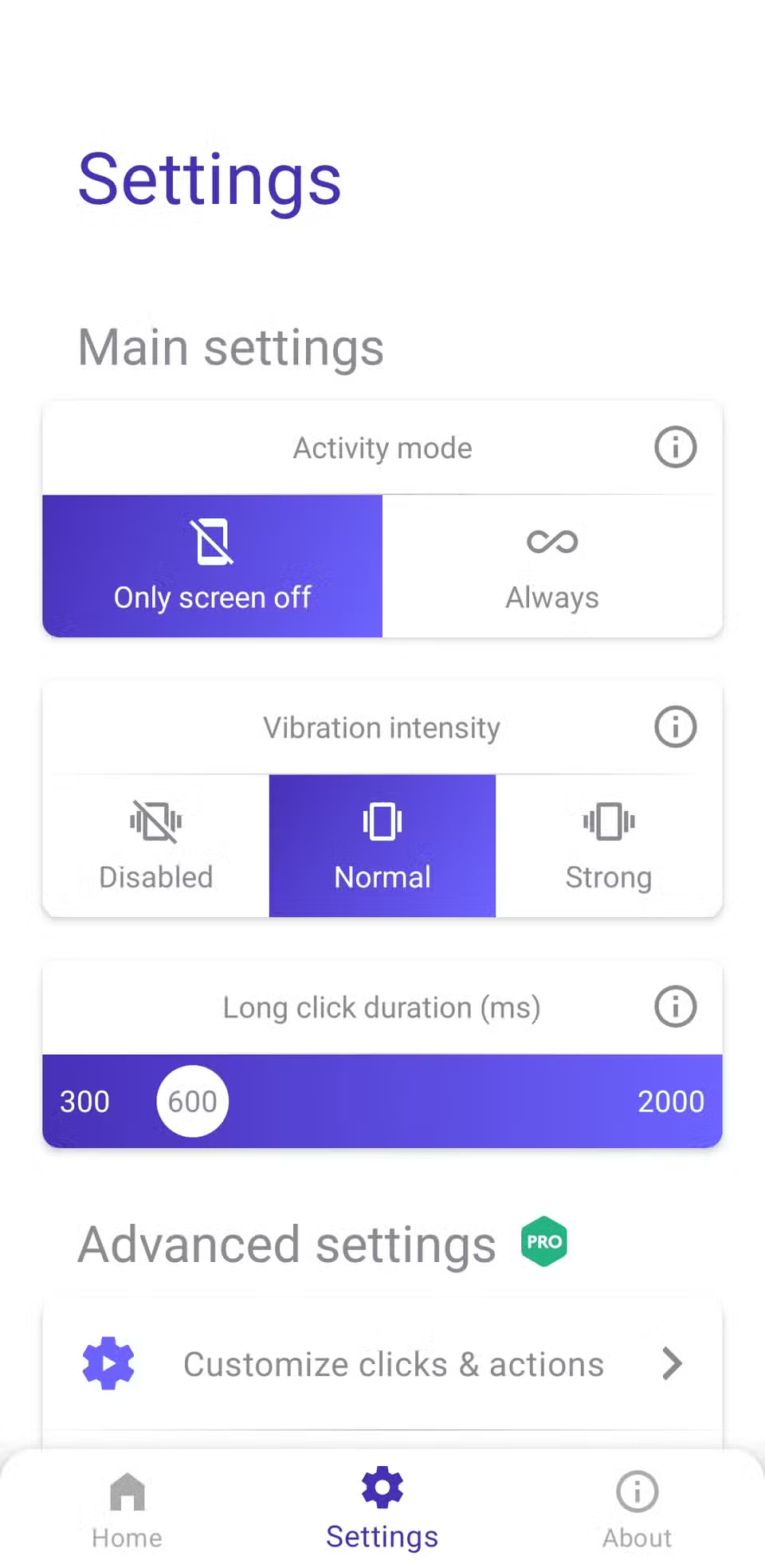
If some of the previously mentioned shortcuts are not available on your phone, or if you want complete control over the functionality of your buttons, download the Button Mapper app from the Play Store.
Once set up, Button Mapper lets you assign custom actions to almost any button on your device, including volume up, volume down, and even the button on your headphones. You can set different actions for a single tap, double tap, and long press.
To get started, open the app and tap the button you want to customize. Next, choose the tap type — single, double, or long press — and then assign an action.
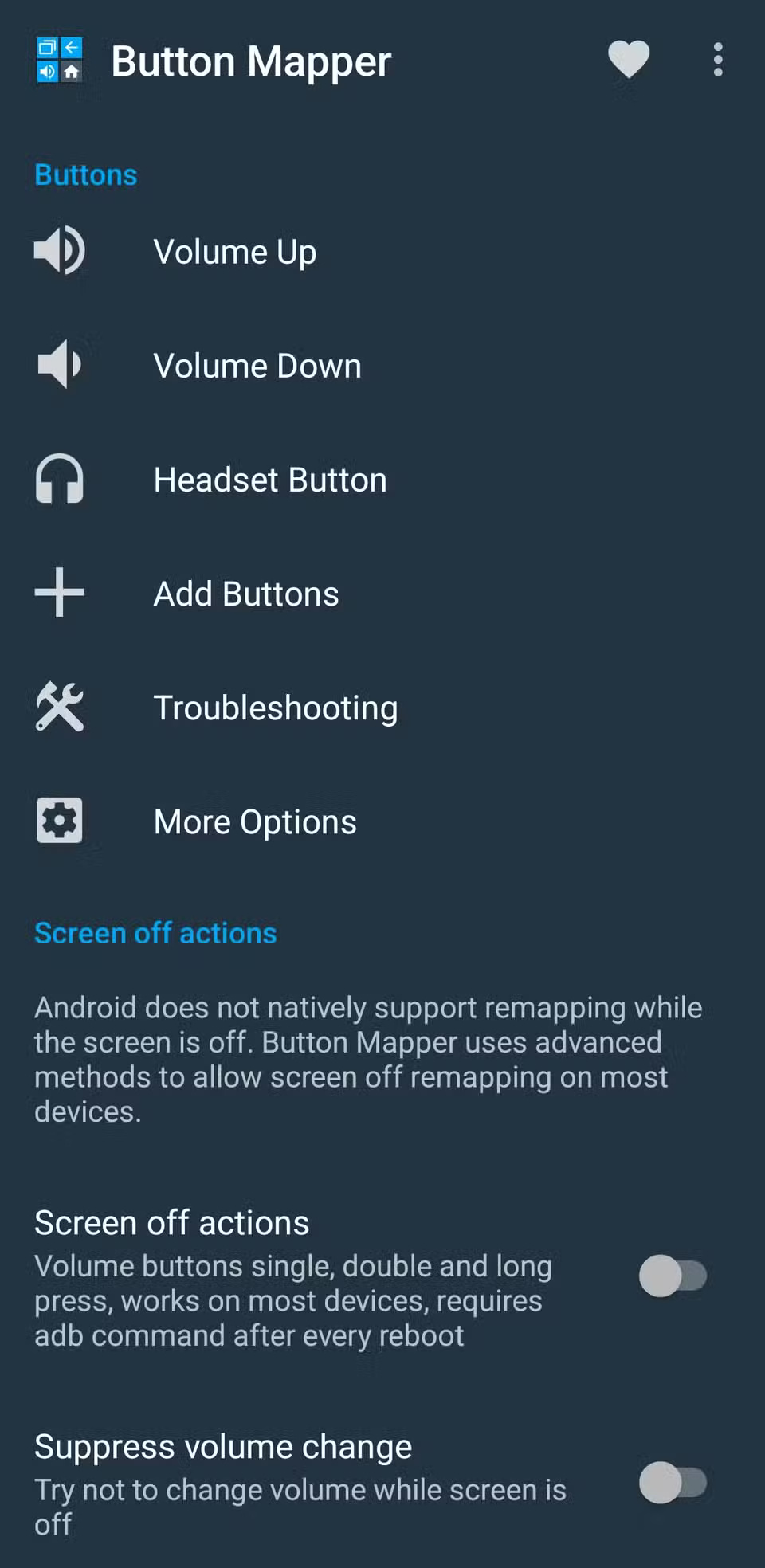
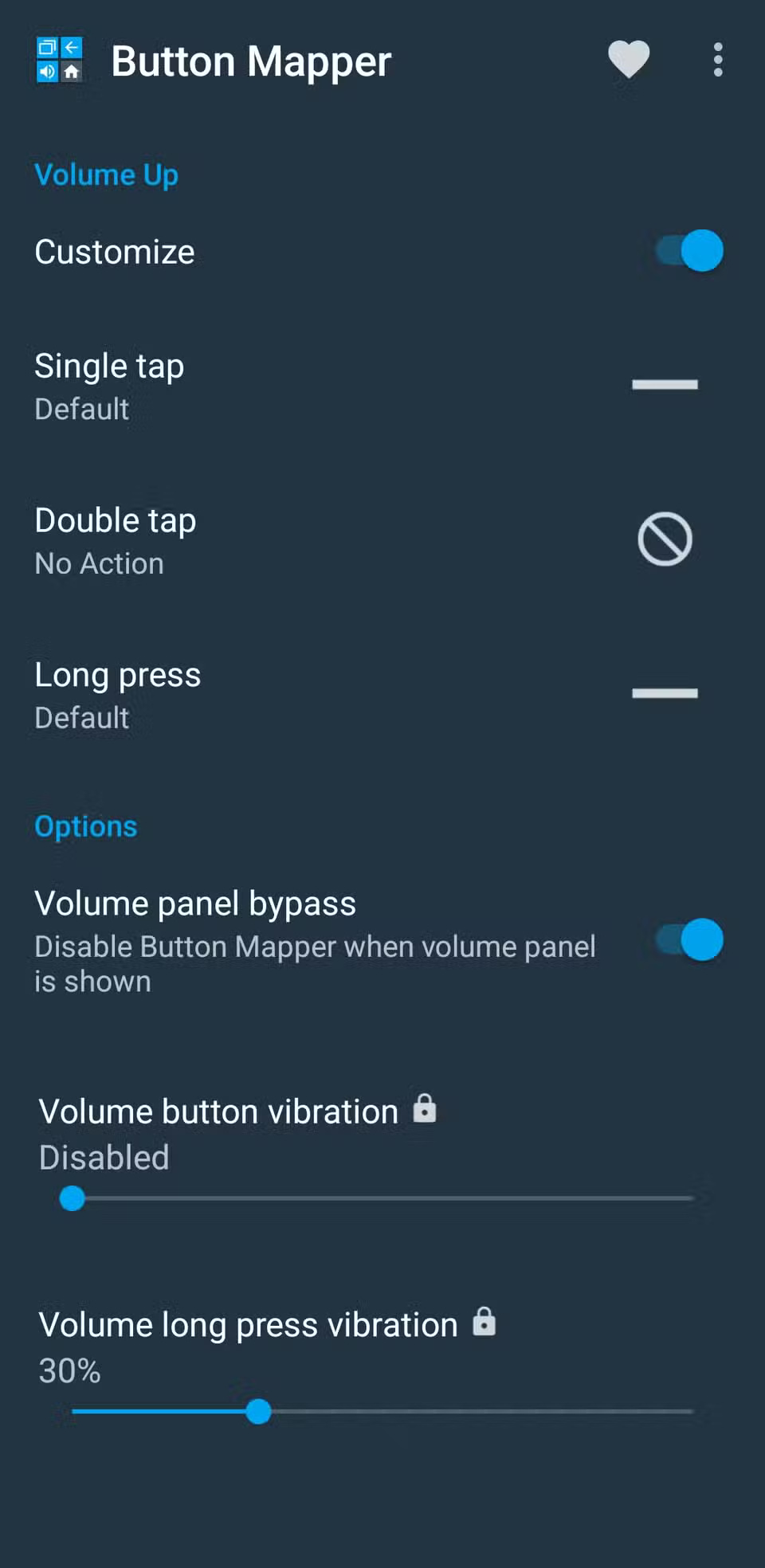
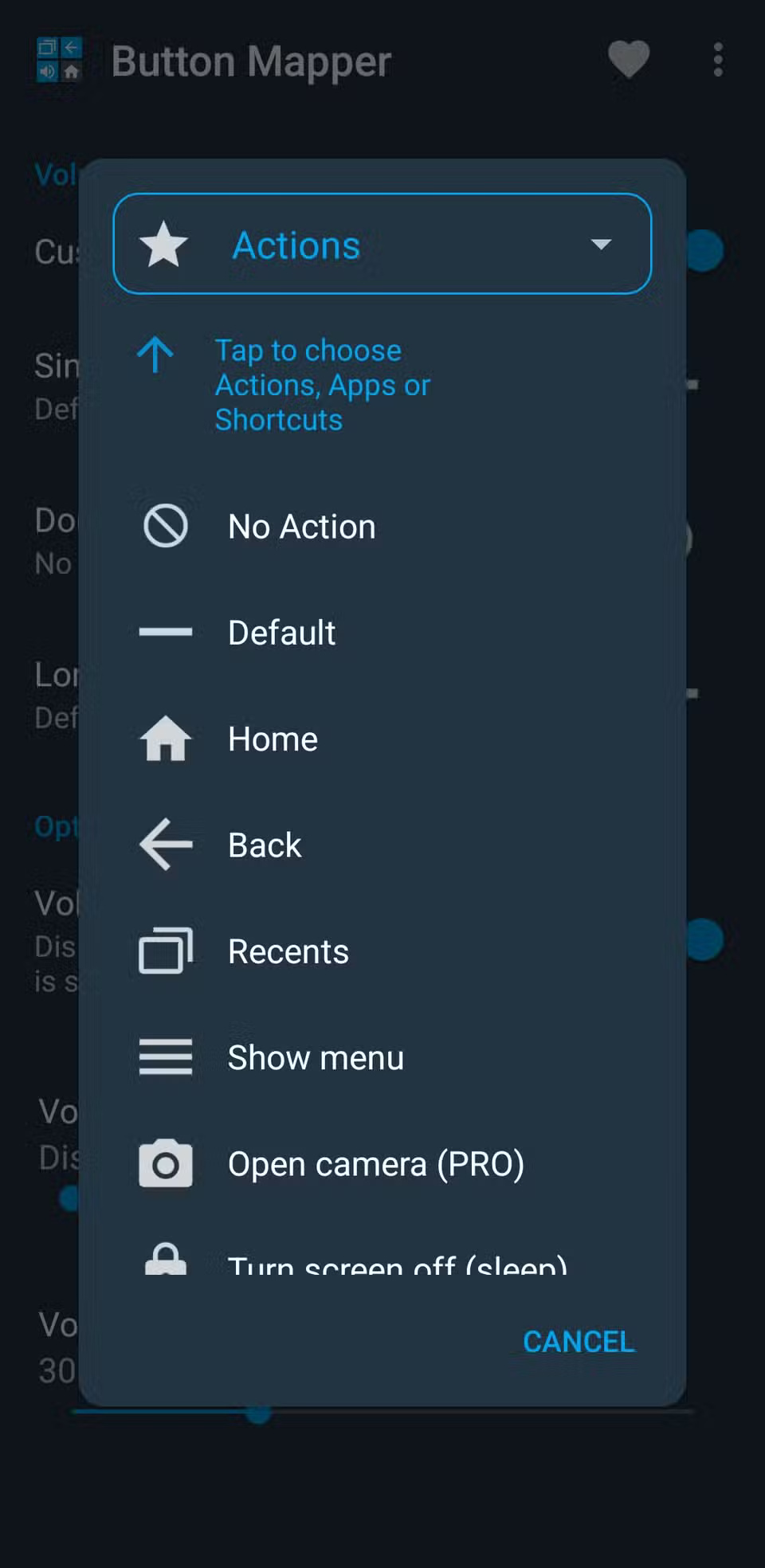
You can use a button to open recent apps, launch your favorite app, call a specific contact, enable Do Not Disturb mode, or even jump straight to a WhatsApp chat. There are a lot of options to explore, so it all depends on how creative you are.
FAQ
What should you know about 7. The Basics?
You already use the power button to lock and unlock your phone, but if you press and hold it, it won't power off your phone, but will instead launch your default digital assistant, be it Gemini, Bixby, or any other assistant. You can change which assistant is activated or disable this shortcut altogether by going to Settings >.
What should you know about 6. Instant photography?
The camera on your Android phone is capable of taking stunning photos and sharp videos. But not every moment requires you to unlock your screen, launch the camera app, and press the shutter button. For those blink-and-you-miss-it moments, your phone's physical buttons can come to your rescue.
What should you know about 5. Activate emergency assistance quickly?
In an emergency, every second counts. That's why Android phones come with built-in emergency features that let you act quickly when you need help most.
What should you know about 4. Answer, end, or mute a call?
Answering or rejecting a phone call is usually simple, but what about when your hands are dirty, wet, or wearing gloves? Sure, if you're wearing a headset that supports call controls, you'll be protected. But if not, the physical buttons on your phone can handle calls just as easily.
Related Articles
 7 Android Apps That Make the Most of Physical Buttons on Your8 minutes read
 Android Phone Full of Memory, What to Do to Fix?5 minutes read
 Tips to Exploit the Full Potential of the USB Port on Samsung Phones7 minutes read
 Tips to Make the Buttons on Your Samsung Phone Much More Useful8 minutes read
 Sentons Works with Foxconn, Seeking to Completely Eliminate3 minutes read
 Here's What the Buttons on Your iPhone Can Actually Do!10 minutes read
Reader Comments 0
Sign in with email or Google to join the discussion.