Table of Contents
PhET's Vector Addition simulation lets students drag vectors onto a graph, inspect their components, and compare a calculated result with a visual model. It is an interactive mathematics and physics simulation from the University of Colorado Boulder—not an AI generator—and it can be opened directly in a modern browser.
Open Vector Addition
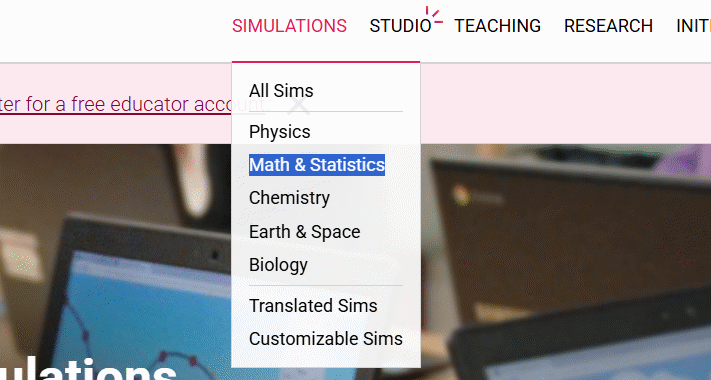
Go to the official Vector Addition page. You can also start from the PhET home page, choose Simulations, filter for Math & Statistics, and select Vector Addition.
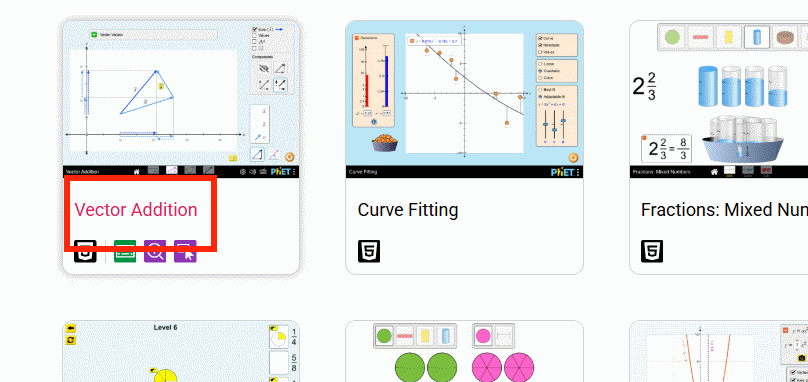
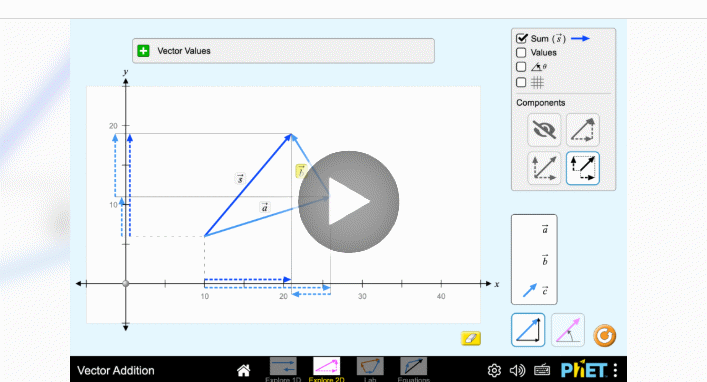
Select the play button to launch the HTML5 simulation. An account is not required simply to run the public simulation, although PhET may offer sign-in features for teachers and saved resources.
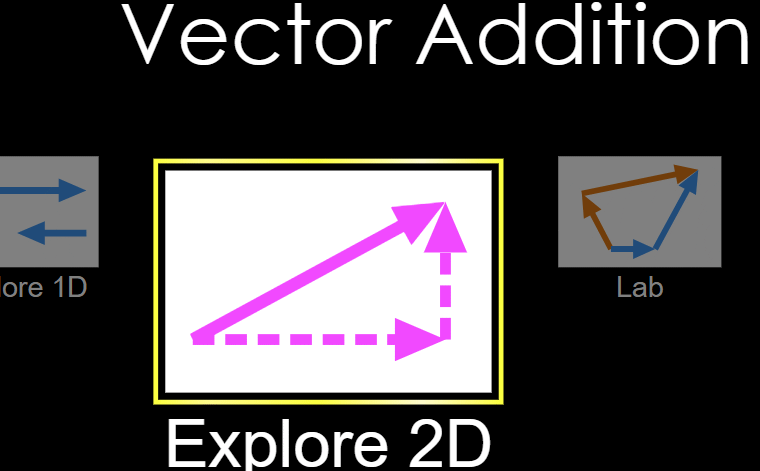
Choose a 1D or 2D workspace
PhET supports one-dimensional and two-dimensional vector exploration. Choose a 2D screen when students need to work with horizontal and vertical components on a coordinate plane.
Before adding a vector, decide which convention the class will use: Cartesian components (x, y) or polar form with magnitude and direction. State whether angles are measured from the positive x-axis and whether counterclockwise angles are positive.
Place and adjust a vector
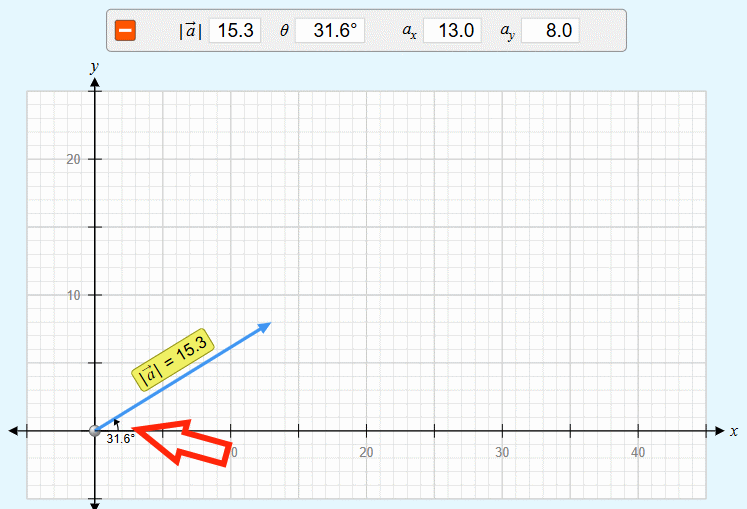
Drag a vector from the tool area onto the graph. Move its head or tail until the displayed components match the problem. For a vector v = (x, y), the horizontal component is x and the vertical component is y.
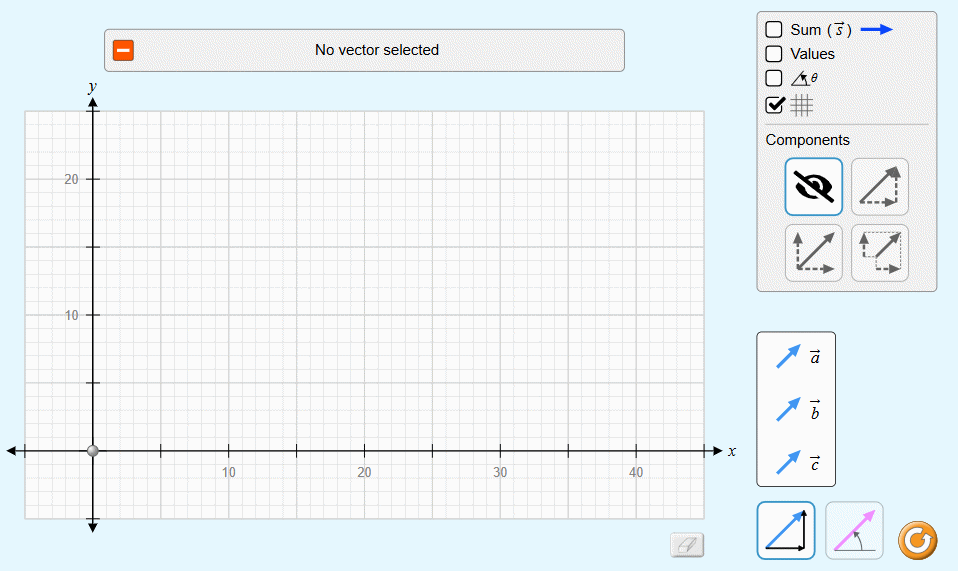
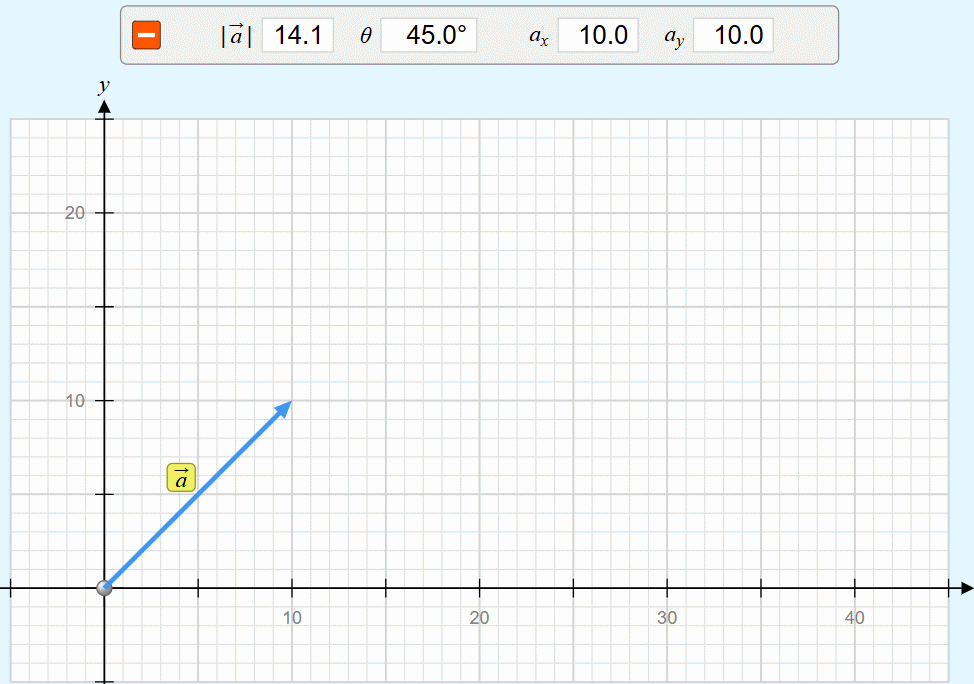
Ask students to predict the magnitude before displaying it:
|v| = √(x² + y²)
For example, a vector with components (3, 4) has magnitude 5. Students should also identify the quadrant before calculating the direction; this prevents an inverse-tangent result from being placed in the wrong quadrant.
Reveal values and angles
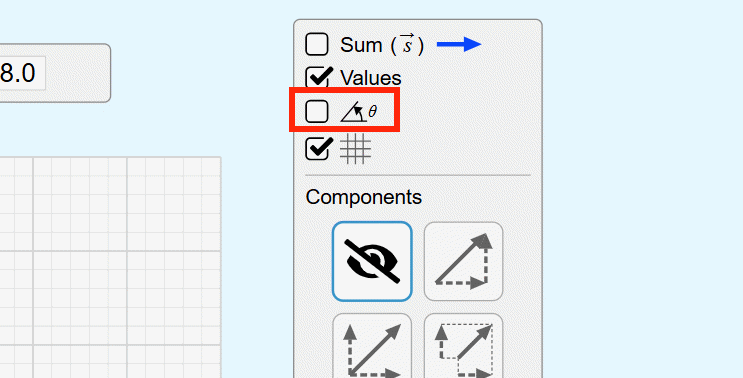
Turn on Values to show numerical information in the graph area. Compare the displayed magnitude with the students' calculation, including units and rounding.
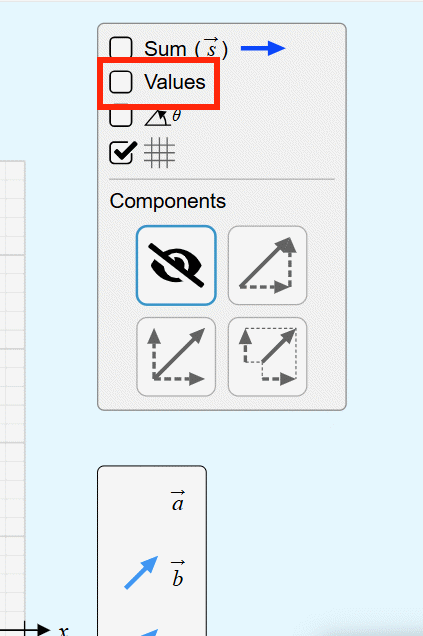
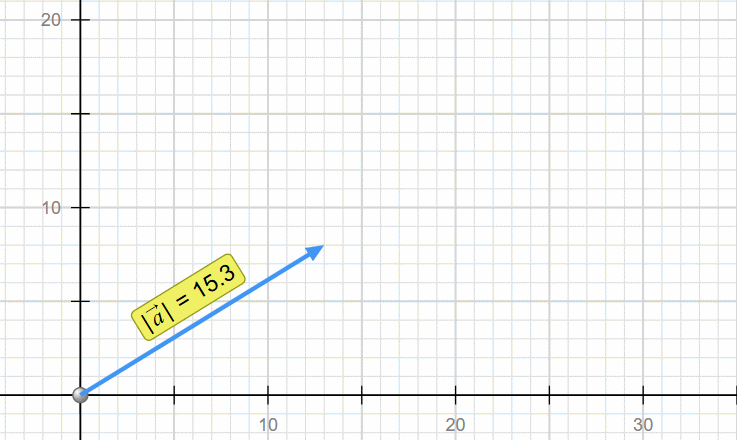
Enable the angle display to inspect the vector's direction. A calculator's atan2(y, x) function is safer than using tan⁻¹(y/x) alone because it preserves quadrant information; students should still check the simulation's angle convention.
Explore vector addition
Add a second vector and ask students to calculate the sum component by component:
a + b = (ax + bx, ay + by)
Turn on the vector-sum display only after students have made a prediction. Use head-to-tail placement to connect the geometric construction with the component calculation. Then move one vector and ask which parts of the result change.
A short classroom activity
- Give each group a vector in Cartesian form and have them calculate its magnitude and angle.
- Plot the vector in PhET and resolve any difference caused by sign, scale, quadrant, or rounding.
- Add a second vector and predict the resultant.
- Display the vector sum and explain the result using both components and geometry.
- Create a different pair of vectors with the same resultant and explain why the sum is unchanged.
The last task moves beyond button-following and checks whether students understand that many component pairs can produce the same resultant.
Troubleshooting
- The vector will not land on the expected value: check the graph scale and drag the head carefully.
- The angle appears different: confirm the reference axis, rotation direction, and whether the answer is in degrees or radians.
- The sum seems wrong: check the signs of the x- and y-components before adding magnitudes.
- The page does not load: use a current version of Chrome, Firefox, Safari, or Edge, as recommended by PhET.
PhET's direct HTML5 simulation can be useful when the main information page adds extra navigation. For other classroom technology options, see TipsMake's free educational apps and learning software for students.
Related Articles
 Guide to Creating Visual Simulations Using Muse Spark on Meta AI4 minutes read
 Guide to Creating Realistic Working Circuit Simulations4 minutes read
 Transform Experiment Images into Visual Experiments in Canva3 minutes read
 Create Interactive Simulations of Mathematical Concepts on ChatGPT5 minutes read
 How to Create Mind Maps Using AI4 minutes read
 Create and Work with Vector Graphics in Photoshop15 minutes read
Reader Comments 0
Sign in with email or Google to join the discussion.