Table of Contents
Gamma can generate a standalone infographic from a text description and then refine it with editing tools or follow-up instructions. The quality of the result depends on the source information and structure you provide; visual polish does not make an unsupported statistic accurate.
Interface note: The screenshots below show Gamma's earlier Graphics workflow. Gamma now also offers Imagine, a dedicated design canvas for infographics, posters, and other visual assets. Button names may differ between accounts.
1. Start a graphic
Sign in at Gamma and choose Create New. In the current interface, open the Graphics area and start an Imagine design if it is available. In the earlier interface shown here, choose Create and then Graphics.
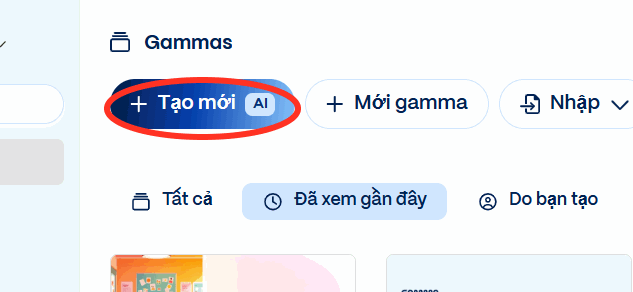
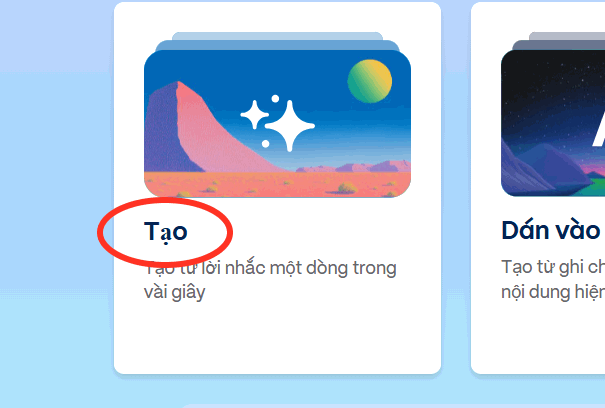
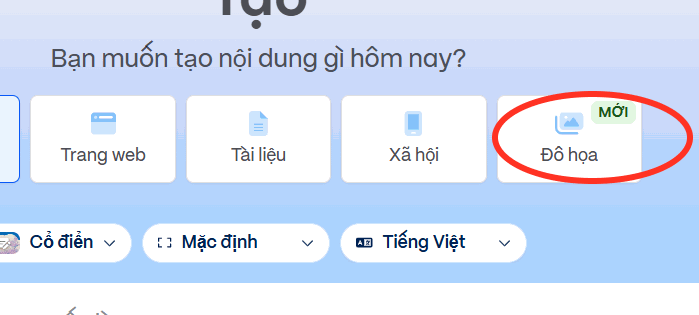
Gamma's Imagine help page says the design canvas uses credits and is not available on every plan. Check the current controls and plan details in your workspace.
2. Choose Infographic and define the content
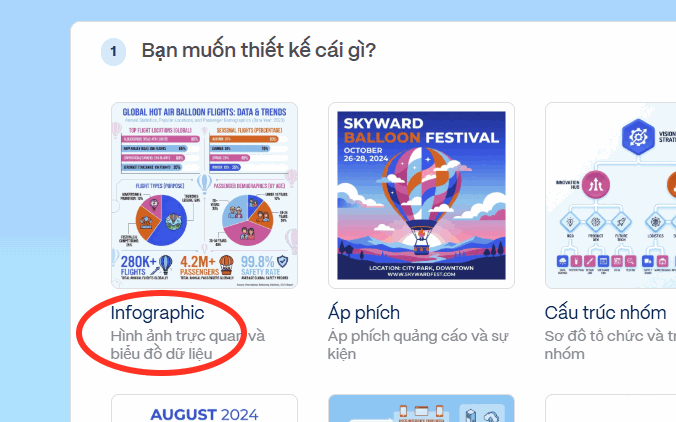
Select Infographic. Decide the audience, purpose, output size, number of sections, and information hierarchy before choosing colors or illustration style.
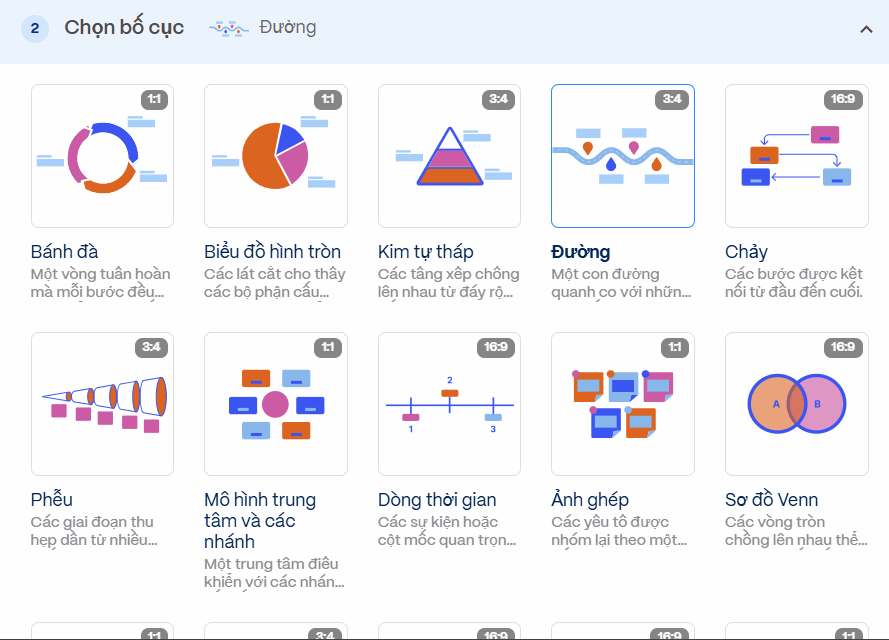
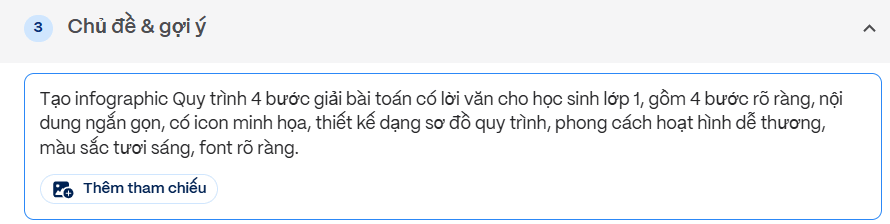
Prepare a verified content outline first. A process infographic might contain one title, a one-sentence explanation, four numbered steps, and a short source note. Do not ask Gamma to invent facts simply to fill the layout.
3. Write a specific prompt
A strong prompt separates required copy from design direction. For example:
Create a portrait infographic titled “Four Steps for Solving a Grade 1 Word Problem.” Use exactly these four steps: 1) Read the problem—identify what is known and what is being asked; 2) Analyze—choose addition or subtraction; 3) Calculate—write and solve the number sentence; 4) Answer—write a complete sentence with the correct unit. Audience: first-grade students. Use a simple top-to-bottom flow, one clear icon per step, large readable type, high contrast, and a friendly blue, yellow, and green palette. Do not add statistics, extra steps, or decorative text. Keep every step under 20 words.
If you include numbers, claims, quotations, or instructions, provide the approved wording and source. Gamma's job is to visualize the material, not validate it.
4. Select layout and art direction
Choose a layout that matches the relationship in the content: a sequence for steps, a comparison for alternatives, a hierarchy for levels, or a timeline for dated events. Then select an illustration style and aspect ratio suitable for the destination.
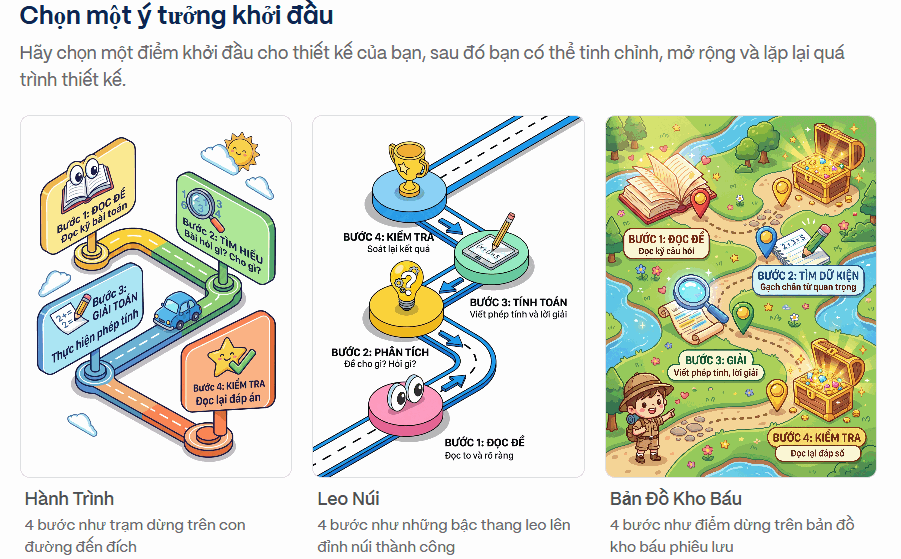
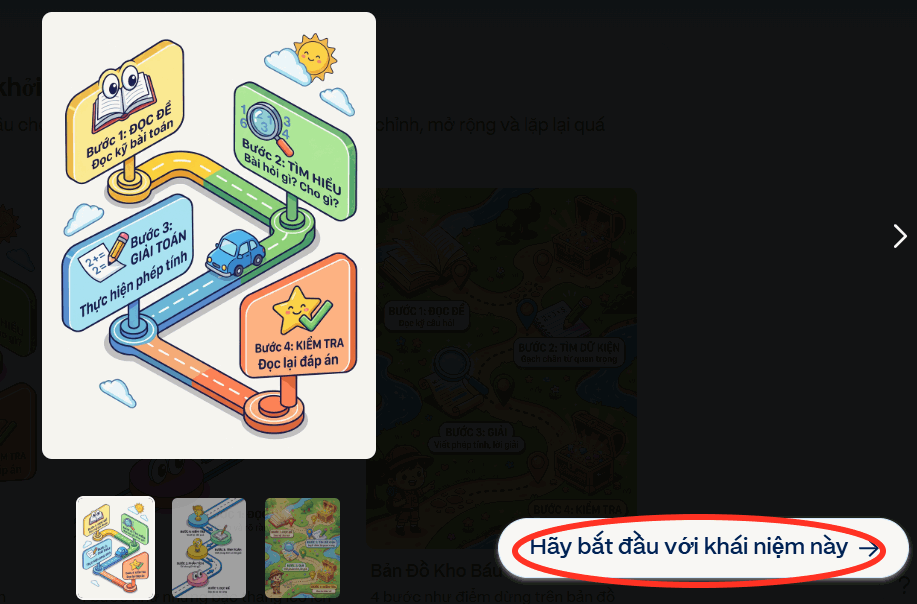
A decorative layout can obscure order or grouping. Check that the reader's eye moves through the information in the intended direction and that icons do not imply a different meaning.
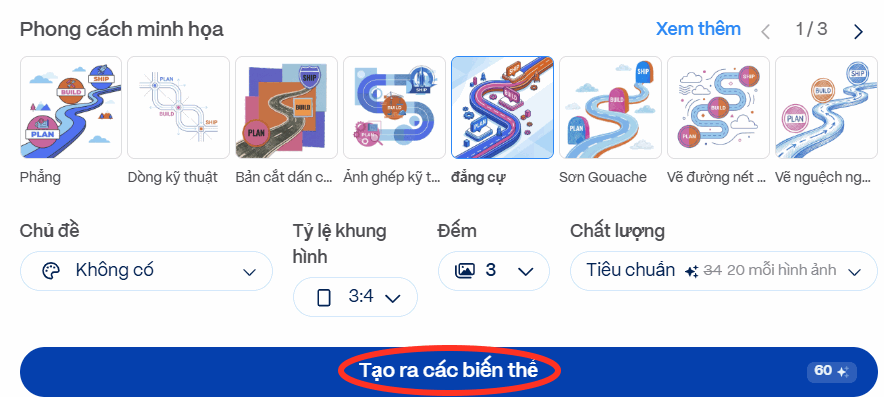
5. Generate variations and choose one
Select Create Variations, Generate, or the equivalent control. Compare versions for information accuracy, reading order, spacing, contrast, and consistency rather than choosing only by color.
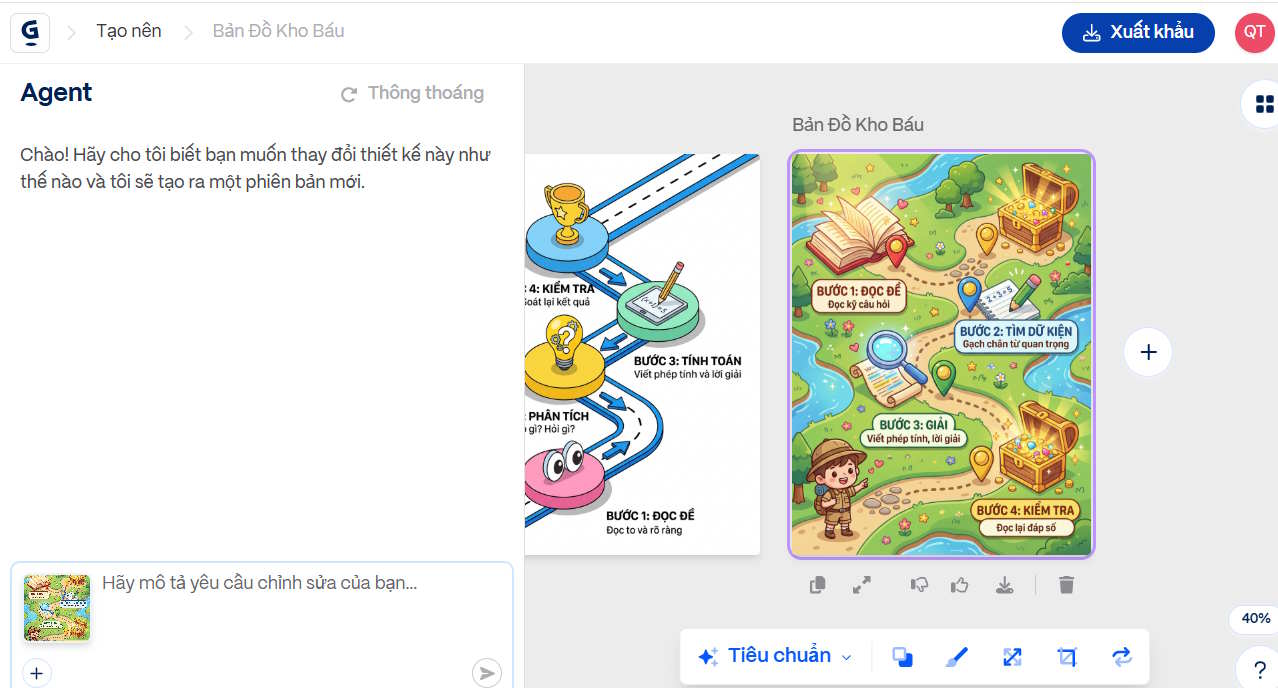

If no version is usable, revise the brief. Shorten copy, state the exact layout, remove competing visual instructions, or specify which elements must remain unchanged. Generate one controlled change at a time.
6. Edit the selected concept
Open the preferred variation and continue editing. Depending on the workspace, Gamma can support prompt-based edits, text changes, cropping, restyling, background removal, resizing, or other Imagine tools.
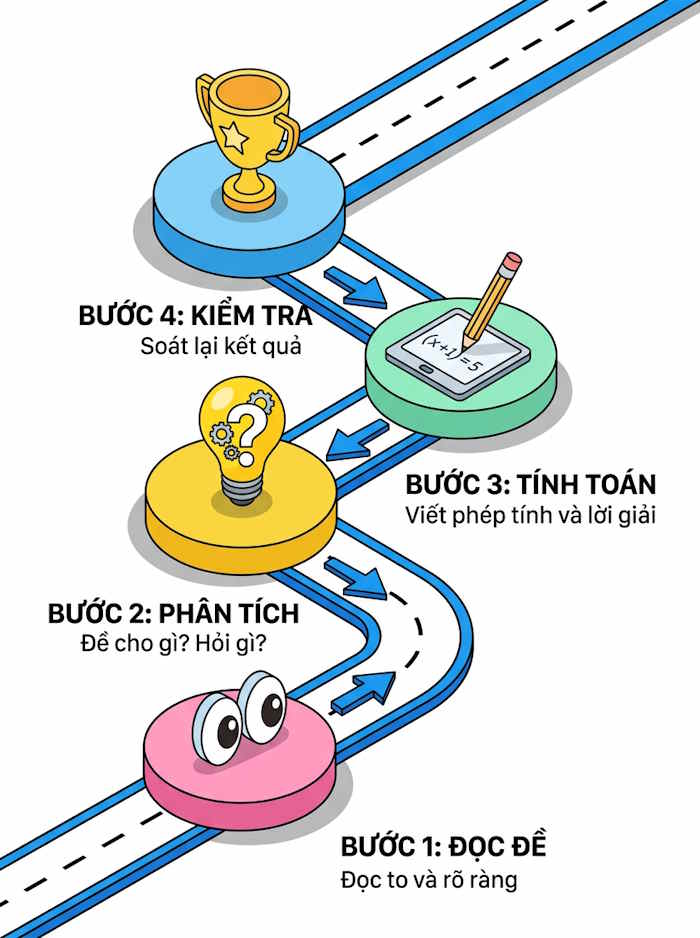
Use direct instructions such as “keep all wording unchanged; increase contrast between steps 2 and 3” or “replace the decorative icon beside step 4 with a check mark.” After every AI edit, recheck spelling and the exact factual content because regenerated graphics can alter text.
For an infographic inserted into an existing Gamma presentation, current Pro accounts can also use /infographics or the insert menu. Gamma documents those steps in its infographic guide.
7. Export and inspect the final file
Select Export and choose the format that matches the destination. Gamma supports formats such as PNG, PDF, and PowerPoint for relevant content types, although available options can vary.

Open the exported file outside Gamma. Zoom to 100%, test it on a phone if it will be shared socially, and confirm that small text, line breaks, symbols, and non-English characters render correctly. Add alt text or a text alternative when publishing on the web.
Final review checklist
- The title states the subject without exaggeration.
- Every number, instruction, and claim matches the approved source.
- The reading order is obvious.
- Text remains legible at the intended display size.
- Color contrast and labels do not rely on color alone.
- Icons support rather than replace meaning.
- Spelling, names, and units survived every regeneration.
- The export contains no cropped or missing elements.
For alternative design platforms, see TipsMake's infographic website comparison. Gamma also appears in this list of useful AI tools, but plan limits and features should be checked before committing to a workflow.
Related Articles
 Design Infographics in Canva AI from Data4 minutes read
 Graphic Design Using Gamma Imagine AI Is Incredibly Beautiful5 minutes read
 Create Infographics on Lovart Extremely Quickly3 minutes read
 minutes read
 What Is Gamma-ray Burst: Gamma Rays13 minutes read
 Use Firefox Voice to Surf the Web Only with Words3 minutes read
Reader Comments 0
Sign in with email or Google to join the discussion.