Table of Contents
Twee is an AI-assisted lesson platform for language teachers. It can generate texts, vocabulary tasks, comprehension questions, dialogues, gap-fill exercises, writing prompts, and interactive assignments from a topic, source text, word list, or supported media.
The original interface shown below may change, but the workflow remains similar: choose a tool, provide the source and learner level, generate a draft, edit it, add it to a lesson, and share or export it. Twee offers a limited trial and paid plans rather than unrestricted free use; check the current plan limits before building a recurring workflow.
1. Create a Twee account and open the Tools page
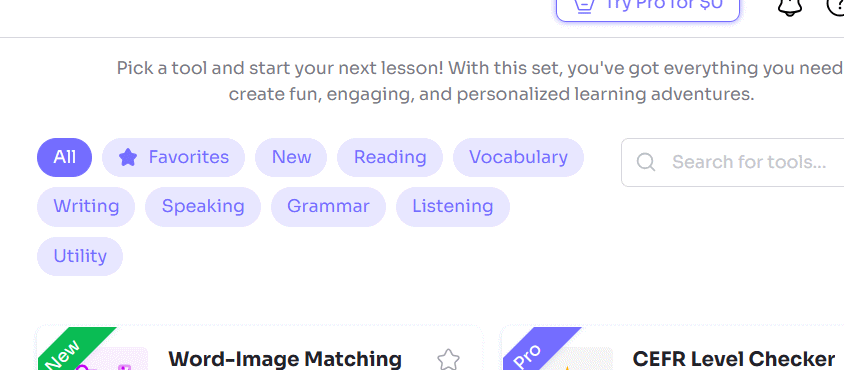
Go to Twee, select Sign up, and create an account. Open Tools to browse activities by skill, such as reading, vocabulary, writing, speaking, grammar, listening, and utility.
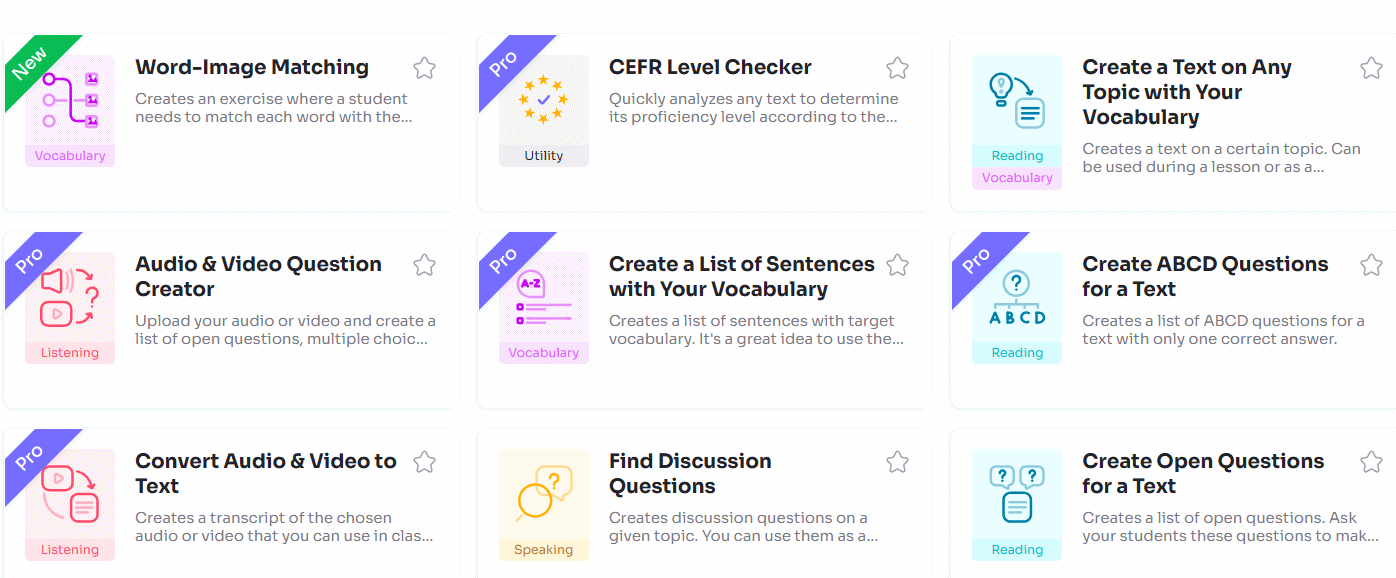
Use the filters or search field when you already know the skill you want to practise. Tool availability and generation limits vary by plan, so a tool marked Pro may not be available in a trial account.
2. Choose an activity that matches the learning objective
Start with what students should be able to do—not with the most visually interesting generator. Examples include:
| Learning objective | Suitable activity | What to review |
|---|---|---|
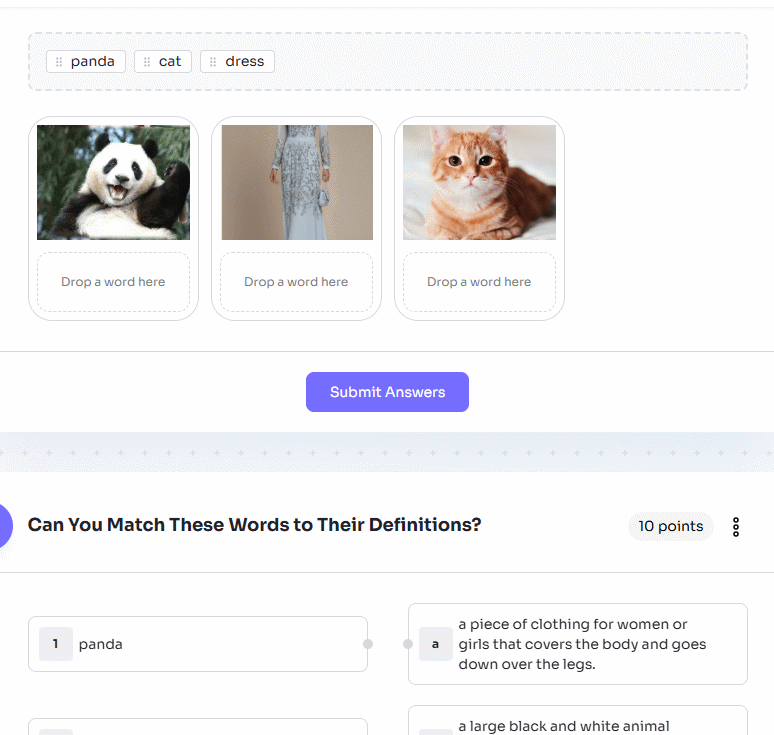
| Recognize target vocabulary | Word-image matching or gap fill | Image clarity, spelling, part of speech, and distractors |
| Identify a text’s main idea | Choose the correct summary | Whether only one option is defensibly correct |
| Discuss a topic | Lead-in or discussion questions | Age suitability, cultural assumptions, and progression |
| Understand audio or video | Comprehension questions or summary gap fill | Transcript accuracy and whether answers are actually stated |
| Use new words in context | Sentence linking or creative writing | Natural phrasing, level, and a clear success criterion |
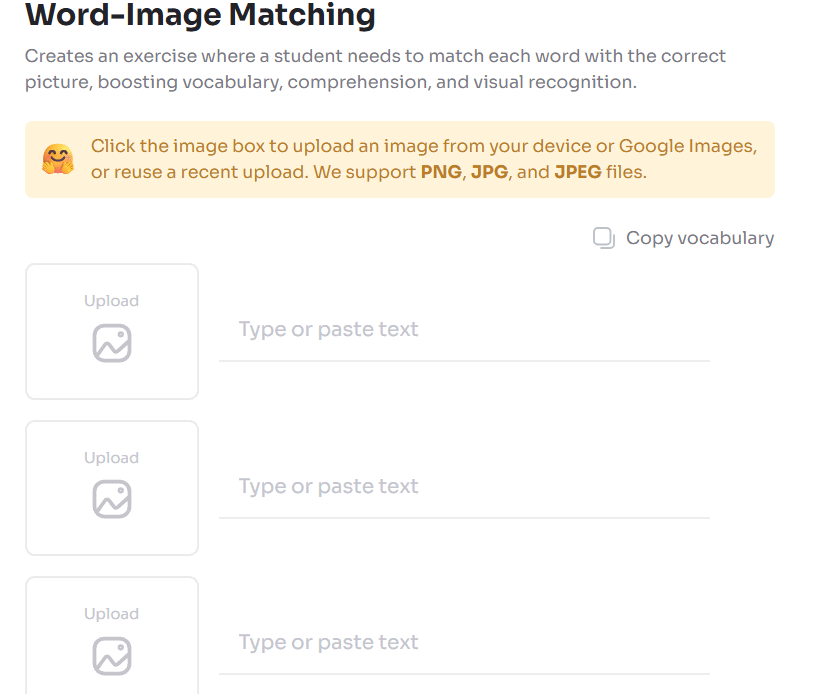
For example, a word-image activity may ask you to upload or select an image and enter the matching word. Use images you have permission to share, and add enough context when a picture could represent several words.
3. Enter the source content and learner level
Each tool has its own fields. Depending on the activity, you may enter a topic, paste a text, add a vocabulary list, paste a media link, or upload a supported file. Choose the target language and the appropriate CEFR level, grade, or age group when offered.
Be specific about the objective. A short input such as “travel vocabulary” can produce a broad and inconsistent set. A better brief is:
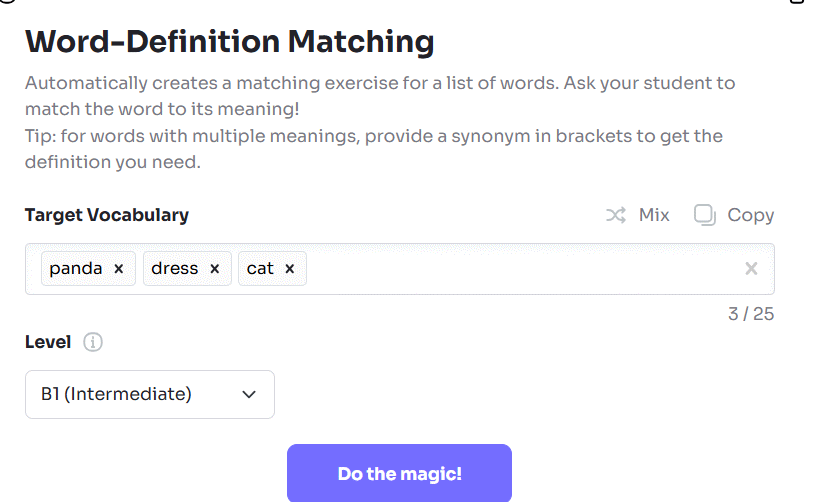
Create a B1 vocabulary practice activity for adult English learners.
Target words: itinerary, accommodation, reservation, destination,
departure, delay.
Context: planning a train trip.
Use each word once in a natural sentence. Avoid obscure meanings and
make every answer unambiguous.
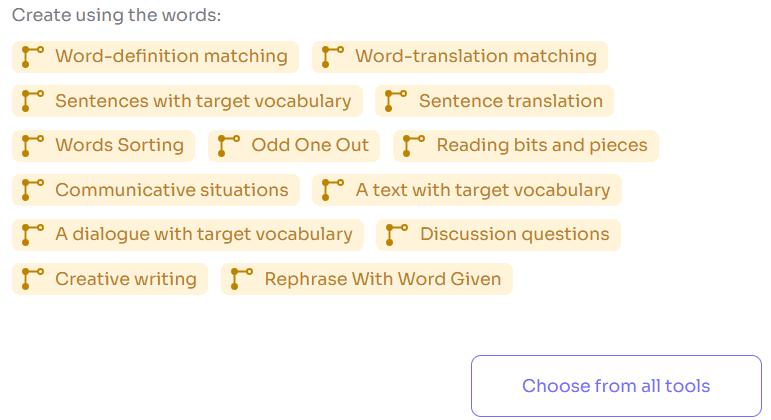
Select the level and other options, then choose Do the magic to generate the draft.
4. Edit the generated activity before adding it to a lesson
Read every question and answer. AI can produce a grammatically smooth exercise with two possible answers, an inaccurate fact, a mismatched image, or vocabulary above the selected level. Correct those issues before students see the task.
Useful checks include:
- Each closed question has one clearly correct answer.
- Distractors are plausible but not misleading.
- Instructions say exactly what students must do.
- Vocabulary and sentence length match the learner level.
- Names, situations, and images are appropriate for the class.
- Open responses have a rubric or examples for human review.
Use the edit control, often shown as a pencil, to revise generated text. If the result misses the objective, change the source or level and regenerate instead of repeatedly accepting weak variations.
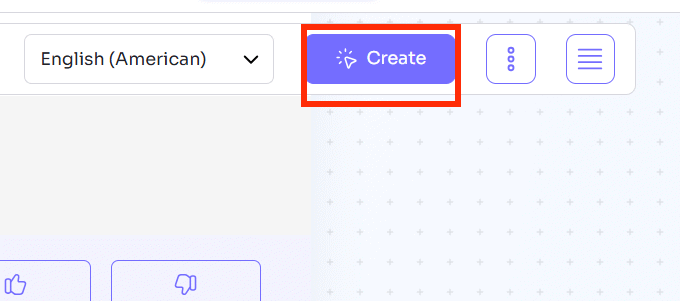
When the activity is ready, add it to the current lesson or task using the available Create or add-to-lesson control.
A lesson can contain more than one activity. Arrange them in a teaching sequence—for example, lead-in question, short text, vocabulary check, comprehension, and a productive speaking or writing task.
5. Share the interactive activity with students
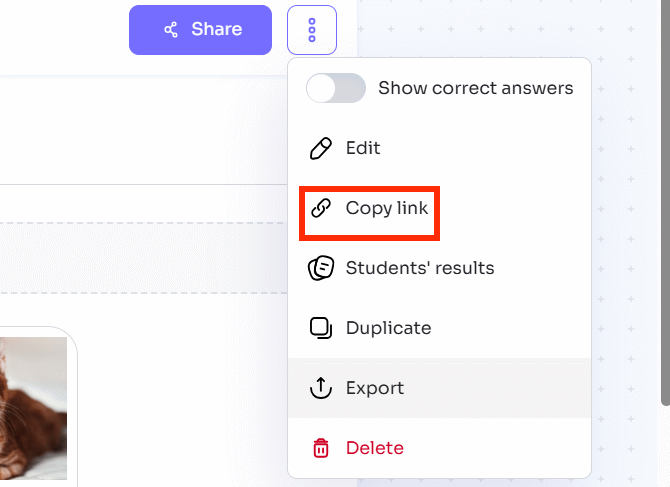
Open the sharing options and choose Copy link to send an interactive assignment link. Test the link in a private browser window first so you see the same access screen as a student.
Students open the link, enter the requested name or identifier, and complete the activity. Follow your school’s privacy policy: use a first name, initials, or an assigned code when a full name is unnecessary, and do not put sensitive student information into the prompt.
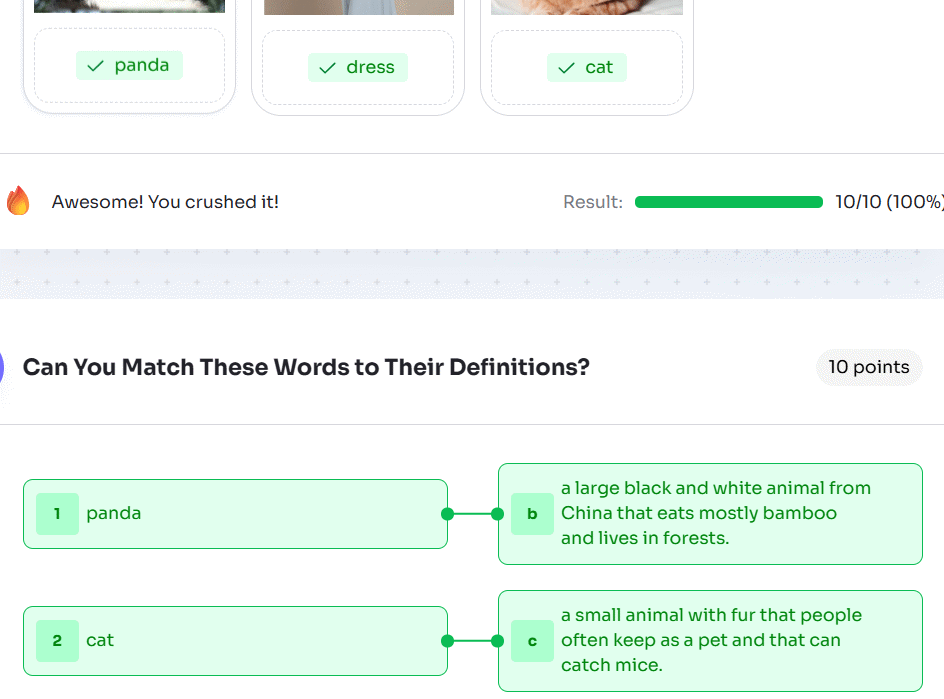
Twee advertises interactive sharing across its current plans, while features such as AI response checking and some export formats are plan-dependent. Review the official Twee pricing comparison for current trial, generation, export, and grading limits.
Export and reuse options
Depending on the plan, Twee can provide PDF, Word or Google-format workflows as well as interactive links. Confirm that the exported version includes the answer key and formatting you expect. Keep a local copy of any lesson that would be difficult to recreate, and note the source text and generation date.
The official Twee tools directory lists the available generators and labels paid tools. If you want a non-AI alternative for vocabulary games, TipsMake also explains how to create a word puzzle in Educaplay. The comparison of classroom apps for teachers covers additional quiz and sharing options.
Use AI grading as a first pass, not the final decision
Automatic scoring is reasonable for a carefully reviewed multiple-choice or exact-answer task. Open-ended language is more subjective: a student may express the correct idea with grammar that differs from the expected answer, or may produce fluent text that misses the question.
- Manually review low-confidence, surprising, and borderline results.
- Tell students which responses are checked automatically.
- Use a clear rubric for speaking and writing.
- Give students a way to question a score.
- Do not use an unreviewed AI score as the sole basis for a consequential grade.
Twee can reduce drafting time, but the teacher remains responsible for accuracy, level, accessibility, assessment fairness, copyright, and student privacy. The strongest workflow uses AI to produce editable material, then applies professional teaching judgment before and after the activity.
Related Articles
 Instructions for Using Twitter for New Users14 minutes read
 Fun Ideas & Activities to Get Students Excited About School5 minutes read
 Advanced Twitter Account Security Guide: Secure Twitter Duo Mobile3 minutes read
 Perfect STEM Activities for Middle School Students12 minutes read
 Tricks or Certain Twitter Users Should Not Be Ignored6 minutes read
 13 Useful Shortcuts That Twitter Users Need to Know4 minutes read
Reader Comments 0
Sign in with email or Google to join the discussion.