Table of Contents
Gemini can turn a PDF test into a first draft of a slide deck, but the result still needs a careful human check. The safest workflow is to ask Gemini Canvas to preserve each question and flag anything it cannot read, then compare every slide with the source before using it in class.
Before uploading school material, remove student names, scores, and other personal information. Only upload a test that you are permitted to process. For more classroom uses of AI, see AI tools for students and educators.
1. Prepare the PDF
Use a searchable PDF when possible. If the file is a scan, check that question numbers, answer choices, formulas, units, and diagrams are sharp enough to read. Split an unusually large file into smaller sections so it is easier to find omissions.
2. Upload the test to Gemini Canvas
Open Gemini, add the PDF, choose Canvas, and ask it to create a slide presentation. Google documents file analysis and Canvas presentations in its Gemini Canvas help page.
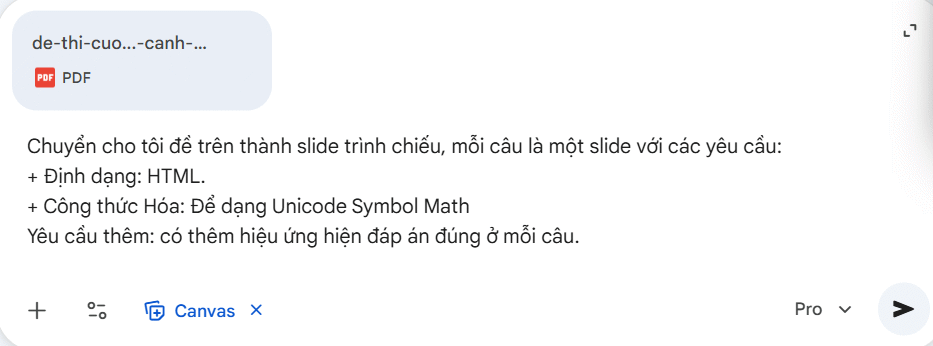
A precise prompt reduces unwanted changes. Replace the bracketed details before submitting:
Create a teaching slide deck from the attached [subject/grade] assessment. Use only information in the PDF. Put one question on each question slide and preserve the original numbering and answer choices. Follow each question with a separate answer-and-explanation slide, but do not reveal the answer on the question slide. Include the source page number. If any text, formula, answer, or image is unclear, write [VERIFY] instead of guessing. Use the supplied answer key only; if no answer key is provided, label proposed answers [CHECK].Tell Gemini the intended audience, number of questions to include, desired tone, and whether you want brief teaching notes. Do not ask it to invent explanations when the source does not support them.
3. Check the extracted questions before styling
Compare the draft with the PDF line by line. Look for skipped pages, merged questions, reordered choices, missing minus signs, altered exponents, incorrect units, and OCR mistakes. Confirm the answer key independently. A polished layout does not make an inaccurate transcription safe to teach.
Handle formulas and diagrams carefully
For mathematics and science, ask Gemini to retain equation source such as LaTeX where useful, then test how every formula renders after export. Plain Unicode is not reliable for all fractions, matrices, superscripts, or chemical notation.
Do not let the model redraw a graph, geometry figure, or scientific diagram from memory. Preserve or crop the source image when its use is permitted. A simple SVG redraw can work only when every label, scale, angle, and data point is verified against the original. Mermaid is designed for general diagrams, not precise mathematical graphs.
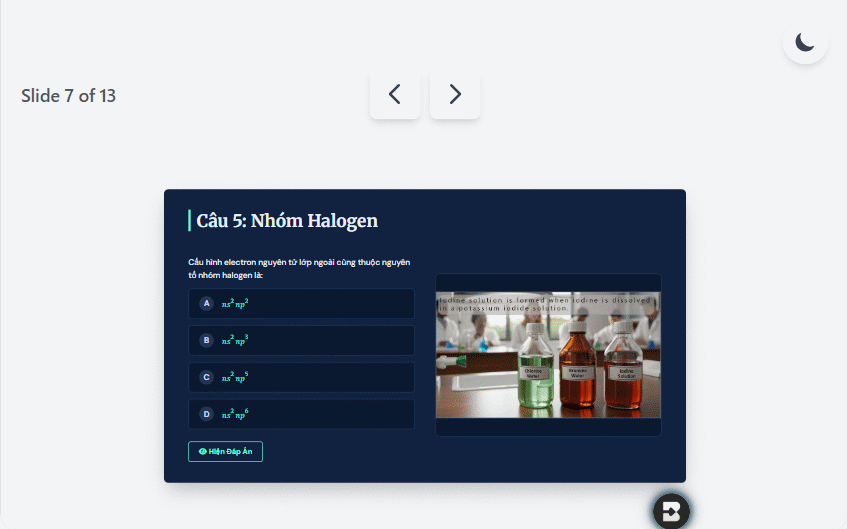
4. Refine the lesson structure
A practical sequence is a question slide, optional thinking prompt, and a separate answer-and-explanation slide. Keep the answer hidden until discussion is complete. Remove decorative effects that distract from the problem, and make text large enough to read from the back of the room.
If the lesson would benefit from an introductory video or visual explanation, the workflow in this Google Vids overview provides another presentation option.
5. Export and run a final check
Export options vary by Gemini version, account, and interface. If an Export to Slides option appears, use it; otherwise copy the approved content into Google Slides or use an available HTML or PDF output. Never assume the exported version matches the preview.
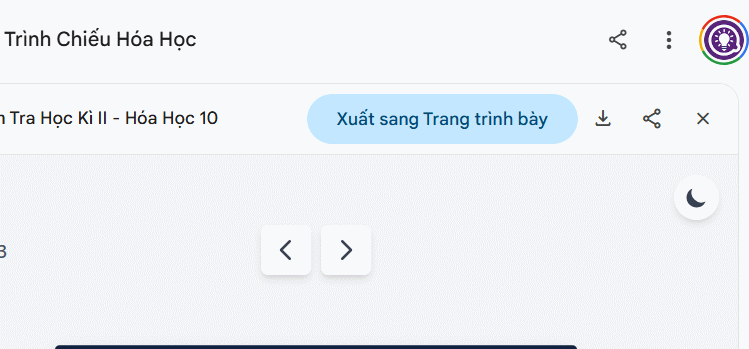
Before presenting, open the deck on the device you will use and check every page, equation, image, link, animation, and speaker note. Confirm that answers appear only when intended and that no personal data remains in the file.
Related Articles
 A Guide to Creating Presentation Slides Quickly Using Gemini4 minutes read
 Guide to Designing Lecture Slides Using Gemini4 minutes read
 Gemini in Google Slides: Create Slides, Infographics, and More6 minutes read
 How to Create Voiceovers for Lecture Slides3 minutes read
 4 Useful Ways to Use Gemini AI in Google Slides6 minutes read
 Guide to Creating Lecture Slides Using Brisk AI5 minutes read
Reader Comments 0
Sign in with email or Google to join the discussion.