Table of Contents
Prezi AI can turn a written brief or an uploaded PPTX, PDF, or DOCX file into a draft presentation. The useful part is not just automatic design: it creates an editable outline and a visual path that you can refine before presenting.
AI-generated slides still need review. Check the facts, remove repeated points, replace weak visuals, and make sure the movement supports the story rather than distracting from it. Prezi changes its interface periodically, so a button may appear in a slightly different position from the screenshots below.
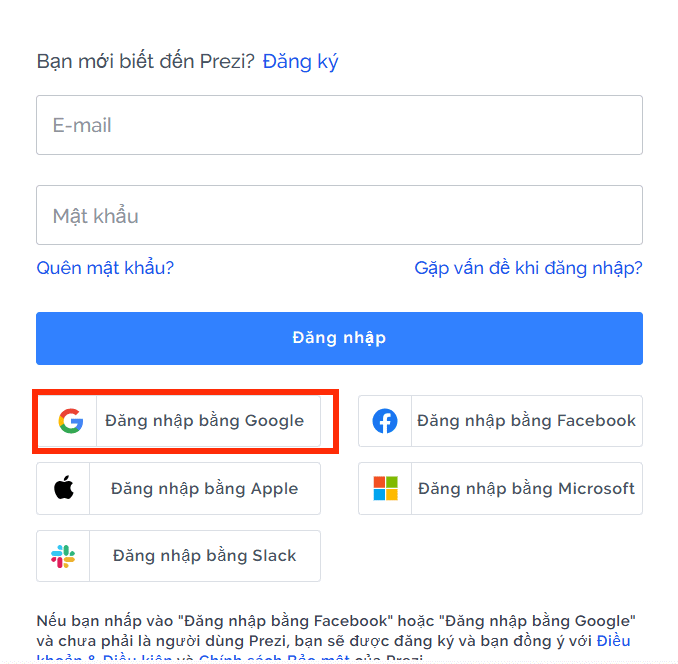
1. Open Prezi and sign in
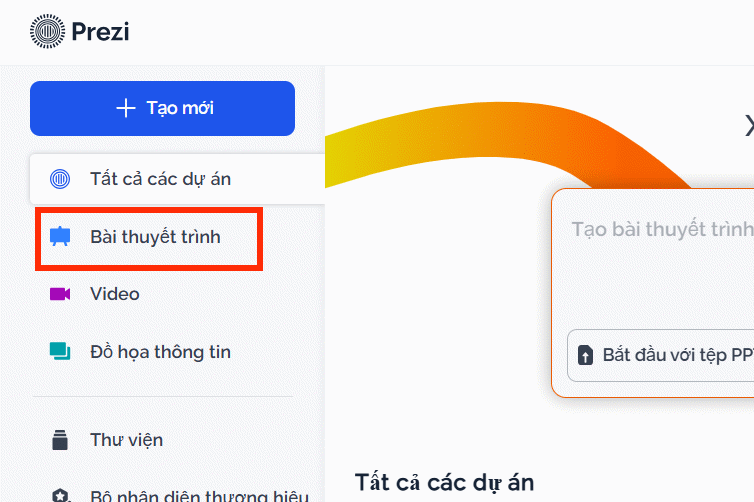
Go to Prezi and sign in or create an account. From the dashboard, open Presentations in the left sidebar if it is not already selected.
2. Choose how to start the presentation
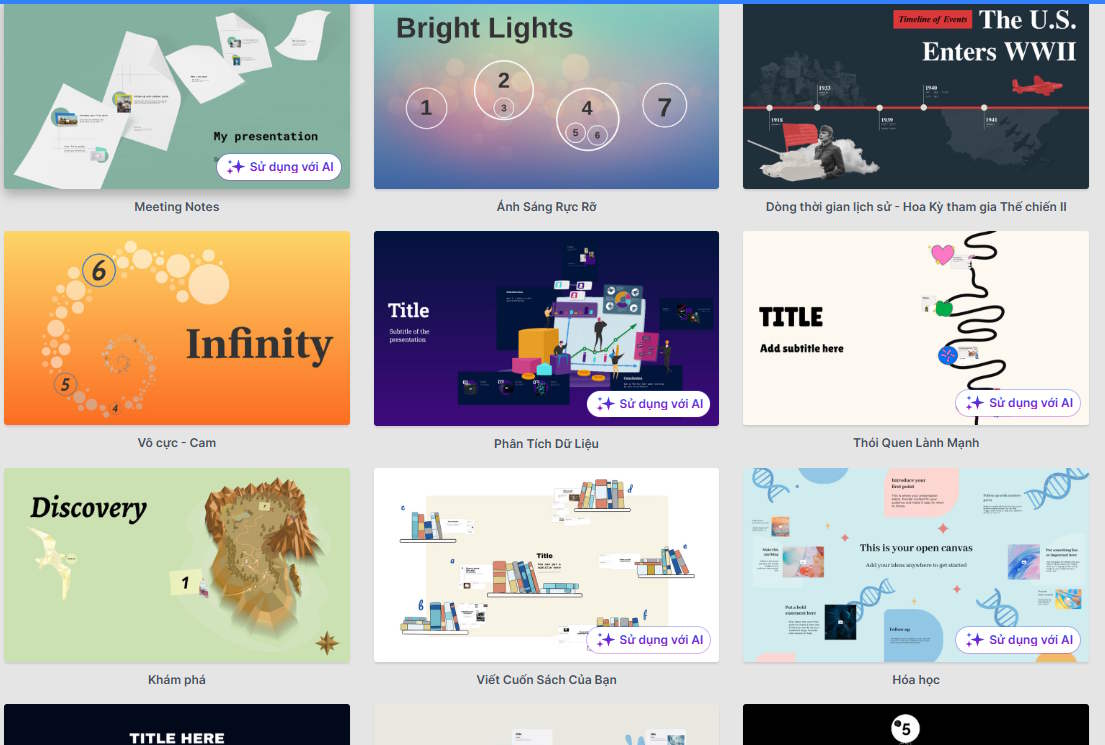
On the current dashboard, you can describe a presentation in the prompt field and select Create with AI. You can also choose + Create new and start with a prompt, upload a file, use a template, or begin from scratch.
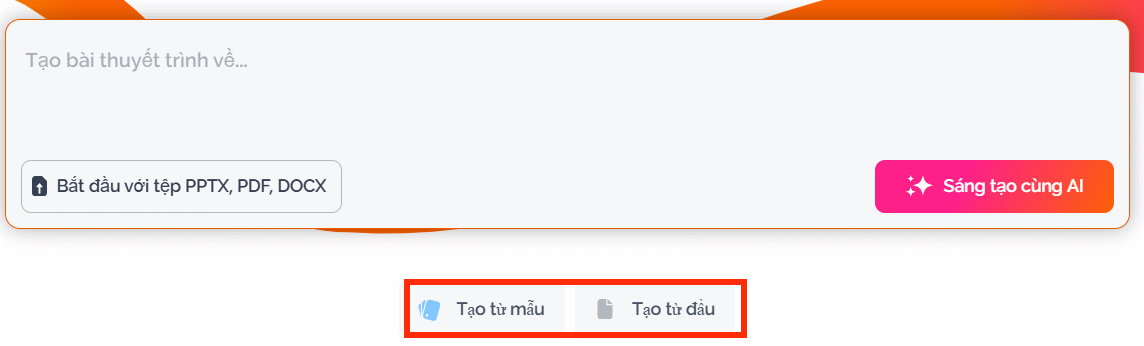
Start with a prompt
A useful prompt identifies the audience, objective, key sections, evidence, and desired visual treatment. “Create a professional presentation” is too vague to guide the outline.
Create a 10-minute presentation for department managers about
reducing meeting overload.

Goal: persuade the audience to test two changes for 30 days.
Structure:
1. Current problem
2. Evidence from the supplied notes
3. Two proposed changes
4. Implementation timeline
5. Decision and next step

Use concise headings, no more than three bullets per topic, and a
calm professional tone. Do not invent statistics. Mark any missing
evidence as [SOURCE NEEDED]. Suggest simple visuals that clarify the
argument rather than decorative stock photos.
For a classroom deck, add the students’ age or level, lesson objective, required vocabulary, and an activity or knowledge check. For a sales or proposal deck, name the decision-maker, problem, evidence, proposed solution, constraints, and exact call to action.
Start with a file
Select Start with PPTX, PDF, DOCX file and upload the source. Prezi’s current help documentation says the document must contain extractable text; a file made only of scanned images may not provide usable content. Review sensitive material before uploading it to any cloud service.
3. Review the outline before generating the design
After entering a prompt, select Create with AI. After uploading a file, select Create outline. Prezi proposes an outline that you can reorder, edit, expand, or trim before selecting Create presentation.
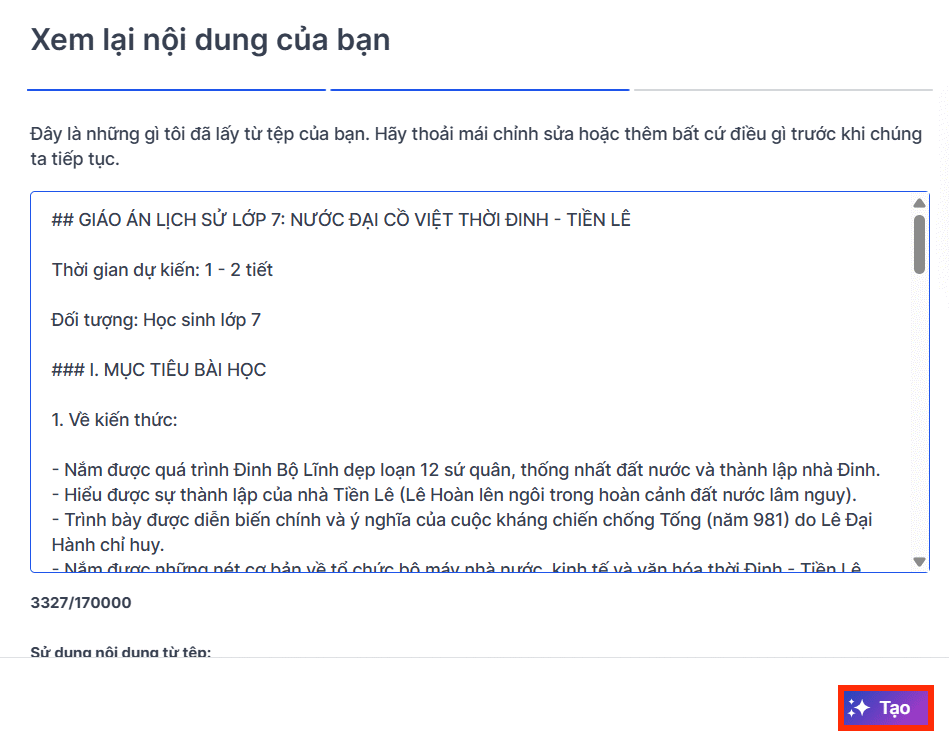
Do not treat the first outline as final. Check that it has one clear argument, each section advances that argument, and the conclusion asks the audience for a specific decision or action. Delete topics that merely restate the title.
Once the draft is generated, preview the path and initial design. Depending on the workflow, Prezi may show design choices in the AI sidebar and a Go to editor button when you are ready to make detailed changes.
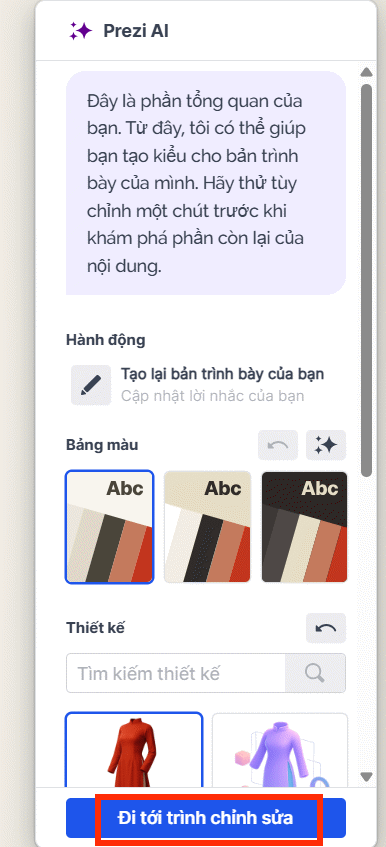
4. Refine the design, then edit the presentation
In the AI design view, try a suitable color palette and visual style. If the draft misses the intended direction, use Recreate your presentation and give more specific guidance. Recreating can change the design substantially, so finish the outline first.
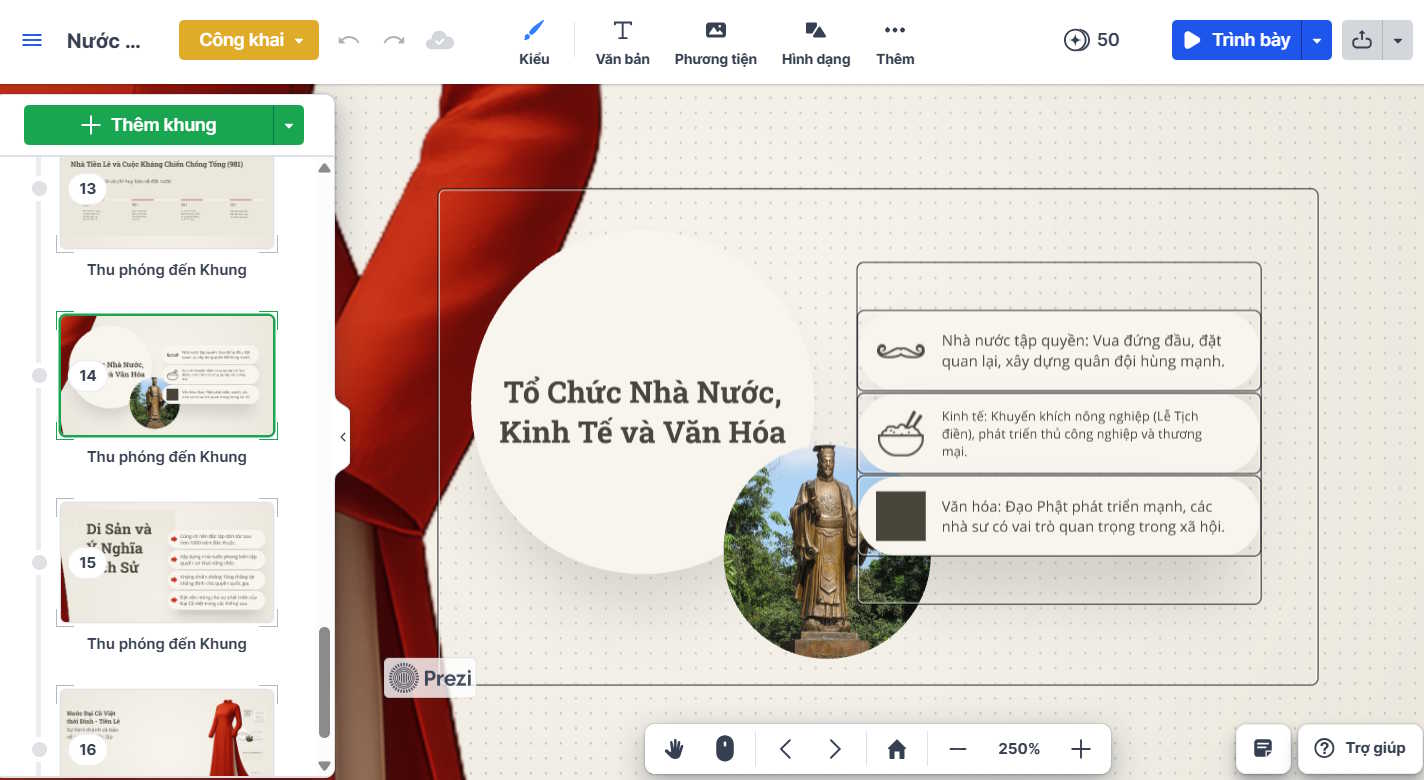
Choose Go to editor to refine individual topics. Select text on the canvas to rewrite it, adjust its hierarchy, or remove it. Check every generated statement against your source material.
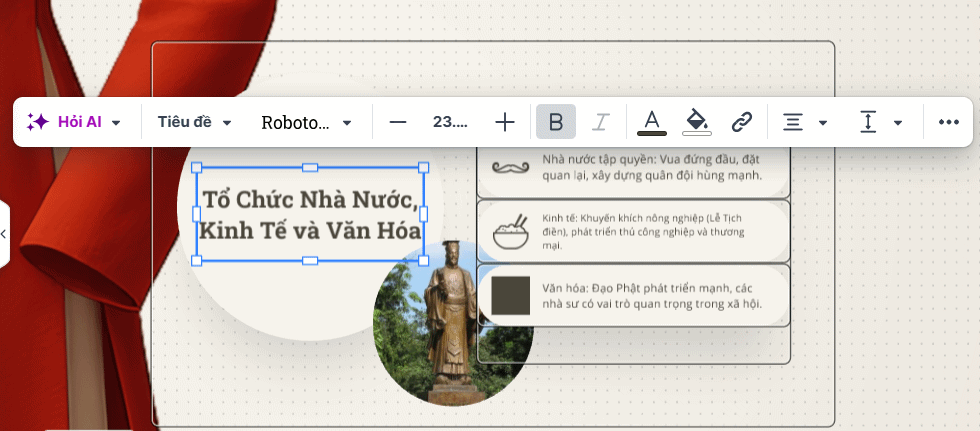
Prezi’s editor also includes Ask AI tools for tasks such as rewriting content or developing an idea. Use them on a selected passage, then review the result for accuracy and tone rather than accepting it automatically.
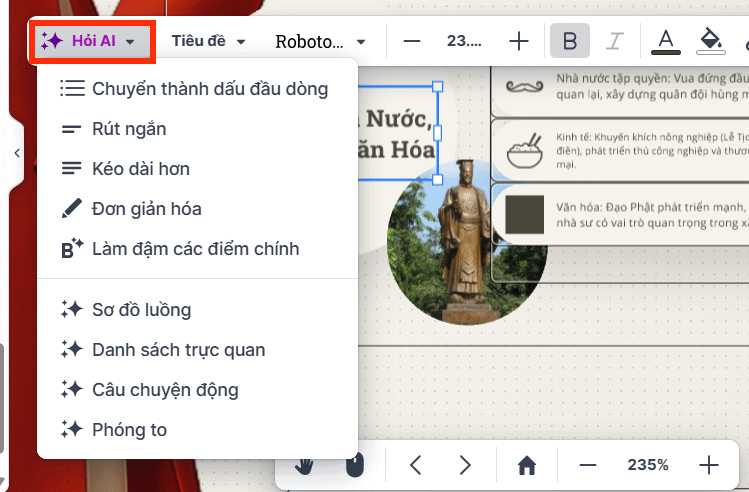
Make the presentation easier to follow
- Use the overview intentionally. The audience should understand how the main topics relate before you zoom into details.
- Limit motion. Zoom only when it explains hierarchy, location, sequence, or a relationship.
- Keep text scannable. Move detailed evidence to speaker notes or a handout when the audience cannot read it comfortably.
- Replace generic visuals. Prefer charts, diagrams, screenshots, or images that support the point being made.
- Check the path. Preview from beginning to end and fix unexpected jumps, awkward scale changes, or topics visited in the wrong order.
For general design principles, see these tips for clearer presentation slides. You can also compare Prezi with the AI presentation tools covered by TipsMake.
5. Present, share, or export
Use Prezi’s preview or present controls to rehearse the complete path. Check the deck on the screen and connection you will actually use, especially if the presentation relies on online media.
To share a view-only link from the editor, select Share, choose Get link, and copy the link after setting the intended access. Review the privacy setting before sending it; a public link and an invite-only presentation serve different needs.
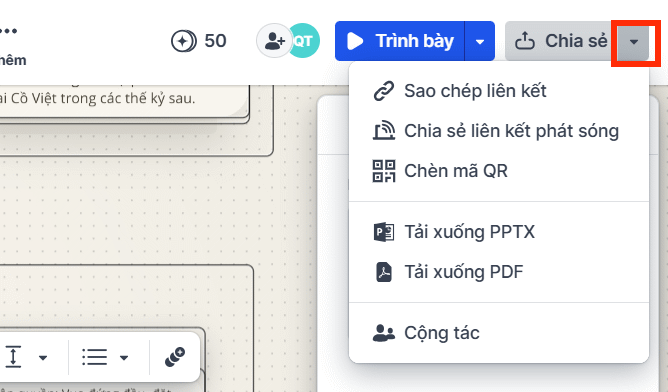
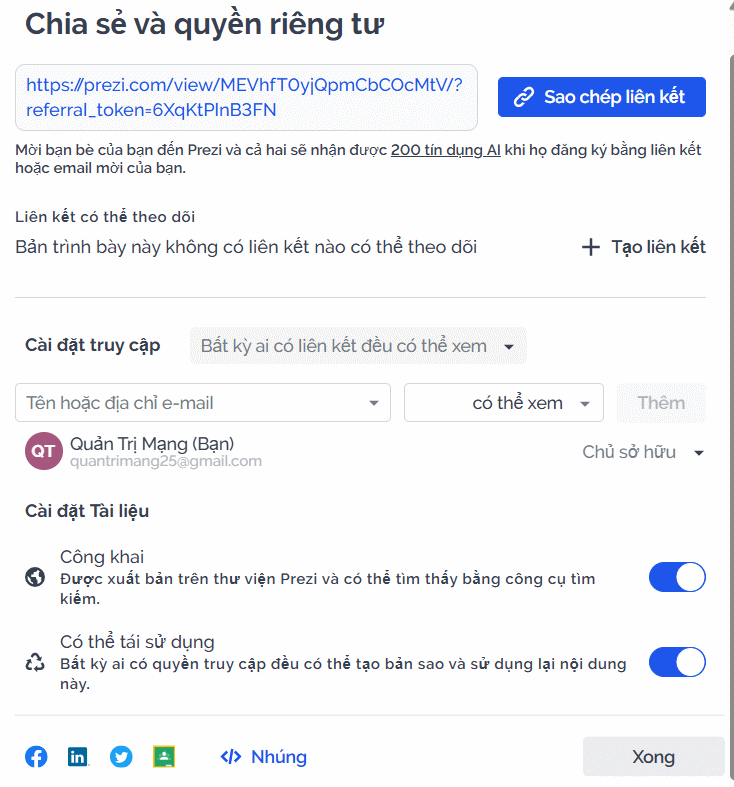
Prezi also supports export options such as PPTX, PDF, and an offline presentation, but availability and workflow can depend on the plan and whether you use the web editor or desktop app. The official guides explain the current steps for sharing or downloading a presentation and downloading as PowerPoint.
If you need to continue editing outside Prezi, export a copy and inspect it carefully: fonts, animations, paths, and complex layouts may not translate perfectly between presentation formats. TipsMake also has a separate guide for exporting Canva slides to PowerPoint.
Final checks before presenting
- Every factual claim matches the source material.
- The opening states the problem and purpose quickly.
- The overview and zoom path reflect the presentation’s logic.
- Text is readable from the back of the room.
- Images, charts, and links work and have permission for the intended use.
- The final topic ends with a decision, action, or clear takeaway.
- A backup PDF or offline copy is available when the presentation is important.
Prezi AI is best treated as a first-draft and design assistant. The presenter remains responsible for the argument, evidence, pacing, accessibility, and final review.
Related Articles
 How to Create Presentations with Prezi AI6 minutes read
 How to Create a New Prezi Presentation3 minutes read
 How to Use Prezi16 minutes read
 How to Present from a Browser in Prezi2 minutes read
 How to Create Professional Presentations in Canva11 minutes read
 How to Use Gamma AI to Create Stunning Presentations8 minutes read
Reader Comments 0
Sign in with email or Google to join the discussion.