Table of Contents
Humata lets you upload documents and ask questions about their contents. It is most useful for locating relevant passages, drafting a structured summary, or comparing information across files. Treat every answer as a reading aid: follow its citations to the PDF before relying on it.
1. Sign in and upload a document
Open Humata, create an account or sign in, and select Upload file. Plans can limit pages, answers, or other features, so check Humata's current pricing page if a large file is rejected.
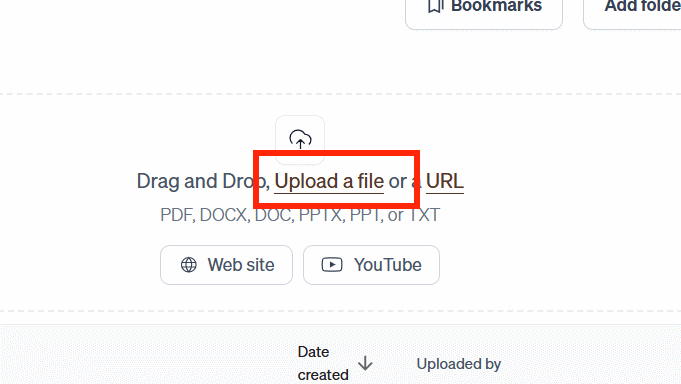
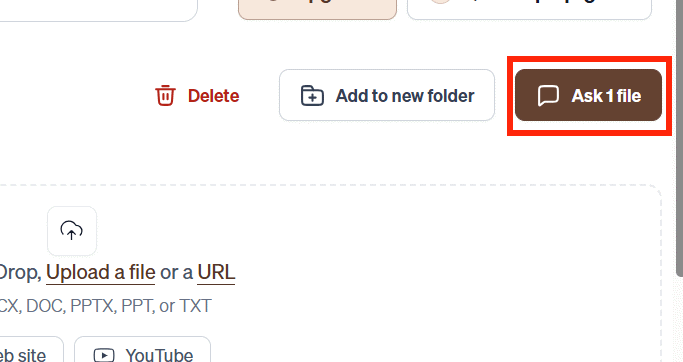
Upload only documents you are allowed to process. Remove personal data, credentials, confidential client material, or unreleased business information unless your organization has approved the service and its data-handling terms for that content.
2. Select one or more related files
Choose the PDF you want to analyze. If your account supports asking across multiple files, group only documents that belong to the same question or project; unrelated sources make it harder to see which file supports an answer.
For image-only scans, first confirm that the text is searchable. Poor scans, handwriting, complex tables, and multi-column layouts can be extracted incorrectly. An OCR or PDF repair tool may be needed before an AI assistant can interpret the page reliably. TipsMake also lists open-source PDF editors for common document preparation tasks.
3. Ask a focused first question
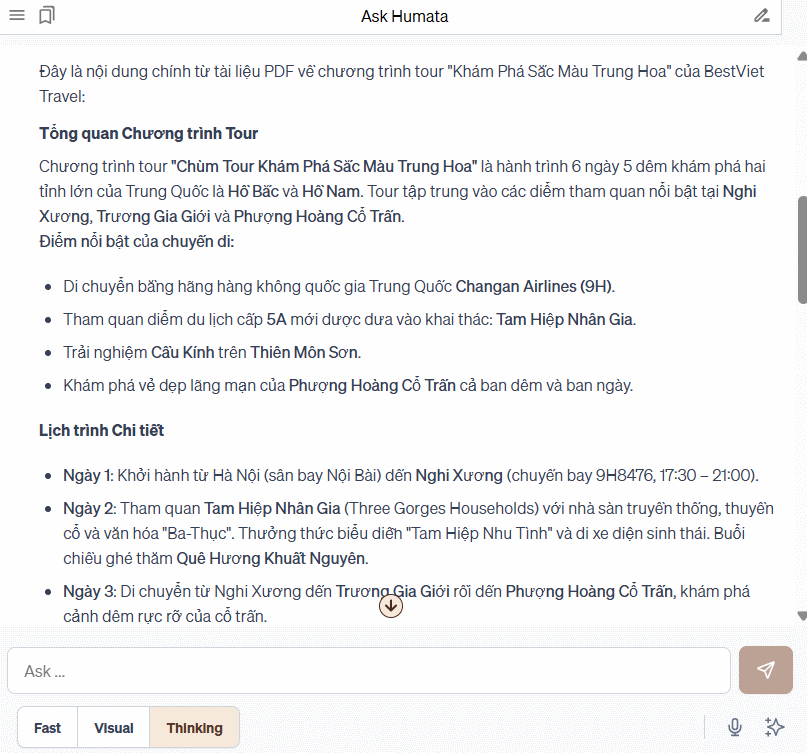
Open the chat for the selected document and begin with a bounded request. If Humata offers processing modes such as faster or more detailed analysis, choose based on the complexity of the question and the options available in your current interface.
Useful prompts include:
- “Summarize the document's main claim and list the sections that support it. Cite the page for every point.”
- “Create a table of requirements, deadlines, responsible parties, and exceptions. Leave a cell blank if the PDF does not state the answer.”
- “Compare the recommendations in these two files. Separate agreements, conflicts, and missing evidence.”
- “Explain this section in plain language without adding information from outside the document.”
Ask one analytical question at a time. A broad request such as “tell me everything” often produces a shallow answer and makes omissions difficult to detect.
4. Check citations against the PDF
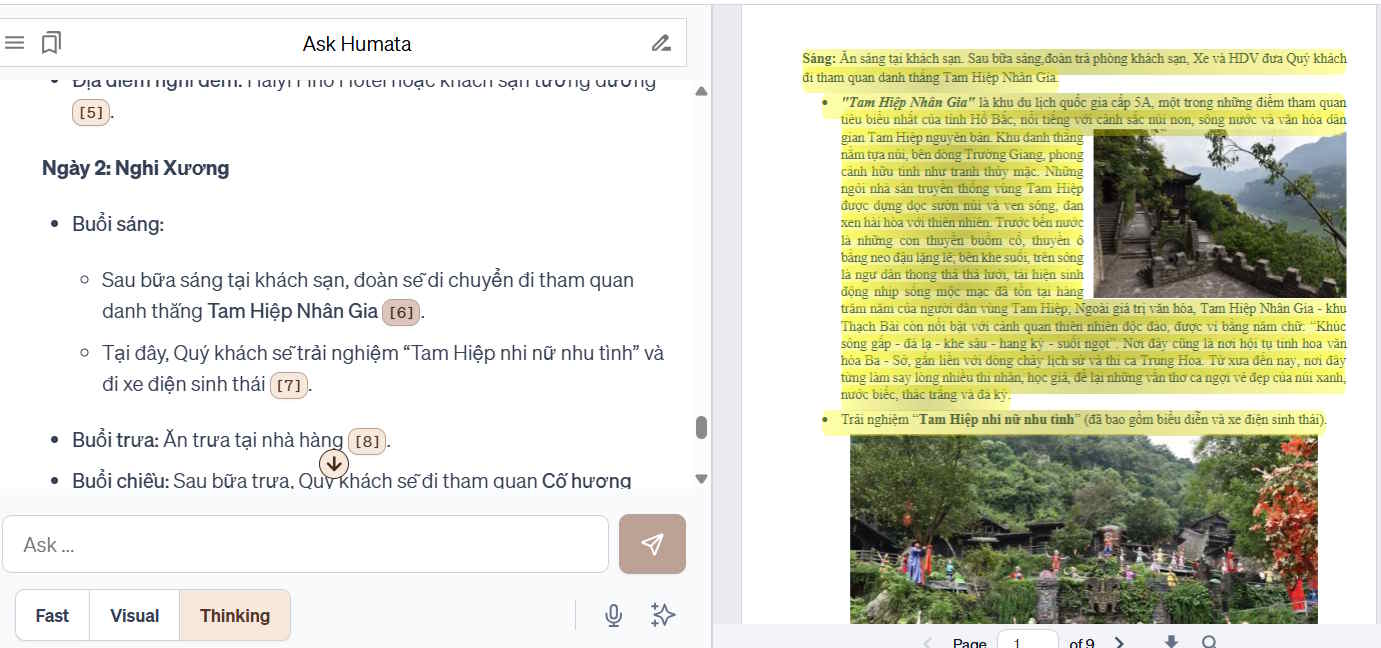
Humata can attach citations that point back to source passages. Select a citation or page reference to open the relevant part of the document beside the answer.
Read the surrounding paragraph, not just the highlighted sentence. Confirm that the answer preserves qualifiers, dates, units, definitions, and the difference between a finding and an author's speculation. A citation shows where text came from; it does not prove the source itself is current or correct.
For high-stakes legal, medical, financial, academic, or security work, use the original document and an appropriate expert review. Do not cite Humata as if it were the source.
5. Copy or save useful answers
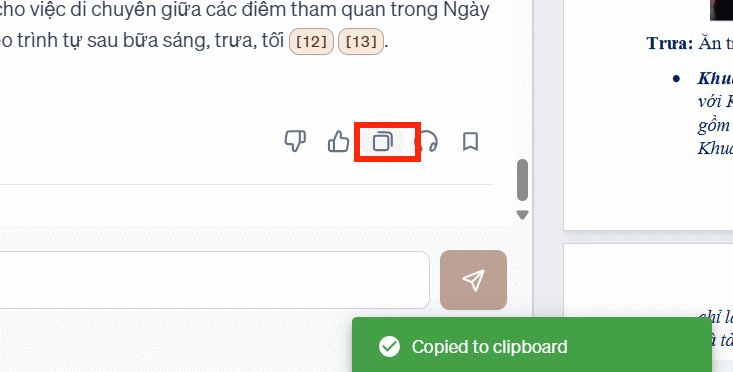
Use the action icons below an answer to copy it if that option appears. Paste the result into your notes with the document title, version, and source pages so the summary can be audited later.
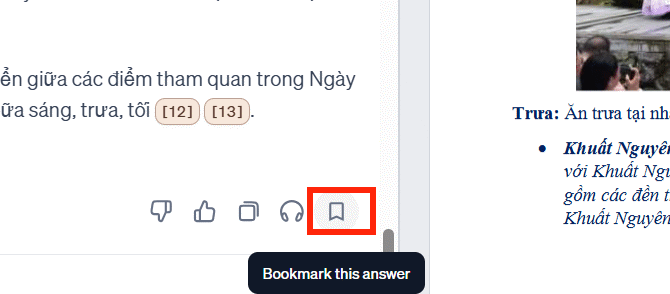
If bookmarks are available, save the most useful response or passage instead of keeping many near-duplicate answers.
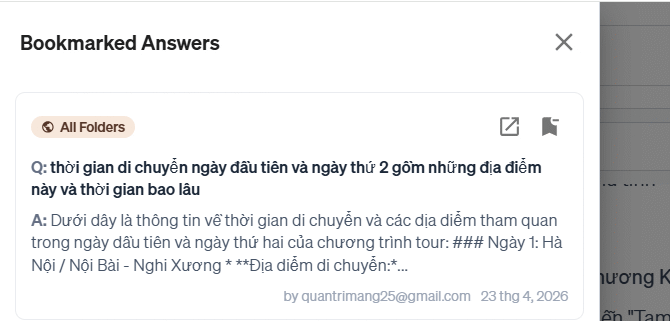
The location of saved items can change as the interface is updated. Look for the Humata menu or document workspace if the bookmark list is not visible in the chat.
A reliable PDF review workflow
- Write the question you need the document to answer.
- Upload the smallest relevant set of files.
- Request a structured answer with page citations.
- Open every important citation and read the surrounding source text.
- Record uncertainties and information the PDF does not contain.
- Write the final conclusion in your own words and keep a link to the original source.
Humata's official site describes document search, summaries, comparison, and cited answers. If you need a different source-grounded workflow, see TipsMake's list of Gemini Notebook alternatives, which also includes Humata.
Related Articles
 How Do Computers Read Documents to You?: Read Word Documents6 minutes read
 How to Researching YouTube Videos Through Conversations Using Humata3 minutes read
 How to Read 10,000 Words Within a Minute: Read Books for Information10 minutes read
 How Does Every Week Read - Understand a Book10 minutes read
 Read Aloud - Feature to Read Text in Microsoft Word3 minutes read
 How to Convert a Document into an eBook to Read on iBooks4 minutes read
Reader Comments 0
Sign in with email or Google to join the discussion.