Table of Contents
Humata may let you add a YouTube URL as a source and ask questions about the video's extracted content. This is useful for finding themes, explanations, and claims in a long talk, but it does not replace watching the relevant section: transcripts can omit diagrams, demonstrations, tone, and other visual evidence.
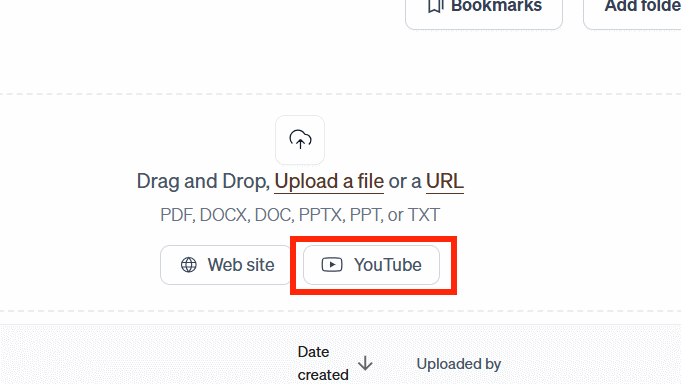
Availability note: Humata's public site currently emphasizes document analysis. If the YouTube import button shown below is missing, the feature may not be available on your plan or in the current interface. Do not use an unofficial workaround that asks for your account credentials.
1. Sign in to Humata
Open Humata and sign in. Check the current plan limits before importing a long video or a large collection of sources.
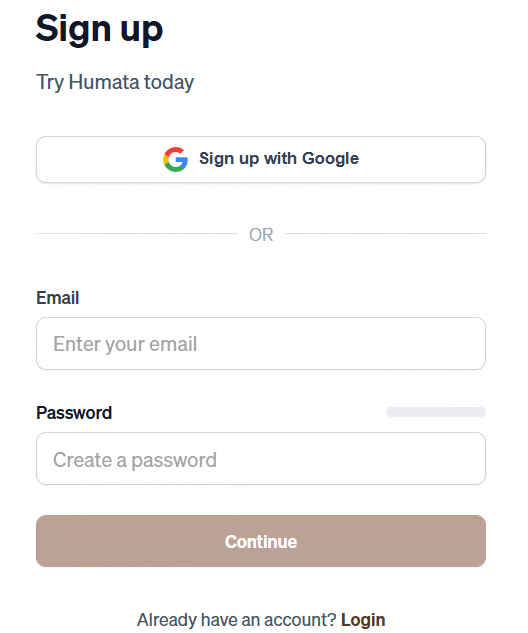
Use only public videos or material you are authorized to process. Respect the creator's copyright and do not republish a generated transcript or a substantial substitute for the original video.
2. Add the YouTube URL
From the upload area, choose YouTube if that option appears. Paste the complete video URL and wait for the title to load. Confirm that the title and channel match the intended video, then select the arrow or import control.
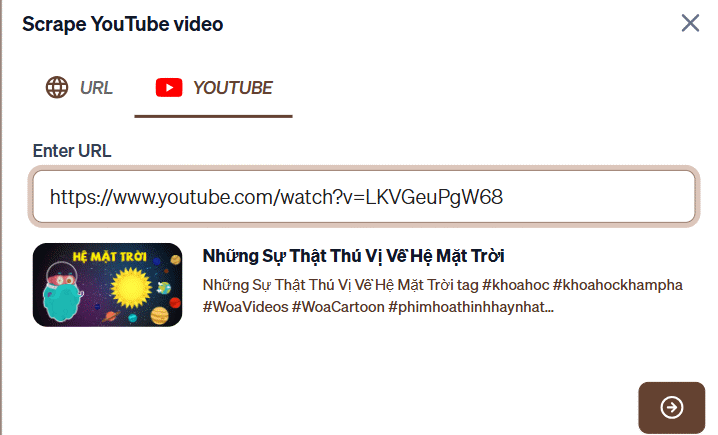
A private, age-restricted, region-blocked, live, or captionless video may fail to import. Auto-generated captions can also mishear names, technical terms, numbers, and accented speech.
3. Select the source and open Ask
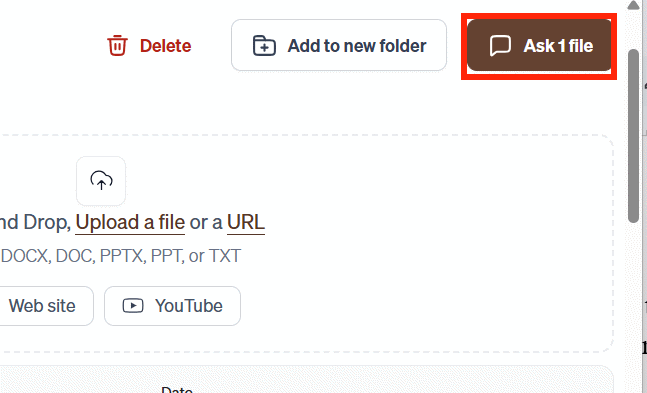
After processing finishes, select the video in the source list and choose Ask. If several videos are selected, tell Humata whether to compare them or answer from only one; otherwise, the response may blend sources.
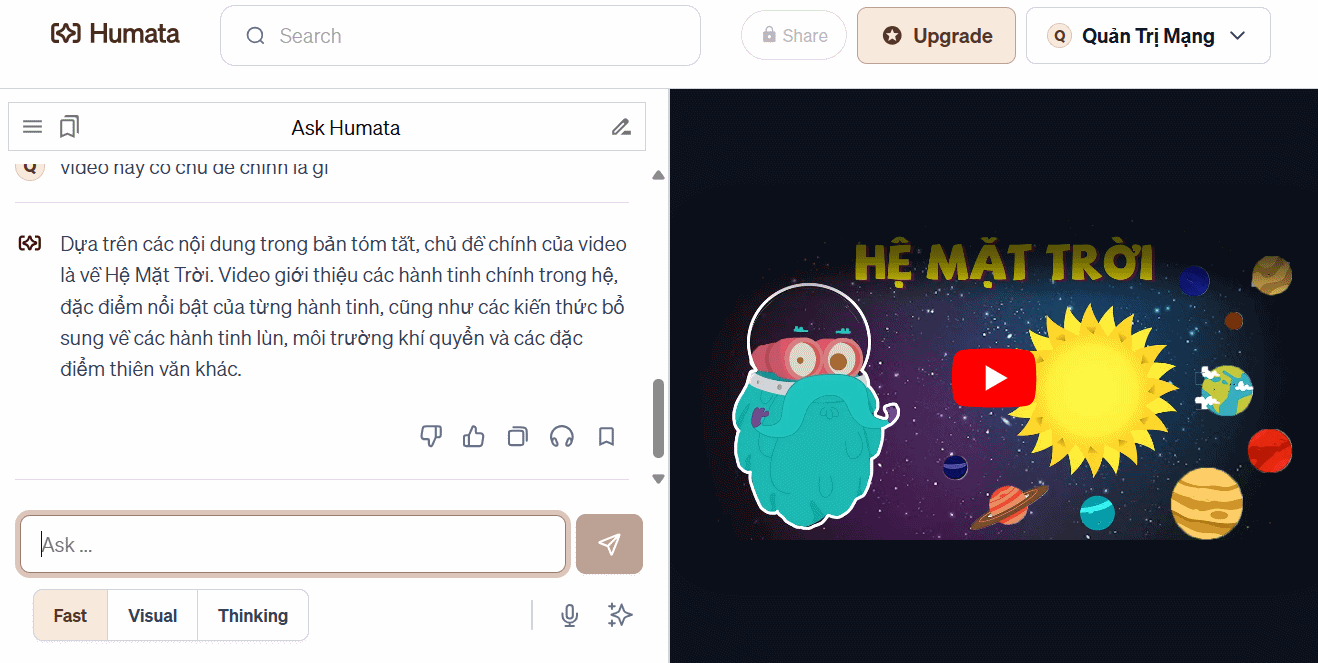
4. Ask questions that can be checked
Begin with a narrow prompt and request time or source references when the interface can provide them:
- “List the speaker's three main claims and point to the part of the video supporting each one.”
- “Explain the argument between 12:00 and 18:00 in plain language. Do not add outside information.”
- “Create a table of every tool mentioned, the stated purpose, and any limitation the speaker gives.”
- “Which questions are left unanswered at the end of the video?”
- “Separate the speaker's evidence from opinion or prediction.”
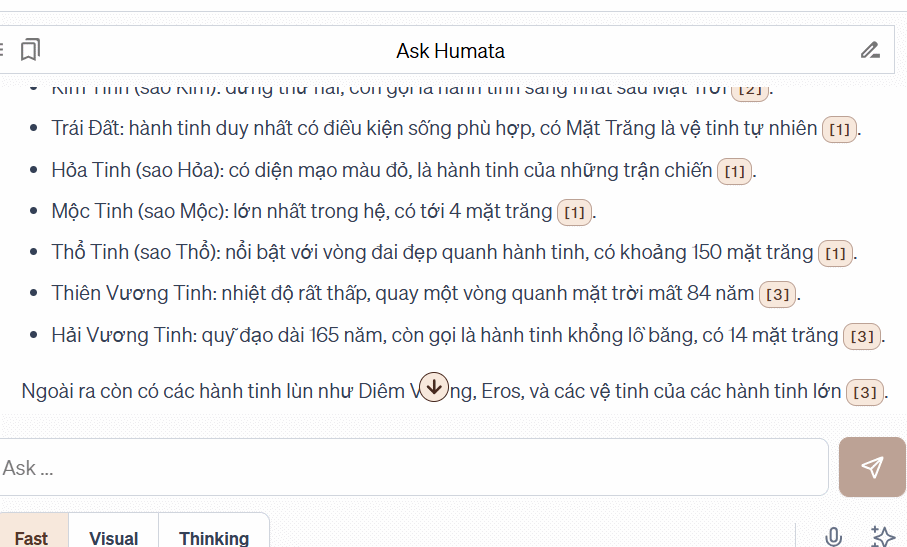
Avoid asking for “everything important.” Define the audience, the segment, and the output. If Humata offers faster or more detailed response modes, choose one based on the task, but verify the result regardless of the label.
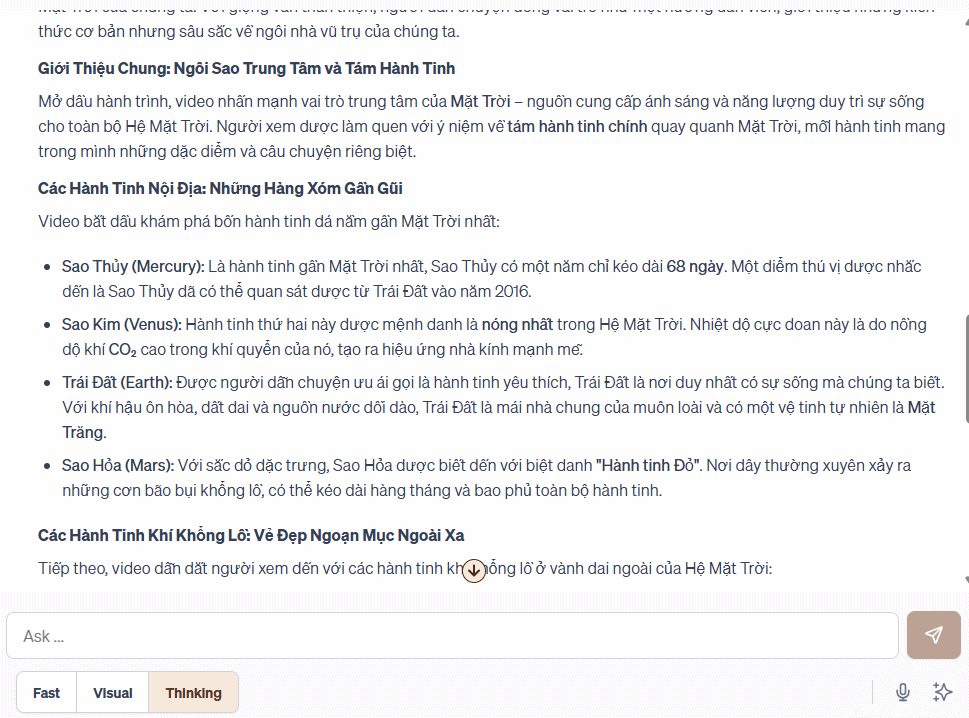
5. Verify the answer against the video
Open the cited or relevant segment and check:
- Names, dates, quantities, quotations, and technical terms.
- Whether a conclusion was spoken by the presenter or merely shown in a comment or slide.
- Charts, code, equations, gestures, and demonstrations that the transcript may not capture.
- Qualifiers such as “may,” “in this test,” or “under these conditions.”
- Whether the video itself is current and authoritative.
Do not cite Humata as the source of the claim. Cite the original video and, when possible, the relevant timestamp. For research or coursework, follow the required citation style and check whether video sources are acceptable.
Turn the result into study material
After verification, ask for a short outline, a glossary, or self-test questions. Write the final notes in your own words and include links back to the relevant segments. If memorization is the goal, compare TipsMake's AI flashcard generators, some of which also accept YouTube links.
When another tool is a better fit
If Humata does not support the video, use YouTube's transcript when available or choose a tool designed specifically for video summaries. TipsMake reviews YouTube add-ons for long videos and source-grounded research tools.
Video chat is most valuable as a navigation and note-drafting aid. The source video remains necessary whenever meaning depends on visuals, exact wording, or context.
Related Articles
 How to Use Humata to Quickly Read and Understand PDF Documents4 minutes read
 How to Project YouTube Videos from Your Phone to the TV8 minutes read
 Instructions for Deleting a Video on YouTube3 minutes read
 Useful Tips with URL YouTube You May Not Know7 minutes read
 Top 15 Most Viewed YouTube Videos5 minutes read
 Youtube Ban: Youtube Extends the Ban on Uploaded Videos2 minutes read
Reader Comments 0
Sign in with email or Google to join the discussion.