Table of Contents
Faces is a browser-based presentation tool that can turn a prompt or source material into a draft deck, then let you edit the text, images, layout, and interactive elements. Use the AI output as a starting point: verify claims, replace generic visuals, and review sharing permissions before presenting or publishing.
Open the official Faces website and sign in. The service and its plans can change, so check the current pricing and data terms before uploading confidential material.
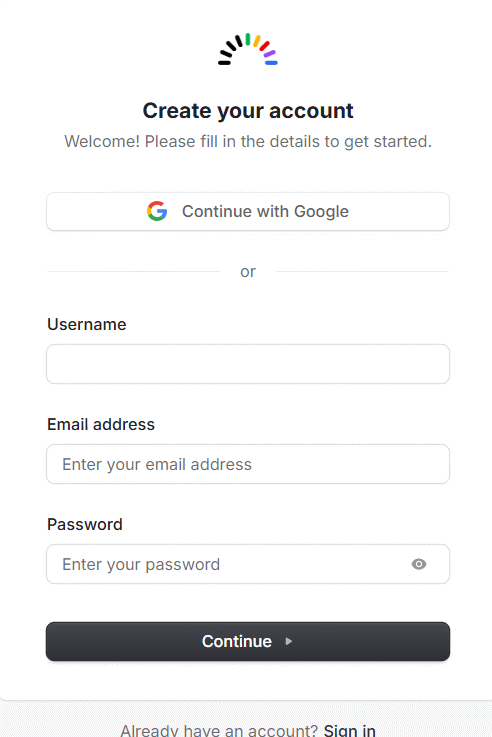
1. Start a project and choose a direction
Create a new presentation from the dashboard. Depending on the current interface, you may be offered a template, an AI prompt, an imported document, or an existing project as the starting point.
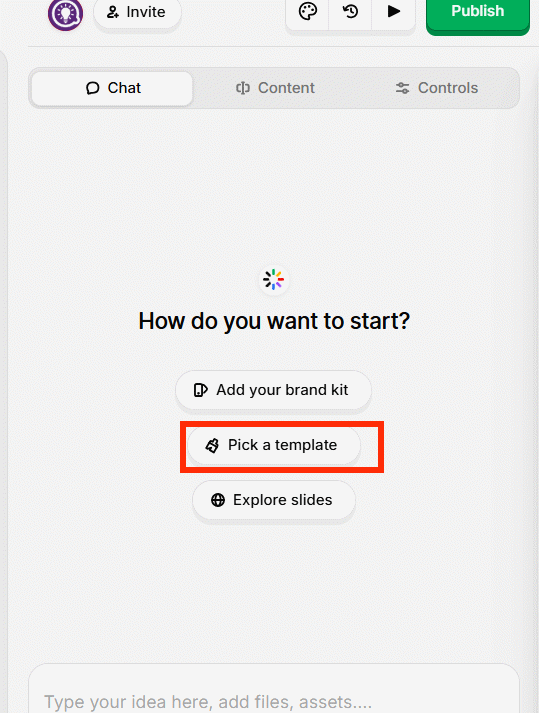
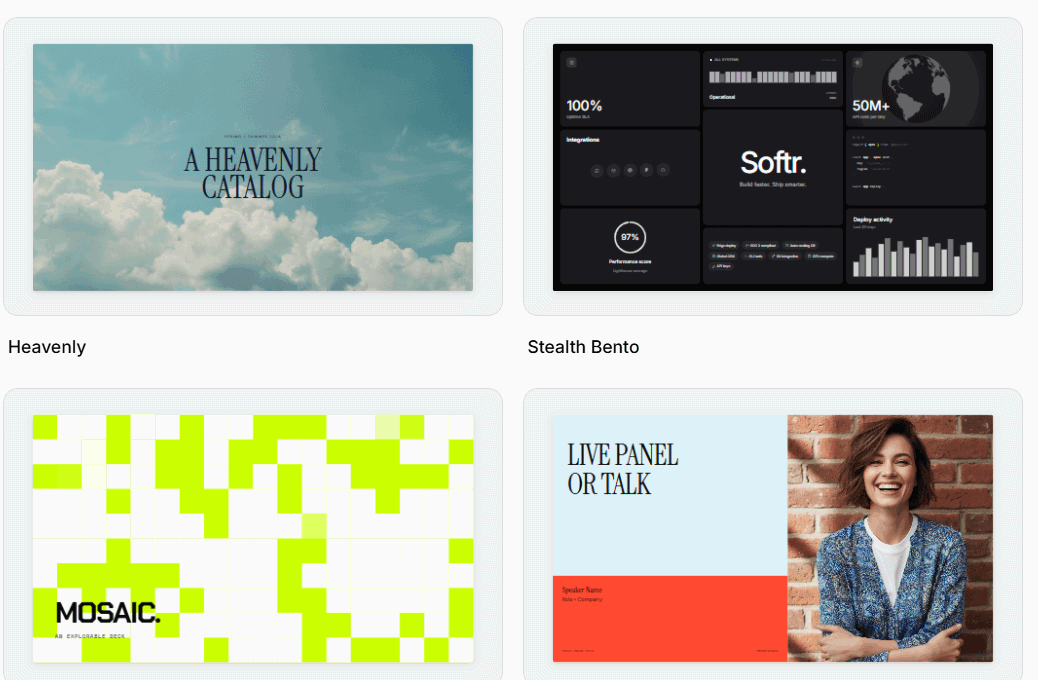
Pick a layout that matches the audience and delivery method, not merely the most decorative theme. A sales proposal, classroom explanation, and conference talk need different information density. If you want to compare tools before committing, see our overview of AI presentation makers.
2. Set the visual style
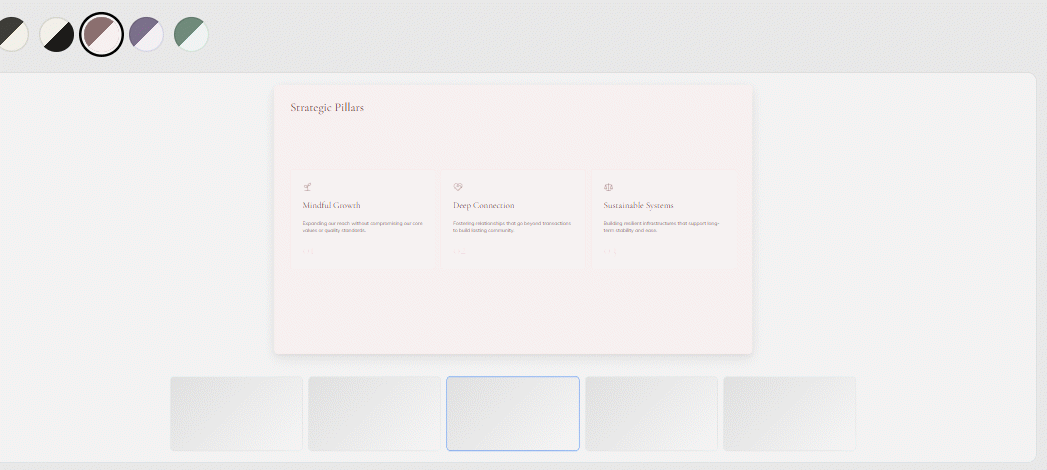
Choose a color palette and presentation layout. Favor strong contrast, a restrained set of colors, and readable type. Keep recurring elements—headings, charts, labels, and calls to action—consistent across the deck.
3. Give the AI useful source material
Enter a specific brief or upload a permitted source document. A useful prompt identifies the audience, goal, length, tone, required sections, and facts that must not be invented. For example:
Create an eight-slide briefing for department managers. Explain the current onboarding problem, three measured causes from the attached report, the proposed 30-day pilot, owners, risks, and next steps. Use concise headings and do not add statistics that are not in the source.
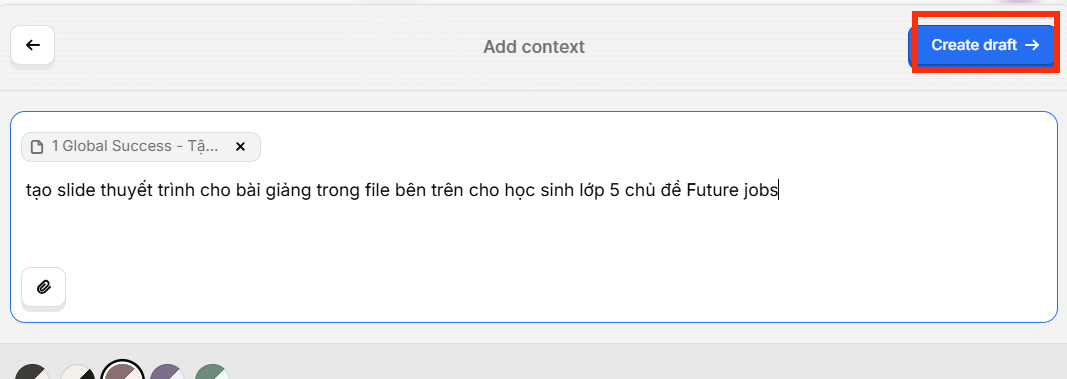
Remove personal, regulated, client-confidential, or proprietary information unless your organization has approved the service for that data. A public link is not a secure document repository.
4. Review the generated outline before polishing slides
When the draft appears, check its structure first. Confirm that the opening states the point, the middle supports it, and the ending gives the audience a clear decision or action. Delete repeated slides and add any missing evidence before spending time on visual details.
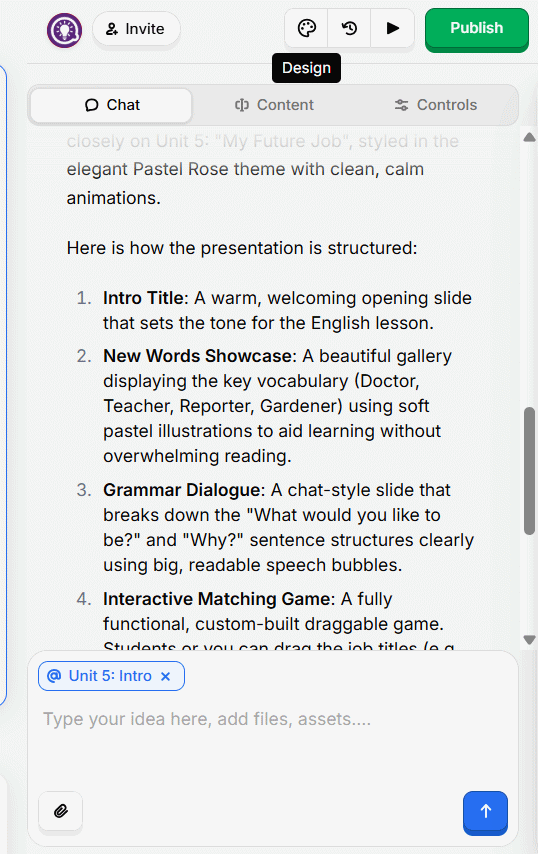
Add a slide only when it contributes new information. If the editor offers an AI chat, use it for structural changes; the current Faces documentation notes that AI-assisted restructuring may consume credits.
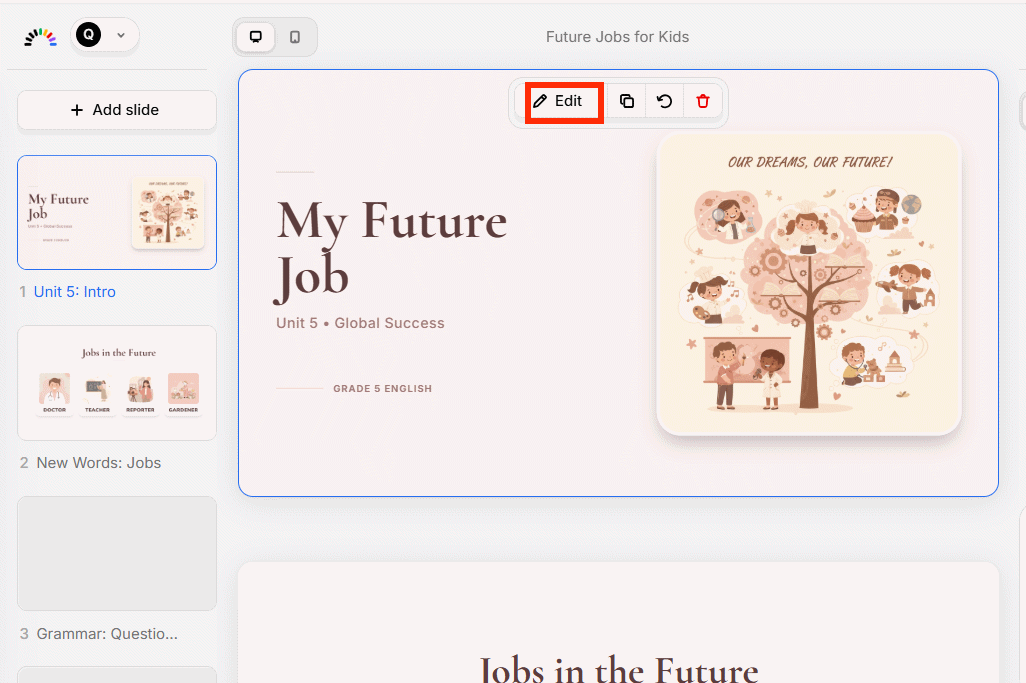
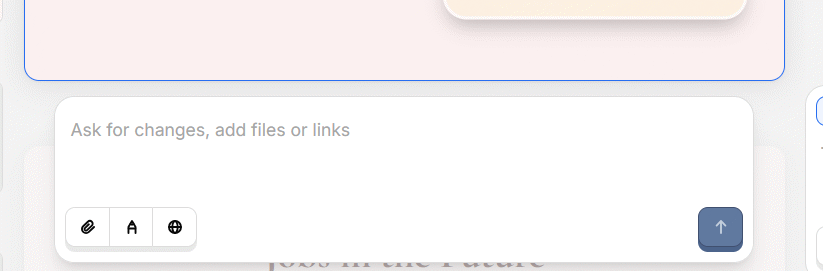
5. Edit every content block
Select a slide and open the Content panel. According to the current Faces editing documentation, text, images, icons, and tables can be edited directly; direct edits do not consume credits.
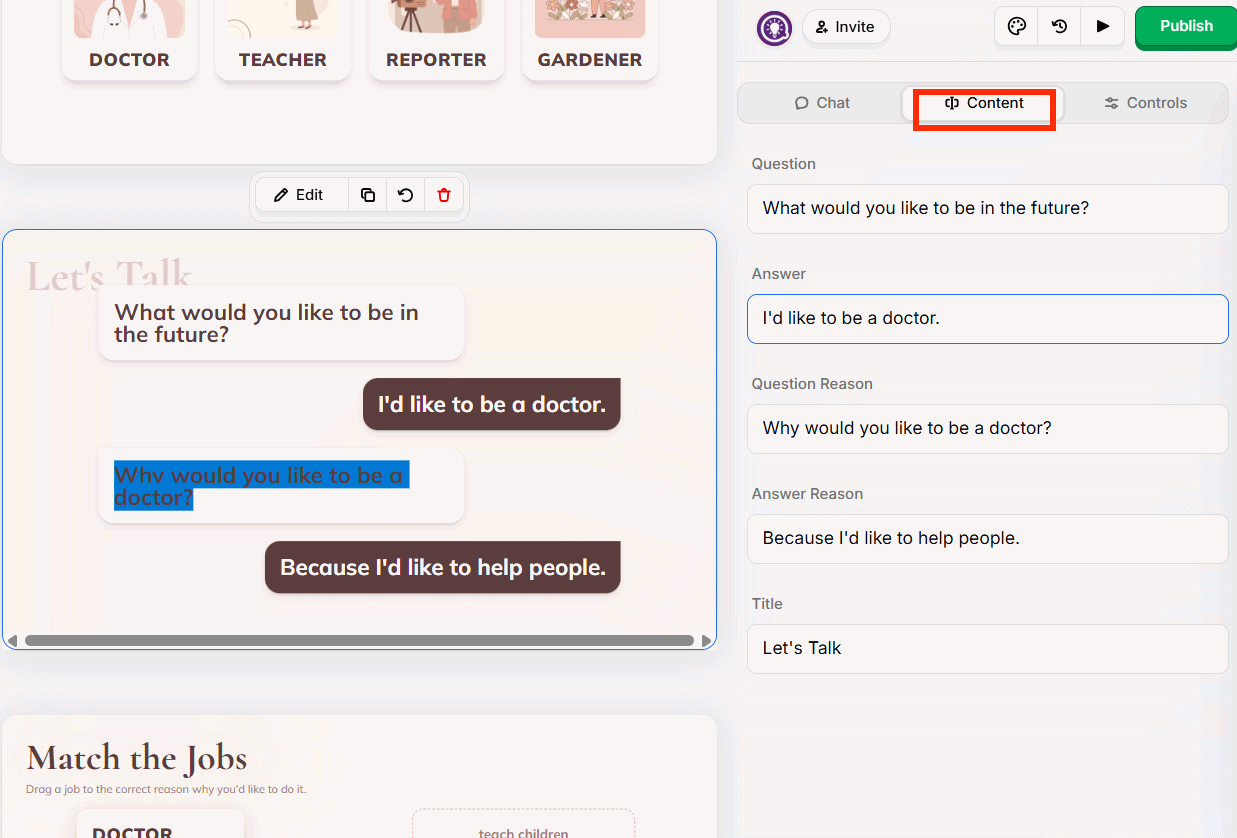
- Text: replace vague headlines, shorten dense paragraphs, and keep only claims you can support.
- Images: verify the subject, license, and relevance. Replace AI-generated images that distort products, people, maps, or technical diagrams.
- Tables and charts: compare every number with the source and label units, periods, and categories.
- Links: test them in presentation mode and use descriptive link text.
- Accessibility: maintain contrast, avoid tiny type, do not rely on color alone, and add useful alternative text where the product supports it.
6. Run a presentation-quality check
Before sharing, read the deck from beginning to end and confirm:
- names, dates, figures, quotations, and sources are accurate;
- one slide does not contradict another;
- headings state the takeaway rather than a generic topic;
- text fits at the intended slide size without clipping;
- animations and interactive controls work in the delivery browser;
- the deck contains no prompt text, internal notes, or confidential source data.
For practical layout principles, use these eight presentation-design tips; they apply even when AI creates the first draft.
7. Share, publish, or export
The current Faces editor groups collaboration and publishing under Share in the top bar. This differs from the older Publish button shown below.
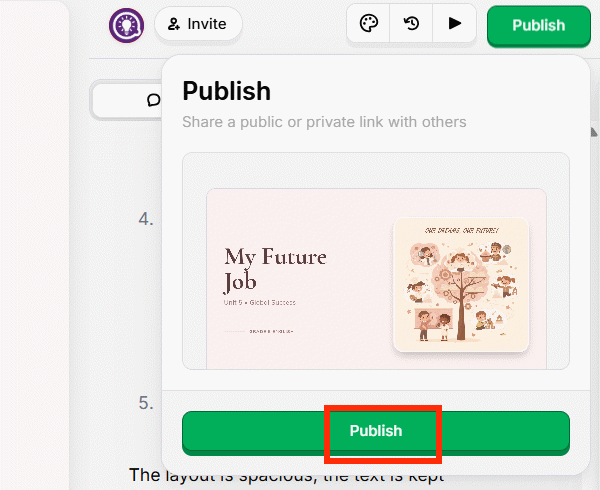
- Click Share.
- Use Collaborate to invite editors, or open Publish to prepare a viewer link.
- Review access settings. “Anyone with the link” is convenient but not private; invited-only or organization access is safer for restricted material when available.
- Click Publish. After later edits, use Update to push the new version live.
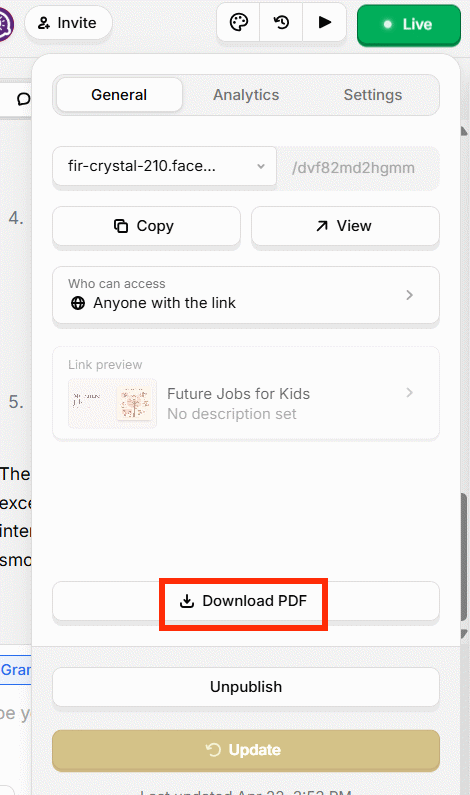
Faces currently documents PDF and PowerPoint downloads under Share > Publish > Download on paid plans. Review the official export instructions for current availability. PDF preserves a settled visual snapshot; PowerPoint is more editable, but check fonts, images, animation, and spacing after export.
Protect the final presentation
Open the published URL in a signed-out or private browser window to see what an ordinary viewer can access. If the project is no longer needed, unpublish it rather than assuming an old link is harmless. Store an offline copy of high-value decks so continued access does not depend on one online service.
Related Articles
 Guide to Creating Lecture Slides Using Brisk AI5 minutes read
 How to Create Presentation Slides on ChatGPT5 minutes read
 Instructions on Creating and Editing Slides Directly in Skywork AI5 minutes read
 How to Create Presentation Slides on TeraBox3 minutes read
 How to Create Presentation Slides Using ChatGPT4 minutes read
 How to Create Voiceovers for Lecture Slides3 minutes read
Reader Comments 0
Sign in with email or Google to join the discussion.