Table of Contents
On Windows, press Windows + Shift + S to capture a selected area; on a Mac, press Shift + Command + 4. For a full-screen file, use Windows + PrtScn on Windows or Shift + Command + 3 on macOS. The tables below show where each capture is saved or copied.

Windows screenshot shortcuts
| Shortcut | Capture | Result |
|---|---|---|
| PrtScn | Full screen | Copies to the clipboard; on some Windows 11 PCs it opens Snipping Tool instead. |
| Alt + PrtScn | Active window | Copies to the clipboard. |
| Windows + Shift + S | Area, window, or full screen | Opens the Snipping Tool overlay and copies the result. |
| Windows + PrtScn | Full screen | Saves to Pictures > Screenshots. |
| Windows + Alt + PrtScn | Current game or compatible app | Saves through Xbox Game Bar to Videos > Captures. |
After a clipboard capture, open Paint, an email, or a document and press Ctrl + V. On a compact laptop keyboard, the PrtScn command may share a function key, so you may need to hold Fn. Key labels vary: look for PrtSc, PrtScn, Print Scr, or a snipping icon.
Using Snipping Tool on Windows 11 and 10
Press Windows + Shift + S, then select Rectangular, Freeform, Window, or Fullscreen mode. Choose the notification after capture to crop, annotate, copy, or save. “Snip & Sketch” is an older name; current Windows 11 combines those features in Snipping Tool. Microsoft documents the current controls in its Snipping Tool guide.
For detailed saving and troubleshooting steps, see how to take a screenshot in Microsoft Windows.
macOS screenshot shortcuts
| Shortcut | Capture | Result |
|---|---|---|
| Shift + Command + 3 | Entire screen | Saves a screenshot file. |
| Shift + Command + 4 | Selected area | Drag the crosshair, then release to capture. |
| Shift + Command + 4, then Space | Window or menu | Click the highlighted window; hold Option while clicking to omit its shadow. |
| Shift + Command + 5 | Screenshot and screen-recording toolbar | Choose a capture type, timer, and save location. |
| Shift + Command + 6 | Touch Bar | Works on supported MacBook Pro models with a Touch Bar. |
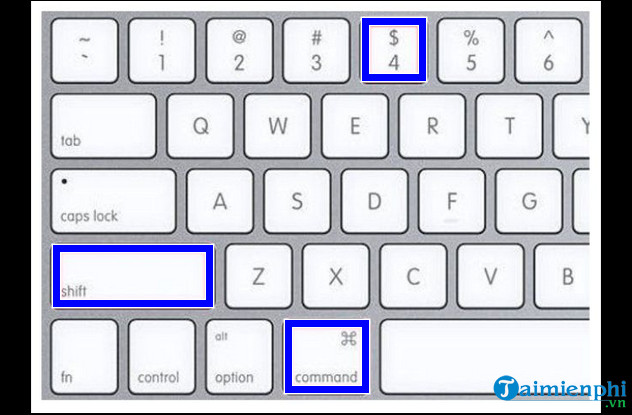
By default, macOS saves screenshots to the desktop, although the location can be changed under Shift + Command + 5 > Options. Add Control to a screenshot shortcut when you want to copy the result to the clipboard instead of creating a file. Press Esc to cancel a selection.
Apple’s Mac screenshot and screen-recording guide lists the current shortcuts. TipsMake also has a step-by-step Mac screenshot guide.
Which shortcut should you use?
- Need one part of the screen: Windows + Shift + S or Shift + Command + 4.
- Need an app window: Alt + PrtScn on Windows or Shift + Command + 4, then Space, on Mac.
- Need a file without pasting: Windows + PrtScn or Shift + Command + 3.
- Need more options: open Snipping Tool on Windows or press Shift + Command + 5 on macOS.
Before sharing a screenshot, crop out passwords, private messages, account numbers, notification previews, and any other information the recipient does not need. For a side-by-side walkthrough, read the Windows and MacBook screenshot instructions.
Related Articles
 3 Quick Ways to Take Screenshots in Windows 83 minutes read
 How to Take a Screenshot of a Computer Screen with a Mouse4 minutes read
 Windows 10 Computer Screen Capture Shortcut, by Region5 minutes read
 7 Key Combinations to Take Screenshots7 minutes read
 6 Easy Ways to Take Screenshots on Windows 10 And 115 minutes read
 The Fastest Ways to Take Screenshots on a Computer or Laptop9 minutes read
Reader Comments 0
Sign in with email or Google to join the discussion.