Table of Contents
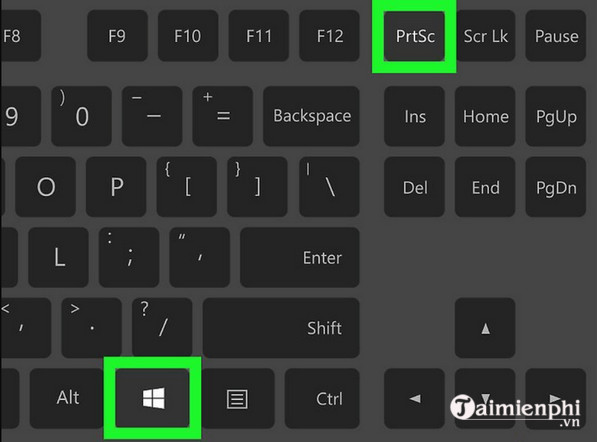
The fastest Windows screenshot shortcut is Windows + Shift + S: choose a rectangle, free-form area, window, or full screen, then open the notification to annotate and save it. For an automatically saved full-screen image, press Windows + PrtScn.
| What you want | Shortcut or tool | Where it goes |
|---|---|---|
| Full screen, saved automatically | Windows + PrtScn | Pictures > Screenshots |
| Selected area or window | Windows + Shift + S | Clipboard; optionally Snipping Tool and auto-save |
| Full screen on clipboard | PrtScn | Clipboard |
| Active window on clipboard | Alt + PrtScn | Clipboard |
| Game or supported app | Windows + Alt + PrtScn | Videos > Captures |
| Web page or selected web area | Microsoft Edge Screenshot | Editor and clipboard |
1. Save the entire screen automatically
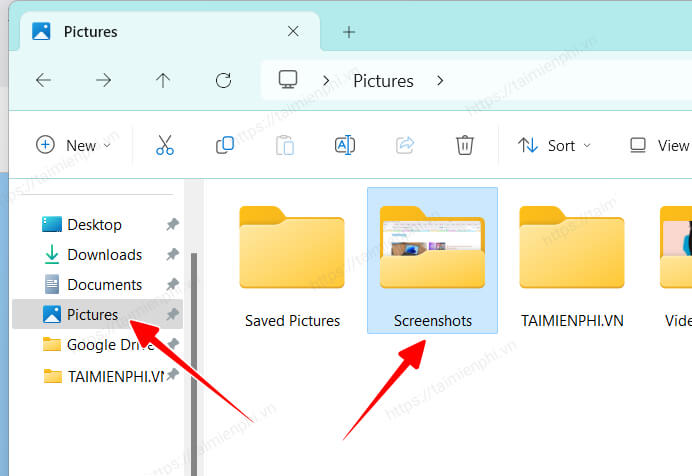
Press Windows + PrtScn. The screen may dim briefly, and Windows saves a PNG in Pictures > Screenshots.
Open File Explorer with Windows + E and browse to %UserProfile%\Pictures\Screenshots. If OneDrive folder backup is enabled, the screenshot may instead be under the Pictures folder inside OneDrive.
On some laptops, use Fn + Windows + PrtScn. The exact key label may be PrtSc, PrtScn, or Print Screen.
2. Capture a region with Windows + Shift + S
Press Windows + Shift + S. Select Rectangular, Free-form, Window, or Full-screen snip, then make the capture. It is copied to the clipboard, so you can paste it with Ctrl + V.
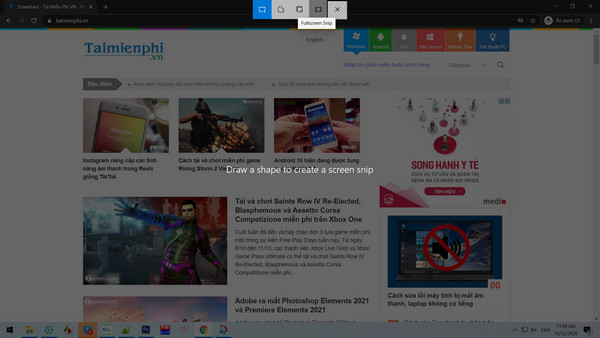
Select the notification to open Snipping Tool for cropping, markup, text extraction, redaction, sharing, or saving when those features are available. Review Snipping Tool settings if you want screenshots saved automatically.
3. Copy the screen or active window with Print Screen
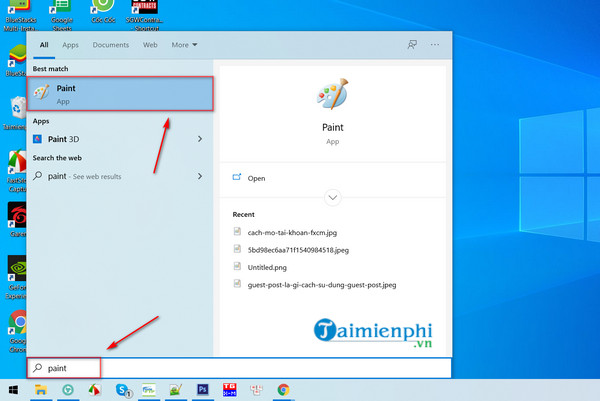
Press PrtScn to copy the full desktop, or Alt + PrtScn to copy only the active window. Paste into Paint, an email, a document, or an image editor, then save from that application.
If PrtScn opens Snipping Tool instead, Windows is using the accessibility setting that remaps Print Screen. You can keep that behavior or change it under Settings > Accessibility > Keyboard.
4. Capture a game with Xbox Game Bar
Press Windows + G to open Xbox Game Bar, then select the camera in the Capture widget. The direct shortcut is Windows + Alt + PrtScn. Captures are normally saved in Videos > Captures.
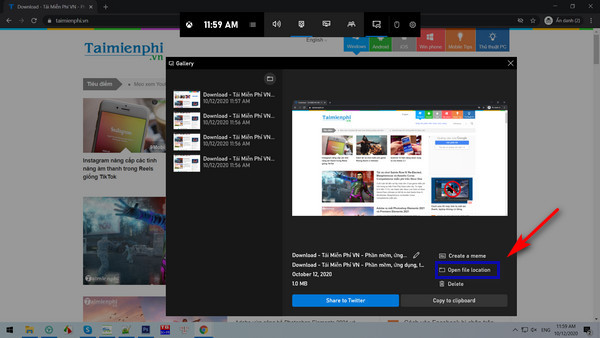
Game Bar is included in Windows 10 and 11, but it may be disabled by an organization or unavailable for protected content. It is most useful for games and application windows, not the Windows desktop or File Explorer.
5. Use Snipping Tool for a delay or annotation
Search Start for Snipping Tool. Choose a capture mode and, when needed, set a delay so menus or tooltips remain visible. Select New, make the capture, annotate it, and press Ctrl + S to save.
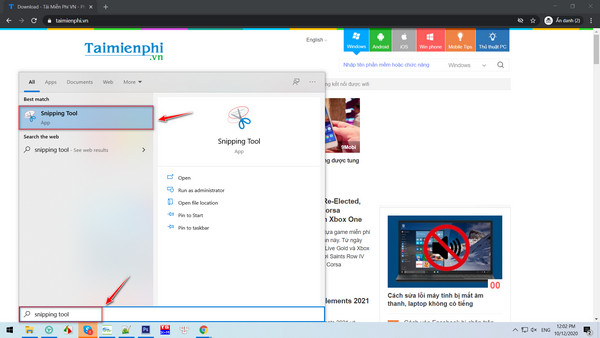
The dedicated Snipping Tool guide covers free-form, window, and full-screen captures in more detail.
6. Capture a web page in Microsoft Edge
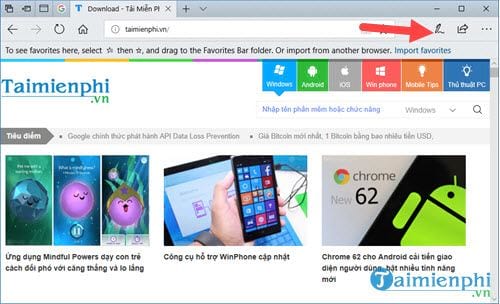
In current Edge versions, open the three-dot menu and choose Screenshot, or press Ctrl + Shift + S. Capture an area or, where offered, the full scrolling page. The older Edge pen icon shown below is obsolete.
Protected video, banking pages, remote desktops, and rights-managed apps may block or blank screenshots. Respect privacy and obtain permission before capturing messages, meetings, personal records, or confidential work.
If screenshots do not appear
- Check the clipboard by pasting into Paint; PrtScn alone does not normally create a file.
- Check OneDrive's Pictures folder as well as the local Pictures folder.
- Confirm that another app has not reassigned the Print Screen key.
- Restart Snipping Tool from Settings > Apps > Installed apps > Snipping Tool > Advanced options.
For longer demonstrations, use a screen recorder instead of hundreds of screenshots. TipsMake's computer screen recording guide compares the built-in approach with other options.
Related Articles
 3 Quick Ways to Take Screenshots in Windows 83 minutes read
 6 Quick and Simple Ways to Take Screenshots of Windows 108 minutes read
 3 Simple and Quick Ways to Take a Screenshot on Your Macbook3 minutes read
 The Fastest Ways to Take Screenshots on a Computer or Laptop9 minutes read
 6 Ways to Take Screenshots of Windows 11 with Extremely Easy12 minutes read
 Ways to Take Screenshots in Windows 8 Extremely Fast and Simple3 minutes read
Reader Comments 0
Sign in with email or Google to join the discussion.