Table of Contents
The fastest way to take a screenshot on Windows is to press Windows + Shift + S, select the area you need, and click the notification to edit or save the capture. For a full-screen image that saves automatically, press Windows + PrtScn. The best shortcut depends on whether you need the entire display, one window, a selected area, or a recording.
Windows screenshot shortcuts at a glance
| Shortcut | What it captures | Where it goes |
|---|---|---|
| PrtScn | The full screen | Clipboard, unless Windows is configured to open screen snipping |
| Windows + PrtScn | The full screen | Pictures > Screenshots |
| Alt + PrtScn | The active window | Clipboard |
| Windows + Shift + S | An area, window, or full screen | Clipboard and a Snipping Tool notification |
| Windows + Alt + PrtScn | The active game or app through Xbox Game Bar | Videos > Captures |
On some laptops, the Print Screen command shares a function key. If a shortcut does nothing, try adding Fn.
1. Copy the full screen with PrtScn
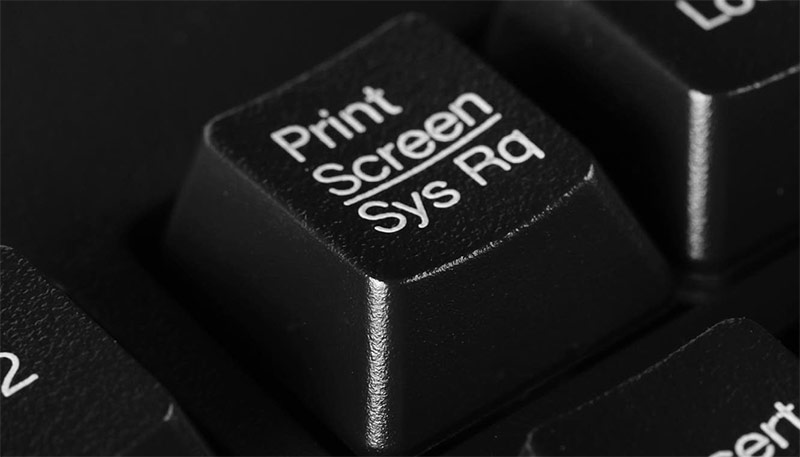
Press PrtScn to copy the visible desktop to the clipboard. Open Paint, Word, an email, or another app that accepts images, then press Ctrl + V. Save the pasted image if you need a file.
Some Windows installations use the Print Screen key to open screen snipping instead. You can change that behavior in Windows accessibility keyboard settings.
2. Save the full screen with Windows + PrtScn
Press Windows + PrtScn to capture all displays and save the image automatically. Windows normally places the PNG file in Pictures > Screenshots. If the Pictures folder is synchronized with OneDrive, the exact location may be inside the OneDrive Pictures folder.
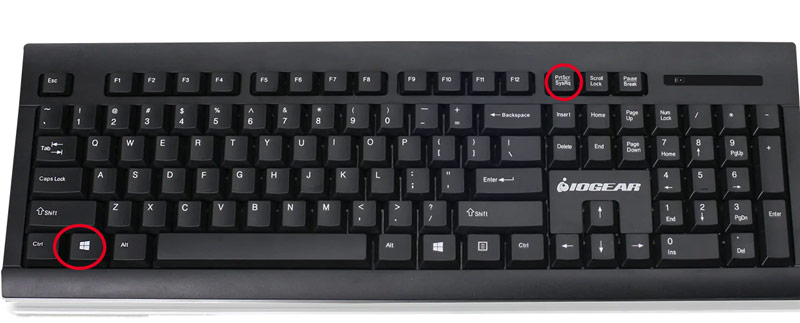
This method is useful when you need several screenshots because you do not have to paste and save each one manually.
3. Capture only the active window with Alt + PrtScn
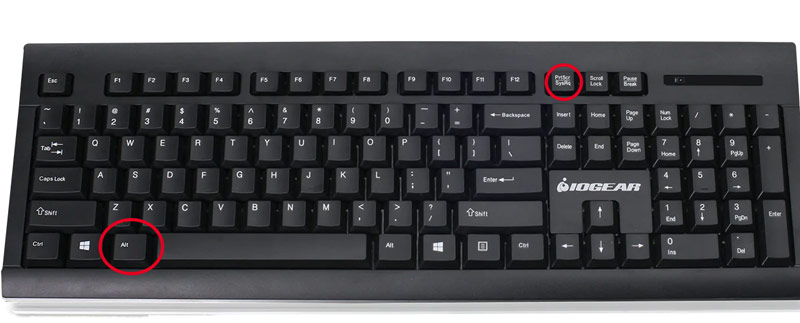
Click the window you want to capture, then press Alt + PrtScn. Windows copies only that active window to the clipboard. Paste it into Paint or another image-capable app and save it. This avoids cropping away the desktop and other open windows.
Two related shortcuts are useful on specific devices:
- Fn + PrtScn: activates Print Screen on laptops where it shares a function key.
- Windows + Volume Down: captures the full screen on compatible Windows tablets and 2-in-1 devices.
4. Select an area with Windows + Shift + S
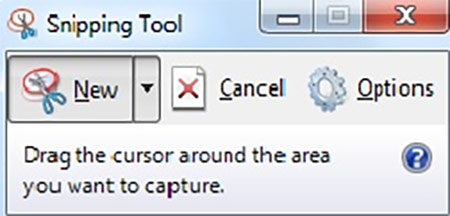
Press Windows + Shift + S to open the Snipping Tool capture bar. Choose a rectangular snip, free-form snip, window snip, or full-screen snip. After the capture, Windows copies it to the clipboard and normally shows a notification. Select the notification to crop, annotate, copy, or save the image.
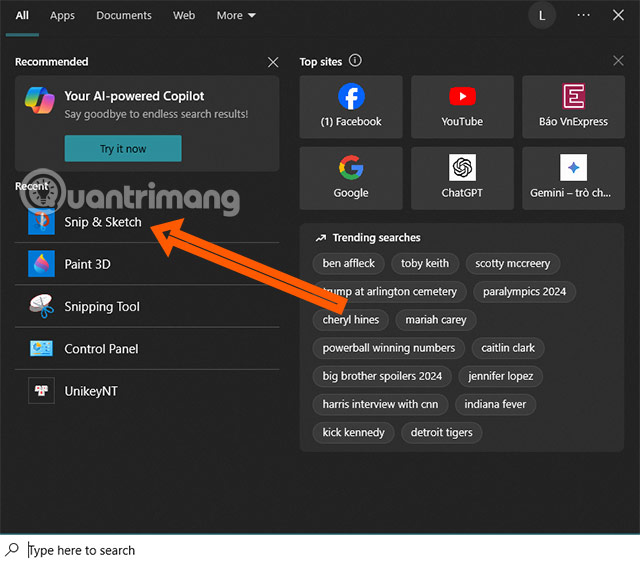
This is the most flexible built-in option when you need only part of the screen. For more detail, see how to take a screenshot with Snipping Tool.
5. Open Snipping Tool for delayed captures and editing
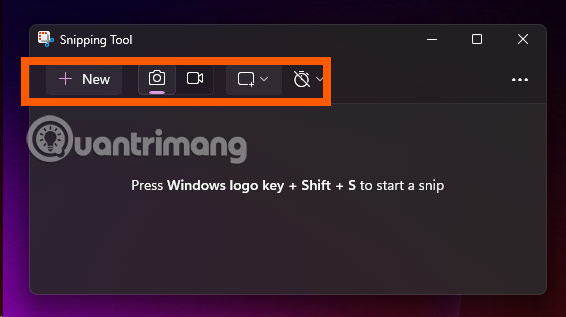
Search for Snipping Tool from the Start menu. In addition to the same capture modes available from Windows + Shift + S, the app provides annotation tools and a delay that helps capture menus or other elements that disappear when clicked. Current Windows 11 versions also include screen recording in Snipping Tool.
6. Use Xbox Game Bar for games and app captures
Press Windows + G to open Xbox Game Bar, then use the Capture widget's camera button. You can also press Windows + Alt + PrtScn to capture the active game or app directly. Captures are normally saved in Videos > Captures.
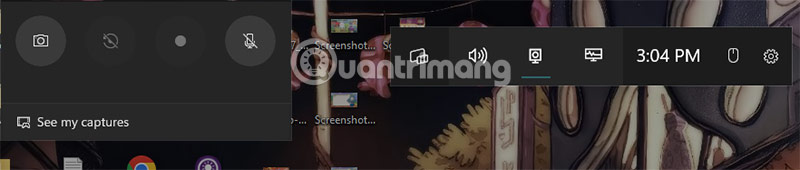
Game Bar is also useful for short screen recordings, although it is not designed to capture every part of the Windows desktop. See the guide to capturing gaming screenshots for its capture and folder settings.
7. Choose a dedicated screenshot app for advanced workflows
Windows' built-in tools cover most everyday captures. A dedicated app can be worthwhile when you regularly add arrows, blur private information, capture scrolling pages, record GIFs, or automate file naming and uploads.
Lightshot
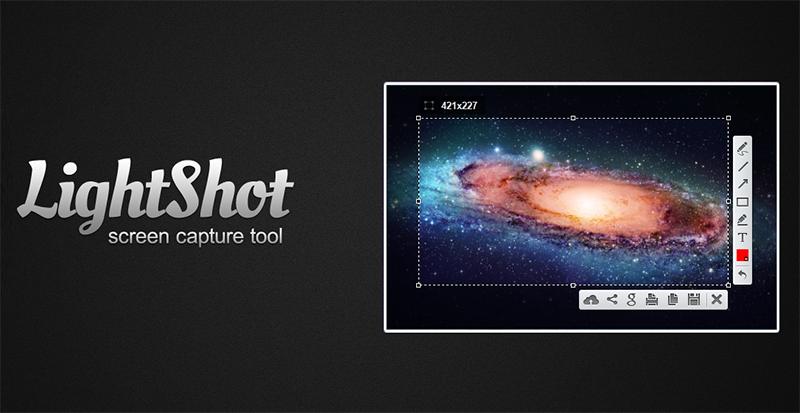
Lightshot focuses on quick area selection and simple annotations such as text, arrows, and shapes.
Greenshot
Greenshot is an open-source capture tool with window, region, and full-screen modes. Its editor can annotate an image or obscure sensitive details before export.
ShareX
ShareX is aimed at advanced workflows. It supports screenshots, screen recordings, GIF capture, scrolling capture, and configurable actions after a capture. Review upload settings before enabling automatic sharing so private screenshots are not sent unintentionally.
For a broader comparison, see these computer screen-capture applications.
Which screenshot method should you use?
- Use Windows + Shift + S for a selected area or quick markup.
- Use Windows + PrtScn when you want a full-screen file immediately.
- Use Alt + PrtScn when you need one application window.
- Use Xbox Game Bar for game or app captures and recordings.
- Use a dedicated app only when its editing or automation features save you time.
Related Articles
 8 Fastest Ways to Take Screenshots on Dell Computers In 20268 minutes read
 The Easiest and Fastest Steps to Take Screenshots of Windows10 minutes read
 5 Simple and Fastest Ways to Take Macbook Screenshots7 minutes read
 How to Take Screenshots on HP Laptop Computers7 minutes read
 5 Easiest and Fastest Ways to Take Screenshots of Windows 10: Recommended18 minutes read
 The Quickest and Simplest Way to Take a Screenshot on a Computer or Laptop18 minutes read
Reader Comments 0
Sign in with email or Google to join the discussion.