Table of Contents
Press Windows + PrtScn to take a full-screen screenshot in Windows 8 and save it automatically. The file appears in Pictures > Screenshots. To capture only part of the screen, use Snipping Tool; to copy the screen and edit it before saving, use PrtScn and Paint.
Support note: Windows 8 and Windows 8.1 are no longer supported by Microsoft. These instructions remain useful on an existing PC, but an internet-connected computer should be moved to a supported operating system when possible.
Method 1: Use a keyboard shortcut
| Shortcut | Result |
|---|---|
| Windows + PrtScn | Saves the full screen as a PNG file in Pictures > Screenshots. |
| PrtScn | Copies the full screen to the clipboard so you can paste it into Paint or another app. |
| Alt + PrtScn | Copies only the active window to the clipboard. |
On some laptops, hold Fn as well. The correct user-specific path is normally C:UsersYourNamePicturesScreenshots, not C:UsersPicturesScreenshots.
Method 2: Paste and edit the screenshot in Paint
- Press PrtScn for the whole screen or Alt + PrtScn for the active window.
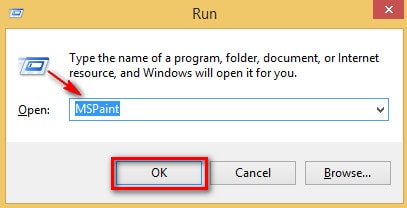
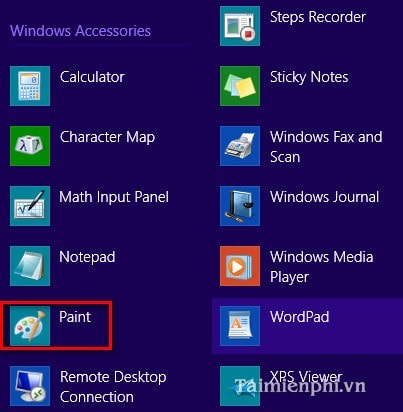
- Press Windows + R, type mspaint, and select OK. You can also open Paint from the Apps screen.
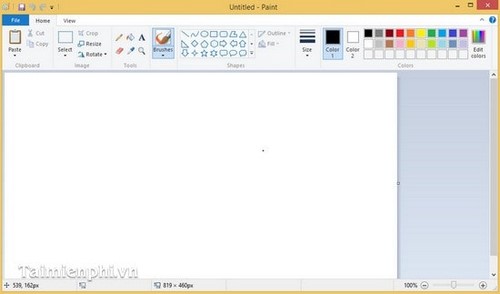
- Press Ctrl + V to paste the captured image.
- Crop or annotate it if needed, then choose File > Save as. PNG is usually best for interface screenshots; JPEG can make photographic images smaller.
Method 3: Capture an area with Snipping Tool
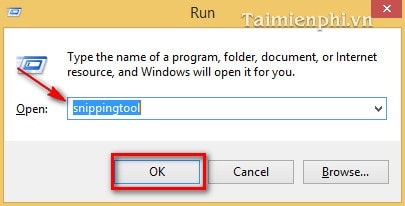
- Press Windows + R, type snippingtool, and select OK. Alternatively, find Snipping Tool on the Apps screen.
- Select the arrow beside New and choose Free-form, Rectangular, Window, or Full-screen Snip.
- Select the area or window. Use the pen and highlighter only if needed, then save the image as PNG, GIF, or JPEG.
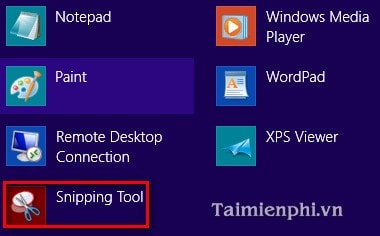
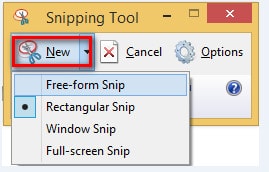
Use the keyboard shortcut when speed matters, Paint when you need simple cropping or labels, and Snipping Tool when you need a specific region. For newer PCs, see how to take screenshots in Microsoft Windows and the Windows and Mac screenshot guide.
Related Articles
 6 Easy Ways to Take Screenshots on Windows 10 And 115 minutes read
 6 Quick and Simple Ways to Take Screenshots of Windows 108 minutes read
 3 Simple and Quick Ways to Take a Screenshot on Your Macbook3 minutes read
 The Fastest Ways to Take Screenshots on a Computer or Laptop9 minutes read
 Ways to Take Screenshots in Windows 8 Extremely Fast and Simple3 minutes read
 minutes read
Reader Comments 0
Sign in with email or Google to join the discussion.