Table of Contents
Open a screenshot in FastStone Editor, then use Edit > Edit with External Editor for Paint or File > Send to for Microsoft Office and FTP. You can also copy the image to the clipboard and paste it into almost any document or web editor when a direct integration is unavailable.
Open a capture in FastStone Editor
Take a new screenshot or drag an existing image onto Open File in Editor on the FastStone Capture toolbar. Make any annotations or cropping changes before sending the image elsewhere. If you may need to edit FastStone annotation objects later, keep an FSC copy as well as the exported PNG or JPEG.
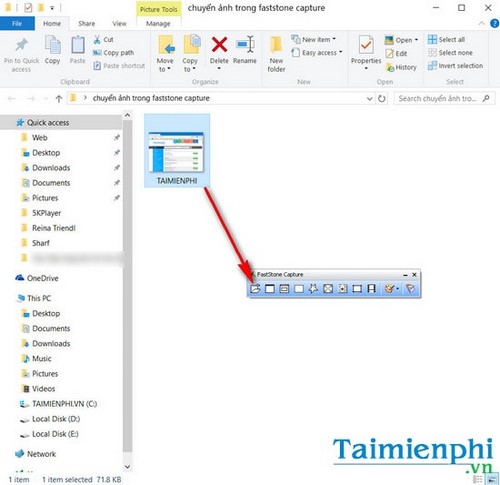
Send the image to Paint or another editor
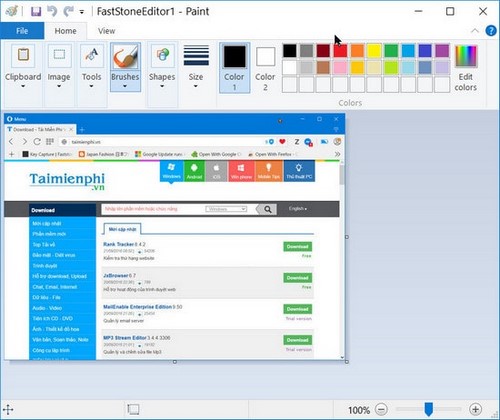
- In FastStone Editor, open Edit > Edit with External Editor.
- Select Paint. In versions that show the shortcut, pressing E opens the configured external editor.
- Edit the image in Paint, then save a new copy. PNG is normally the clearest format for screenshots containing text.
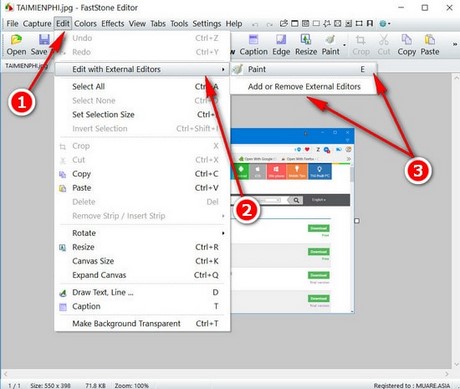
Add another external editor
Choose Edit > Edit with External Editor > Add or Remove External Editor, select Add, and browse to the trusted application’s executable file. Use a program already installed on your computer; do not download an unknown executable merely to populate this menu.
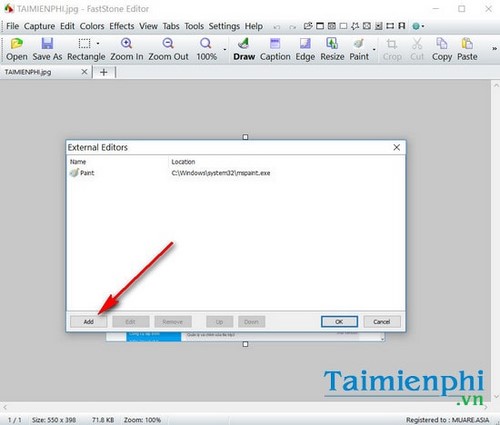
If you need more editing options, compare tools in the beginner photo editor guide.
Insert a capture into Word, Excel, or PowerPoint
Open File in FastStone Editor and choose Send to Word, Send to Excel, or Send to PowerPoint. The destination program must be installed and may need to be open, depending on the FastStone and Office versions. The legacy menu shown below lists Alt+W, Alt+E, and Alt+P shortcuts.
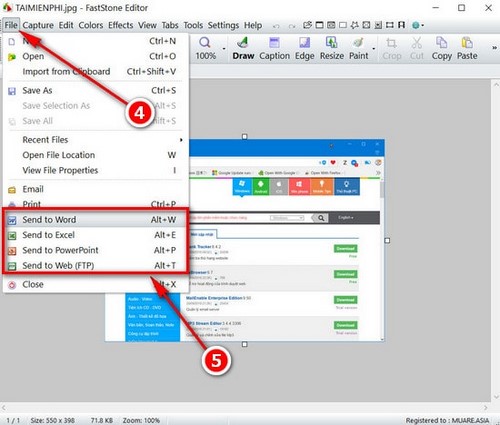
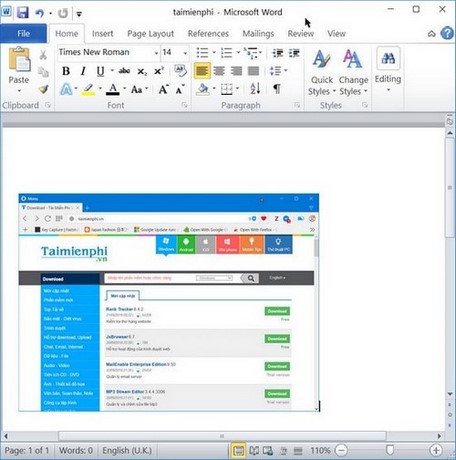
If the command is missing or fails, use the universal method: choose Copy in FastStone, switch to the document, and press Ctrl + V. You can also save the image and use Insert > Pictures. The Word screenshot and image guide covers Word’s own capture tools.
Upload a capture to an FTP server
FastStone can send captures to a web server through FTP. Open Settings, select the FTP tab, and enter the server details supplied by your hosting provider. Test with a non-sensitive image before relying on the workflow.
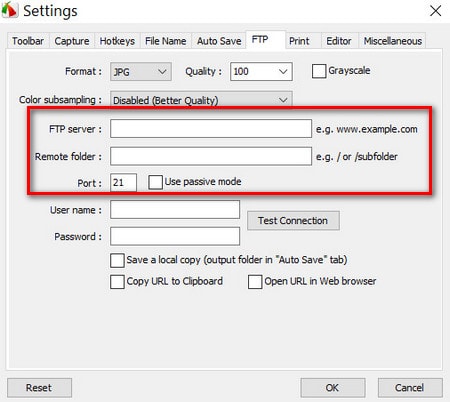
- Prefer encrypted SFTP or FTPS if both FastStone and the server support it; plain FTP does not protect credentials or files in transit.
- Create a restricted upload account instead of using the primary hosting administrator password.
- Limit the account to the intended folder and avoid uploading screenshots that contain passwords, private messages, customer records, or recovery codes.
- Do not publish the saved FTP configuration in screenshots or tutorials.
FastStone’s official feature list confirms current support for sending images to OneNote, Word, Excel, PowerPoint, email, and a web FTP server. For alternatives, see professional screen-capture tools.
Choose the most reliable transfer method
| Goal | Best method |
|---|---|
| Continue editing | External Editor |
| Add an image to an Office document | Send to Office, or copy and paste |
| Keep a reusable file | Save as PNG; retain an FSC copy for editable annotations |
| Publish to a managed server | Configured FTP/FTPS/SFTP upload with restricted credentials |
| Paste into a browser editor | Ctrl + V if supported, otherwise upload the saved PNG |
Related Articles
 How to Take Screenshots of Your Computer Using FastStone Capture in Detail4 minutes read
 How to Use FastStone Capture to Record Your Computer Screen3 minutes read
 How to Use Faststone Capture to Record Computer and Laptop3 minutes read
 15 Useful Screen Capture Applications for Windows12 minutes read
 Capture and Edit Screen Images with MS Word 2010: Photo Editing3 minutes read
 How to Use Faststone Capture to Take Professional Screenshots5 minutes read
Reader Comments 0
Sign in with email or Google to join the discussion.